
Configuring Public Page Default Settings
Applies to: Advanced Billing
Last updated on Sep 20, 2026
Public Page Default Settings control the layout version, page title, branding, legal links, CAPTCHA, and custom CSS or JavaScript applied across your Public Pages.
How default settings apply
These settings apply primarily to Public Signup Pages; Self-Service Pages, Offer Signup Pages, and Receipt Pages each pick up a subset of these defaults, as indicated per setting on the settings page itself.
Each individual Public Signup Page can override most of these defaults with its own settings, without changing the site-wide default for any other page. The two reCAPTCHA settings are the exception: reCAPTCHA Minimum Score is a single site-wide threshold, and Skip reCAPTCHA challenge is a site-wide test-mode switch. Neither can be set per page. See Public Signup Page Settings Reference for overriding a default on one page, and Understand Public Signup Page Details for a full walkthrough of a Public Signup Page's fields.
What each default setting controls
Navigate to Config > Settings > Public Page Default Settings to configure the following options.
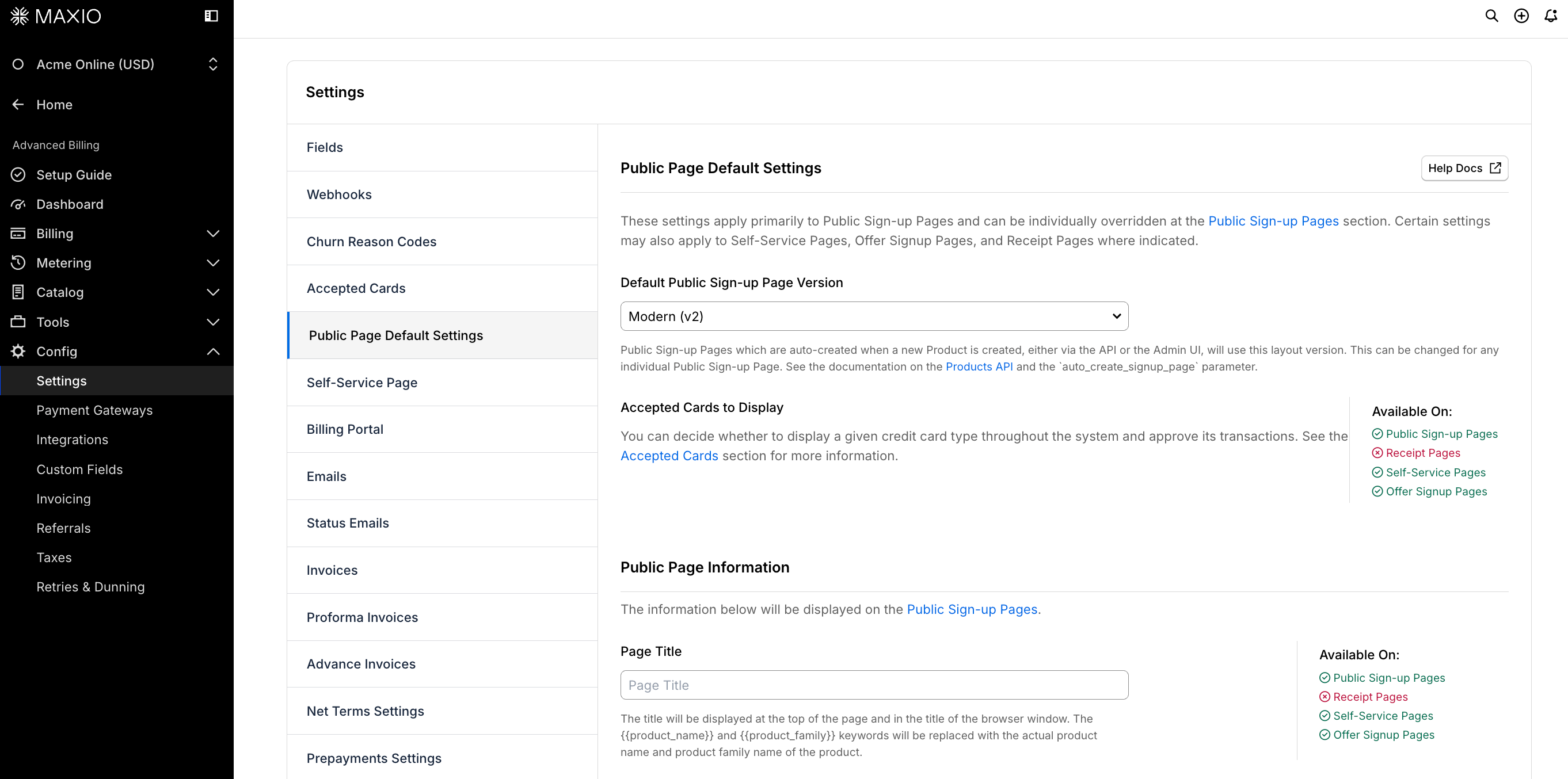
| Option | Description |
|---|---|
| Default Public Signup Page Version | Sets the default layout version for new Public Signup Pages, whether they're auto-created when a new Plan is created or created through the Products API's auto_create_signup_page parameter. Override this on any individual Public Signup Page at any time without affecting the site-wide default. |
| Accepted Cards to Display | Choose which card brands to display and accept across your site. See Choose Accepted Card Brands for details. |
| Page Title | Displayed at the top of the page and in the browser window's title. Use the placeholders {{product_name}} and {{product_family}} to have Maxio insert the Plan name and Product Family name automatically. If left blank, the title defaults to the Product Family name followed by the Plan name, for example "Ecommerce Plans: Gold". |
| Home URL | Redirects subscribers to your website when they select your logo. Must begin with 'http://' or 'https://'. |
| Upload Logo | Displayed at the top of the Public Signup Page, above the page title. Upload a .gif, .jpeg, or .png file; Maxio automatically resizes it to a maximum of 650px wide and 100px tall. |
| Privacy Policy URL | Adds a link to your privacy policy in the page footer. Must begin with 'http://' or 'https://'. |
| Terms and Conditions URL | When set, adds a link to your terms in the page footer and requires the Customer to agree to them with a checkbox before subscribing. Must begin with 'http://' or 'https://'. |
| Custom CSS and JavaScript | Available only on paid accounts, and must be enabled by Maxio. When enabled, this page displays separate CSS and JavaScript fields for both the Modern and Classic layout versions. Your CSS is added to the page in a stylesheet tag; your JavaScript is added at the bottom of the page in a script tag. See Customize a Modern Public Signup Page with JavaScript and CSS and Customize a Classic Public Signup Page with JavaScript and CSS. |
| Customer Service Contact Information | Displays your support email, phone number, and address to Customers on your Public Signup Pages. |
| Enable 'Powered by Maxio' Badge | If enabled, adds a "Powered by Maxio" badge to the page that links to Maxio's website. |
| Enable Security Question (CAPTCHA) | Adds an invisible reCAPTCHA v3 check that scores each signup attempt, helping prevent bots from submitting your Public Signup Pages and Offer Signup Pages. Customers aren't shown a challenge and aren't asked to solve anything. Maxio recommends enabling this option. Receipt Pages and Self-Service Pages don't use this setting. |
| reCAPTCHA Minimum Score | The score a submission must reach to be accepted; anything below it is rejected. Choose a value between 0.1 (least strict) and 1.0 (most strict) with the slider or the adjacent field. The default is 0.4. One threshold covers two separate checks: signup pages that have Enable Security Question (CAPTCHA) turned on, and credit card and bank account tokenization requests made through Maxio.js, which are scored whether or not that setting is on. The threshold applies site-wide and can't be overridden on an individual page. |
| Skip reCAPTCHA challenge | Visible only when the site is in test mode. Bypasses reCAPTCHA verification on credit card and bank account tokenization requests, including ones made from Maxio-hosted pages such as the Billing Portal, Public Signup Pages, and public invoice pages, in addition to your own Maxio.js integration. Use this only on a test site running automated flows; it has no effect on a live site. See Add reCAPTCHA Support for how reCAPTCHA verification otherwise works. |
Related information
See Understand Public Page Default Settings for why and when to use these defaults instead of per-page settings.
See Public Signup Page Settings Reference for overriding a default on one page.
See Scope Custom JavaScript to a Specific Page for running custom JavaScript on a single page instead of every page.
See Make Classic Public Pages Mobile Responsive for using this Custom CSS and JavaScript field to add mobile responsiveness to the Classic layout.
Still need help?
Reach out and our support team will take it from here.