
Edit Term
Applies to: Advanced Billing
Last updated on Oct 1, 2026
Change a Subscription's term end date directly in Advanced Billing, including converting between Evergreen and Term. Correct an incorrect end date, convert a month-to-month Subscription to a fixed term, or align an expiration date with a new contract or renegotiated deal.
Evergreen and term subscriptions
Editing a Subscription's term is also how you convert it between these two types: setting an end date turns an Evergreen Subscription into a Termed one, and removing it does the reverse.
- Evergreen: No fixed term. The Subscription stays active until canceled.
- Term: Has a fixed expiration date. The Subscription expires automatically when the term ends.
For the full comparison, see Understand Term Subscriptions.
When you can change a subscription's term
On Sites with Term Subscriptions enabled, you can change the term of a Subscription that is Trialing, Active, Awaiting Signup, Past Due, or Unpaid.
You can't change a Subscription's term end date when:
- The Site doesn't have Term Subscriptions enabled (required to convert an Evergreen Subscription to Termed).
- The Subscription is canceled or has already expired.
- The new date is before the start of the current billing period, or, for an Awaiting Signup Subscription, before the start of its next billing period.
- A delayed Product change is scheduled for the Subscription and the new date lands before the current billing period ends.
- An Auto-Renewal Configuration or a Scheduled-Renewal Configuration is scheduled or pending. To change the term, remove the Renewal first. A Scheduled-Renewal Configuration that is still a draft doesn't block the change.
- The Subscription has a metered Component whose Price Point has a rating interval, and the new date doesn't fall at the end of one of that Component's rating windows.
- The Subscription is billed in a secondary currency, and its Product and Component Price Points don't all use definitive pricing. See Configure Currencies for how to set definitive pricing.
A rating interval sets how long a metered Component's usage is counted together before it's priced against the Component's tiers, for example 12 months of usage billed monthly. It's only available on metered Components with tiered pricing, and it's always a whole multiple of the Component's billing interval. Advanced Billing places the rating windows one after another along the Component's billing schedule, so the remaining term must be a whole number of rating intervals. For example, a 24-month remaining term fits a 12-month rating interval, but an 18-month term doesn't. If the new date doesn't fit, the term change is rejected with a message that names the Component, its rating interval, and the term end date you entered.
Change a subscription's term
You can change a Subscription's term as often as needed, directly from its summary page.
To change a Subscription's term end date
-
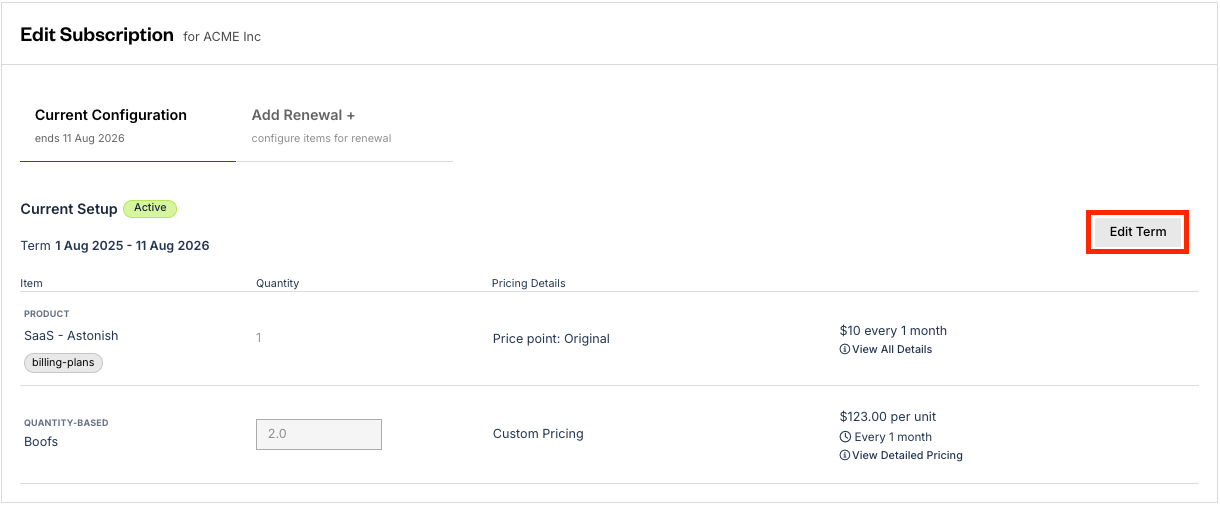
From the Subscription's summary page, locate the Term row and select Edit Term (or Change, then Edit Term, depending on your site's configuration).
-
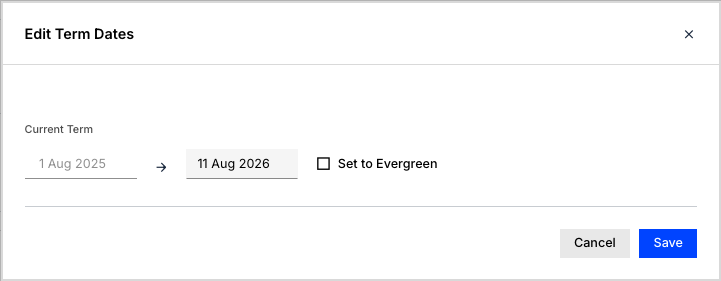
In the modal, set or clear the term end date:
- Check Set to Evergreen to remove the end date, or uncheck it to set a fixed one.
- To avoid proration, choose a date that aligns with a billing date.
-
Select Save.
Sites without Term Subscriptions enabled see a simpler date-only field instead, with no option to convert to Evergreen.
What to expect next
Changing the term end date has effects beyond the date itself:
- Advanced Billing syncs the change to Maxio Core, regenerating the Subscription's future billing schedule and draft Invoices.
- If the new date falls before the Subscription's next Product or Component renewal, the last billing period is prorated.
- Converting a Subscription to Termed makes it eligible for Choose Between Auto-Renewal and Scheduled Renewal.
Related information
For how Term and Evergreen Subscriptions differ overall, see Understand Term Subscriptions.
For how a Termed Subscription renews, see Choose Between Auto-Renewal and Scheduled Renewal.
Still need help?
Reach out and our support team will take it from here.