
Set Up a Scheduled Renewal
Applies to: Advanced Billing
Last updated on Oct 8, 2026
Manually add and configure a Term Subscription's next renewal instead of relying on Auto-Renewal, then choose exactly when it locks in.
Important: Scheduled Renewal requires Term Subscriptions and this feature enabled for your site. Contact support@maxio.com for assistance. In the product UI, this option appears as Manual One-Time when you choose a renewal type.
Add and configure a renewal
Renewals keep a Term Subscription active beyond its current term. Without one configured, a Term Subscription expires when its current term ends.
To add a Renewal
-
Select Change in the Subscription's Term section, then select Add Renewal +.
-
Choose Manual One-Time instead of Auto Renewing. This creates a draft Renewal.
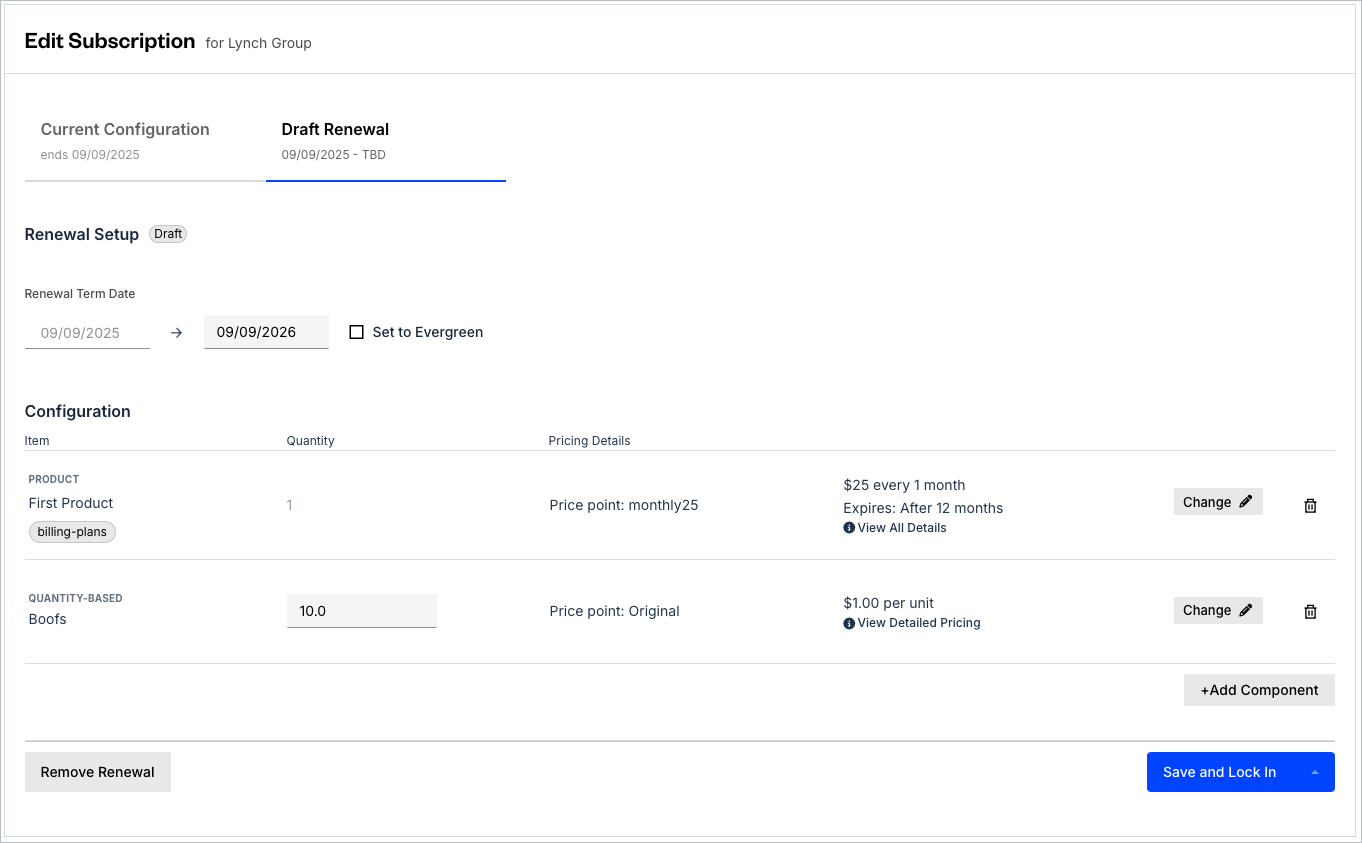
The draft Renewal is pre-populated with the Subscription's current Product, Components, price points, and quantities. From there, you can:
- Select a different Product from the Catalog.
- Add or remove a Component.
- Change a quantity.
- Change a price point.
For a Subscription in a secondary currency, you can only select price points that have Definitive Pricing set. If it isn't set, select the Product or Component, then set up Custom Pricing instead.
Set the renewal term
The Renewal Term Date defaults to 12 months from the Subscription's current expiration date, not its current term length. If the Product's price point bills over a longer period than 12 months, the default extends to one full billing period of that Product instead, so the Product's first billing period fits inside the term. A Component billing over a longer period doesn't change this default, so set an end date that covers that Component's billing period. Set a different end date to fit your needs, but not one earlier than the longest billing period of the Products and Components on the draft Renewal, counted from the Renewal's start date. Advanced Billing rejects an earlier date.

Advanced Billing automatically prorates the final billing period if the renewal term length isn't evenly divisible by the billing period length.
Select inside the Renewal Term Date end-date field, then select a new date from the date picker.
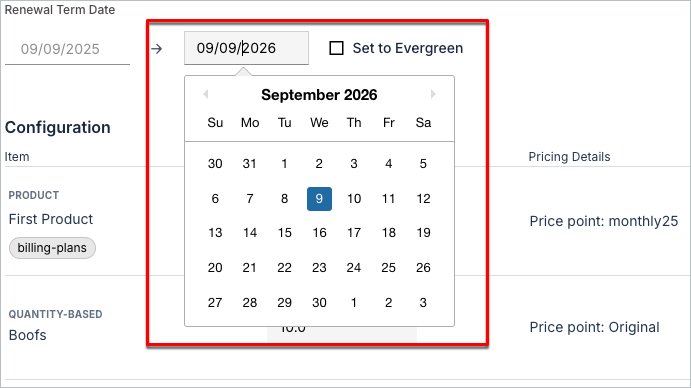
By default, the date picker highlights the day of the month you're currently billing on as you page through months.
Select Set to Evergreen instead to remove the fixed end date. When the Subscription's current term ends, its term changes to Term and Evergreen Subscription Options, and it stays active until canceled.
Save and lock in a renewal
You can leave a Renewal in Draft status without saving it; a Draft Renewal doesn't affect the Subscription until you save it.
-
Select Save and Lock In to save and lock in the Renewal immediately. The Renewal enters Pending status; its term hasn't started yet, but Advanced Billing creates the billing schedule for the new period.
-
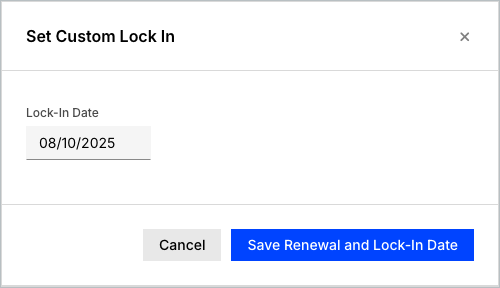
Select Save and Set Custom Lock In to save the Renewal and schedule its lock-in for a future date instead, giving you time to remove the Renewal before then. On the Set Custom Lock In screen, select Save Renewal and Lock-In Date to confirm. The Renewal enters Scheduled status until the lock-in date, then moves to Pending status.
If the Renewal includes a metered Component whose Price Point has a rating interval, the new term must be a whole number of that Component's rating windows. This is the same constraint that applies when you edit a Subscription's term directly. If you select Save and Lock In and the term doesn't fit, the lock-in is rejected with a message naming the Component, its rating interval, and the term end date you set, and the Renewal stays in Draft status until you change the term end date or the Component's Price Point. If you select Save and Set Custom Lock In, the term is checked when the lock-in date arrives instead. A Renewal that doesn't fit then is not locked in, the rejection is only logged, and the Subscription expires at the end of its current term instead of renewing.
Related information
For what each Renewal status means, see Understand Scheduled Renewal.
For how a Subscription renews automatically instead, see Understand Auto-Renewal.
Still need help?
Reach out and our support team will take it from here.