
Compare Gateway Features
Applies to: Advanced Billing
Last updated on Sep 19, 2026
Advanced Billing offers gateway-specific options for many of its gateways. Use the guide below as an overview of features that are available as add-on options, including a brief feature matrix. For a short index of where each provider's advanced options are documented, see Find Gateway-Specific Options.
| Feature | Available Gateways |
|---|---|
| eCheck (ACH/EFT) | Stripe, Authorize.Net, BlueSnap, Forte (Beta) |
| Direct Debit | GoCardless, Maxio Payments, Stripe (SEPA, BACS, BECS) |
| PayPal | Braintree |
| Apple Pay | Braintree |
| Account Updater (full support) | Stripe, BlueSnap, Cybersource, Forte (Beta), Maxio Payments |
| 3DS | Stripe, Cybersource, Windcave, Adyen, Braintree, Maxio Payments |
| Refunds | Most gateways support refunds. |
| Refunds after 120 days | Stripe, Braintree. For all other gateways, contact them for more information and record an external refund in Advanced Billing. |
| Partial updates | Authorize.Net, Stripe, Cybersource, Forte (Beta), Braintree Blue, Checkout.com |
| Fraud tools | Braintree |
Gateway account updater
An account updater is a service that a payment gateway typically offers to help reduce decline rates. It works with card issuers to automatically update expired and replaced cards. Not all issuers participate, so it's still possible that a card expires without an update.
Advanced Billing fully supports the account updater for several gateways. See the list in the table above. For these gateways, we receive updates and keep the data in Advanced Billing up to date with the latest information.
Even without full support, in most cases, Advanced Billing still works with a gateway's account updater service. Although the updated card information isn't reflected in Advanced Billing, the payment profiles are still charged successfully, because when the payment gateway updates a payment profile, we use a tokenized reference to continue communicating with it.
Partial updates
A partial update is when a customer's credit card can be updated without passing in the full credit card number and CVV. This means they can update their card to a new billing address without re-entering their card info. Partial updates are applicable to the Admin UI and the API; other credit card update paths still require a full card update.
The table at the beginning of this article denotes gateways for which we handle partial updates.
Fraud tools
Most payment gateways offer fraud tools on their end; reach out to them to learn what's available. On Advanced Billing's end, sometimes additional data needs to be passed to the gateway to classify transaction types. If we offer such an integration, it's listed in the table at the beginning of this article.
Braintree Advanced Fraud Protection
Braintree provides Premium Fraud Management Tools to identify and prevent fraudulent activity before a transaction or verification ever reaches a customer's bank.
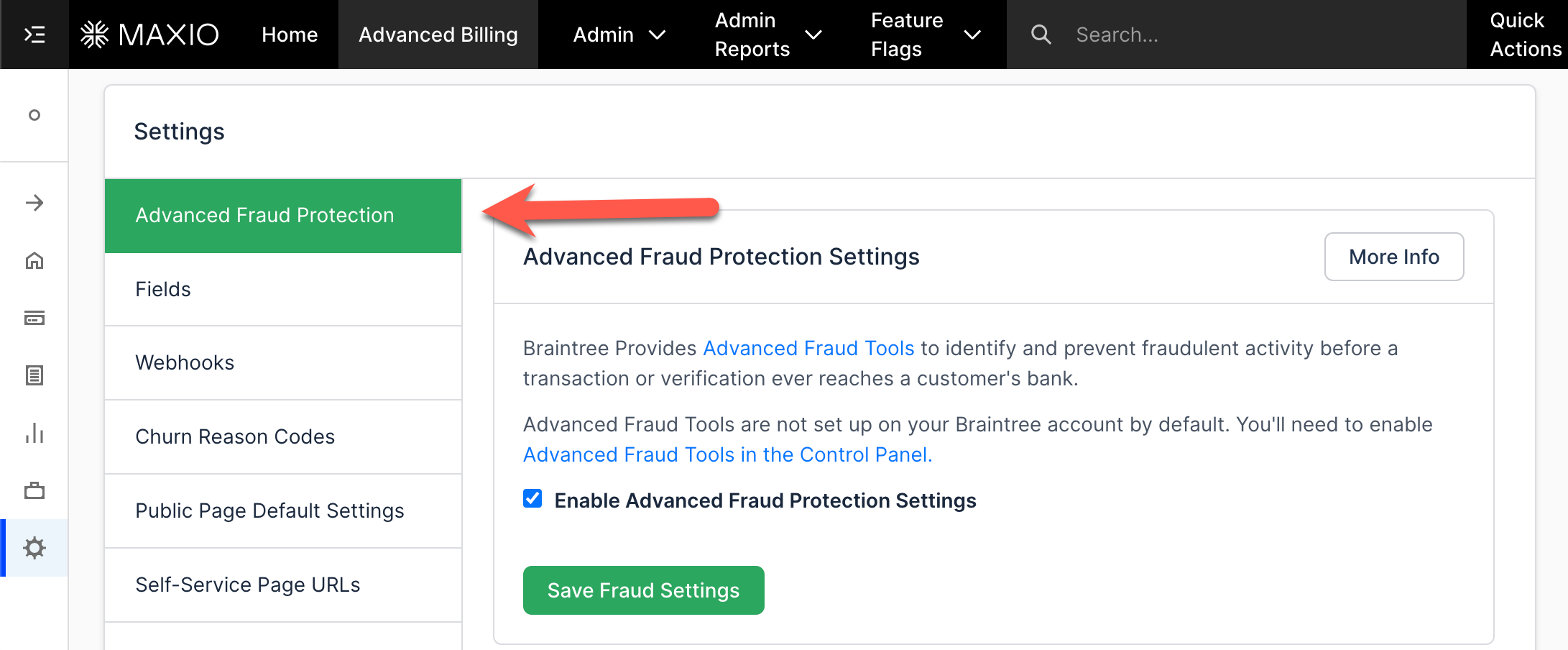
The Advanced Fraud Protection tab is only visible if you're connected to a Braintree account.
Premium Fraud Management Tools are not set up on your Braintree account by default. You need to enable Fraud Protection in the control panel.
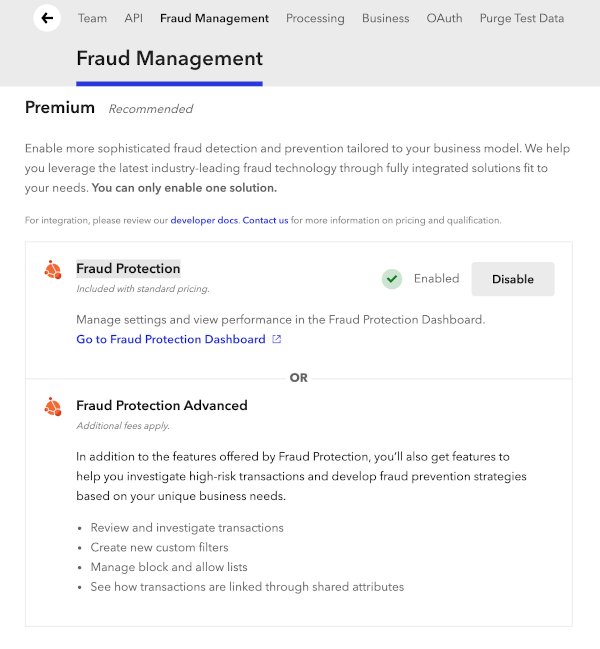
Once enabled in your Braintree control panel, you also need to enable a setting in your Advanced Billing dashboard under Settings > Advanced Fraud Protection:
Coupled with Risk Threshold Rules provided by Braintree, you can further safeguard your business against would-be attackers. Risk threshold rules can trigger different actions when specified customer information passes through the gateway multiple times within a designated time period. This way, if a fraudster is attempting to use the same customer email with different credit cards or attempting to try different cards in very quick succession, you can head them off at the pass.
Advanced Billing supports Braintree Advanced Fraud Protection on our hosted signup and card update pages. Once you enable the setting for your Advanced Billing site, Advanced Billing sends the additional information along to Braintree for use in decision-making.
You can also use Braintree Advanced Fraud Protection with Maxio.js (formerly Chargify.js) by adding the deviceData: true option to the load options. See the Maxio.js documentation for more information.
If you're hosting your own Chargify Direct signup and card update forms, you can use Braintree's JavaScript library to generate the device data and include it in the form that's submitted to Advanced Billing. The device data is passed through to Braintree when storing or updating a card.
Braintree, PayPal, and Apple Pay
If you use Braintree as the payment gateway for your Advanced Billing site, your customers can pay with a credit card, with their PayPal account, or with Apple Pay. This can be easily configured within the Payment Gateway settings.
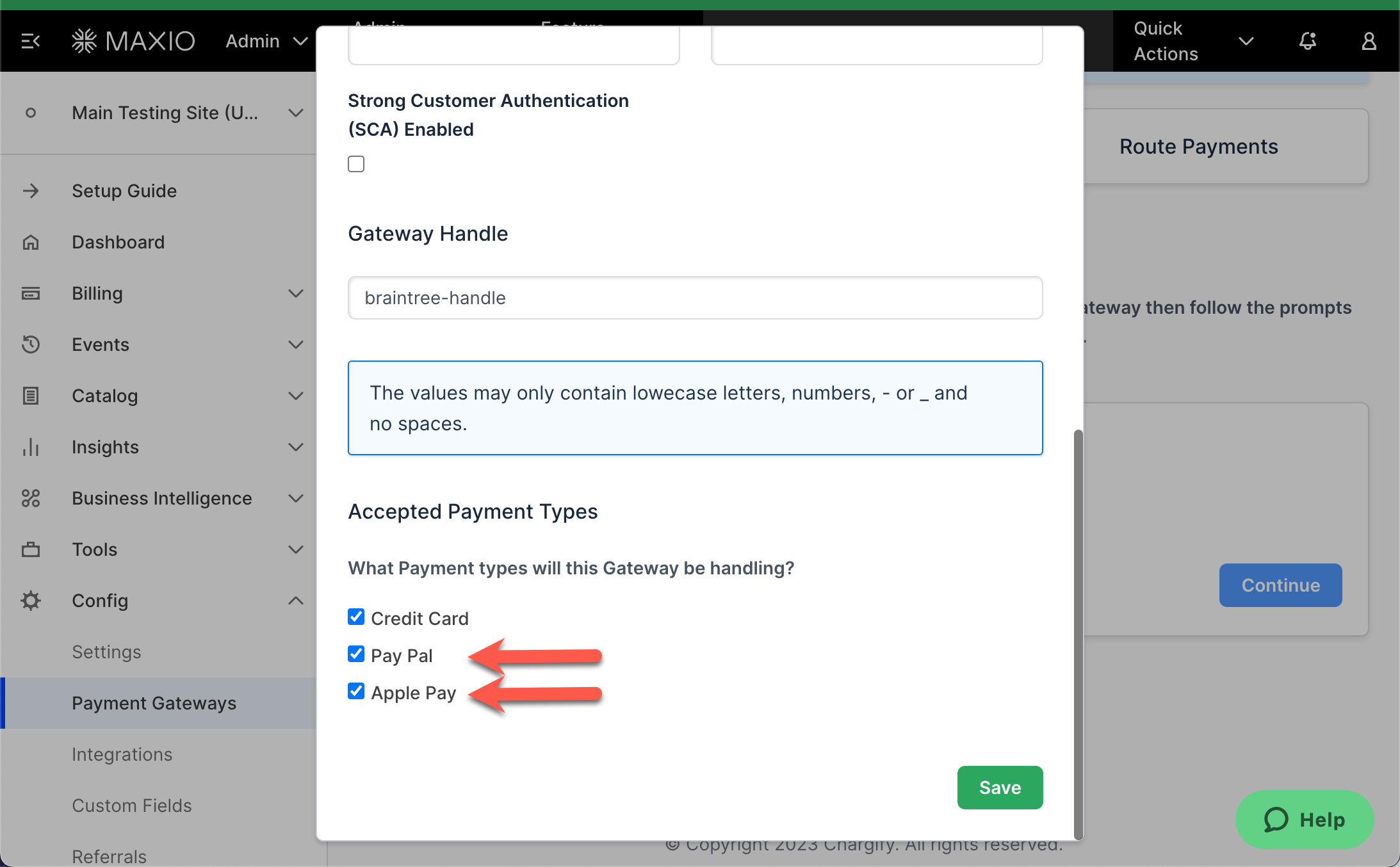
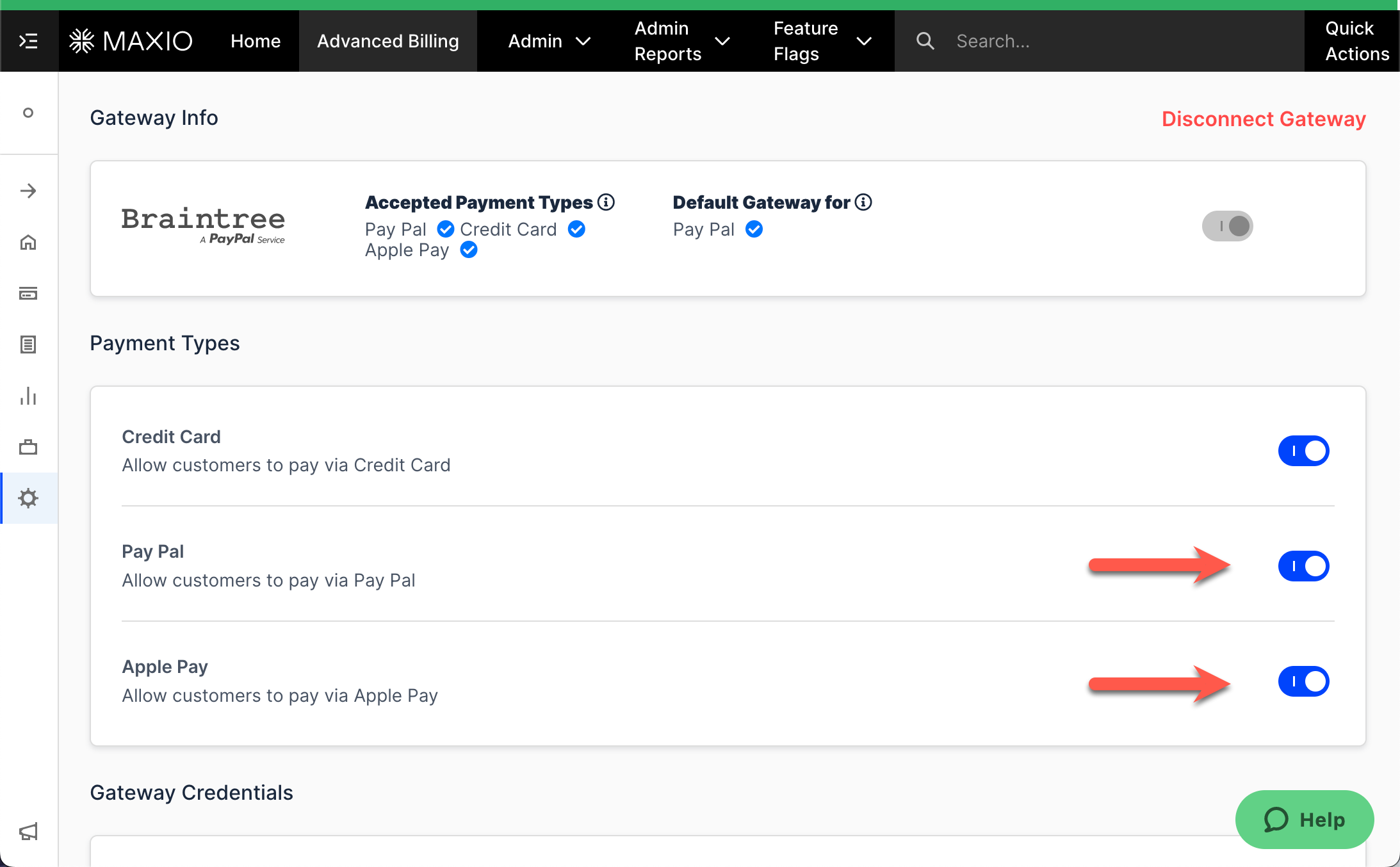
If you don't use Braintree as your payment gateway, you can use the Multi-Gateway feature to connect Braintree in addition to your current gateway.
To confirm PayPal acceptance is enabled on your Braintree account:
- Log into your Braintree account and select Processing from the top settings menu.
- Select Accept PayPal.
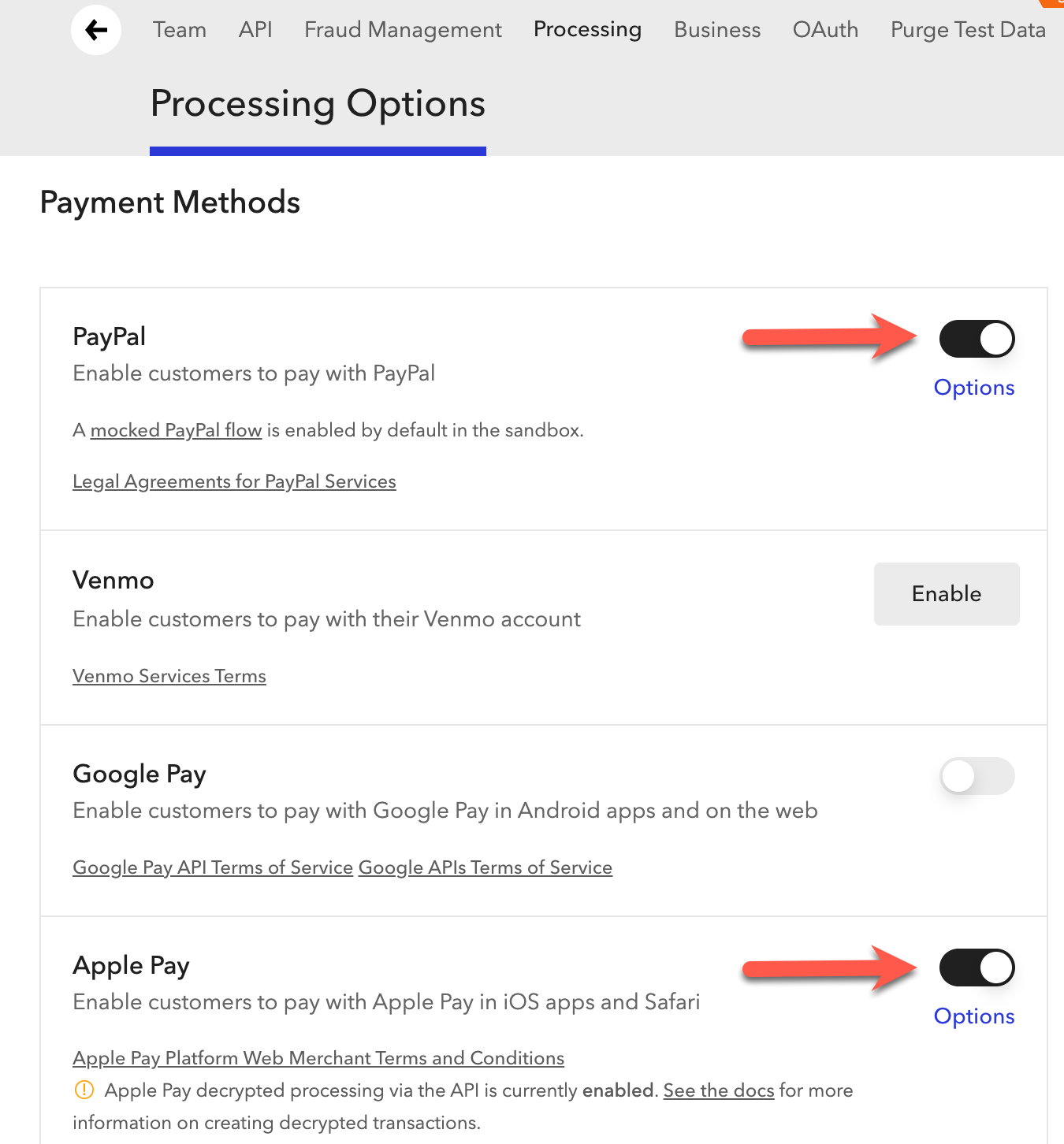
This should be present but with no options shown on Braintree sandbox accounts, and it should be present as shown here on Braintree real/live accounts. If you don't see this in your Braintree account, contact Braintree support and request this on your account.
To test PayPal or Apple Pay in a sandbox environment, you must create a PayPal account, an Apple Pay certificate, or both, and link it to your sandbox Braintree site using the login information. See Braintree's documentation for instructions. If this isn't completed, the PayPal and/or Apple Pay frames don't appear on the Public Signup Pages and Self-Service Pages within Advanced Billing.
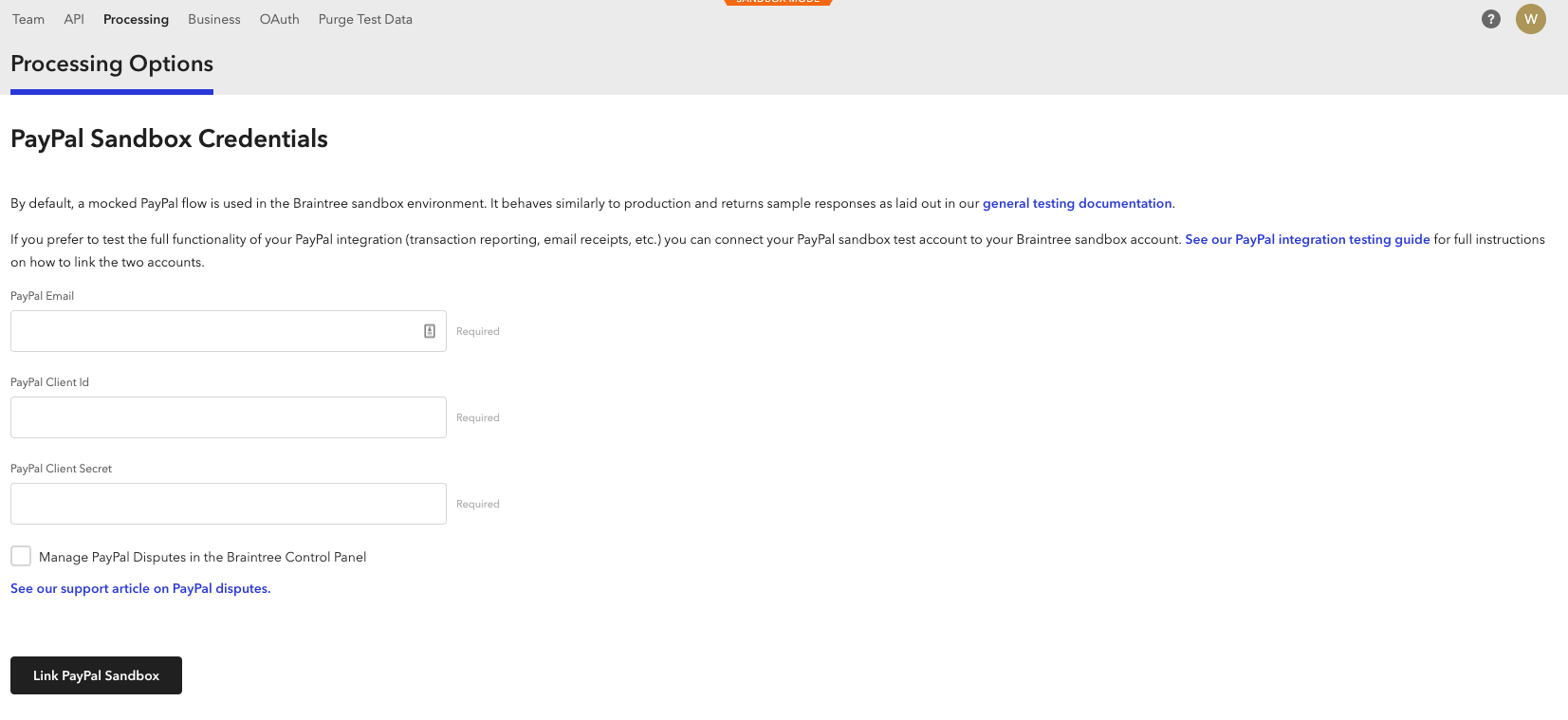
Braintree on public pages
A subscriber can elect to choose PayPal or Apple Pay as a payment option on both Public Signup Pages, when they sign up, and Self-Service Pages, after they sign up to update their payment information. See a summary of what your subscriber experiences on a Public Signup Page as well as a Self-Service Page in our documentation for further information.
Authorize.Net, Forte, and BlueSnap eCheck (ACH/EFT)
See our Understand eCheck (ACH/EFT) Payments documentation for more information on the eCheck (ACH/EFT) feature. That article provides a comprehensive overview of how eCheck (ACH/EFT) functions within your Advanced Billing and Authorize.Net, Forte, or Braintree accounts.
Stripe ACH
See our Set Up and Collect ACH Payments with Stripe documentation for more information on Stripe's ACH feature. That article provides a comprehensive overview of how ACH functions within your Advanced Billing and Stripe accounts.
Stripe Legacy and Stripe Connect
If you enabled Stripe prior to April 2017, you can check whether you're on the newest version of the integration by visiting your site's Payment Gateways settings page. If you see a blue box at the top of the page that says Let's Upgrade Your Stripe Integration, follow the on-page instructions to update your integration.
There are many benefits to using Stripe Connect:
- Access to Stripe's Smarter Saved Cards feature (automatic Account Updater feature)
- Secure OAuth connection
- ACH for Stripe
The update only takes a few minutes, but make sure to have your Stripe credentials ready before continuing. Once complete, we suggest creating a test transaction right away as an additional check to ensure the connection was successful and transactions process as expected.
For existing Stripe account holders
If you already have a Stripe account, connect it directly from your Site Settings tab. For the full connection walkthrough, including accepted payment types and what to verify afterwards, see Connect Stripe for Credit Card Payments.
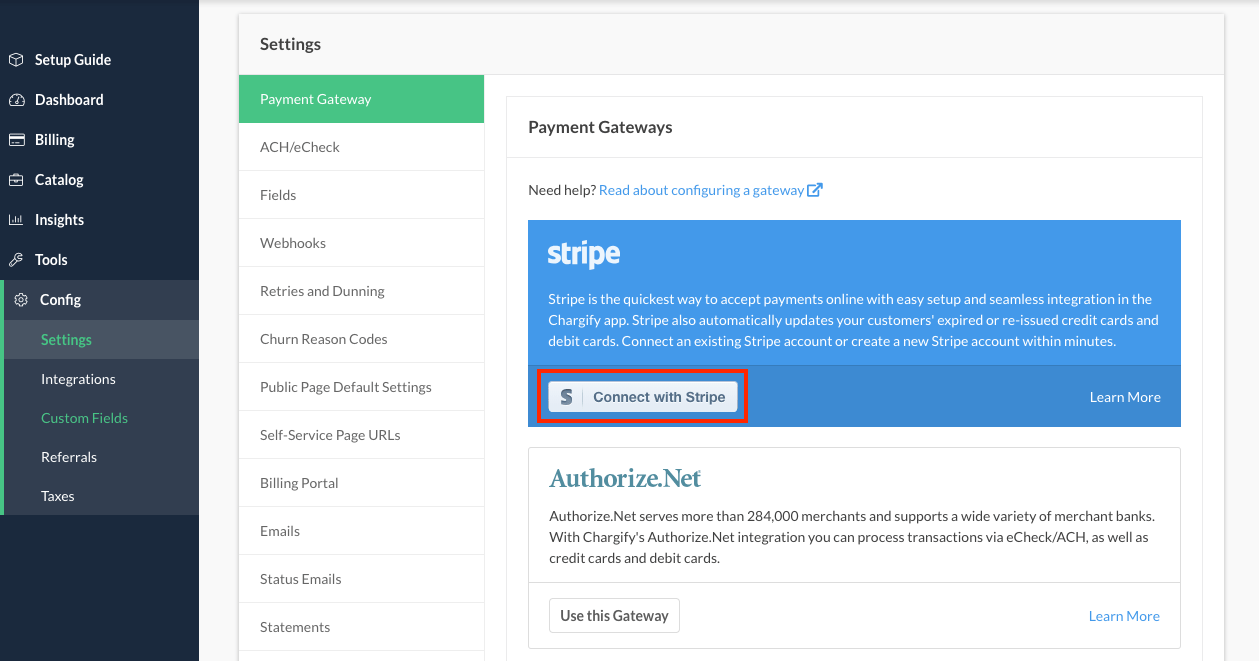
- You're immediately redirected to Stripe's login page, where you can supply your credentials under their domain.
- Once you enter your credentials, select which account you'd like to use with Advanced Billing.
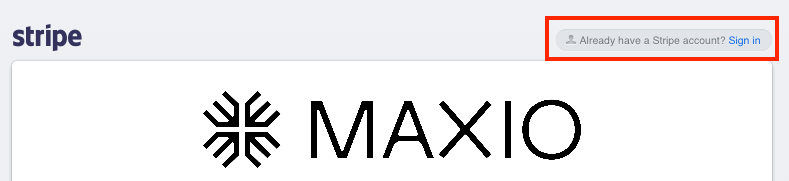
- Verify that the correct email address is specified in Advanced Billing in the Stripe gateway settings.
Stripe Connect and live mode
When connecting with Stripe, if your site is in test mode, we configure your site with test credentials. Once you complete the Go Live process, you need to return to the Gateway Settings page, disconnect, and then connect with Stripe again to get live credentials so you can process real transactions.
Still need help?
Reach out and our support team will take it from here.