
Create an Advanced Billing Customer Linked to a HubSpot Company
Applies to: Advanced Billing
Last updated on Aug 24, 2026
Create a new Advanced Billing customer so it links to the matching HubSpot Contact and Company, using their shared IDs.
This requires Use Contact and Company IDs to be enabled for your site. Without it, a new Advanced Billing customer still matches or creates a HubSpot Contact by email, but its Contact ID is never written back to the customer record.
Create a customer linked to a HubSpot Contact
This links the new customer to a HubSpot Contact automatically, based on the email address you enter.
To create a customer linked to a HubSpot Contact
- In Advanced Billing, create the new customer as you normally would, entering the customer's email address.
- The integration looks up an existing HubSpot Contact by that email address.
- If a matching Contact exists, its ID populates the new customer's Contact ID field automatically.
- If no matching Contact exists, the integration creates one in HubSpot, then populates the Contact ID field with the new Contact's ID.
What to expect
The Contact ID field appears on the customer record once the integration finds or creates the matching HubSpot Contact — you don't set it manually.
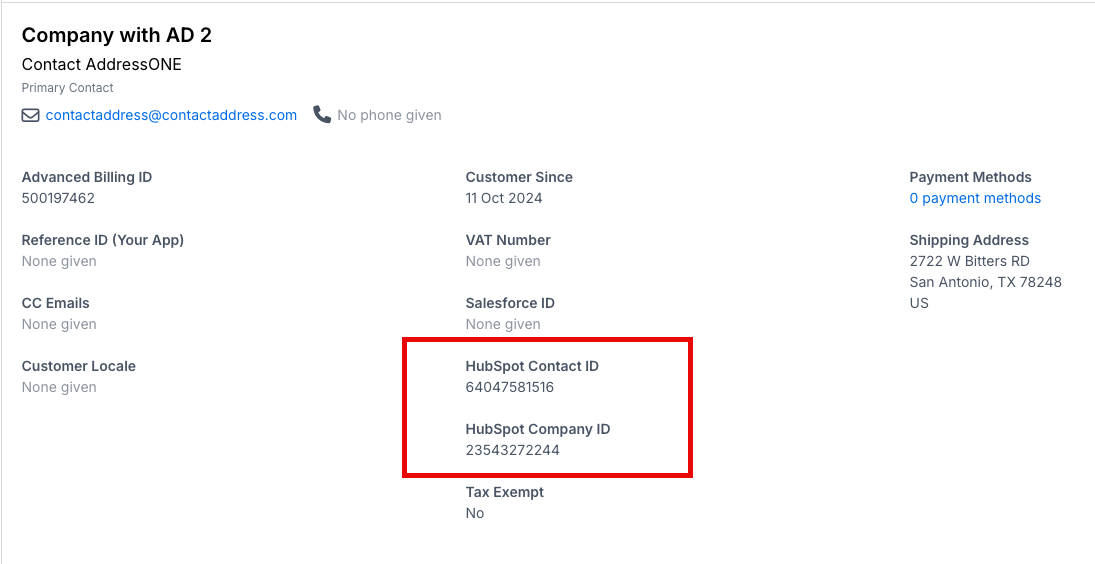
If a matching HubSpot Contact already existed and your site's match behavior is set to Overwrite all fields, creating the Advanced Billing customer also overwrites that existing Contact's fields in HubSpot.
Link the customer to a HubSpot Company
The Contact ID populates automatically, but you add the Company ID yourself.
To link the customer to a HubSpot Company
- Open the customer record and select Edit Customer.
- Find the HubSpot Company field and select the dropdown.
- Search for the related company. Matching companies found in HubSpot appear in the list, alongside an option to Create new Company.
- Select the matching company, or select Create new Company to create one in HubSpot at the same time.
- Save the customer record.
Related information
To understand how the Contact ID stays in sync after a HubSpot contact merge, see HubSpot Contact ID updates after contact merges.
Still need help?
Reach out and our support team will take it from here.