
Manage Component Allocation Changes from HubSpot
Applies to: Advanced Billing
Last updated on Sep 19, 2026
Create and submit a subscription's component allocation changes directly from HubSpot, without switching to Advanced Billing.
Submit a component allocation change from HubSpot
This starts from the subscription's own CRM card, and creates a dedicated deal you use to configure and submit the change.
To submit a component allocation change from HubSpot
-
On the subscription's Maxio CRM card, select View Details.
-
Scroll down and click Create a Deal for component allocations change.
-
A new deal ID appears. Open that deal — it carries an Advanced Billing timeline event titled Edit component allocations.

-
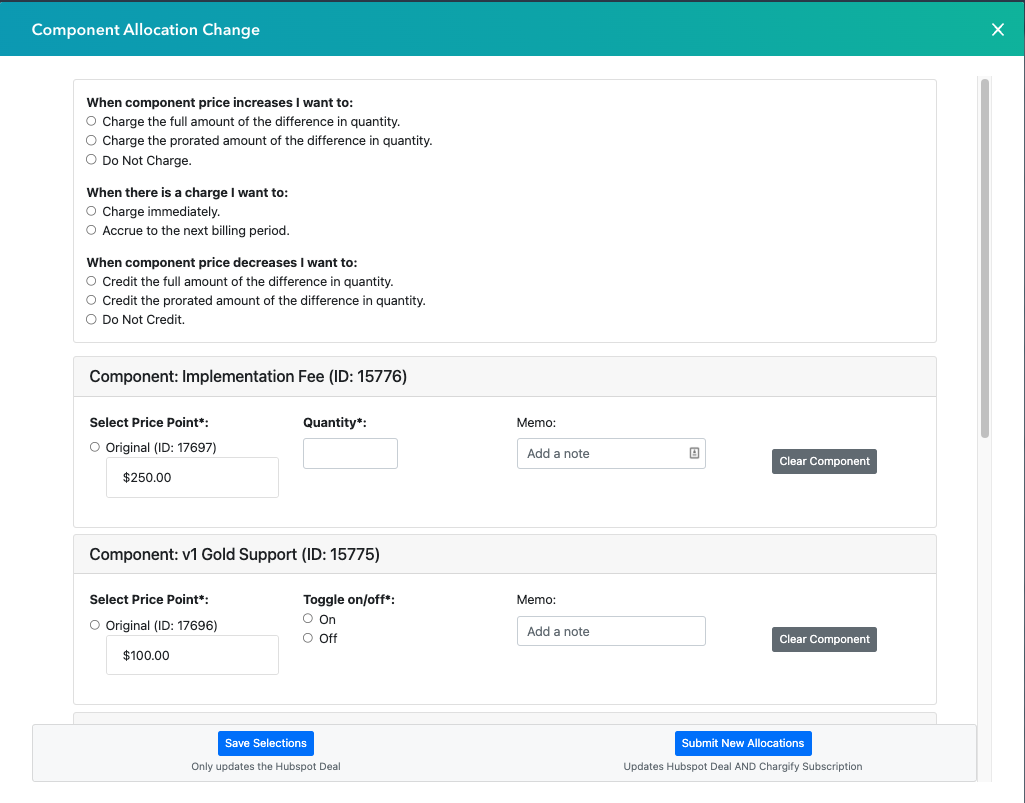
From that timeline event, configure the allocation changes. This is available for subscriptions in the Active, Trialing, or Awaiting Signup states.
-
Submit the allocation change.
What to expect
If the deal created in step 2 is in HubSpot's default pipeline, submitting the allocation change automatically moves that deal to Closed Won. If it's in a custom pipeline, the deal isn't moved, so you'll need to move it yourself if you want to reflect that it's done.
Deals created automatically from allocation increases
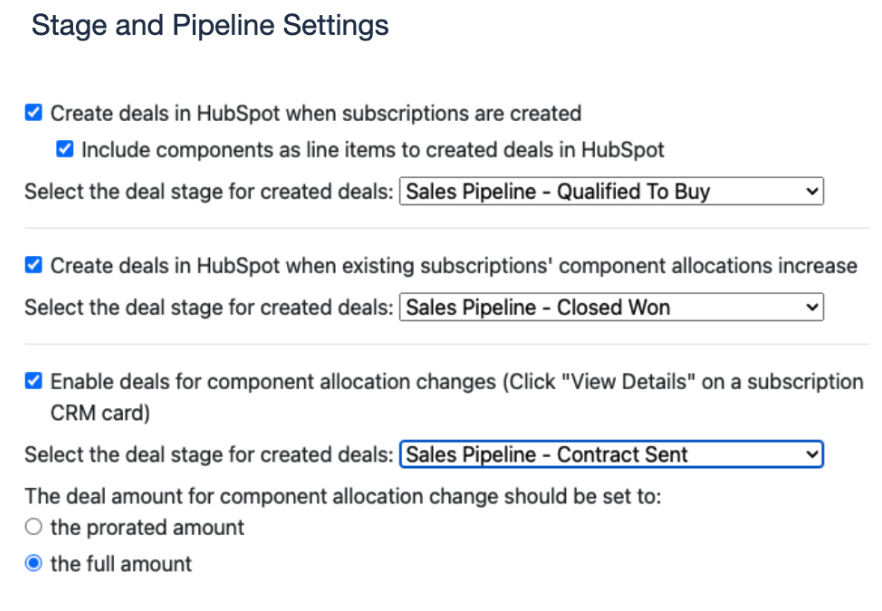
If your admin has enabled it, the integration also creates a HubSpot deal automatically whenever a subscription's component allocation increases — you don't need to trigger this one yourself. The deal starts in whichever pipeline and stage your admin configured for this automation, and its amount reflects either the prorated or full value of the change, depending on that same configuration. See Configure HubSpot Integration Sync Options.
Still need help?
Reach out and our support team will take it from here.