
Create an Advanced Billing Subscription from a HubSpot Deal
Applies to: Advanced Billing
Last updated on Sep 19, 2026
Turn a HubSpot deal with synced line items into an Advanced Billing subscription using the Subscription Preview. The subscription needs a customer to belong to — see Create an Advanced Billing Customer Linked to a HubSpot Company — and once it exists, quantity changes can be made from HubSpot too: see Manage Component Allocation Changes from HubSpot.
Create an Advanced Billing subscription from a HubSpot deal
A Subscription Preview timeline event appears on a deal as soon as it's created, but it stays a draft, with no real Advanced Billing subscription behind it, until you explicitly click Create Subscription on it.
To create an Advanced Billing subscription from a HubSpot deal
-
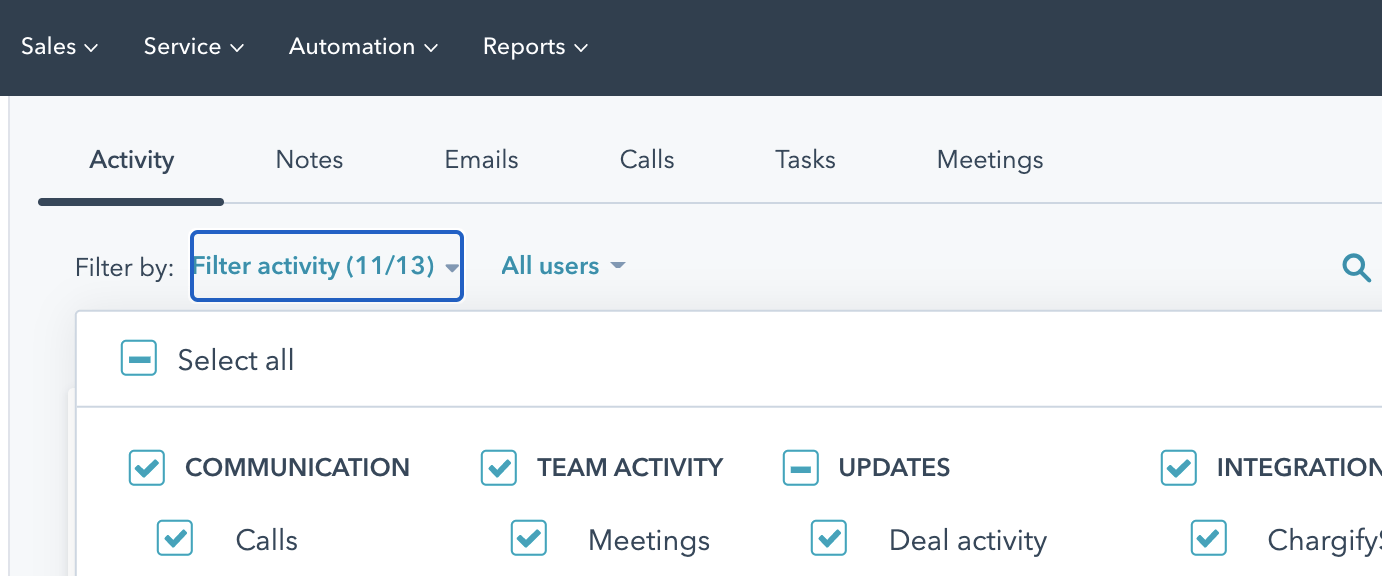
On the deal record, go to the Activity tab, click Filter activity, and make sure the Advanced Billing integration is selected. You typically only need to do this once per HubSpot user.
-
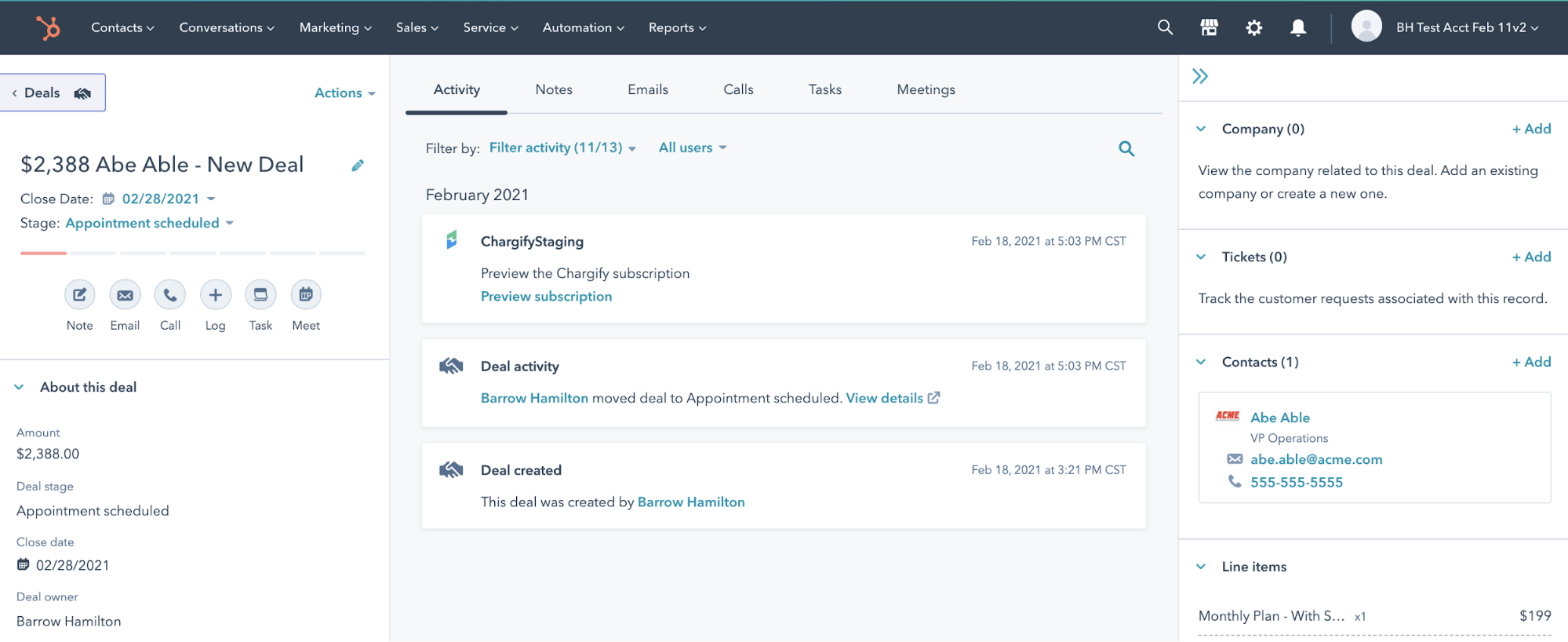
Find the Subscription Preview event and click it to expand the preview inline. Until the deal has an associated billable Contact and at least one baseline line item, the preview prompts you to add them instead of showing a preview.
-
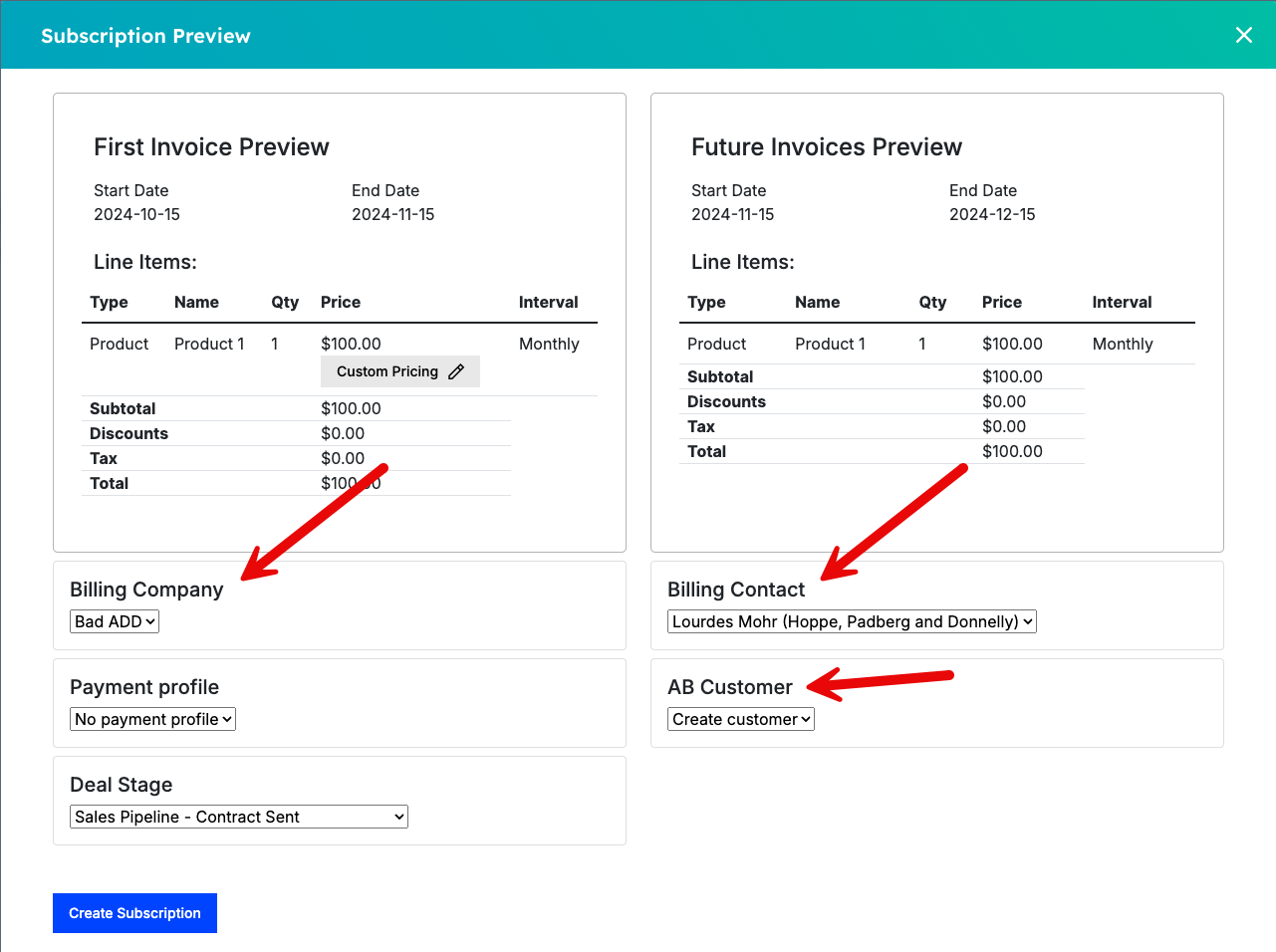
Set the billing details on the preview:
-
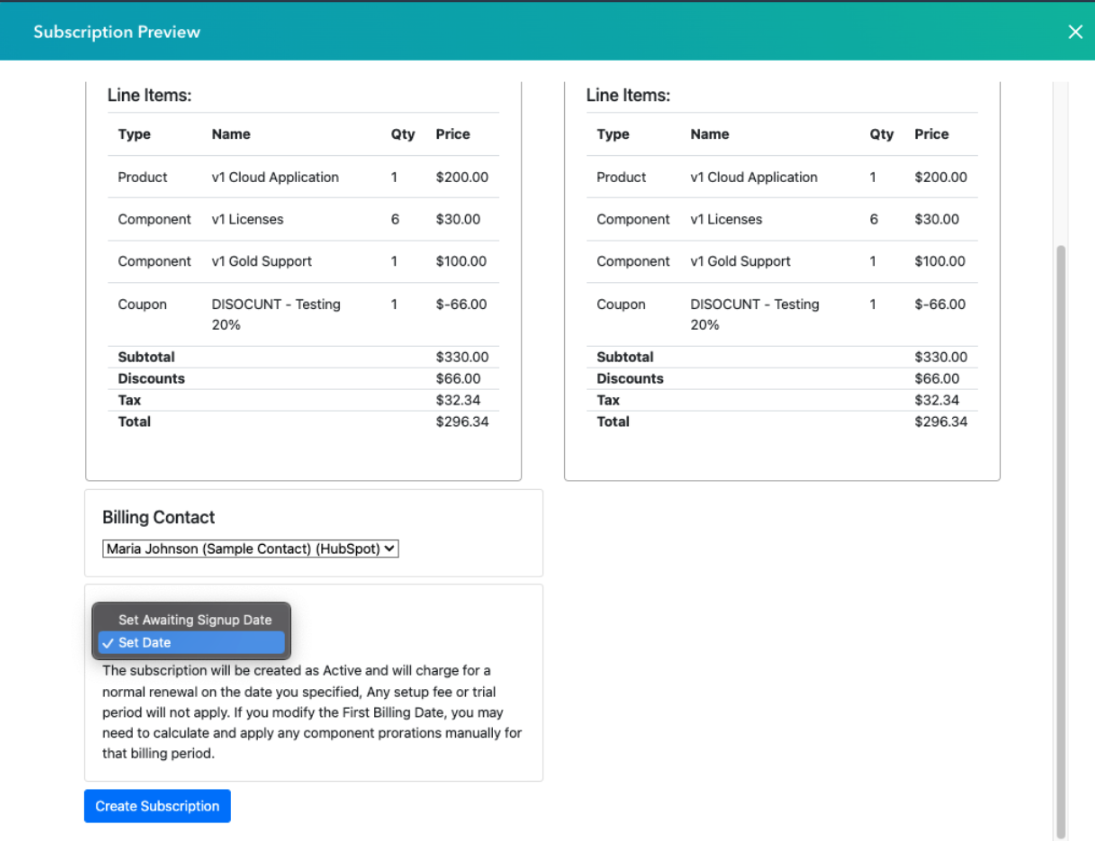
First Billing Date: choose Set Date to create the subscription as Active, charging a normal renewal on the date you specify (no setup fee or trial applies, and you may need to manually prorate components if you later change this date); or choose Set Awaiting Signup Date to create the subscription in an Awaiting Signup state, with any setup fee or trial period applied once that date arrives. Leave this blank to bill immediately.
-
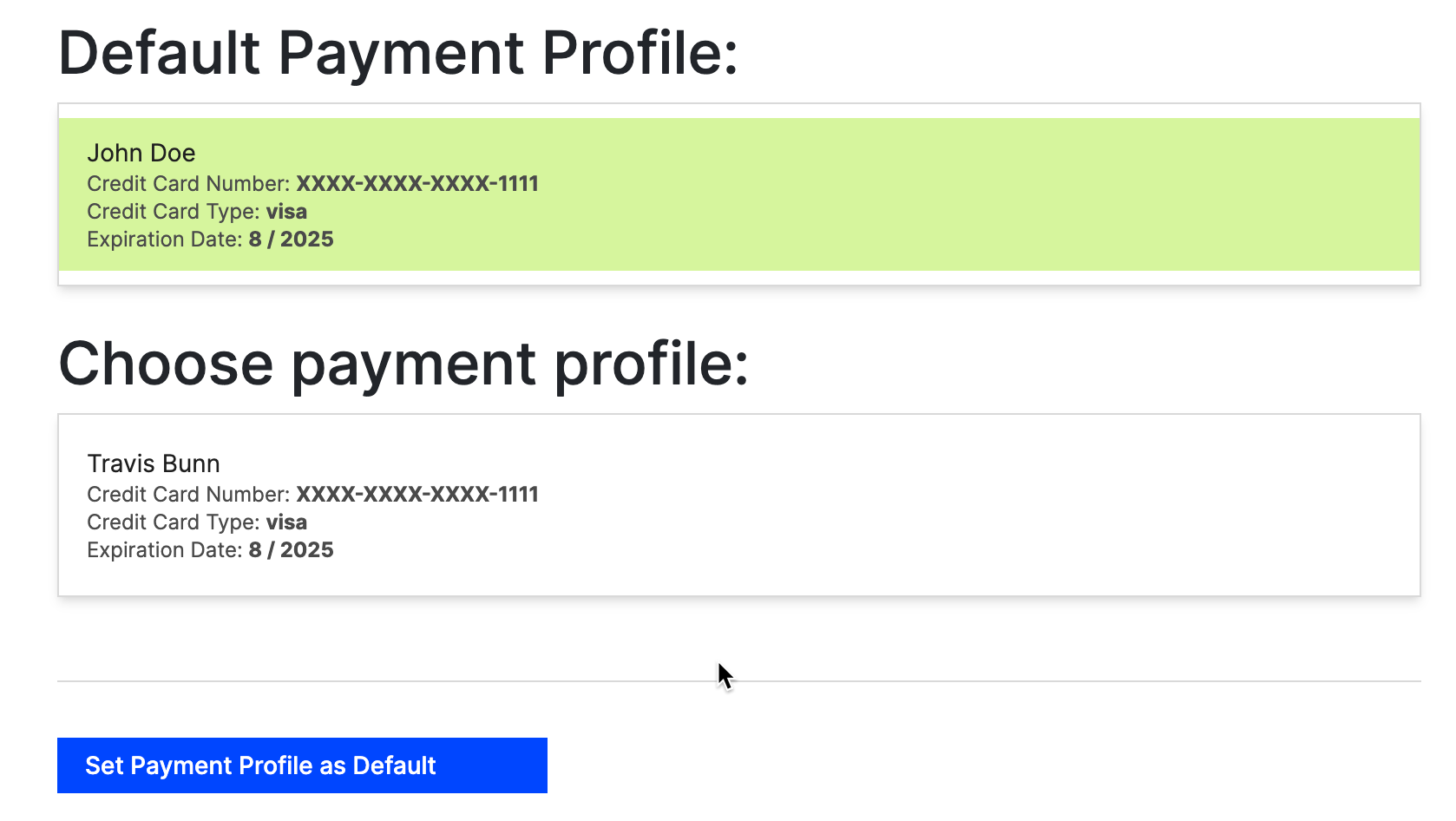
Payment Profile: select one of the Contact's existing Advanced Billing payment profiles. This doesn't default to any particular profile — if you don't select one and the subscription uses automatic collection, activation is blocked until a payment profile is set.
-
Billing Company, Contact, and AB Customer: only shown if Use Contact and Company IDs is enabled. The AB Customer field can link to an existing Advanced Billing customer or create a new one.
-
Billing Contact: shown whenever at least one Contact is associated with the deal, defaulting to the most recently associated one. If more than one Contact is associated, choose which one to bill.
-
Deal Stage: only shown if your integration settings allow changing the pipeline and stage on the Subscription Preview. Choose which Deal Stage this deal moves to once you create the subscription, instead of the default Closed Won stage. See Configure HubSpot Integration Sync Options to turn this on and set the default Deal Stage.
To negotiate a price other than catalog pricing for a line item, click Custom Pricing on the preview instead of editing the line item directly — see Set Custom Pricing on a HubSpot Deal.
-
-
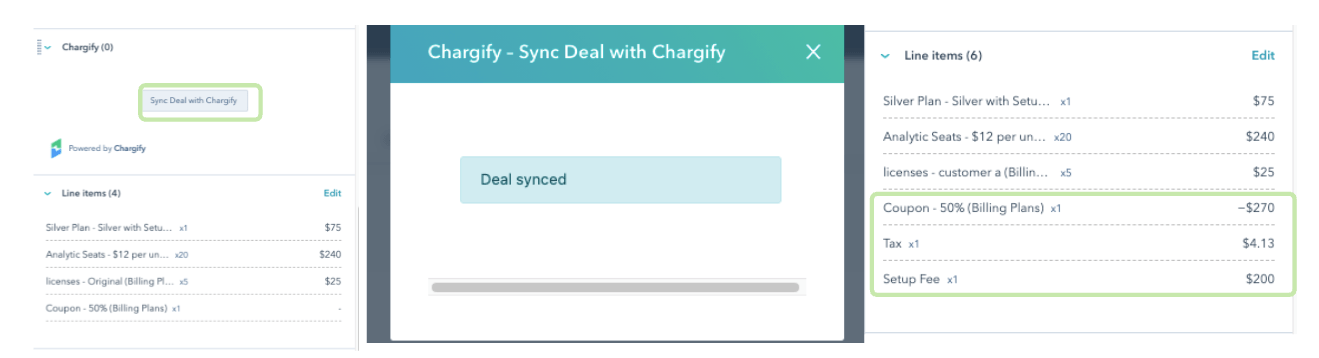
If you change the deal's line items, coupons, or contacts after the preview first loads, click Sync Deal with Maxio to recalculate it before continuing.
-
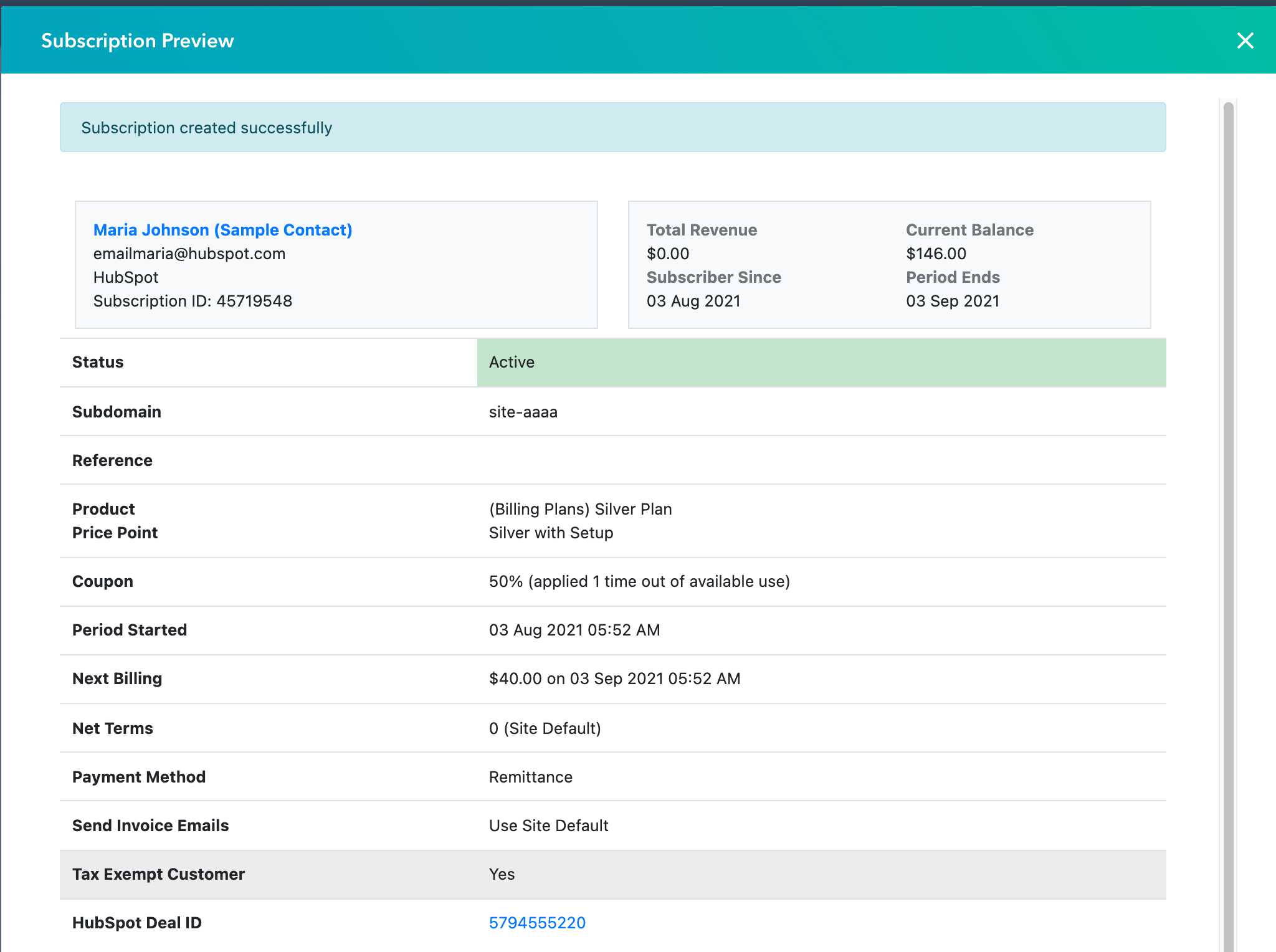
Click Create Subscription. The application merges the selected Billing Contact's details into the subscription payload, so an Advanced Billing customer record is created or updated to match.
What to expect
Once the required associations exist, the preview shows both the first invoice and the next ongoing invoice, so you can see what's billed initially versus on an ongoing basis.
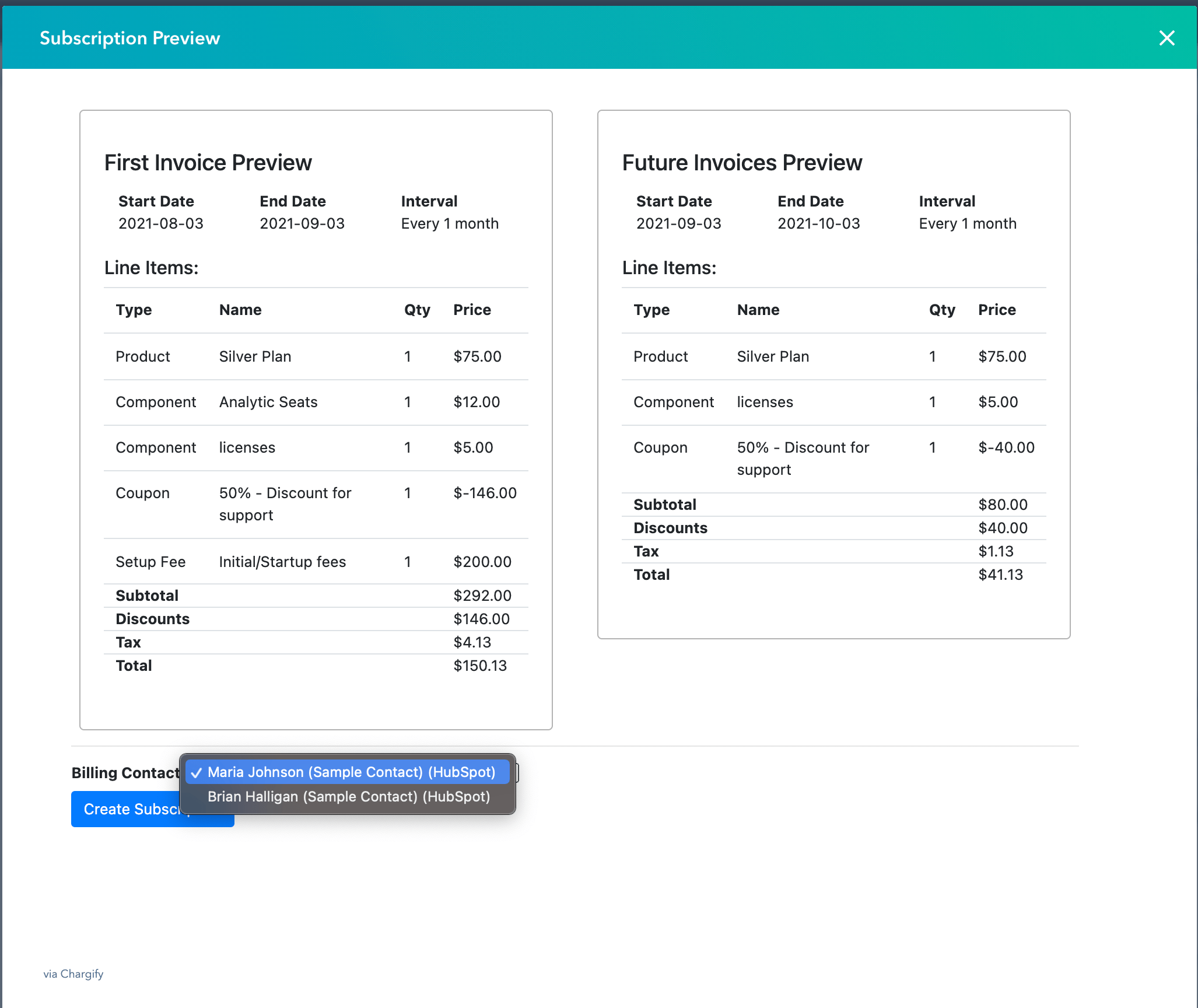
Taxes appear if the deal's products are taxable, the billing Contact isn't tax-exempt, and the Contact's city, state, zip, and country are all filled in.
If you select line items from different Advanced Billing product families, the incompatible ones don't appear on the preview and aren't added to the subscription. Coupons behave differently: adding a new, incompatible coupon code is simply rejected with a message and never added, without blocking anything else on the deal — but a coupon that's already on the deal and becomes incompatible after a later change (for example, the baseline product changes) disables Create Subscription until you remove or replace it.
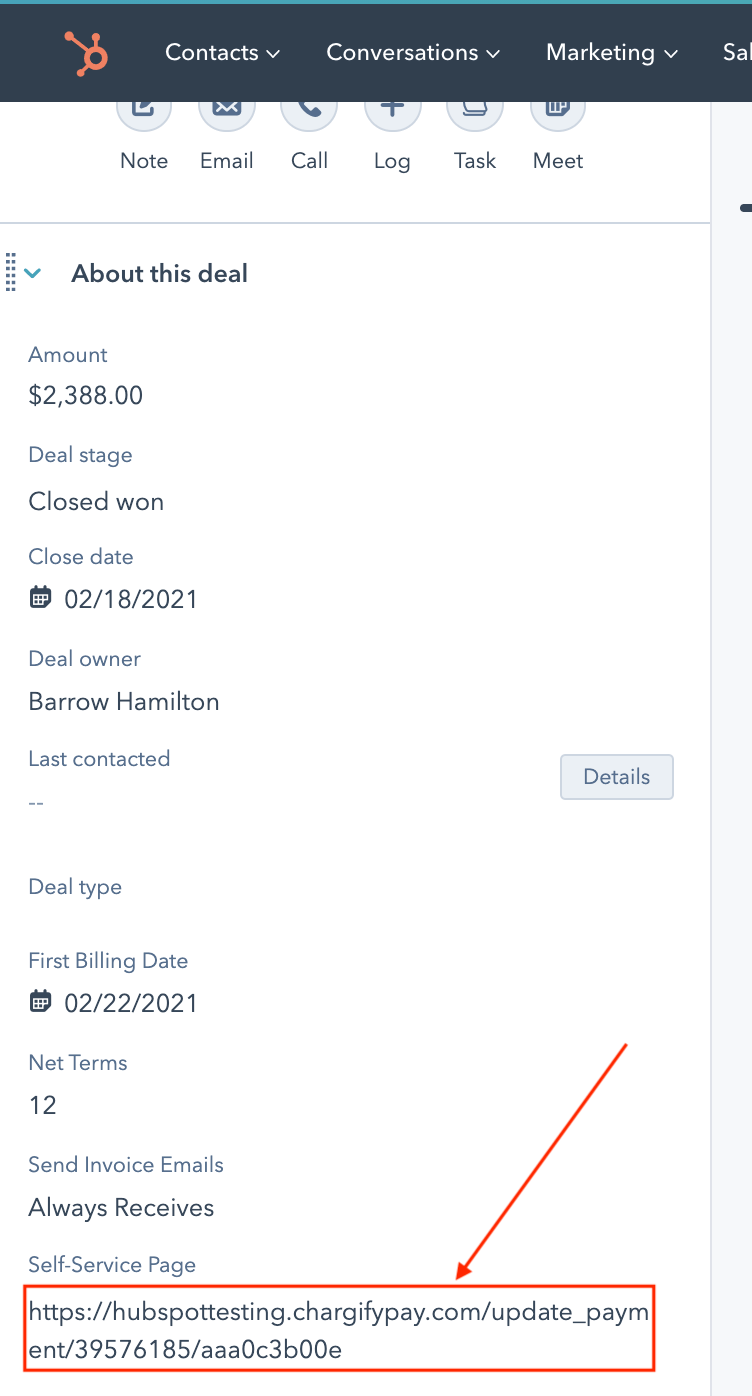
After creation, the integration adds a Self-Service Page URL to the deal, generated from the subscription's self-service token. Send this to your customer so they can securely enter their credit card information.
If the subscription uses automatic collection, it must have a valid payment profile before it can be activated. If none exists, the system blocks activation rather than letting the subscription fall into a past-due state for a missing card. Subscriptions using remittance collection aren't affected by this requirement.
Next steps
Continue to Manage an Advanced Billing Subscription from HubSpot.
Related information
If you run into a HubSpot API rate-limit error while creating a subscription, wait a moment and try again — see Troubleshooting and FAQs.
Still need help?
Reach out and our support team will take it from here.