
Understand the Salesforce Integration for Advanced Billing
Applies to: Advanced Billing
Last updated on Aug 28, 2026
The Salesforce integration for Advanced Billing syncs Customer and Subscription data into Salesforce, so sales and support teams can see billing information and take common billing actions without leaving Salesforce. If your CRM is HubSpot rather than Salesforce, the equivalent is Understand the HubSpot Integration.
Looking for the Maxio Platform Salesforce integration instead? See Understand the Salesforce Integration for Maxio Core.
That Maxio Core integration has its own procedure for reauthorizing a connection that has stopped syncing after a Salesforce user or permission change: see Disconnect and Reconnect to Salesforce. It applies to Maxio Core only, and disconnecting stops all syncing until the connection is remade.
Key capabilities
Once connected, your Salesforce users can:
- View synced Advanced Billing Customer records from Salesforce Accounts and Contacts, and control whether updates flow one way or both ways between the two systems.
- Create a Subscription Preview from a Salesforce Opportunity, generate a shareable PDF quote for it, and activate it into a live Subscription in Advanced Billing when the deal closes.
- Manage an existing Subscription directly from Salesforce: change or upgrade/downgrade its Product and components, add or remove coupons, and cancel, reactivate, put on hold, resume, or credit it.
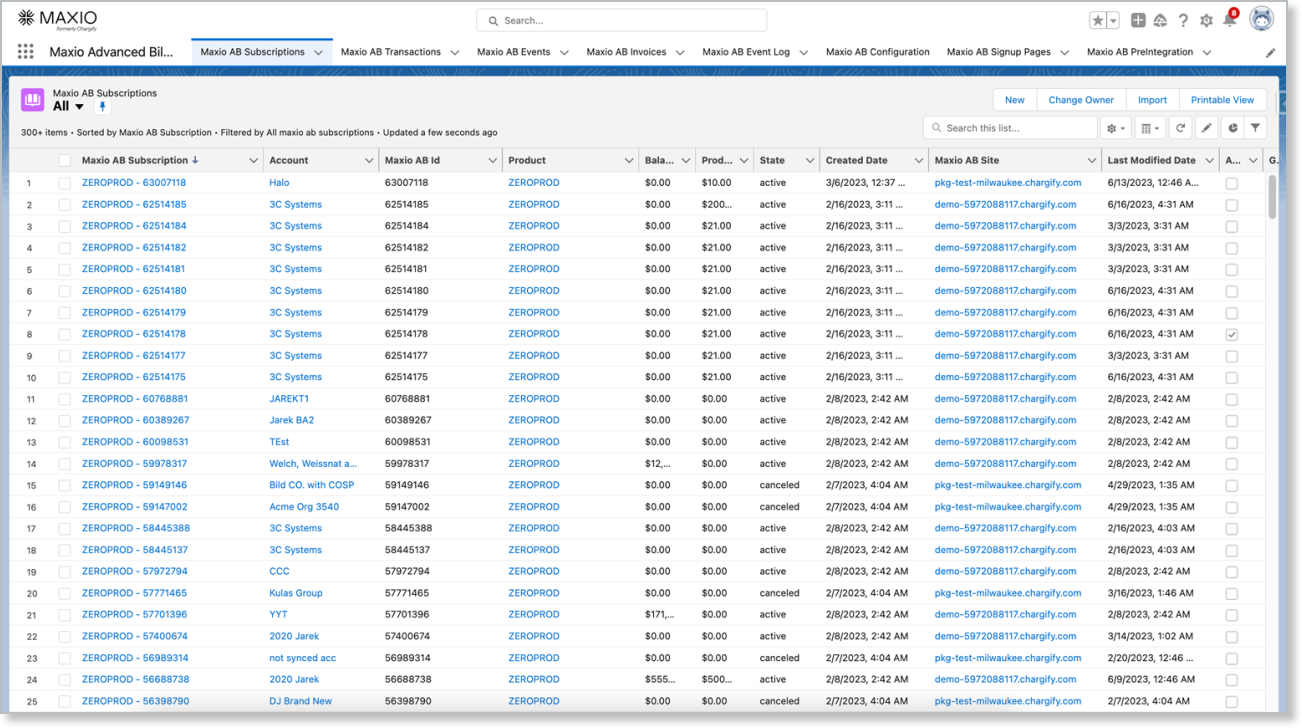
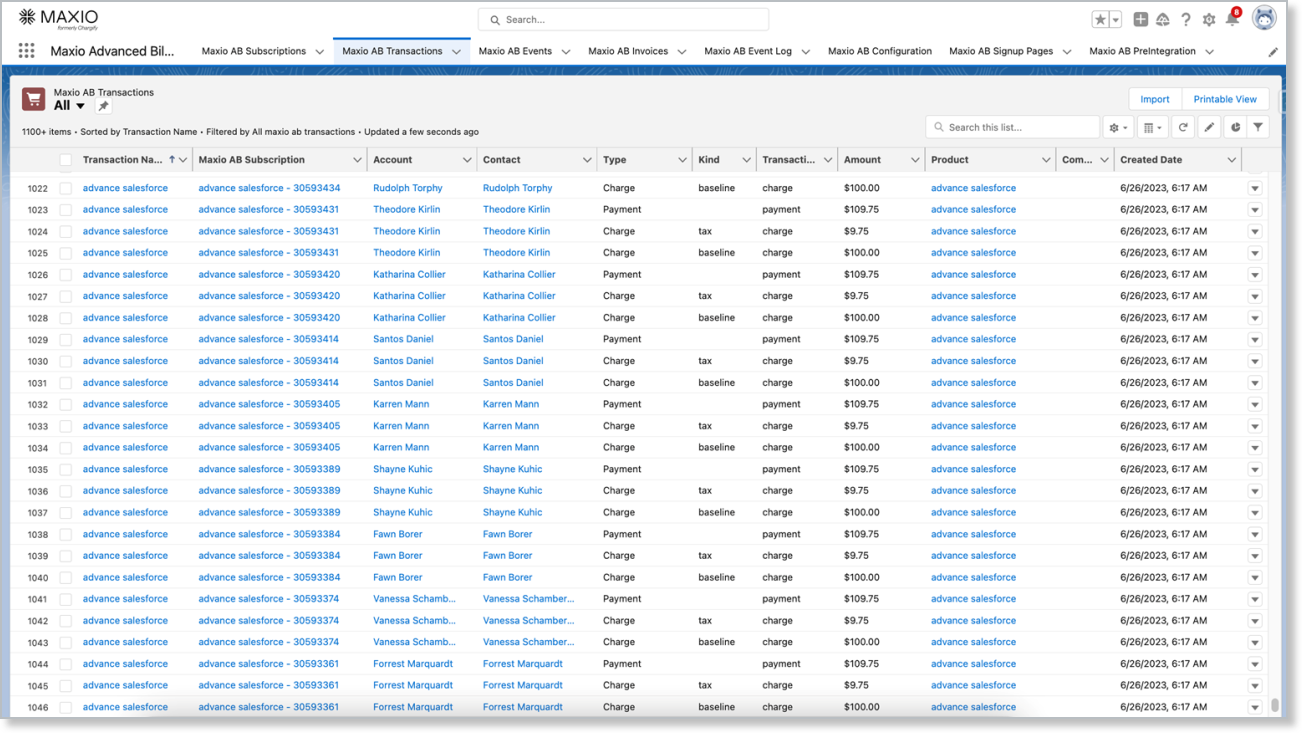
- View synced Transactions, Invoices, and Events from Advanced Billing, and take common Invoice actions from Salesforce, including recording a payment, voiding an Invoice, issuing a refund, and creating a one-time Invoice.
- Generate a Custom Offer Signup Page, a shareable link that lets a prospect self-service a Subscription signup without an Advanced Billing login.
- If your site and Salesforce package both have auto-renewal enabled, view and configure a Subscription's renewal type, factor, and term directly from its Subscription Preview.
What syncs
The integration syncs Customers, Products, Subscriptions, Transactions, Invoices, and Events between Advanced Billing and Salesforce, using a combination of a scheduled batch pull and immediate webhook pushes. See Sync Salesforce and Advanced Billing Data for the full field-by-field mapping.
Prerequisites
Before installing the integration, make sure you have:
- A Salesforce edition with REST API access. This is included with Enterprise and higher editions, and available as an add-on for Professional.
- Familiarity with Salesforce administration, since installing the package and configuring page layouts, permission sets, and Remote Site Settings all happen in Salesforce.
We strongly recommend testing the integration in a Salesforce sandbox account before enabling it in production. You can sign up for a free Salesforce developer account or create an additional sandbox environment in your existing Salesforce account.
Installing from the Salesforce AppExchange includes a 14-day free trial with one user license in Developer and Production Salesforce accounts. Sandbox environments get unlimited licenses that don't expire.
Important: if a trial expires, Advanced Billing data stops displaying in Salesforce until you purchase a license or extend the trial. To extend a trial, contact support@maxio.com.
Customer responsibilities
A few things stay in your hands after setup:
- A single Advanced Billing integration API key connects one site to Salesforce. Multi-site or hierarchical account structures may need custom development beyond this default setup.
- Choosing customer-matching, sync direction, and sync-scope settings that fit your business's data model. The defaults work for most accounts, but they determine what gets created, updated, or left alone in each system, so review them before turning the integration on.
- Keeping your Salesforce users' permission sets and page layouts up to date as your team or workflow changes. Salesforce-side configuration isn't something Maxio manages for you.
Limitations
Keep these limitations in mind:
- Advanced Billing remains the system of record for Customer and Subscription data. Salesforce displays the synced fields and supports several common actions, but doesn't replace Advanced Billing as the authoritative source.
- Products can't be created in Salesforce, and Product attributes can't be edited there. Manage your Product catalog in Advanced Billing.
Related information
To install and connect the integration, see Setup the Salesforce Integration.
To review or change your sync settings, see Configure the Salesforce Integration Sync Settings.
For common issues, see Troubleshoot the Salesforce Integration and FAQs.
Still need help?
Reach out and our support team will take it from here.