
Configure Auto-Process Sales Orders for Salesforce
Applies to: Maxio Core
Last updated on Aug 24, 2026
Automatically create Customers, Contracts, Transactions, and Invoices from a Sales Order as soon as it syncs from Salesforce, without reviewing it manually first. Once your Salesforce data is accurate enough that you rarely need to change an order before processing it, Auto-Process saves you that manual step entirely: confirm the order is correct in Salesforce, and Maxio Platform takes care of the rest.
Important: Auto-Process requires using Opportunities or Orders with Products in Salesforce. It's not available for the Opportunity without Products sync type.
Before you start
Keep these items in mind before you configure Auto-Process:
- e-Bill: if Maxio Platform is configured to turn on e-Bill for new Customers by default, you must map in an email address from Salesforce. You can also map in a "False" selection for the e-Bill option instead.
- Registers: if your Maxio Platform account has multiple registers or currencies, you must map to a specific register (or Contract, if one already exists). The first time you sync an Opportunity for a Customer with no existing Contract, you must map to a specific register. After that, you can map to the specific Contract, or continue mapping to the register. This is a safeguard to keep automatically-created Transactions from going into a Contract with the wrong currency. To map to a register, use a text value that matches the register's name.
- Contracts: to place an order's Transactions in a specific Contract, map the Opportunity to that Contract. Otherwise, Maxio Platform assigns the order to the Customer's most-recently-updated Contract. New Customers, and existing Customers using a register for the first time, get a new Contract created for them automatically, or you can create a new Contract from Salesforce by mapping a unique Contract number. If you need more control (for example, to create a new SubCustomer when processing an order), process the first order manually so you can set up the new Contract correctly. Maxio Platform uses that Contract going forward.
Activate Auto-Process
Turn on Auto-Process from the Salesforce integration settings.
To activate Auto-Process
-
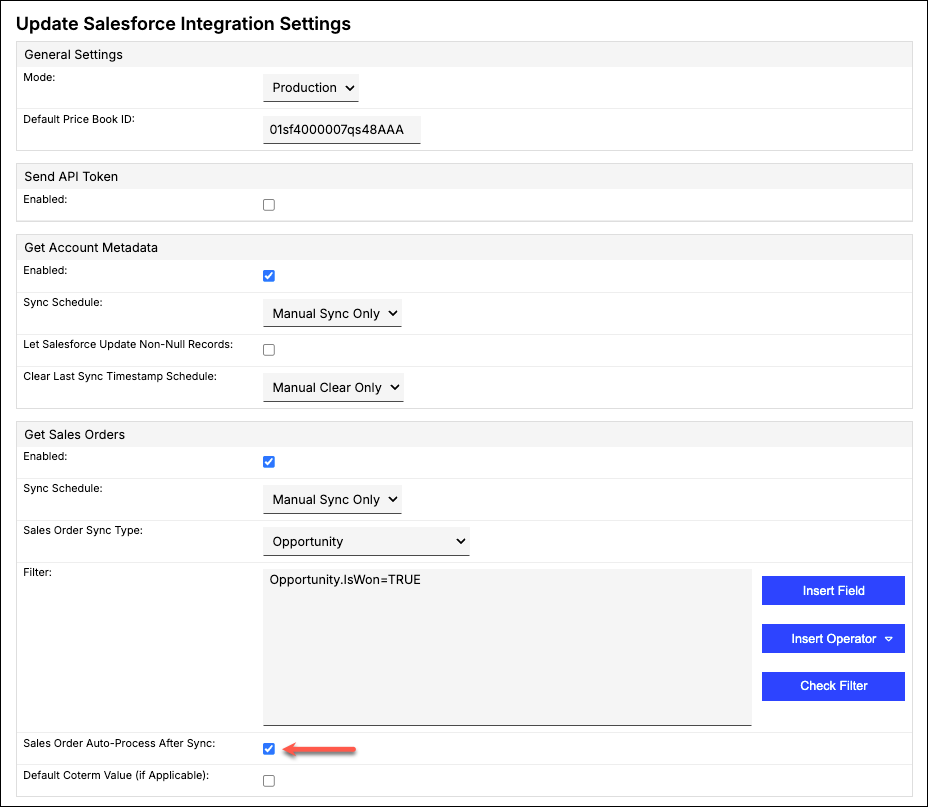
Open the Salesforce integration settings and click Update.
-
Check the Sales Order Auto-Process After Sync checkbox, found in the Get Sales Orders section of the screen.
-
Click Save at the bottom of the screen.
Map the Auto-Process field
Maxio Platform identifies which orders to automatically process using a mapped Opportunity field. The managed package provides a custom field for this purpose (labeled Maxio Platform Auto-process in Salesforce, API name Opportunity.saasoptics__auto_process__c), but you can also use any checkbox (boolean) field in your Salesforce account. Once this field pulls in as true, Maxio Platform auto-processes the order.
To map the Auto-Process field
-
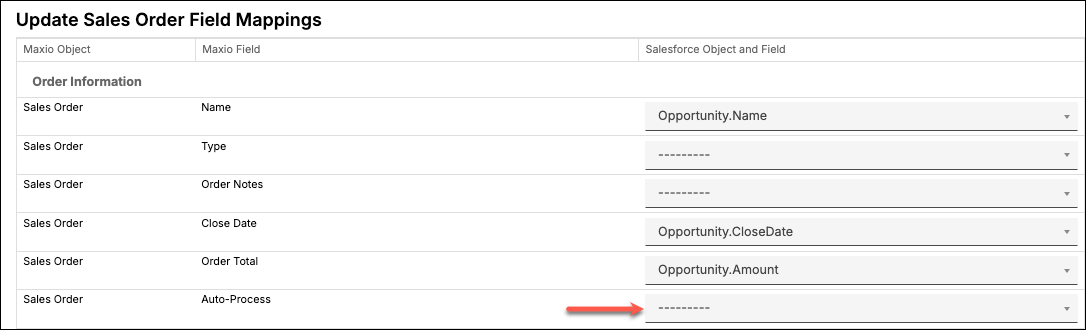
In the Salesforce settings, open the Sales Order Field Mappings tab.
-
Click Update Mappings.
-
Locate the Auto-process Maxio Platform field and select the Salesforce field you want to map it to.
-
Click Save at the bottom of the screen.
Make sure your Get Sales Orders mappings supply the minimum information required to successfully create Customers, Contracts, Transactions, and Invoices in Maxio Platform. For example, if you find yourself having to enter the Transaction Item while processing an order manually, configure your mappings so the Transaction Item is always populated instead.
Automate the Auto-Process field in Salesforce
You can incorporate the Auto-Process field mapping into any existing workflow in Salesforce by configuring an automation step that marks the field True. For example, if your organization uses an approval process to review and confirm closed Opportunities, incorporate the Auto-Process mapped field into that automation to save additional time.
That way, when the finance team approves an Opportunity's details, Salesforce automatically checks the Auto-Process box, and the resulting Sales Order auto-processes into financial records in Maxio Platform.
What to expect
Once enabled, Sales Orders process automatically during each Salesforce sync, addressing Customers, Contracts, Transactions, and Invoices the same way manual queue processing does, based on the data in the Salesforce Opportunity. The automatic process creates new objects according to these conditions:
- New Customers, if no matching Customer is found.
- New Contracts, if no matching Contract is found.
- New Transactions and Invoices, according to the Items you've mapped and how they're configured in Maxio Platform.
Maxio Platform matches Customers and Contracts by their Salesforce ID numbers, not by name or other IDs. The number of successfully auto-processed orders and newly created Transactions appears in the banner after the sync completes.
Any financial record created automatically shows "Auto-process" in the Audit Information tab, for both the Created By and Modified By fields. This is true for every Customer, Contract, Invoice, and Transaction the automatic process creates.

Important caveats
Keep these caveats in mind:
- You can't make updates to existing data imported from Salesforce while auto-processing Sales Orders.
- If auto-processing fails to completely process an Opportunity, due to an error or missing required information, the Opportunity goes into the Sales Order Queue, where you can process it manually.
- Maxio Platform creates separate Transactions for any discount amounts during auto-processing.
Related information
Learn how to map Sales Order fields in Configure Get Sales Orders for Salesforce.
Understand the Salesforce Integration for Maxio Core has an overview of every module this integration includes.
Still need help?
Reach out and our support team will take it from here.