
Configure Get Sales Orders for Salesforce
Applies to: Maxio Core
Last updated on Sep 19, 2026
Get Sales Orders imports order information from Salesforce into Maxio Platform, which you then process into Customers, Contracts, Transactions, and Invoices. See Processing Sales Orders for full instructions on processing.
Important: Once a Salesforce Opportunity or Order syncs to Maxio Platform and is processed into Transactions, it won't sync again, even if you later change it in Salesforce. Map your fields carefully before your first sync.
Map fields
You must map Salesforce and Maxio Platform fields to use Get Sales Orders. You map fields through drop-down lists, so only basic Salesforce knowledge is typically required. Mapped fields pre-populate information in Maxio Platform, increasing both the efficiency of entering records and the quality of your Sales Orders.
To map fields
-
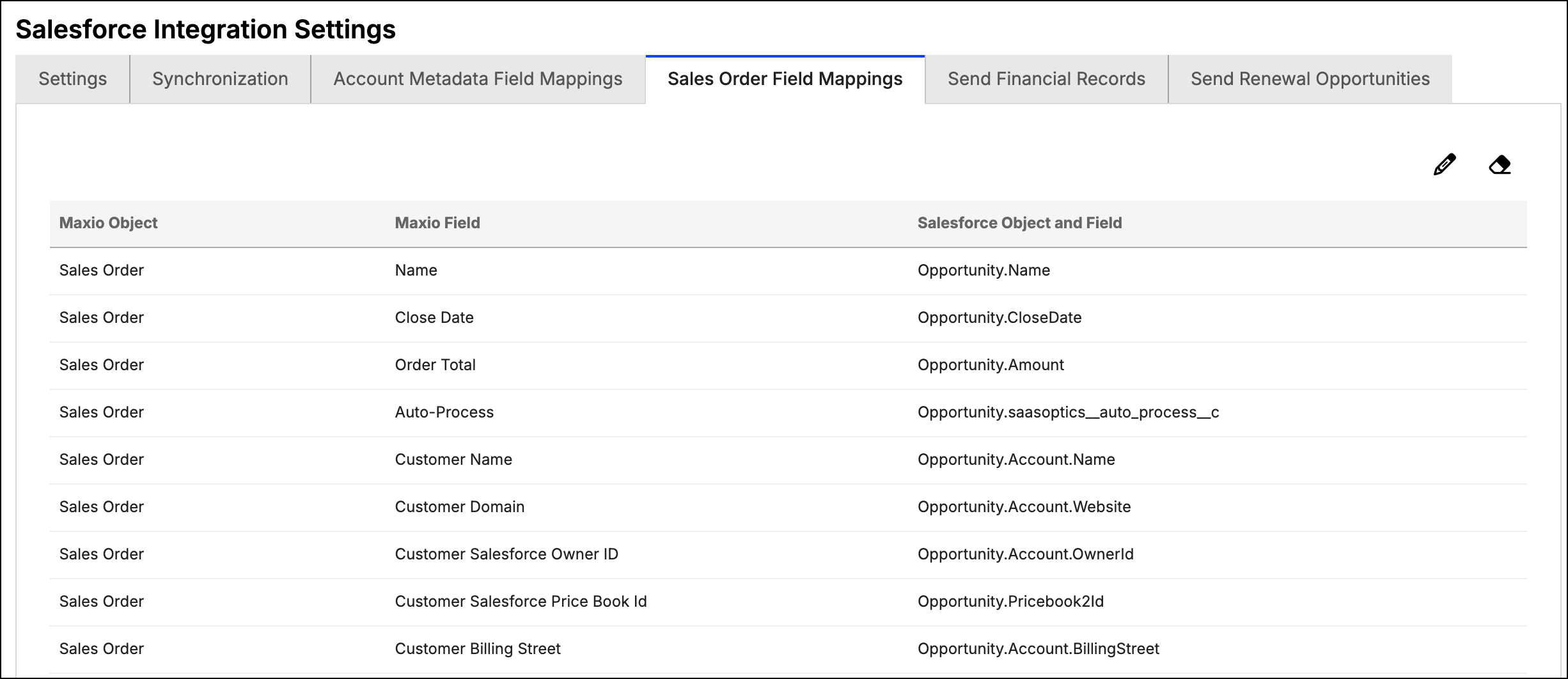
Open the Sales Order Field Mappings tab found in the Salesforce integration settings.
-
Click the Update Mappings icon.
-
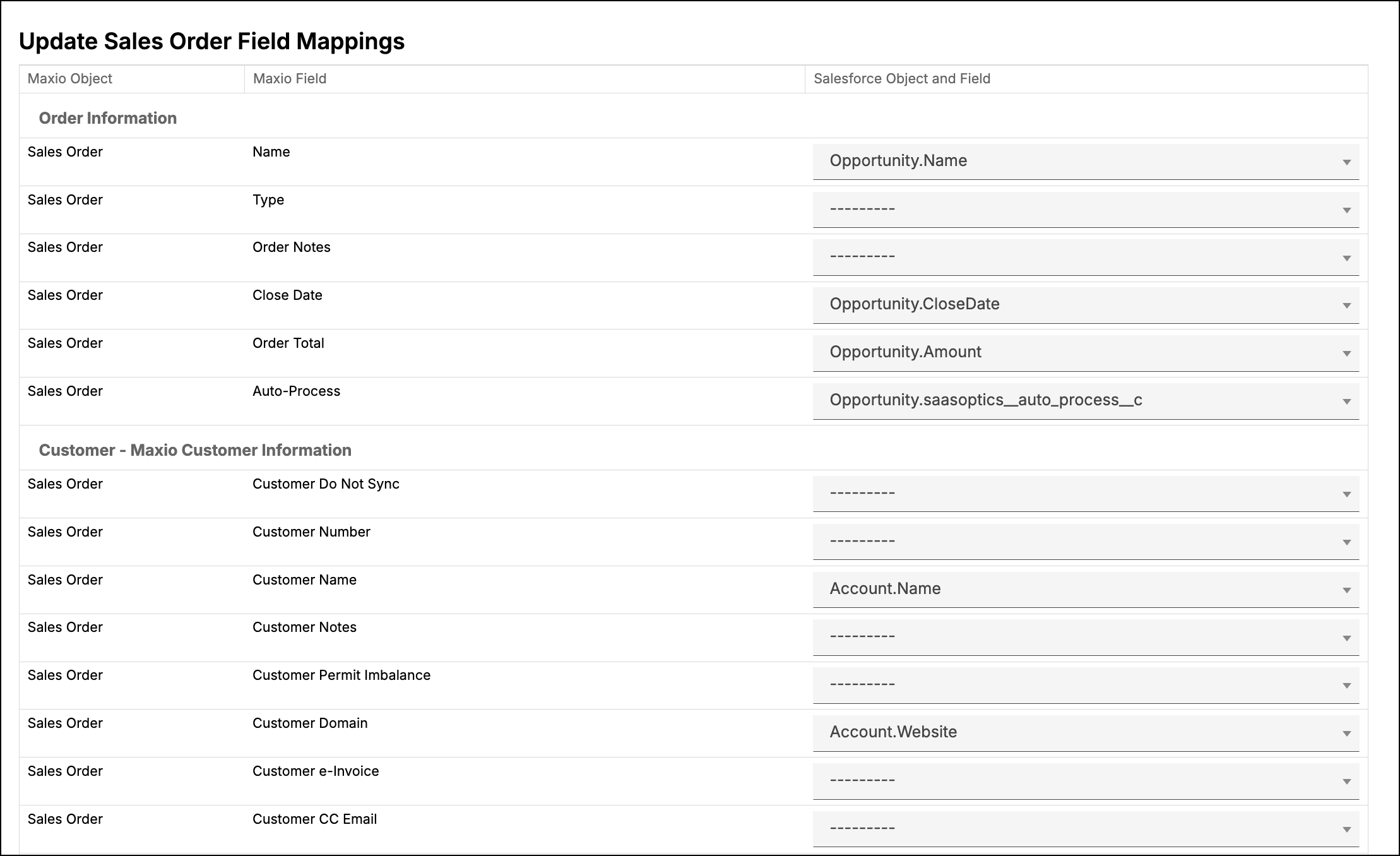
In the Mappings screen, each available Maxio Platform field has an accompanying drop-down for the Salesforce object and field. Make the selections you need. Instead of mapping to a Salesforce field, you can enter a fixed value directly — useful when every synced order should carry the same value, such as a default SKU or an internal note, without creating a matching field in Salesforce.
-
Click Save at the bottom of the screen.
Maxio Platform provides a default set of mapped fields for the Opportunity sync type, and a smaller default set for Opportunity without Products. The Order sync type has no default mappings. You need to map every field yourself.
Understand field-mapping behavior
Keep the following in mind when mapping Salesforce fields:
- Like fields. Map like fields to each other: a checkbox to a checkbox, a date to a date, a drop-down to a drop-down. Improper mappings can cause errors and prevent the sync from running.
- Drop-down fields. If you map a Salesforce drop-down field to a Maxio Platform drop-down field, the values must match exactly, letter-by-letter and with case sensitivity. If you map a Salesforce drop-down field to a Maxio Platform text field and the Salesforce field isn't populated for a record, the mapped Maxio Platform field shows "[ ]".
- Multi-select fields. If a Salesforce field lets you select multiple values, every selected value is inserted into a compatible Maxio Platform field. For example, selecting all four options in a Salesforce multi-select field would appear in Maxio Platform as
['Omega', 'Gamma', 'Alpha', 'Beta']. - Salesforce Lookup fields. Mapping a Lookup field returns the ID of the Lookup, not its displayed value.
- Rich Text fields. Maxio Platform doesn't support rich text or HTML. Mapping a rich text field shows the underlying HTML markup.
- Date and DateTime fields. You can map either type, but Maxio Platform only stores the Date component.
Filter which orders sync
Filters use Visualforce SOQL syntax to build a "where clause." A trained Salesforce Administrator or developer should build complex filters. Build and test filters in a sandbox environment before adding one to your production account.
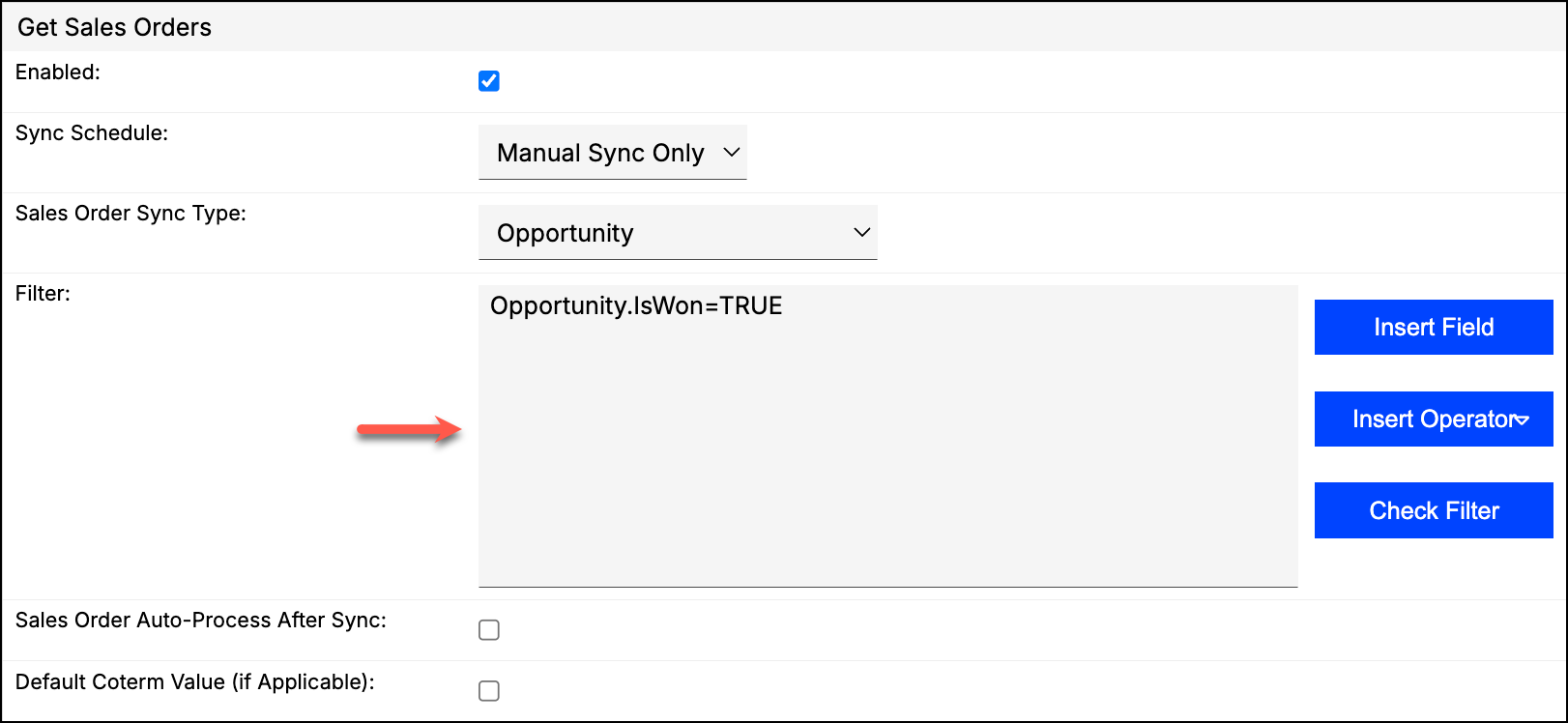
Important: Saving a blank filter can sync a significant amount of data into Maxio Platform. Maxio Platform asks you to confirm before saving a blank filter.
The Names of the Salesforce data available to filter on are the API names, the same values you see in the Get Sales Orders mapping choices in Maxio Platform. The supported Operators are =, !=, <, <=, >, >=, LIKE, AND, and OR. Values need to match the field type:
- Strings should be in single quotes.
- Numbers should just be numbers.
- Dates are
yyyy-mm-dd. - Timestamps are
yyyy-mm-ddThh:mm:ssZ(the T and Z are literal characters; the time is in UTC, not EDT). - Booleans are
TRUEandFALSE.
Use "%" as the wildcard operator for
LIKE.
Example 1: To only sync in orders after June 3, 2018, use: (Opportunity.CloseDate > 2018-06-03 AND Opportunity.IsWon=TRUE)
Example 2: To only sync Opportunities in a specific stage that also has a custom field set to true, use: (Opportunity.StageName = 'Approved' AND Opportunity.sync__c = TRUE)
Related information
The Get Sales Orders Field Mapping Reference for Salesforce has the complete list of mappable fields.
Learn about the integration's other modules in Understand the Salesforce Integration for Maxio Core.
Filters use Salesforce's own SOQL/SOSL syntax. For the full syntax reference, see Salesforce's SOQL/SOSL documentation.
Still need help?
Reach out and our support team will take it from here.