
Configure Send Renewal Opportunities for Salesforce
Applies to: Maxio Core
Last updated on Oct 13, 2026
Send Renewal Opportunities lets you construct renewal rules that apply to Transactions. These rules can run manually, or automatically on a Nightly or Hourly schedule, to create Renewal Opportunities in Salesforce.
Calculate the renewal amount
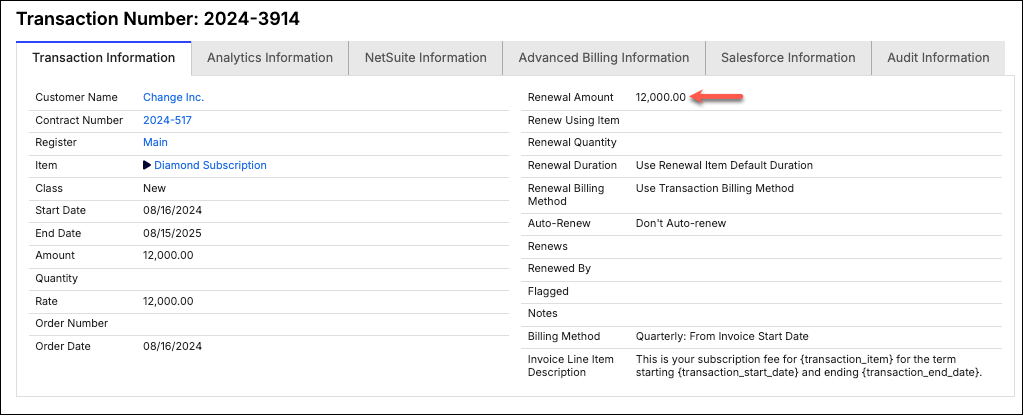
A renewal rule automatically creates a Renewal Opportunity using the renewal amount from the original Transaction. This holds whether the Renewal Amount field is populated with an actual value, a percentage value, or left blank, and whether or not a renewal factor is used. In other words, Maxio Platform determines the Renewal Opportunity amount the same way it determines a Transaction's own renewal amount. The Transaction below, for example, creates a Renewal Opportunity with an amount of $12,000.
Check eligibility requirements
A Transaction only becomes a candidate for a Renewal Opportunity once all of these are true:
- It's linked to a Renewal Opportunity rule (see below).
- Its Item is set to recur.
- It hasn't already been renewed, canceled, or expired.
- Its end date isn't already in the past.
Important: Generating Renewal Opportunities runs on its own Sync Schedule (Manual, Nightly, or Hourly), separate from each rule's own Trigger Days setting. Trigger Days determines which Transactions are eligible to trigger a Renewal Opportunity; the Sync Schedule determines when Maxio Platform actually checks for and creates them.
Map Get Sales Orders fields
You must map two Sales Order fields so Maxio Platform can recognize when a new order is a renewal to an existing Transaction.
To map the renewal fields
-
Open the Sales Order Field Mappings tab in the Salesforce integration settings.
-
Locate the Transaction Action and Renewed Transaction fields.
-
Map these to the renewal custom fields the managed package created during installation:
saasoptics__tx_action__candsaasoptics__tx_id__c.
-
Click Save.
The managed package's
saasoptics__tx_action__cfield is a picklist, with values including Renew at End of Term (the default), Cancel at End of Term, Contract Change, Early Termination, Reverse, Simple Edit, Delete, Add, and (No Action). If you map a custom Salesforce field of your own instead of using the package default, use a picklist with equivalent values.
Create a Renewal Opportunity rule
Renewal Opportunity rules apply to Transactions, not Customers or Contracts. Maxio Platform automatically adds a group of Transactions that share the same end date, the same rule, and the same Contract to a single Renewal Opportunity.
To create a Renewal Opportunity rule
-
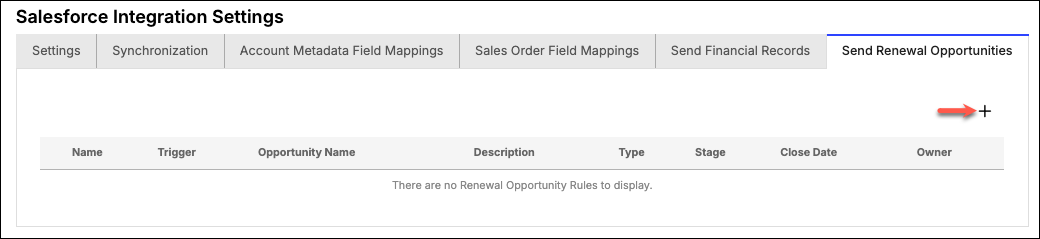
Click the Send Renewal Opportunities tab in the Salesforce integration settings screen.
-
Click the plus button on the right side of the screen. This opens the rule configuration screen.
-
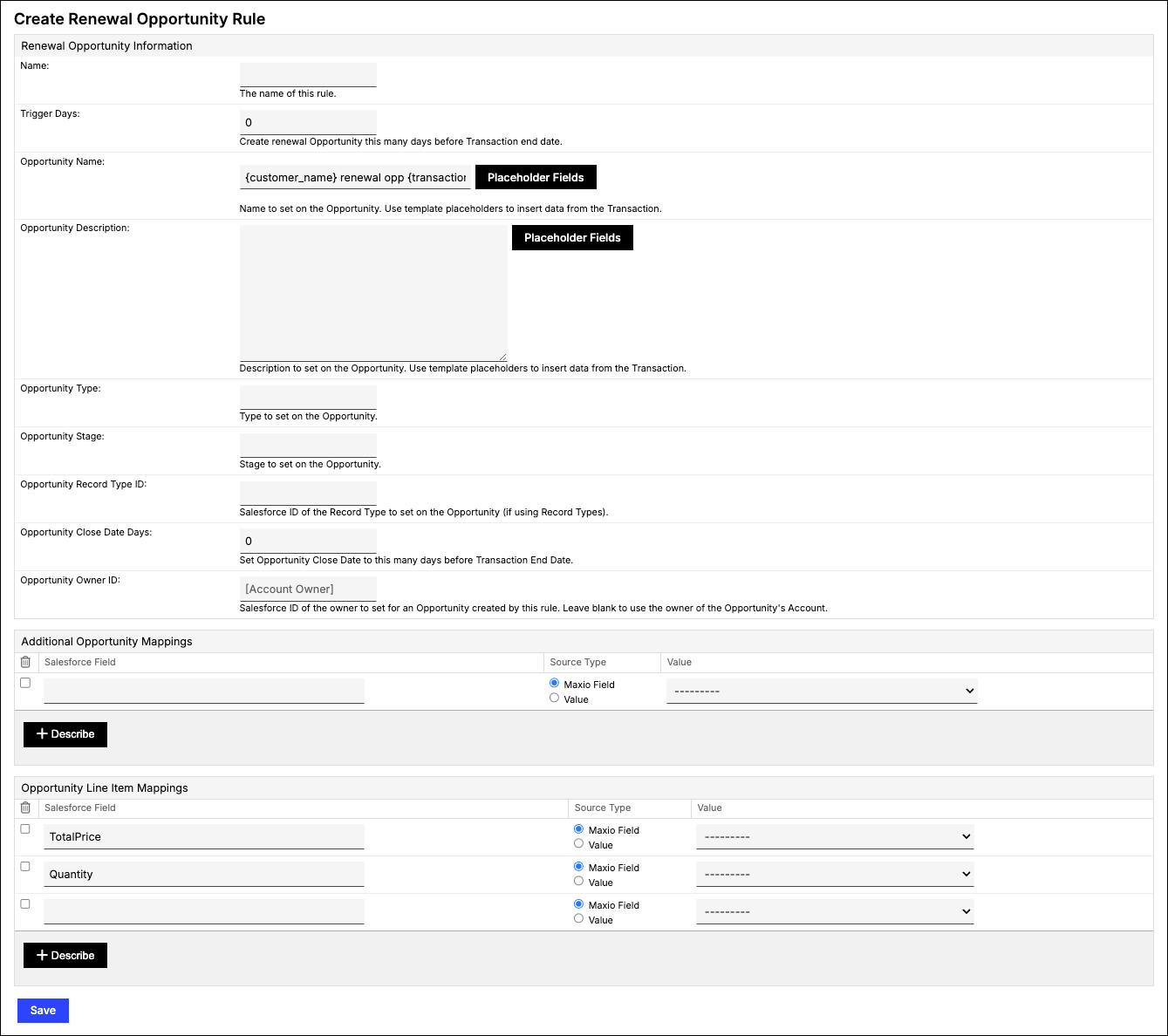
Configure the Renewal Opportunity Information options according to the descriptions below.
-
Map any additional Opportunity fields you need from your Customer and Contract data. To map the Opportunity's start date, select Renewal Opportunity: Start Date instead of a Customer or Contract field, it sends the same derived date as the
{renewal_start_date}Opportunity Name variable (the day after the Transaction end date), so the mapped field and the Opportunity Name always agree. -
Map any additional Opportunity Line Item fields you need from your Transaction data. The same Renewal Opportunity: Start Date choice is also available here, sending the identical derived date onto the Opportunity Line Item. To map each line's renewal term, select Renewal Opportunity: Duration instead of a Transaction field. It sends the renewal's resolved duration as a label, such as "One Year" or "Six Months", so your sales team doesn't have to fill it in manually on each generated Opportunity. This is the resolved term, not the raw Transaction Renewal Duration value. If the Transaction's Renewal Duration is set to Use Renewal Item Default Duration, Maxio sends the default duration of the Renew Using Item, or of the Transaction's Item when no Renew Using Item is set. If the Transaction has no Renewal Duration, Maxio sends your account's default renewal duration. Otherwise, Maxio sends the duration set on the Transaction. The Duration option is only available for line item mappings, not for the Opportunity-level mappings above, since a Transaction group's lines can each carry a different duration.
-
Click Save.
Example: You have a few large or complex Subscriptions, and you want your sales team to start the renewal process many months in advance. You create a rule to generate a Renewal Opportunity four months before the Subscription ends. Most of your Subscriptions only need a month or so of lead time, so you create a second rule for those, generating a Renewal Opportunity 45 days before the Subscription ends.
Map Renewal Opportunity: Duration to a text Salesforce field, since it always sends a label, never a number. If the resolved renewal dates don't match a standard duration, the field is sent empty, the same as any other empty mapped field.
Renewal Opportunity Information options
Configure these options for the rule:
-
(Required) Name: enter a descriptive name for the rule.
-
(Required) Trigger Days: enter the number of days before the Transaction's end date that the rule triggers. If a Transaction has an associated rule and isn't expired, the trigger fires when the trigger date is on or before today. For example, a Transaction added on 6/15/18 with an end date of 6/30/18, using a rule that triggers 30 days before end date, creates a Renewal Opportunity on 6/15/18.
-
(Required) Opportunity Name: enter the name Maxio Platform gives the Renewal Opportunity when it's created in Salesforce. Construct the name using text and variables. Supported variables, enclosed in brackets, are
{transaction_end_date},{renewal_start_date}(the day after the Transaction end date),{customer_name},{contract_number}, and{count}(the number of Transactions included in the renewal).Example:
{customer_name} Renewal for Subscription renewing on {transaction_end_date} -
(Optional) Opportunity Description: enter the Salesforce "Description" field on the Opportunity object. Supports the same variables as Opportunity Name.
-
(Optional) Opportunity Type: select the Salesforce "Type" field on the Opportunity object. Must be a valid Opportunity Type value, or the Opportunity won't be created.
-
(Required) Opportunity Stage: select the Salesforce "Stage" field on the Opportunity object. Must be a valid Opportunity Stage value, or the Opportunity won't be created.
-
(Optional) Opportunity Record Type ID: enter the Salesforce ID of the "Record Type" field on the Opportunity object. This is the ID, not the Record Type name (the API doesn't support sending the name). Must be a valid Record Type ID, or the Opportunity won't be created.
-
(Required) Opportunity Close Date Days: enter the number of days before the Transaction's end date that the close date is set to when creating the Opportunity. For example, if you want your sales team to close renewal Opportunities a month before they expire, enter "30" here.
-
(Optional) Opportunity Owner ID: enter the Salesforce Owner of the Opportunity. This is the owner's unique 15- or 18-digit user ID, not their username. Leave blank to use the owner of the Opportunity's Account.
Important: Once a Renewal Opportunity is created, Maxio Platform never updates it again. Set a rule with enough lead time for your sales team to manage the renewal, but not so far in advance that Contract or Transaction changes are likely before the Opportunity is created. If you change a Transaction in Maxio Platform after its Renewal Opportunity already exists, you'll need to make the equivalent change to that Opportunity in Salesforce yourself.
Related information
Learn about the other Send Financials modules in Configure Send Financial Records for Salesforce.
Get an overview of every module this integration includes in Understand the Salesforce Integration for Maxio Core.
Still need help?
Reach out and our support team will take it from here.