
Understand Salesforce Sync Behavior for Maxio Core
Applies to: Maxio Core
Last updated on Aug 28, 2026
Learn how Maxio links a Customer to its Salesforce Account, and how long a synced Sales Order stays in sync. Knowing both helps you recognize why a record won't re-sync, and helps you troubleshoot a Customer that's linked to the wrong Salesforce Account.
Understand Sales Order sync behavior
Once you sync an Opportunity or Order to Maxio Platform and convert it into Transactions, it won't sync again. This is true even if you add notes, activities, or tasks, or change quantity or product sales price in Salesforce.
Changes you make to an already-synced and already-processed Opportunity or Order don't come into the Sales Order Queue again, and don't change any existing data in Maxio Platform. If you add a product in Salesforce after the Opportunity or Order is synced and processed, the added product syncs to Maxio Platform and appears as a new record.
Distinguish a Salesforce Order from a Sales Order
Salesforce has a standard object called an "Order." Maxio Platform has a function called "Sales Orders," which you process into financial records. Sales Order data comes from either a Salesforce Opportunity or a Salesforce Order. To avoid confusion between these two similarly-named things, this documentation refers to the standard Salesforce object as a "Salesforce Order," and uses "Sales Order" for the Maxio Platform function, process, and data.
Understand Salesforce IDs
When you create a Customer in Maxio Platform through Get Sales Orders, the Salesforce Account ID is stored in Maxio Platform's Salesforce ID field. You can also populate this field yourself, by editing a Customer or through Import.
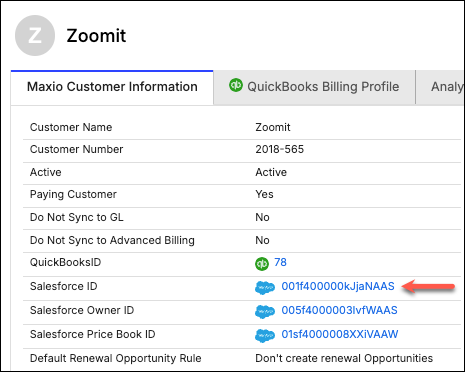
If a Customer record was created by processing a Sales Order from Salesforce, this field contains the matching Salesforce Account's unique ID.
Important: Generally, avoid editing this field. If you need to disassociate a Maxio Platform Customer record from a Salesforce Account because it's incorrect, you can delete or replace the value in this field.
Actions such as merging Accounts in Salesforce can result in an invalid Account ID stored on the Customer.
Recognize 15- and 18-digit IDs
The unique Account ID field in Salesforce has two alphanumeric representations: a 15-digit ID and an 18-digit ID. Each ID uniquely identifies the same Account record.
When a Customer in Maxio Platform is created through the Get Sales Orders process, the 18-digit version is used. If you add the Salesforce Account ID through the Maxio Platform interface, or import it, you can use the 15-digit version. Maxio Platform automatically converts it to the correct 18-digit version.
Know that Salesforce IDs aren't unique in Maxio Platform
While the Account ID is a unique field within Salesforce, it isn't required to be unique in Maxio Platform. This means you could copy and paste a single Account ID into the Salesforce ID field for more than one Customer in Maxio Platform. Avoid doing this, since it can cause issues.
Since the Salesforce ID can also be mapped to the Customer Number in Maxio Platform, the ID could end up stored in two places. The Customer Number must be unique in Maxio Platform; the Salesforce ID doesn't have to be.
Confirm a Salesforce ID is valid
Maxio Platform validates that a Salesforce ID is 15 or 18 alphanumeric characters, and checksums the 18-character form. This confirms the ID is correctly formatted, but doesn't confirm it points to the correct Salesforce record, since Maxio Platform has no way to check that against Salesforce directly.
Find records by Salesforce ID
Use the Find Objects By Salesforce ID tool to search for every Maxio Platform record linked to a specific Salesforce ID. Paste in a Salesforce ID, and Maxio Platform searches Customers, Contracts, Transactions, Sales Order Line Items, Invoices, and Invoice Line Items for a match. This is useful when you're not sure which Maxio Platform record a given Salesforce ID belongs to, or when confirming whether a Salesforce ID is already in use elsewhere.
Track Owner ID and Price Book ID
Two other Customer fields carry Salesforce IDs:
- Owner Salesforce ID: the Salesforce User ID of the Account Owner, populated when processing a Sales Order if mapped. Used when creating Renewal Opportunities, if the rule itself doesn't define an Owner ID. If Maxio Platform can't resolve an Owner ID at all, it blocks Renewal Opportunity creation with an error referencing the Customer's Salesforce Account ID.
- Salesforce Price Book Id: the Salesforce Price Book used for the original Sales Order, populated when processing a Sales Order if mapped. Used for Renewal Opportunities if a value exists for the Customer. If Maxio Platform can't match the Item to a Price Book Entry, it blocks Renewal Opportunity creation with an error asking you to update the Item's Code field to match a Product Code in Salesforce.
Related information
Understand the Salesforce Integration for Maxio Core has an overview of every module this integration includes.
Learn how Sales Order fields map to Salesforce in Configure Get Sales Orders for Salesforce.
When a sync doesn't produce the records you expect, see Troubleshoot the Salesforce Integration for Maxio Core.
Still need help?
Reach out and our support team will take it from here.