
Troubleshoot the Salesforce Integration for Maxio Core
Applies to: Maxio Core
Last updated on Aug 24, 2026
Salesforce sync issues almost always trace back to a specific cause, whether it's an error message, a Transaction that never made it over, or a Customer linked to the wrong Salesforce Account. Work through the sections below to find and fix the issue. Contact support@maxio.com if you need further assistance.
Diagnose common sync error messages
When a sync fails or flags a record, Maxio Core surfaces a specific message describing what went wrong. Recognizing these messages helps you resolve the issue faster.
Salesforce connection expired or was revoked
If Salesforce's connection token has expired, or a Salesforce Admin revoked the Maxio Connector app's access, every sync fails with a message directing you to disconnect and reconnect the integration. Follow the steps in Disconnect and Reconnect to Salesforce to restore the connection.
Salesforce API limit exceeded
If your Salesforce org's API call limit is exceeded during a sync, the sync fails with a message asking you to wait and sync again. If this happens often, contact your Salesforce Admin, since it may indicate your org needs a higher API limit.
Mapped field types don't match
If a Salesforce field mapped to a Maxio Core field is a different type of field, for example a text field mapped to a number field, the sync fails with a message asking you to check that your mapped field types match. Review your Sales Order field mappings and confirm each Salesforce field's type matches its corresponding Maxio Core field.
Account validation trigger errors
The custom Maxio Core Account objects that hold Contract, Transaction, and Invoicing information are added as additional tables and fields in Salesforce. This custom object doesn't update or directly interact with standard Salesforce objects and fields.
However, when the outbound sync runs to send Maxio Core data to Salesforce, the Salesforce architecture triggers Account validation rules to run on your Account data. If your organization added a custom validation trigger after Account data already existed in Salesforce, that trigger can run when Maxio Core adds data to an Account, and can fail if pre-existing data in a standard field doesn't pass the validation.
Example: You add a custom validation trigger on the Account's BillingState field to require exactly 2 characters. Before adding the trigger, users were free to enter complete state names longer than 2 characters. Once you sync Maxio Core with existing Account data, the sync fails on any Account whose BillingState value doesn't meet the new validation rule.
In the Maxio Core error logs (accessible to internal Maxio Support only), an error like this appears:
SfdcOutboundDataSyncError: {'errors': [{'fields': ['BillingState'], 'message': 'Billing State Needs To Be 2 Characters', 'statusCode': 'FIELD_CUSTOM_VALIDATION_EXCEPTION'}], 'id': '', 'success': False}.
Contact support@maxio.com if you encounter this type of error, since resolving it typically requires either adjusting the custom validation trigger in Salesforce or correcting the pre-existing Account data.
Encoding issue in synced text
If a Salesforce field contains mis-encoded (mojibake) characters, for example from copying text with special characters into Salesforce, Maxio Core still saves the value exactly as received, but flags a Sync Issue describing the affected field and, when possible, suggesting the likely intended value. Review the source field in Salesforce and correct it if needed.
Fix Orders linked to the wrong Customer in Maxio
This issue can occur when Salesforce Account records are merged, causing the Salesforce Account ID stored in Maxio Core to become outdated or incorrect. When Maxio Core retains a duplicate or obsolete ID, it may misroute orders due to mismatched Customer mapping.
To validate and correct the Salesforce Account ID
-
In Maxio Platform, search for the Customer by name, open the record, and copy the value in the Salesforce ID field.
-
Log in to Salesforce. From the instance's root URL (for example,
https://yourinstance.salesforce.com/), add the copied Salesforce Account ID directly to the end of the path. Don't start from an existing Account URL, since those may include extra path segments.Example: If the Salesforce ID in Maxio Platform is
01234567ABCDEFGH, openhttps://yourinstance.salesforce.com/01234567ABCDEFGH.If the Account doesn't appear, possible causes include:
- The Account was deleted or merged.
- The stored Salesforce ID was mistyped.
- The ID points to a different Salesforce object. Maxio Platform only validates that the ID is 15 or 18 characters long, so in this case, additional verification in Salesforce may be needed.
-
If the Salesforce ID doesn't resolve to the correct Account in Salesforce, return to Maxio Platform and update the Customer's Salesforce ID field with the correct value from Salesforce.
The order-processing wizard also lets you toggle between Customers with or without Salesforce IDs, so you can select the correct Customer without removing its existing Salesforce mapping.
Salesforce supports both 15-character and 18-character Account IDs, and Maxio Platform accepts either format when constructing Salesforce URLs. Salesforce typically displays the 15-character short ID in the browser; utilities exist in Salesforce to convert between the two formats, and either can be used to look up records directly.
Troubleshoot Transactions not syncing to Salesforce
There are a few possible reasons why your Transactions may not sync to Salesforce as expected:
- The Customer in Maxio Core doesn't have a stored Salesforce Account ID, or the stored ID is invalid, if you're mapping your Transactions to Salesforce Orders.
- There's no Order created in Salesforce to hold the Transaction as an Order Product. To diagnose this, view your Transaction List with the Salesforce Group ID and Salesforce ID columns displayed. If there's a Salesforce Group ID but no individual Salesforce ID, the Transaction Group exists as an Order, and the Transaction isn't being sent for some other reason. If there's no Salesforce Group ID, determine why the group as a whole isn't being sent.
- The Item used by the Transaction doesn't have a matching Product Code in Salesforce.
- The Item used by the Transaction doesn't have an Active Item in the Price Book set for the Order in Salesforce.
- The Item Code matches, but doesn't have a valid price for the selected currency in the Price Book, or isn't Active in the Price Book.
- The Item used by the Transaction is set in Maxio Core to not sync.
- There's an incorrect field mapping.
- Certain security permissions settings in Salesforce can inhibit the flow of information between the two systems.
If your Transaction is still not syncing after reviewing all of the above, contact support@maxio.com so we can investigate further.
Troubleshoot Auto-Process Sales Order failures
When a Sales Order fails to auto-process, it's typically missing a piece of information required to create the corresponding financial records. Process the Sales Order manually to find the problem: click Next until you reach a validation error, then use that information to fix the mapping going forward. Two common examples:
- Missing Email: occurs when creating a new Customer, and usually indicates e-Bill is turned on by default. The Sales Order doesn't have a mapped field for the Customer's email address, so it isn't auto-processed.
- Missing Register: occurs when creating the Contract, and usually indicates your account uses multiple registers without the necessary field mapping. The Sales Order didn't have a register set, so it isn't auto-processed.
Use diagnostic tools
Use these tools to dig deeper into a sync issue, especially when an error message doesn't point to a clear cause on its own.
Find the record causing a sync error
The Maxio Core Reference ID (Maxio Ref ID) is the unique ID number Maxio Core assigns to each record when it's created. This value appears at the end of the URL in your browser's address bar, and never changes.

Use the Maxio Ref ID to open the specific record causing an error when syncing with Salesforce.
To find the record causing a sync error
-
Locate the Maxio Ref ID at the end of the error message. In the example below, a Transaction caused the error while using the Send Financial Records function. The Transaction's ID number is 7888.

-
Open any financial record of the same type as the one causing the error. In this example, open another Transaction.
-
Copy and paste the Maxio Ref ID from the error message into the URL, replacing the current record's ID.

-
Navigate to the new URL to open the record causing the error.
Download the sync log
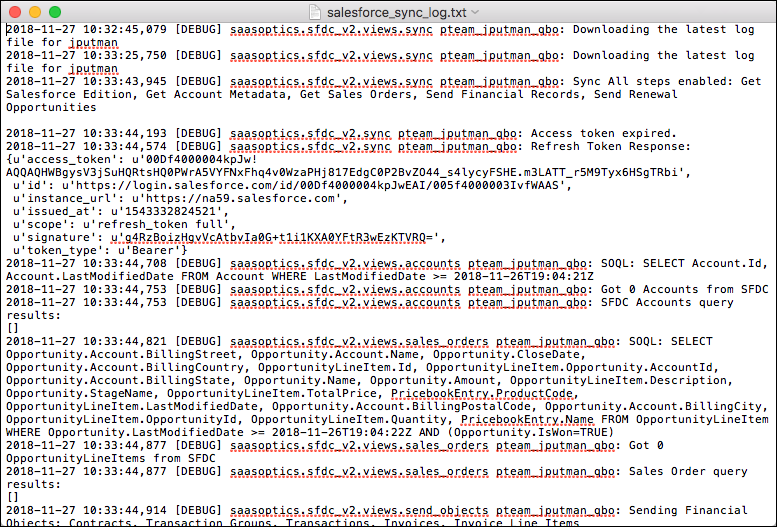
Maxio Core captures an extensive log during synchronization with Salesforce. This log can help resolve issues or errors. The log is fairly technical, but a trained Salesforce Administrator is likely to find value in its contents, since it can point to specific types of issues or specific records with issues.
To download the sync log
-
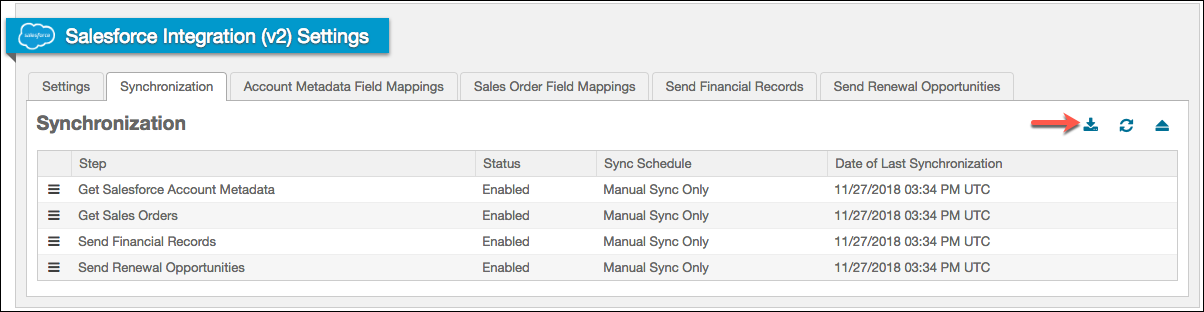
Open the Salesforce settings and open the Synchronization tab.
-
Click Download.
-
The log downloads to your computer as a text (.txt) file.
Resync Sales Orders from Salesforce
While working with Sales Orders, you might need to resync an order back into Maxio Core. This is useful if you accidentally delete a Sales Order before processing it, for example.
To resync Sales Orders
-
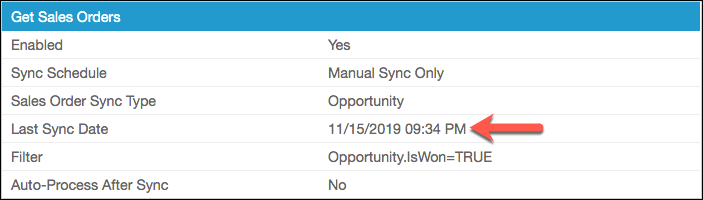
Open the Salesforce Integration Settings page and locate the Last Sync Date setting in the Get Sales Orders section of the screen.
-
Set this date to the day before the Opportunity was closed in Salesforce.
-
Click Save.
-
Complete another sync.
If you already processed the Sales Order, delete the resulting Transaction, then set the sync timestamp to an earlier date as described above. If you already sent Invoices that have been paid from this Transaction, don't delete it. Instead, clone the original Opportunity in Salesforce and bring that over.
Related information
Understand the Salesforce Integration for Maxio Core has an overview of every module this integration includes.
Understand Salesforce Sync Behavior for Maxio Core covers how Salesforce IDs work and how to find every Maxio Platform record linked to a specific Salesforce ID.
Still need help?
Reach out and our support team will take it from here.