
Item Is Active but Will Not Sync
Applies to: Maxio Core
Last updated on Sep 19, 2026
This Item is currently active in Maxio Platform but it is also set to not sync with the general ledger.
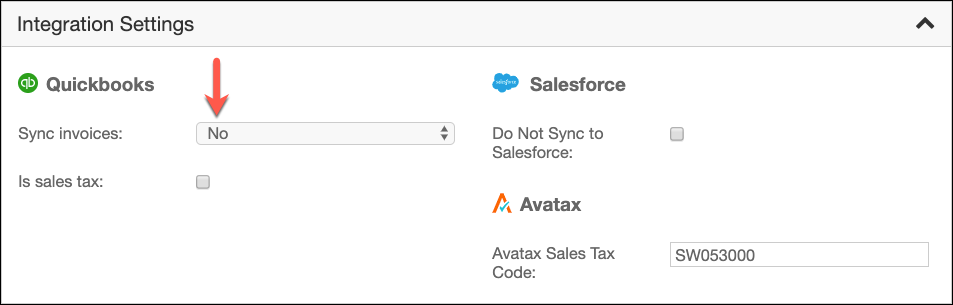
This alert appears on the Active Items Not Syncing list for any Item whose Active field is set to Active while its Sync Invoices field is set to No. With this combination, you can still create invoices using this Item, but those invoice line items will not sync to QuickBooks.
Why an active Item with Sync Invoices off will not sync
Maxio Platform tracks the Active field and the Sync Invoices field on every Item independently of each other. The Active field controls whether the Item can be selected when building Transactions and Invoices. The Sync Invoices field controls whether invoice line items that use this Item sync to your general ledger. When an Item is Active and Sync Invoices is set to No, Maxio still lets you build invoices with that Item's line items, but it will not send those line items to QuickBooks, so an invoice built from them will not sync.
Correct the Item's Active and Sync Invoices settings
To open the flagged Item, go to your QuickBooks home page and click Active Items Not Syncing.
From there, edit the Item and adjust its settings so the Active and Sync Invoices fields agree with each other.
To correct the Item's sync setting
- Click the Item's linked name in the list to open it.
- Select Edit to edit the Item. See Understand Items for the full editing steps.
- Set the Active and Sync Invoices fields to one of the two combinations below, then save your changes.
The Item is removed from the Active Items Not Syncing list once its Active and Sync Invoices settings agree with each other:
- Active is set to Active and Sync Invoices is set to Yes.
- Active is set to Inactive and Sync Invoices is set to No.
Related information
If an Item's Active setting differs between Maxio Platform and QuickBooks itself, see Item's Active Setting Mismatch instead.
If the sync setting was disabled on the Item within QuickBooks itself rather than in Maxio Platform, see QuickBooks Item Set to Not Sync instead.
Still need help?
Reach out and our support team will take it from here.