
Customer Active Setting Mismatch
Applies to: Maxio Core
Last updated on Aug 24, 2026
On the GL integration page, Maxio's Attention Needed box can show a Customer Active Setting Mismatch alert. Customers in Maxio Platform carry two separate Active settings — a Maxio Platform Customer Active status and a GL Customer Active status — and this alert flags any Customer whose Maxio Platform status is Active while the linked GL Customer status is Inactive.
The two settings live on different tabs of the Customer record and are entirely independent of each other: changing one has no effect on the other, and each one only controls whether that Customer's name is hidden in the active Customer list for its own system.
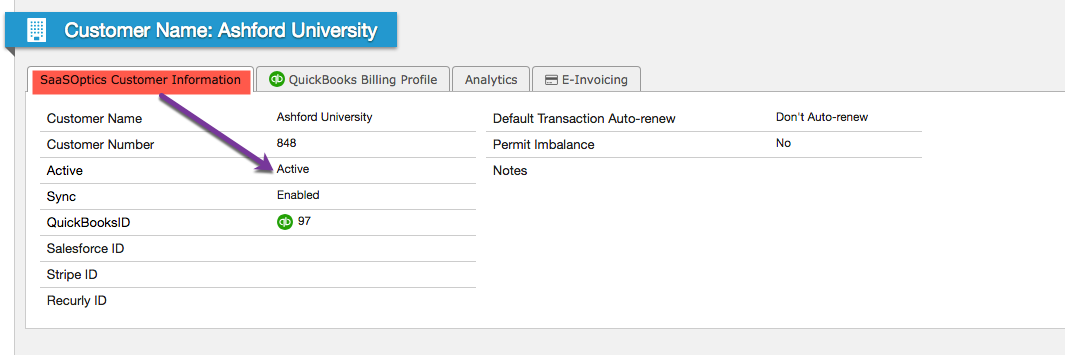
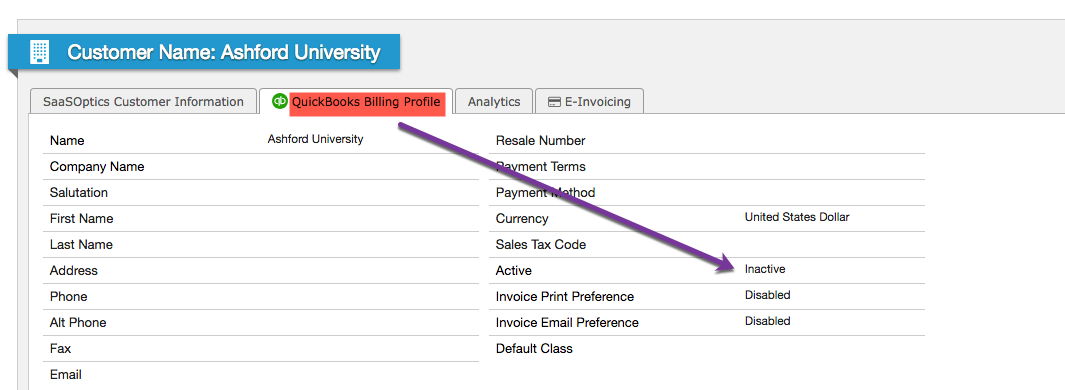
Why the Maxio and GL Customer Active Statuses Diverge
The Maxio Platform Customer Active status lives on the Customer record in Maxio, while the GL Customer Active status lives on that Customer's QuickBooks Billing Profile, so nothing keeps them in sync automatically except a manual correction or the next data sync. This alert specifically checks for Customers that are Active in Maxio Platform while their linked GL Customer record is Inactive; it does not separately flag the reverse combination, where the GL record is Active but the Maxio Platform status is Inactive. Both settings serve the same basic purpose on their own side: hiding the Customer's name from the active Customer list in that system, Maxio Platform or the GL.
QuickBooks Online
QuickBooks Online doesn't let you delete a Customer outright; you can only switch it between Active and Inactive. Once a Customer is marked Inactive in QuickBooks Online, its name displays with a "(deleted)" suffix even though the record still exists — it still appears in the Customer list when you choose to include inactive Customers, and you can make it Active again from that list or by selecting Make Active on the Customer page. (This is QuickBooks Online's own interface behavior and isn't something that can be verified against Maxio's codebase.)
On Maxio's side, marking a Customer Inactive in QuickBooks Online updates the Maxio Platform Customer status to Inactive on the next sync. While that Customer is Inactive in QuickBooks Online, Maxio also blocks any new Invoice created for it from syncing to QuickBooks Online.
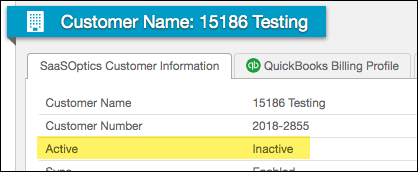
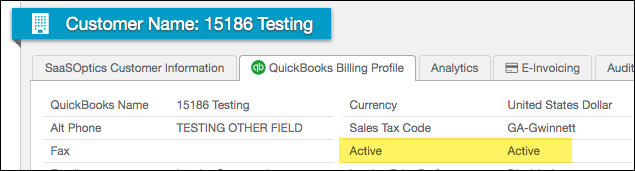
If you later mark the Customer Active again in QuickBooks Online, the next sync updates the GL Customer Active status back to Active on that Customer's QuickBooks Billing Profile tab in Maxio.
QuickBooks Desktop
QuickBooks Desktop only lets you delete a Customer if it's completely empty, with no transactions attached; otherwise your only option is to mark it Inactive. (This is also QuickBooks Desktop's own behavior and isn't verifiable against Maxio's codebase.) Marking a Customer Inactive in QuickBooks Desktop has no automatic effect on that Customer's sync with Maxio Platform. As with QuickBooks Online, if you later mark the Customer Active again in QuickBooks, you'll need to manually update the Maxio Platform status yourself, either directly on the Customer page in Maxio or through the Match function on the QuickBooks integration page.
Correct the Mismatched Customers
You can clear every mismatched Customer at once from the GL integration page, or correct a single record individually.
WARNING: Matching all mismatched Customers changes the Maxio Platform Active setting on every listed Customer to match its GL status, and this action cannot be undone.
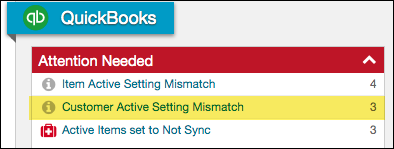
The GL integration page's Attention Needed box shows a live count of Customers with this mismatch.
To correct all mismatched Customers at once
- Go to your GL integration page in Maxio Platform.
- Select the Customer Active Setting Mismatch alert in the Attention Needed box.
- Select Match in the upper right corner of the resulting list.
- Select Update to confirm.
The Attention Needed box lists the current count of mismatched Customers, and the Match button appears in the upper right corner of the list it opens.
To correct a single record instead, edit the Customer in Maxio Platform so its Maxio Platform Active setting matches the GL setting, or edit the Customer in the GL and sync that change into Maxio Platform.
Related information
If you're troubleshooting the same kind of mismatch on Item records instead of Customers, Item's Active Setting Mismatch covers the Item-level equivalent of this alert.
For a different Customer sync mismatch, caused by differing names rather than differing Active statuses, see Customer Name Mismatch with QuickBooks.
Still need help?
Reach out and our support team will take it from here.