
Edit QuickBooks Timestamps
Applies to: Maxio Core
Last updated on Aug 28, 2026
Invoices, Credit Memos, or their line items sometimes fail to reach Maxio Platform even though the matching records already exist in QuickBooks -- a data gap. Because the QuickBooks sync is bidirectional and asynchronous, closing a gap like this usually means editing the Date of Last Synchronization that Maxio Platform stores for the affected sync step, not just running another sync.
Why invoice and credit memo data gaps happen
The sync is a bidirectional, asynchronous exchange: information flows between the two applications only when a sync runs. For QuickBooks Desktop, that's whenever the Intuit Web Connector runs a sync. For QuickBooks Online, that's whenever a sync is started from within Maxio Platform.
Because you can add and edit data in both applications between syncs, and the two applications are not connected in real time, it's possible to enter data in a way that creates collisions, such as duplicate Customer names. It's also possible to create data gaps.
Each application also has its own settings that govern when data can be entered or edited. In QuickBooks, for example, you can set a closing date that blocks new invoices from being created before that date. In Maxio Platform, you can set an independent closing date that blocks the creation of revenue records and invoices before that date, and you can turn Sync Invoices on or off for an Item at any time to control whether that Item's Invoice Line Items sync.
The sync itself is made up of Send steps and Get steps. Send steps push information from Maxio Platform to QuickBooks. Get steps pull information from QuickBooks into Maxio Platform.
Send: from Maxio Platform to QuickBooks
By design, anything that originates in Maxio Platform syncs to QuickBooks once it meets the right conditions. Other than an unexpected error, you can't cause a data gap in QuickBooks from data created in Maxio Platform. Maxio Platform sends:
- Customers that don't yet have a QuickBooks Customer ID
- Invoices that don't yet have a QuickBooks Invoice ID
- Credit Memos that don't yet have a QuickBooks Credit Memo ID
Do Not Sync settings on Item, Customer, and Invoice/Credit Memo records can keep a record from sending, and date-based settings affect the timing of when Invoice and Credit Memo records send. Apart from that, a record sends as soon as Maxio Platform's business rules say it's ready. Only an error condition stops a record from sending.
Get: from QuickBooks to Maxio Platform
Unlike the Send direction, the Get direction can develop Invoice and Credit Memo data gaps caused by actions users take in either application.
Editing one or more sync timestamps on the Get steps is how you close an Invoice or Credit Memo data gap. To know which value to enter, it helps to understand how the Get steps actually decide what to fetch.
QuickBooks keeps an audit-trail "last change" timestamp for every record. This timestamp isn't shown anywhere in the QuickBooks user interface, but it is available through the programming interface Maxio Platform uses to talk to QuickBooks. When a record is created, that timestamp is set to the creation date and time; when the record is edited, the timestamp updates to the edit's date and time, with QuickBooks handling any time zone conversion.
Each Get step asks QuickBooks for every record of that type whose "last change" timestamp is on or after the Date of Last Synchronization that Maxio Platform has stored for that step.
Here's an example of how a gap can form.
- Item Alpha first syncs to Maxio Platform on January 15, with Sync Invoices set to No.
- QuickBooks already has 300 Invoices that use Item Alpha, all dated before January 15.
- Between January 15 and February 14, 10 more Invoices using Item Alpha are created in QuickBooks.
- A sync runs on February 14, which sets the Get Invoices step's Date of Last Synchronization to February 14.
- On February 15, you decide Item Alpha's Invoice data should sync after all, so you turn Sync Invoices on for the Item and run another sync.
What happens to the 310 Invoice Line Items that use Item Alpha? None sync. Every one of those records has a "last change" timestamp in QuickBooks on or before February 14, and the Get Invoices step's Date of Last Synchronization is also February 14. Since none of them changed after the last sync, none of them qualify to be fetched.
On February 16, you edit 2 of the original 300 Invoices and 4 of the 10 created after January 15, then sync again. This time, 6 Invoice Line Items for Item Alpha sync to Maxio Platform, because those 6 records now have a "last change" timestamp of February 16, which is after the stored Date of Last Synchronization of February 14. The other 304 Invoice Line Items still won't sync unless they're edited again in QuickBooks or you change the Date of Last Synchronization.
Edit the Date of Last Synchronization to close the gap
Each row on the Synchronization settings page lists one Get or Send step with its own Date of Last Synchronization and an Edit action, so you edit the timestamp for the specific step that's missing data, not a single sync-wide setting.
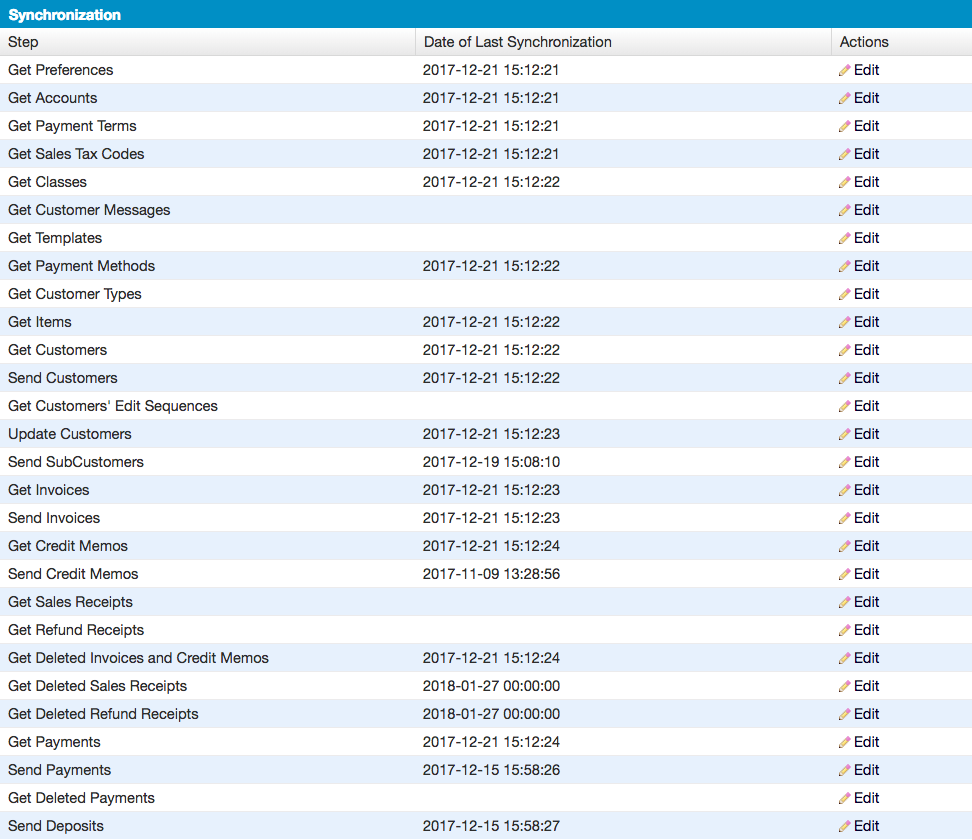
Selecting Edit next to a step lets you set that step's timestamp to any date and time you choose, or clear it entirely.
To edit a step's Date of Last Synchronization
- On the Synchronization settings page, find the Get step that's missing data (for example, Get Invoices or Get Credit Memos) and select Edit next to its Date of Last Synchronization.
- To fetch everything on or after a specific point in time, enter a date and time that precedes the earliest record you need re-fetched, using the format
yyyy-mm-dd hh:mm:ss, wherehh:mm:ssis 24-hour time. Example:2014-03-04 20:05:00is how you'd enter 8:05 PM. - If you don't know the earliest date you need, clear the field entirely (a blank value with no spaces) instead of entering one.
- Save the change, then run a sync so the step re-fetches records using the new timestamp.
Important: Back up your data before you clear the field. A blank Date of Last Synchronization causes that step to fetch every record of that type from QuickBooks, not just the ones tied to your gap.
You can also combine an edited Date of Last Synchronization with the Get Invoices From QuickBooks Only After Date setting to limit the re-fetch to records dated after a specific point, rather than pulling every historical record for that step.
Related information
For step-by-step backup instructions before you clear a sync timestamp, see Back Up and Restore Your Account.
For the full description of the Get Invoices From QuickBooks Only After Date setting and every other QuickBooks integration setting, see Configure QuickBooks Integration Settings Fields.
For how the Sync Invoices setting on an Item controls whether its Invoice Line Items sync, see Item Is Active but Will Not Sync.
Still need help?
Reach out and our support team will take it from here.