
Configure Document Settings
Applies to: Advanced Billing
Last updated on Aug 26, 2026
Control how reference information, usage details, and Child Invoices appear on your generated Invoices, both on screen and in the PDF.
Go to Config > Settings > Invoices and scroll down to the Invoice Customization section.
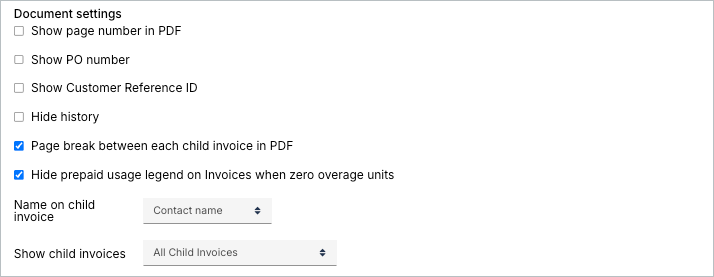
Document settings
These settings control how reference information and history appear on the Invoice.
- Show Page Number in PDF
Displays page numbers in the footer of each page in the PDF version of the Invoice. - Show PO Number
Displays the Purchase Order (PO) Number field on the Invoice. For details, see Display the Purchase Order Number on Invoices. - Show Customer Reference ID
Displays the Customer Reference ID, if one has been configured for the Subscription. For details, see Display the Customer Reference ID on Invoices. - Hide History
Removes the billing history section from the Invoice, including past balances and previous payments. - Page Break Between Each Child Invoice in PDF
Inserts a page break before each Child Invoice in the PDF output when multiple Child Invoices are present. - Hide Prepaid Usage Legend on Invoices When Zero Overage Units
Hides the usage legend for prepaid Products when the overage usage quantity is zero. - Display Trial Invoices as Introductory Offers
When enabled, all trial-resulting Invoices are marked as introductory offers and include standard explanatory text about the introductory offer. This setting overrides any Plan-level introductory offer configuration.
Child Invoice settings
These settings control which Child Invoices appear and how they're labeled.
- Name on Child Invoice
Choose whether to display the Contact Name or Organization Name on each Child Invoice. - Show Child Invoices
Controls which Child Invoices are included in the Parent Invoice.
Options:- All Child Invoices – Display all available Child Invoices.
- Only Child Invoices with Activity – Display only those that are active.
Related information
Child Invoices come from combining multiple Subscriptions onto one Invoice. To learn how that works, see Consolidate Subscription Groups.
Still need help?
Reach out and our support team will take it from here.