
Display Previous Balances, Memos, Payment Instructions, and Credit Notes
Applies to: Advanced Billing
Last updated on Aug 28, 2026
Configure whether to display outstanding balances, custom memos, payment instructions, and Credit Notes on your Invoices. These options help ensure clarity for your Customers, especially for manual billing, recurring payments, or when additional messaging is needed on the Invoice. To set the memo and payment-instruction text itself, rather than whether it appears, see Update Payment Instructions and Invoice Memo.
Go to Config > Settings > Invoices and scroll down to the Invoice Customization section.
Displaying custom fields on Invoices is controlled separately, from the Custom Fields tab under Config. See Configure Custom Fields.
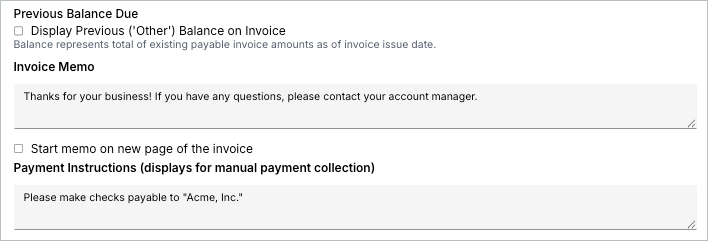
Previous balance due
Display Previous (“Other”) Balance shows the total amount due from any outstanding payable Invoices for the Subscription at the time the new Invoice is generated, including a list of all unpaid Invoices and the individual amounts due at the time of issuance.
Invoice Memo
Enter any custom information you want to appear at the bottom of each Invoice. This is commonly used for notes, policies, or other account-specific messaging.
Check Start Memo on New Page of the Invoice if you want the Invoice Memo to appear on a new page in the PDF version of the Invoice.
Payment Instructions
Use this field to indicate how the Customer should submit payment. Example: “Make checks payable to Acme, Inc.” Payment Instructions are only displayed on manual payment collection.
Credit Note
Display Credit Note Details on Invoices shows a list of applied Credit Notes on the Invoice, including amounts and reference numbers, when enabled.
Still need help?
Reach out and our support team will take it from here.