
Display the Customer Reference ID on Invoices
Applies to: Advanced Billing
Last updated on Aug 26, 2026
Show a Customer's internal reference value on every Invoice format, including the Invoice preview, the public landing page, the PDF document, and JSON output, using the Customer Reference ID field. This helps with ERP reconciliation, reporting, or automation.
The reference ID is your own identifier for the customer, not one Advanced Billing generates. Putting it on the invoice means the document carries the same key your other systems use, so an invoice can be matched back without a lookup.
Enable the field and customize its label
-
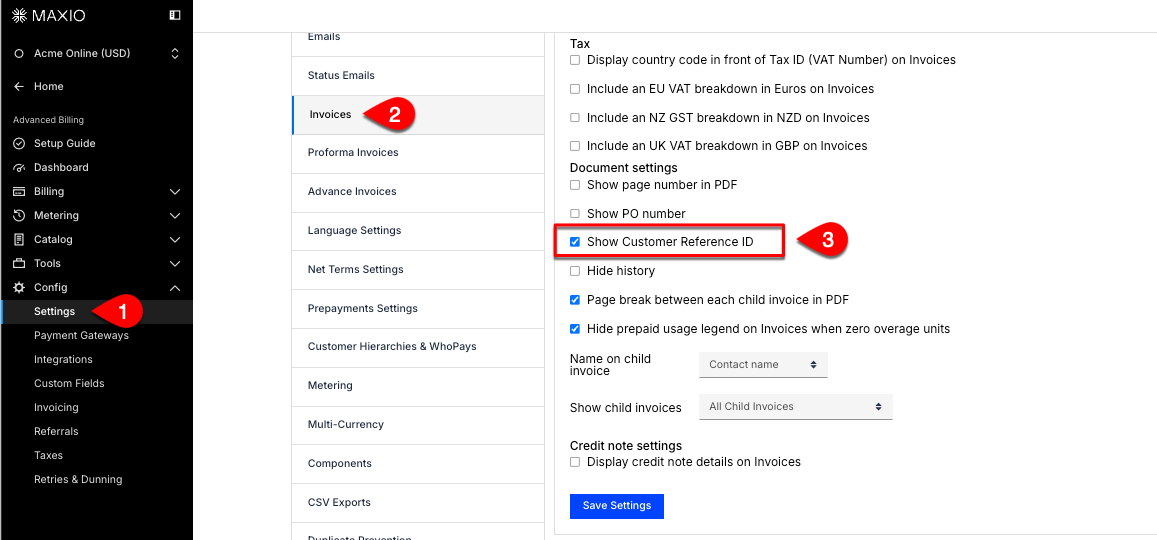
In Advanced Billing, go to Config > Settings.
-
Select Invoices and, under Invoice Customization, scroll down to the Document settings section.
-
Check the Show Customer Reference ID box.
-
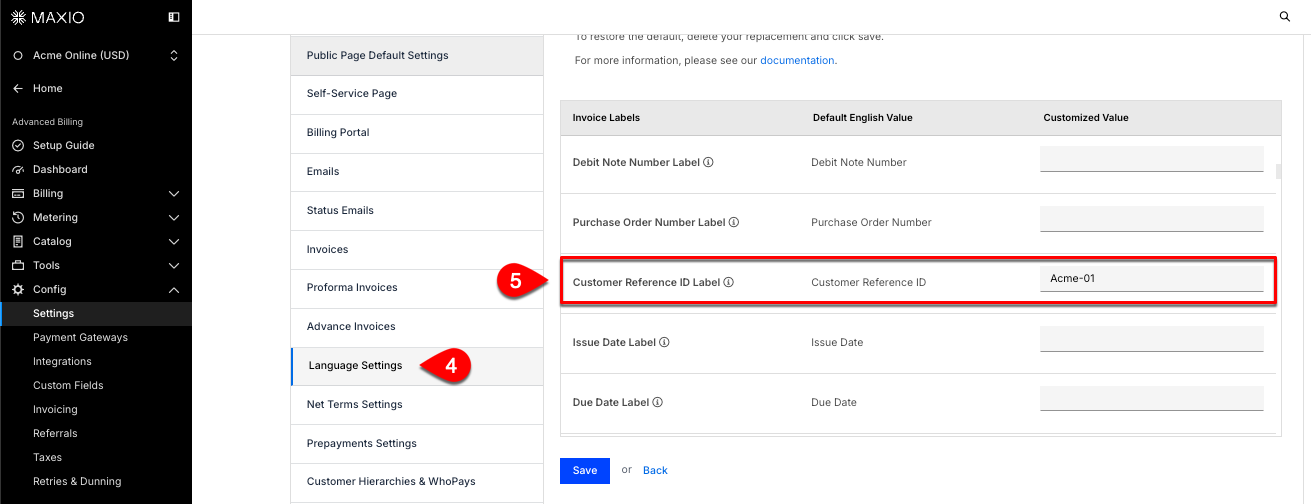
From the same Settings screen, click Language Settings.
-
Find the Customer Reference ID Label row and enter your preferred label in the Customized Value column.
-
Click Save.
Where the reference ID appears
Once enabled, the field is shown consistently across every format an invoice is delivered in — the preview inside Advanced Billing, the public landing page a customer opens, the PDF they download, and the JSON returned by the API. A system consuming invoices programmatically sees the same value a customer sees on paper.
Setting the label
The label is customized through Language Settings rather than the invoice settings screen, because it is translated text like any other invoice wording. If your site uses multi-lingual invoices, set the label in each Language you support — otherwise the customized value applies to the default English wording.
Still need help?
Reach out and our support team will take it from here.