
Configure Credit Card Dunning
Applies to: Advanced Billing
Last updated on Oct 7, 2026
Dunning for credit cards lets you control how past-due Subscriptions are handled when automatic card payments fail. Advanced Billing lets you customize the retry timing, messages, and final action (cancel vs. mark unpaid) every step of the way.
To access the Dunning settings, go to Config > Retries & Dunning.
Select a dunning strategy
Advanced Billing includes pre-configured dunning strategy templates to help you get started. Select Create Schedule, then Use Template to choose one.
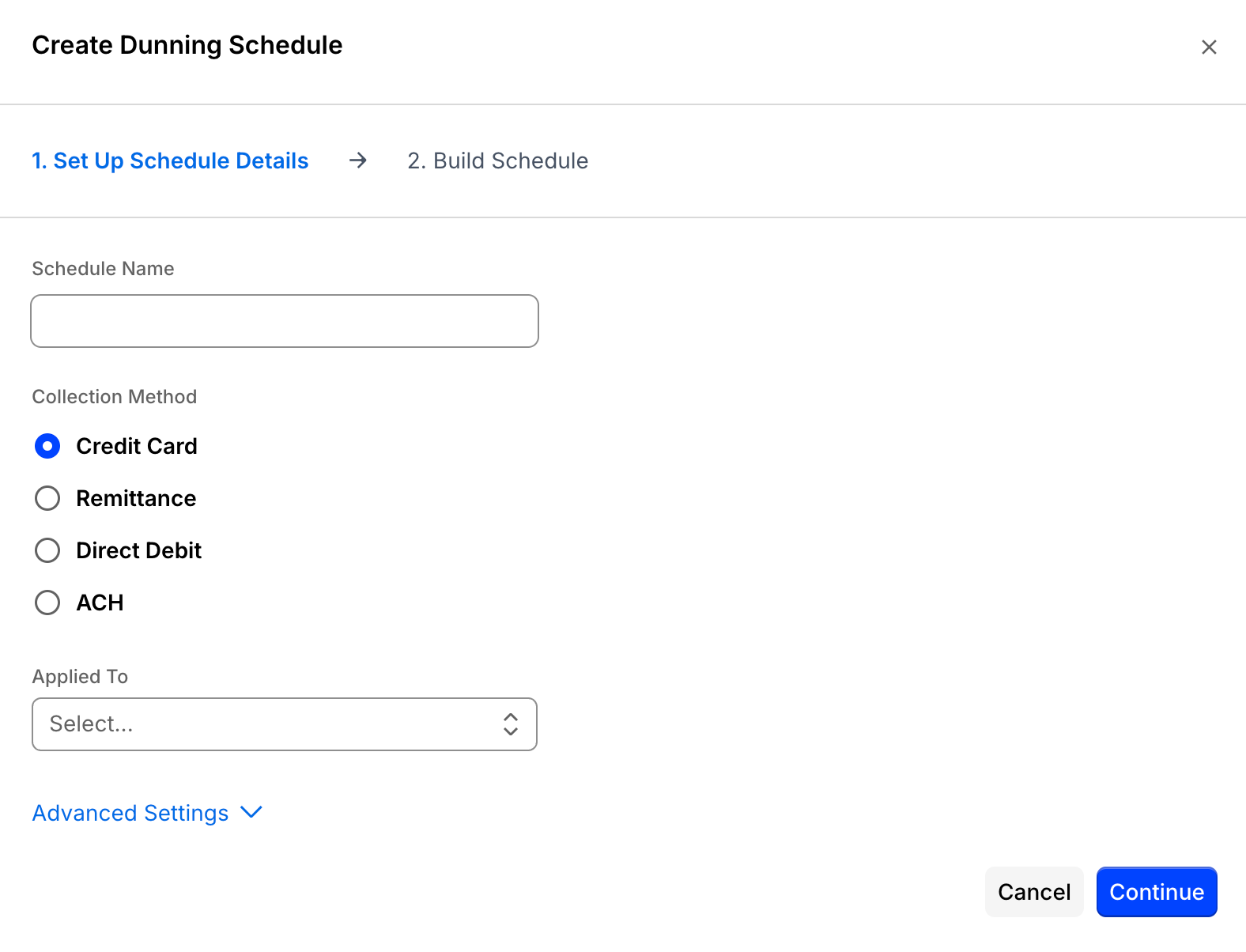
By default, the preset strategies do not send emails on their retry steps. Each step starts with email notifications turned off. After selecting a strategy, you can enable emails for individual steps and customize the templates as needed.
Select trigger options
Depending on your site configuration and enabled payment methods, you may see several options when setting up a dunning strategy. These can include:
- Mid-period Product Allocation: Start the dunning when a mid-period Product allocation payment fails.
- Awaiting Signup Payment Failure: Start the dunning when a sign-up payment fails.
- Trigger Dunning For Backdated Subscriptions: Start the dunning for backdated Subscriptions on their first charge.
If you prefer an immediate response to failed renewals, you can leave dunning disabled for that collection method instead of configuring a schedule. Without a configured schedule, a Subscription cancels immediately after the first failed renewal.
Availability of these options varies based on your billing setup and gateway configuration.
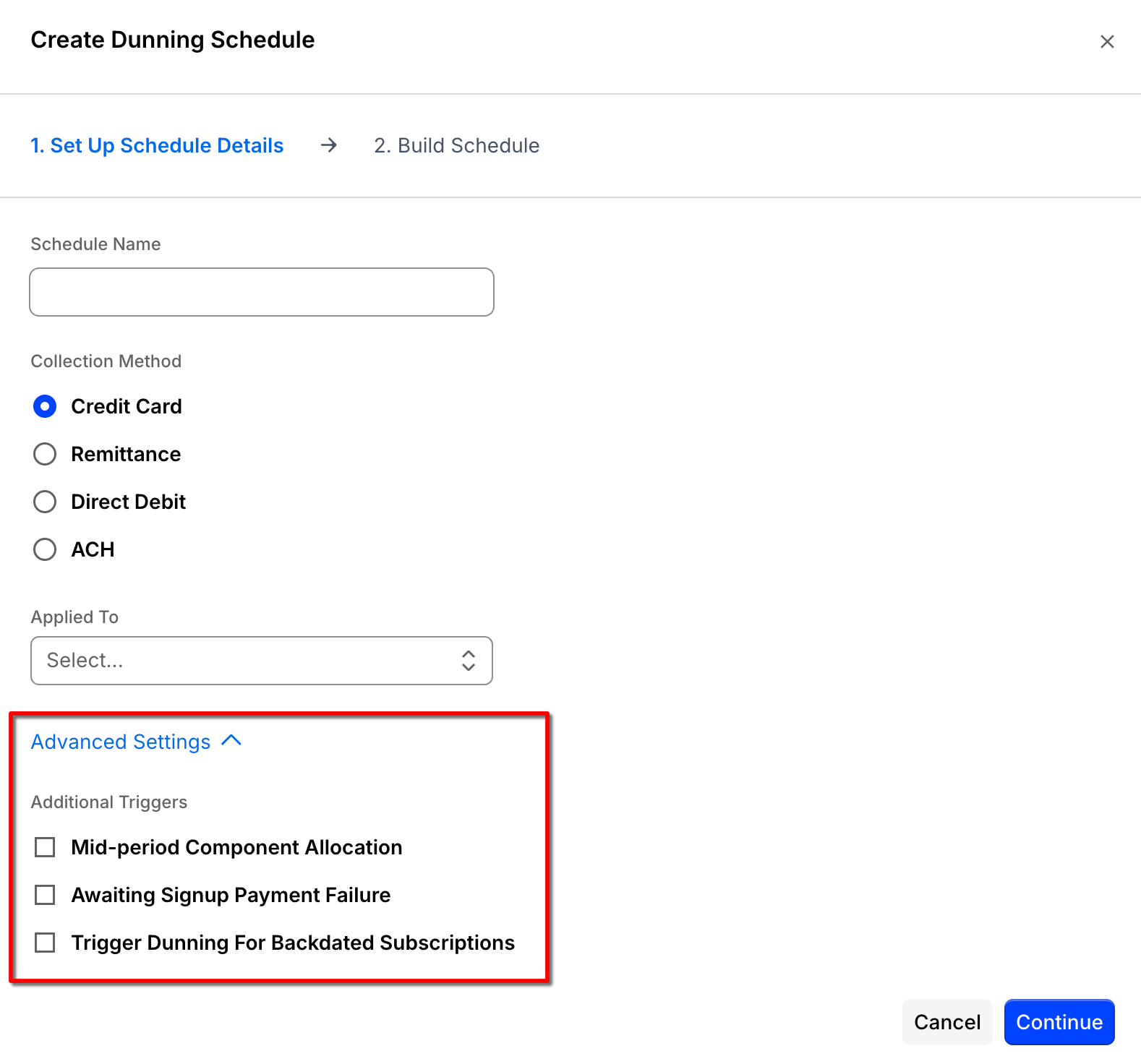
Use triggers to start a Dunning Schedule in scenarios beyond a standard renewal failure. These options appear under Advanced Settings > Additional Triggers when you create or edit a Dunning Schedule.
Mid-period Product Allocation
Start dunning when a mid-period Product allocation charge fails. This applies to Product allocations that attempt immediate payment and fail with a non-zero amount, including quantity-based Products, on/off Products, prepaid allocations, and certain prepaid Products that capture charges at allocation time. Usage types that don't attempt immediate capture don't trigger dunning.
How it works: When this is enabled, allocation charges that attempt immediate payment and fail can initiate the Dunning Schedule tied to the Subscription. This helps recover revenue from Product changes that occur during the billing period. If the allocation is set to accrue instead of charge immediately, the dunning configuration doesn't apply to that allocation.
Availability: Only available for Credit Card Dunning Schedules.
Group behavior: If the primary Subscription fails an allocation payment, the entire group can enter dunning. If a member Subscription fails an allocation payment, only that member enters dunning.
Awaiting Signup Payment Failure
Start dunning when an initial payment fails for a Subscription that is in the Awaiting Signup state.
How it works: When enabled, a failed signup payment can enter the Dunning Schedule rather than immediately canceling the Subscription. If the option is off, the Subscription is canceled after a failed signup payment.
Availability: Only available when delayed signup is enabled for the site.
Trigger Dunning For Backdated Subscriptions
Start dunning when a backdated Subscription fails its first payment.
How it works: When enabled, a backdated Subscription can enter dunning (for example, move to a Past Due state) if the initial payment attempt fails. If the option is off, the backdated Subscription doesn't enter dunning on that failure.
Availability: Only available when delayed signup is enabled for the site, and not available for Remittance Dunning Schedules.
Best practices for using triggers
Keep the following in mind when using Additional Triggers:
- Additional Triggers apply to the Dunning Schedule that matches the Subscription's collection method and Plan scope.
- Use these options to align recovery workflows with your billing model (for example, mid-period allocation charges versus delayed signups).
- If a Subscription renews while already past due from a Product allocation failure, the Dunning Schedule continues and doesn't reset for the renewal failure.
Retry and Dunning Schedule
If the Dunning Schedule is changed, Advanced Billing recalculates what the current dunning step is for today. Dunning is defined by the current strategy and how long the Subscription has been in the dunning process.
Advanced Billing determines the correct dunning step based on how long the Subscription has been past due and your current schedule settings. Because the step is always calculated from today's timeline rather than stored as historical state, updates to your schedule may change which step a Subscription appears to be on.
When a Subscription's period ends, the normal renewal process attempts to charge the card on file. If that attempt results in a failure (a processor decline), the Subscription becomes Past Due. Advanced Billing automatically retries the failed charge according to the schedule you configure in this section. After all the steps in this schedule are complete, you can take a Final Action on the Subscription and optionally send an email.
If a Subscription reaches its regular renewal date while in dunning and there's no scheduled dunning step for that day, the renewal attempt still runs as normal. If the renewal attempt fails, the Subscription remains in dunning and continues following the next scheduled dunning step.
The Send Dunning Emails From address configured in this section is also used as the from address on your Final Action email. It defaults to your merchant email address.
To send an email without retrying the payment, disable the Retry Payment slider. This turns off the payment retry for that dunning step. This option isn't available on a Day 1 step, which always retries the payment.
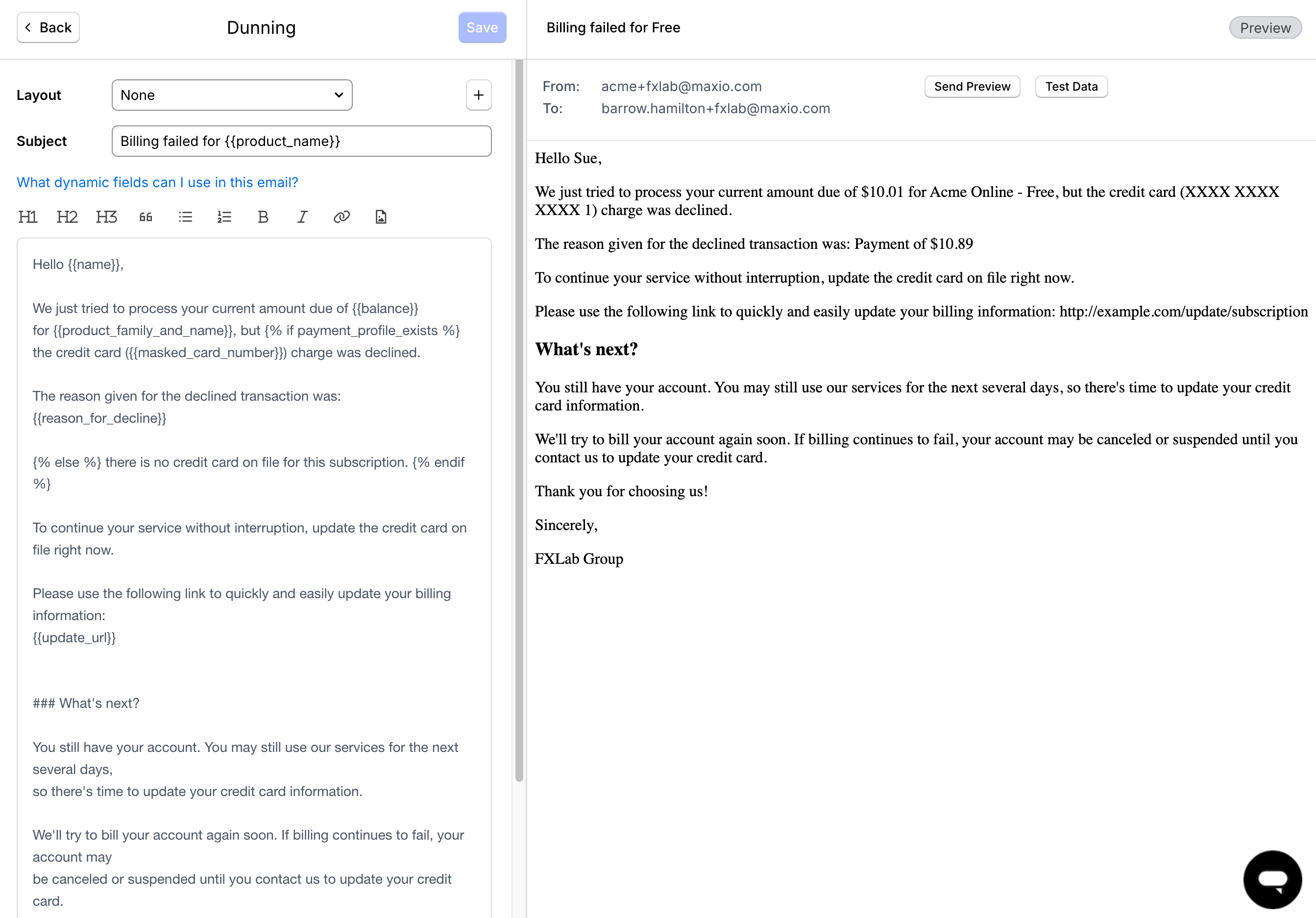
To add an email to a retry step, move the Send Email slider to on to launch the email editor. Within the email editor, you can customize the subject and body of the email. You can also create a custom layout to personalize the look and feel of the email. See Configure Email Settings for more on layouts.
After adding or editing a dunning email, you can choose whether to check Email BCC List for that step. This email has access to custom parameters, as described in Dunning Email Parameters Reference.
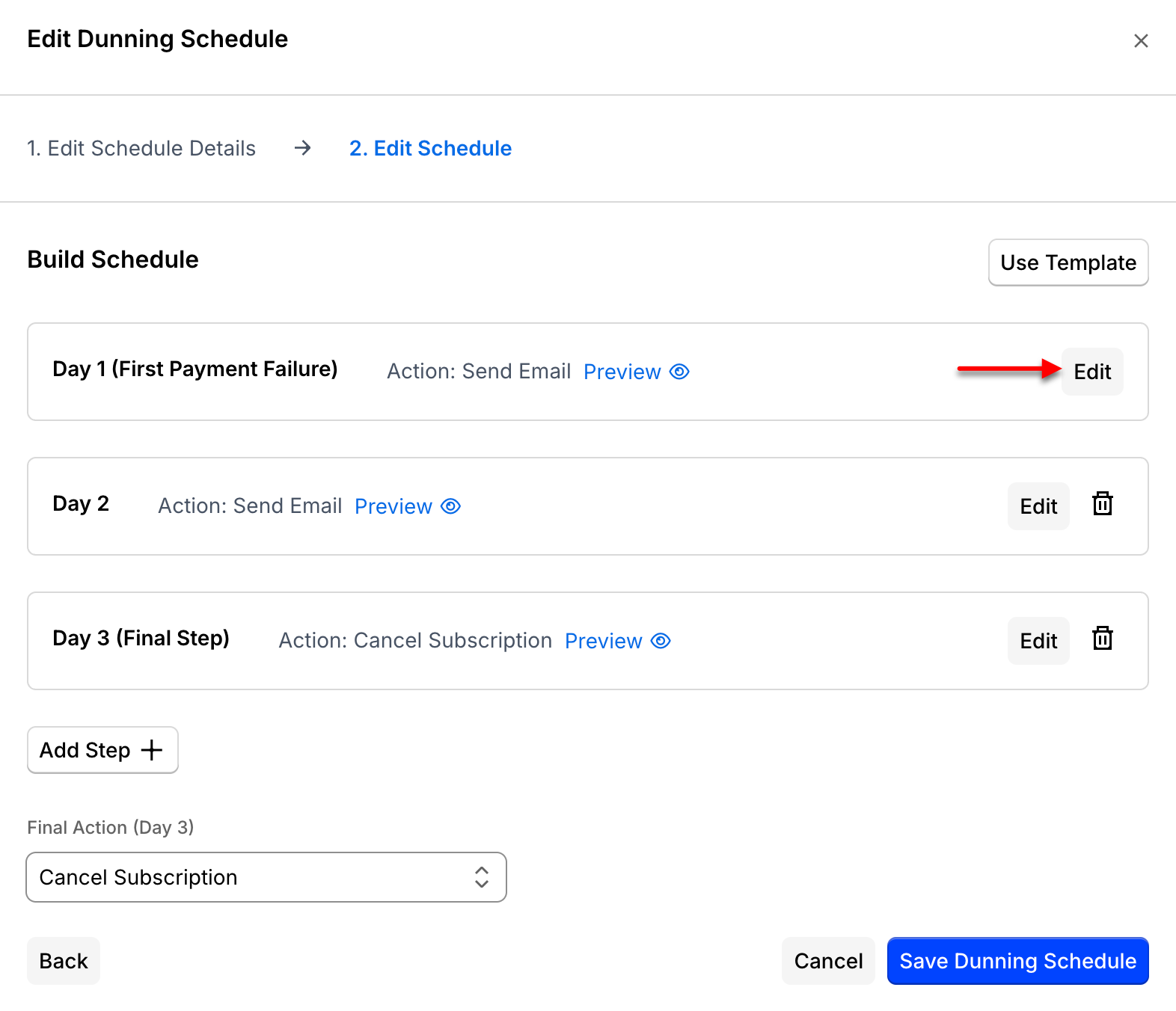
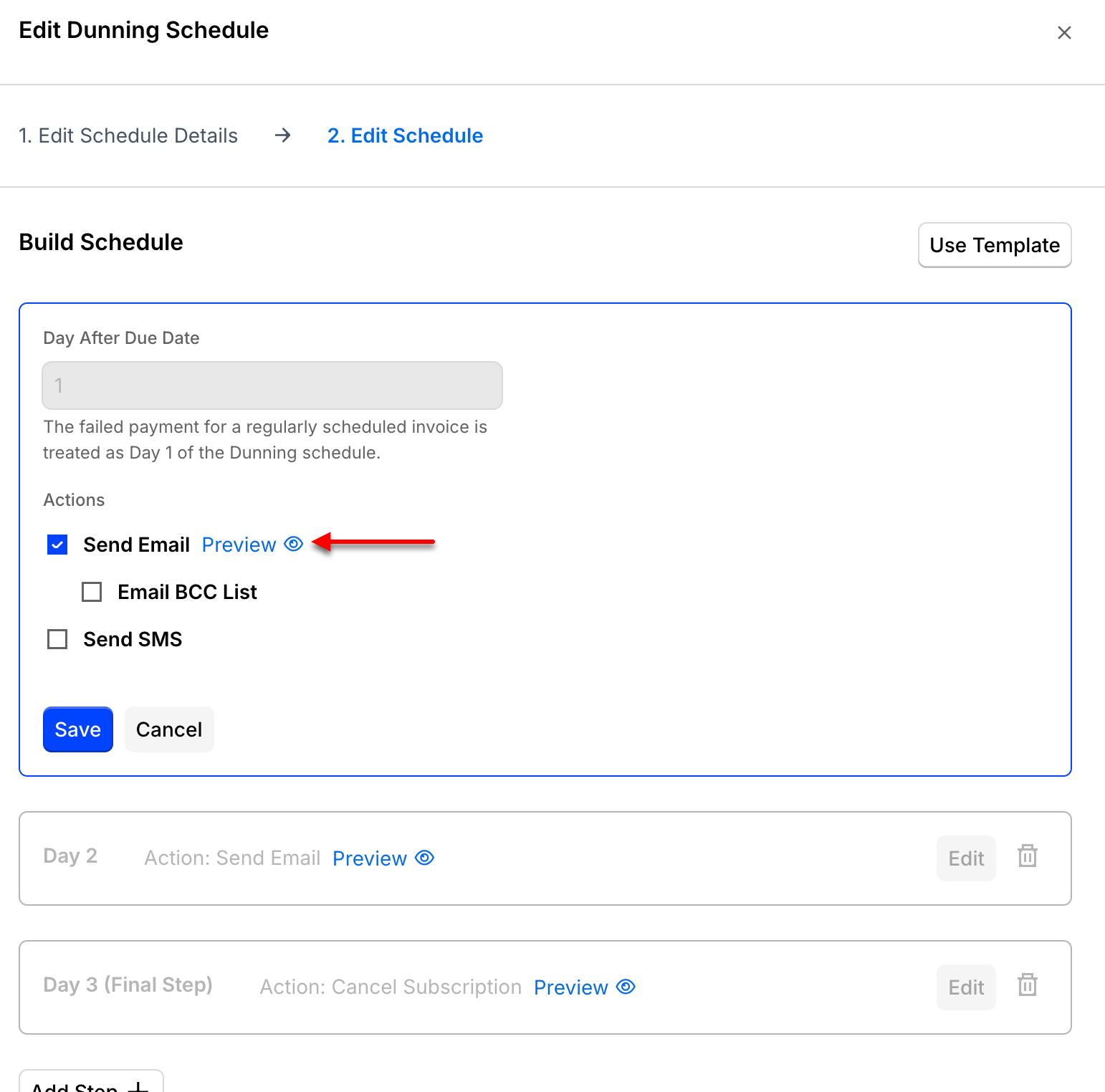
Advanced Billing imposes a dunning schedule limit of 365 days and/or 30 dunning steps.
Configure the Final Action
Select the day Advanced Billing takes the Final Action. Entering 1 causes the Final Action to happen on the very first failed renewal attempt, skipping every other step in the Retry and Dunning Schedule.
Next, select the Final Action to take:
- Cancel Subscription: The Subscription transitions to the Canceled state and stops accruing new charges. No more attempts are made to collect the balance due. A canceled Subscription can be reactivated later using the Retry/Reactivate action.
- Mark as Unpaid: The Subscription transitions to the Unpaid state but continues to accrue new charges. No more attempts are made to collect the balance due. An unpaid Subscription can be moved back to Active by recording a payment, retrying the renewal and receiving a successful payment, or zeroing out the balance and retrying the renewal.
You can also specify an email to send when the Final Action executes.
Related information
When you select a Final Action, it's worth understanding the differences between the Unpaid and Canceled states. See Understand Subscription States for the full breakdown.
For dunning on ACH instead, see Configure ACH Dunning.
For dunning on Direct Debit instead, see Configure Direct Debit Dunning.
Still need help?
Reach out and our support team will take it from here.