
Configure Manual Remittance Dunning
Applies to: Advanced Billing
Last updated on Aug 27, 2026
Build a dunning schedule to send reminder emails and choose a final action for manual remittance Subscriptions that stay unpaid.
Important: Set net terms for your remittance Invoices before you build this schedule. See Understand Manual Remittance Dunning for how net terms and remittance dunning work together.
Configure a Remittance dunning schedule
After you've configured net terms, set up the dunning strategy for manually remitted Invoices.
To configure a Remittance dunning schedule
- Go to Config > Retries & Dunning, then select Create Schedule.
- Under Dunning Type, select Remittance.
- Build a custom strategy, or select Use Template to start from the Lenient, Basic, or Assertive template.
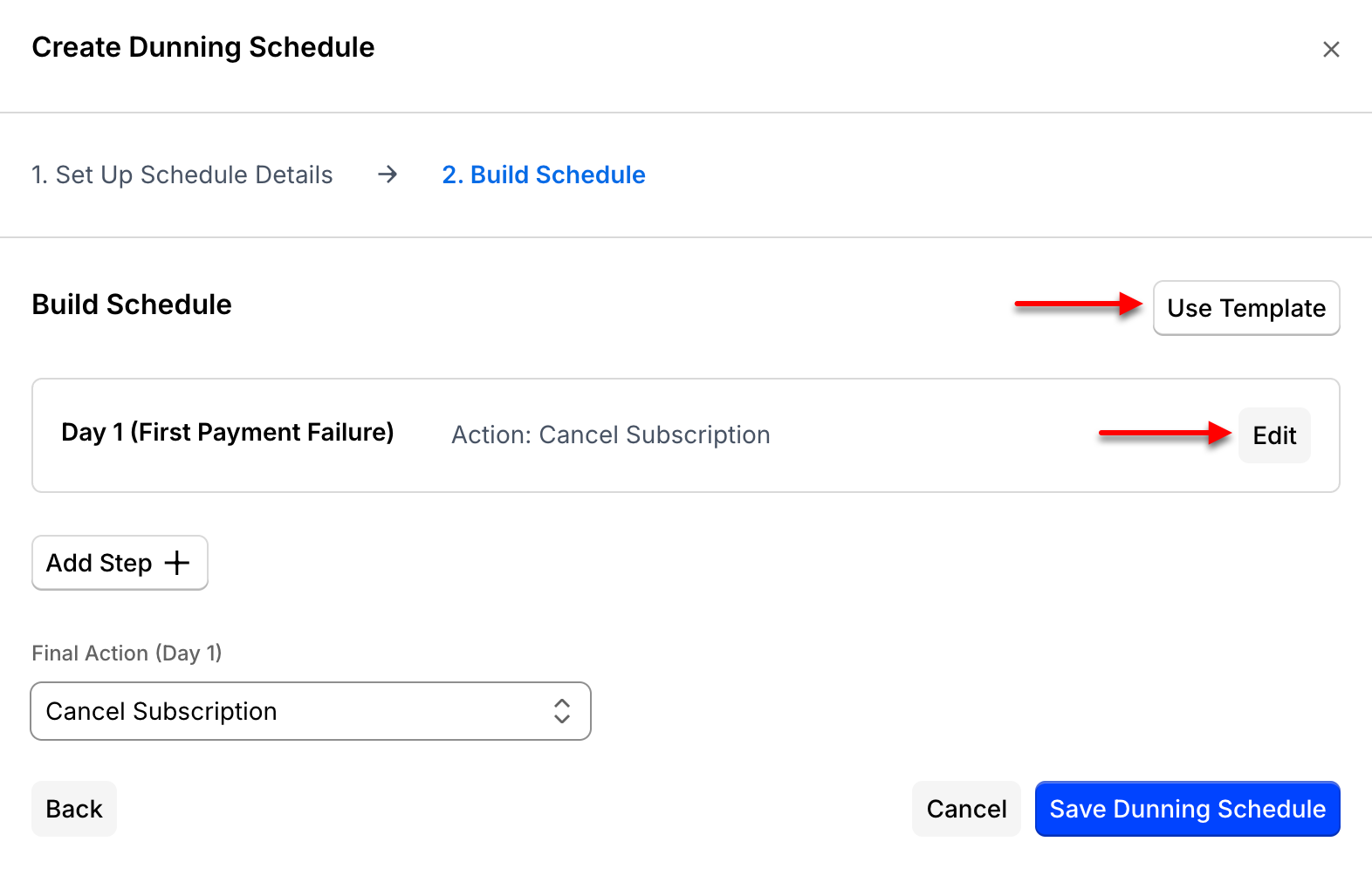
Select Edit next to a step to change it, or the trash icon to delete it.
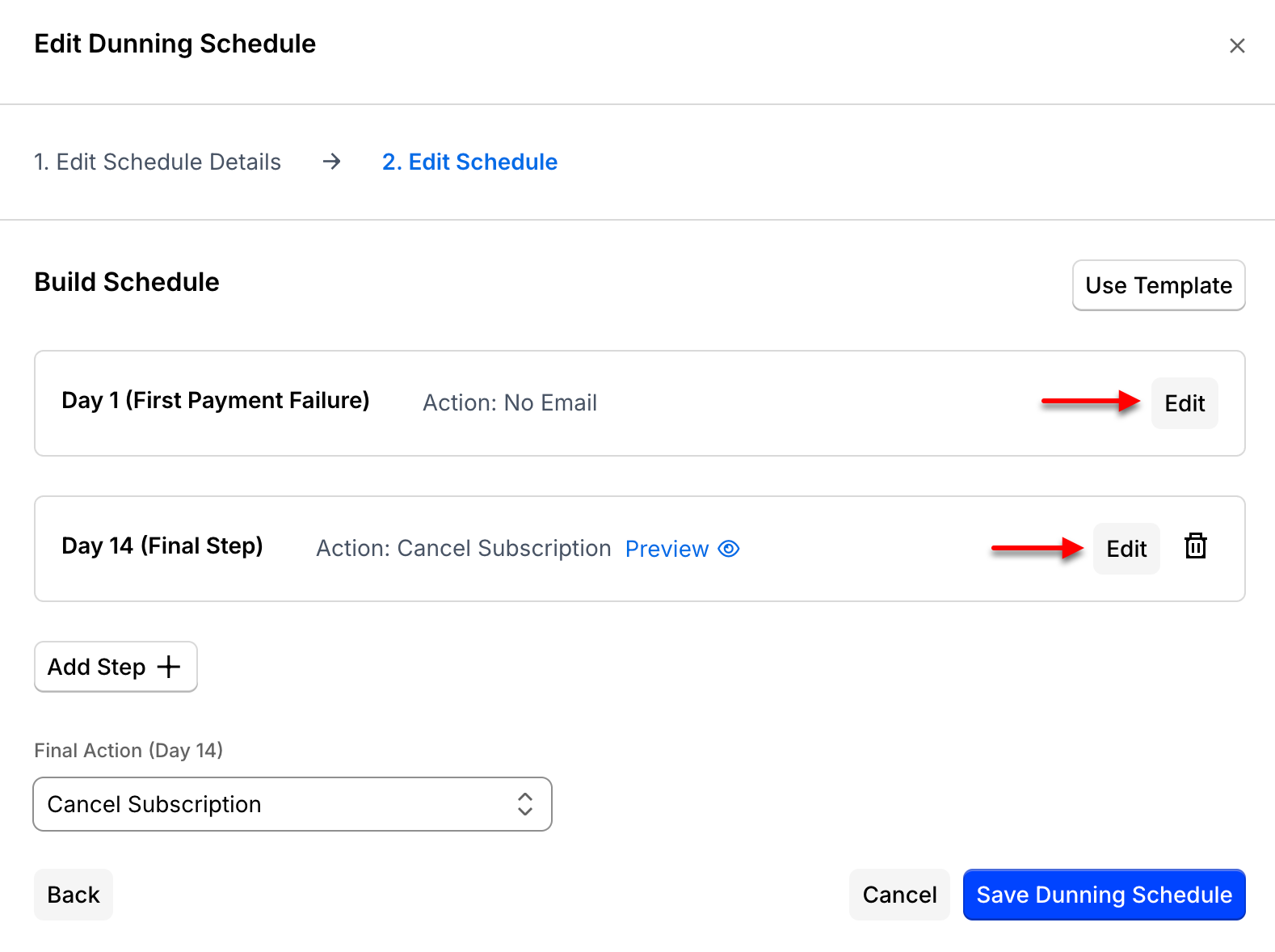
Editing a step lets you set the day it executes and the email template used to communicate with the Customer for that step.
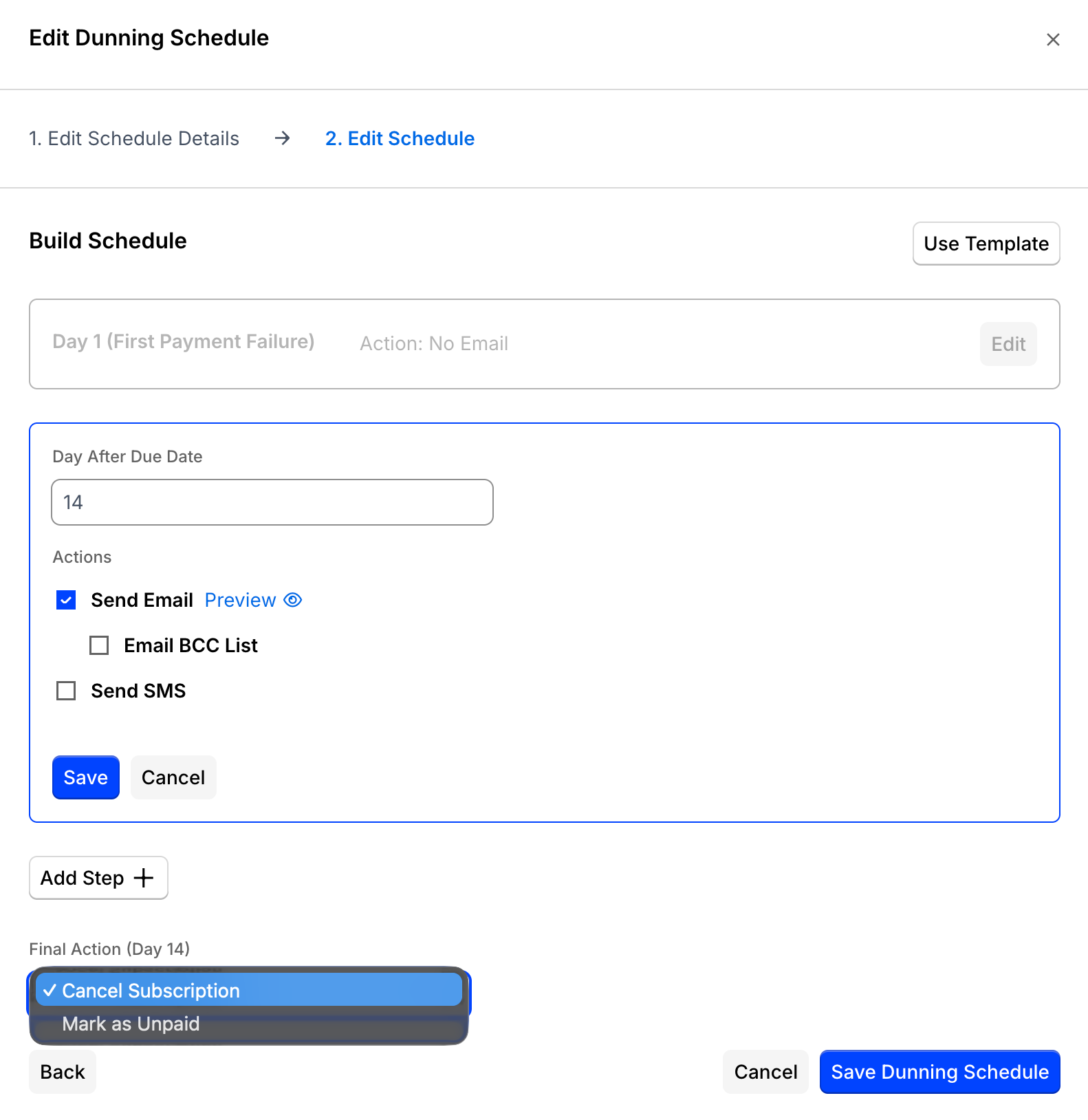
For the Final Action, choose what happens to the Subscription if payment isn't received before the end of the dunning process: Cancel Subscription or Mark as Unpaid. If you choose Mark as Unpaid, the Subscription remains Active and continues to accrue charges.
After setting up your remittance dunning strategy, Advanced Billing sets Apply Dunning For Remittance Invoices Issued After to today's date by default. Dunning doesn't apply to Invoices issued before that date, since net terms don't retroactively update the due date of already-issued Invoices. You can change this date later if you want older Invoices to go through dunning too.
Still need help?
Reach out and our support team will take it from here.