
Review Email Archives
Applies to: Advanced Billing
Last updated on Sep 19, 2026
When a subscriber tells you they never received an important message from your site, the email archive is where you find out what actually happened. Every email Advanced Billing sends is recorded with a delivery status, so you can tell the difference between a message that bounced, one that was blocked before it was ever sent, and one that reached the recipient's mail server. Any team member with access to the site can review email archives, with no separate permission required.
Complete email copies are kept for 95 days. The archive won't show anything older than that, and if you set a start date further back, the 95-day window is used instead.
Where to find email archives
Advanced Billing records every email in two places, and which one you use depends on whether you already know whose email you're chasing.
Across your whole site, go to Tools > Email Insights and open the Archives tab. Email Insights also has a Statistics tab for aggregate delivery figures broken down by mailer and status over a 1 hour, 24 hour, 7 day, or 30 day window (see Review Email Statistics) and a Setup Info tab covering your sending domain. A fourth tab, Internal Notification Archives, covers Maxio's own internal notifications rather than subscriber-facing email, and requires Admin access.
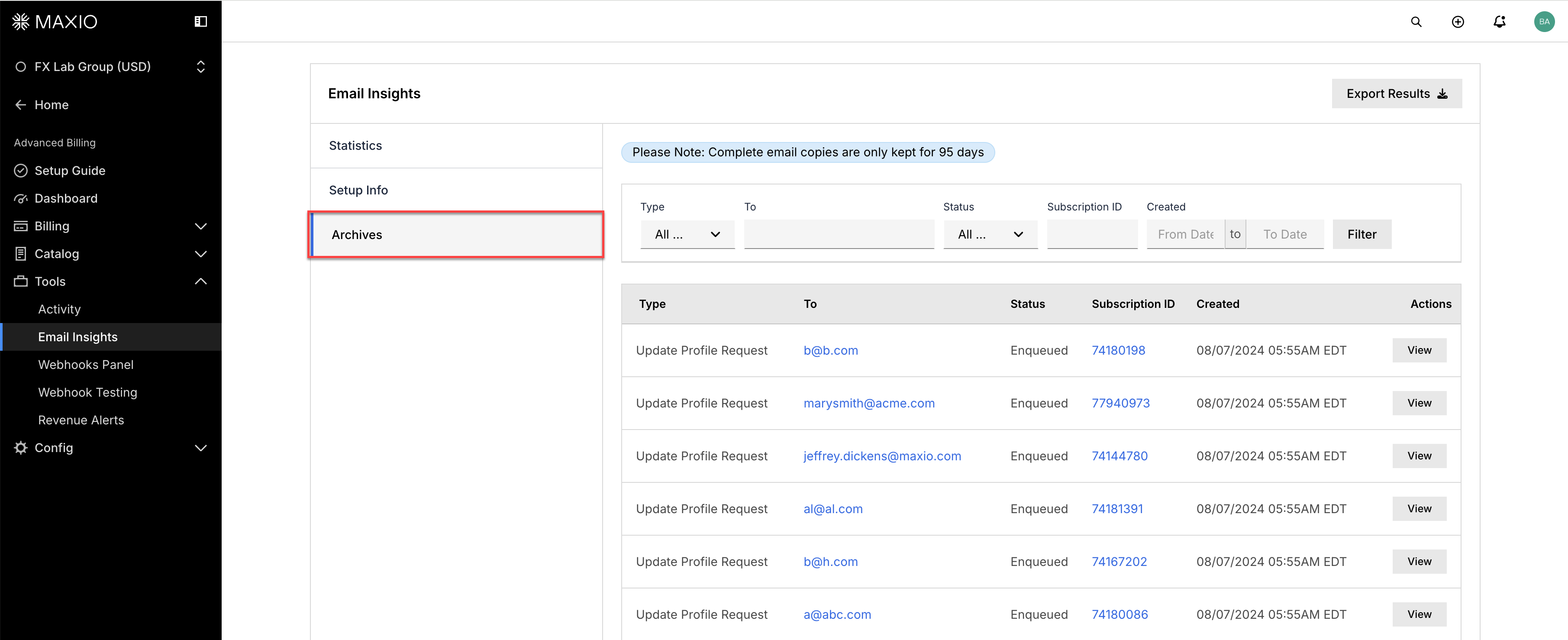
Each row shows the email's Type, the To address, its Status, the Subscription ID it belongs to, and when it was Created. Click View on a row to open the individual email, including its event history.
For one customer, open any of their subscriptions and select Email Archives in the sidebar. This links back to the site-wide Archives page, pre-filtered to that customer, so it shows every email across all of that customer's subscriptions together, not a separate list per subscription.
Filter the archives
The filter bar above the results table takes five criteria, which combine.
| Filter | What it does |
|---|---|
| Type | Limits results to one kind of email, such as a receipt or a dunning notice. The dropdown lists every email type Advanced Billing can send, the same list on every site. Defaults to All Types. |
| To | Limits results to a single recipient address. |
| Status | Limits results to one delivery status. The dropdown lists every status ever recorded across all of Advanced Billing, not just the ones in your current results. Defaults to All Statuses. |
| Subscription ID | Limits results to one subscription. |
| Created | Limits results to a date range, entered in the From Date and To Date boxes. |
Set whichever criteria you need and click Filter.
Email statuses
Advanced Billing delivers email through SendGrid by default. If you've set up a custom sending domain, delivery goes through Mailgun instead, with Mailgun's own events normalized into the same statuses below. See the Set Up Enhanced Email Delivery help article.
Delivery statuses shown in the email archive
| Status | Description |
|---|---|
| Bounced | A receiving server could not or would not deliver the message, most often because the address is invalid or was entered incorrectly. The email was not delivered. |
| Deferred | Delivery could not happen immediately, but the message wasn't rejected outright. SendGrid keeps retrying a deferred message for 72 hours. |
| Delivered | The recipient's mail server accepted the message. This does not guarantee it reached the recipient's inbox. If the receiving server rejected the message without telling SendGrid, the status still reads Delivered. Read it as "the receiving mail server sent no rejection notice," not as proof of an inbox delivery. |
| Dropped | The message was never sent at all. Open the email's History to see the reason. The most common cause is a Bounced Address block. A subscriber whose email shows this status stops receiving all mail about their subscription, invoices and dunning notices included, until the block is lifted. Contact support@maxio.com to have it removed, after which delivery resumes normally. |
| Enqueued | The message is queued and its content is being generated. |
| Overlimit | The message wasn't delivered because it exceeded a sending limit, such as a test site's cap on bulk email recipients. |
| Processed | Advanced Billing received the message and prepared it for delivery. Every message generates a processed event. |
| Sent | The message was handed off for delivery. This replaces the older Sending status, which you may still see on older records. |
| Skipped | Advanced Billing didn't attempt delivery because the recipient address is a test address, such as one ending in @example.com. |
| SMTP Error | The receiving mail server was temporarily too busy to accept the message. |
| SMTP Syntax Error | The message was rejected for a malformed address or header before delivery was attempted. |
| Spamreport | A recipient marked the message as spam. |
Export results
Click Export Results to download the archive as a CSV. The export applies whatever filters you currently have set, so narrow the results first if you don't want the whole 95-day window.
A Downloads page appears (named Exports on some sites). When the file is ready, click the download link to retrieve it. Each row carries the email's UID, Type, To address, Status, Subscription ID, Created timestamp, and a link back to that email's archive.

Related information
To improve deliverability so fewer messages go missing, see Set Up Enhanced Email Delivery.
To change which emails your Site sends, see Configure Email Settings.
To see which messages Advanced Billing sends across the subscription lifecycle, see Understand Advanced Billing Communications.
Still need help?
Reach out and our support team will take it from here.