
Send Bulk Email to Subscribers
Applies to: Advanced Billing
Last updated on Sep 19, 2026
Bulk email lets you notify many subscribers at once about information you need to communicate directly, such as a system outage, a plan or product change, or a request to update a payment method. Advanced Billing offers two kinds of bulk email: a prewritten request that your subscribers update their payment method, and a custom email you write yourself.
WARNING: Recipients cannot opt out of bulk email, so use this service with great care. Reserve it for service-affecting announcements, and identify yourself clearly in the body so recipients understand the context. Otherwise, you may get flagged as spam or confuse your customers.
Who can send bulk email
Sending bulk email requires full administrator access to the Site. A team member holding only one of the individual permissions, such as the one described as manages product catalog, settings, and integrations or the one described as manages subscribers and customers, does not see the Bulk Email option at all.
Select the subscriptions to email
Both kinds of bulk email start the same way, from the Subscriptions list. Whoever you select here becomes the recipient list for the email you send in the next step.
To choose who receives the email
-
Go to Billing > Subscriptions from the side menu.
-
(Optional) Use the search box or Filter to narrow the list. Applied filters are listed above the table. See the Search and Filter Subscriptions help article.
-
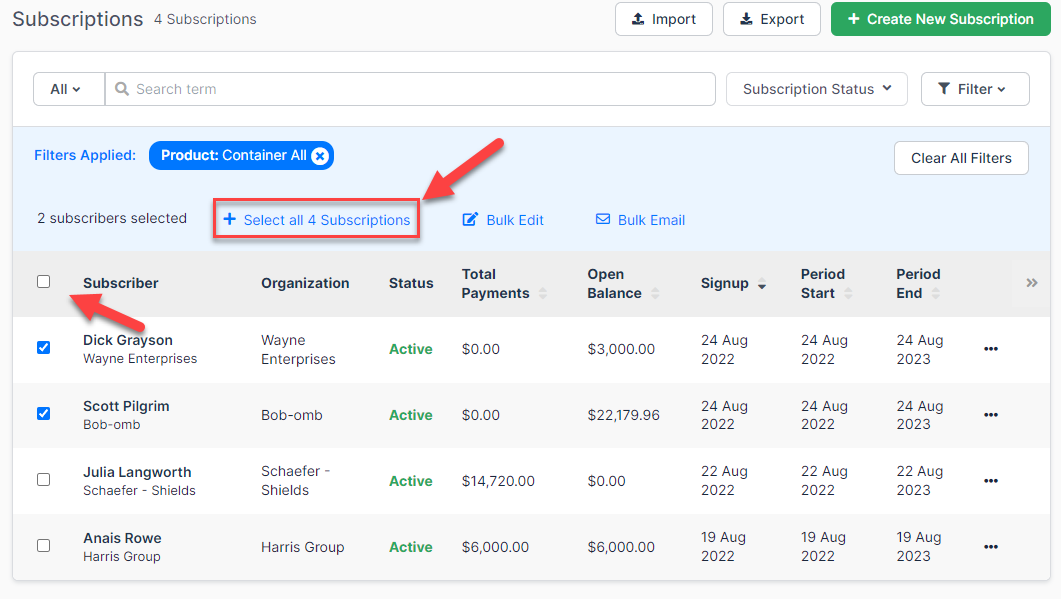
Select the subscriptions to email, using the check box to the left of each name. The check box in the table header selects every subscription on the current page, and a Select all N Subscriptions link appears alongside the count to extend the selection across every subscription matching your filter.
-
Click Bulk Email in the selection bar above the table.
The Bulk Email window opens and asks which type of email to send.
Send a payment method update request
This option sends a prewritten email containing a secure link your subscribers can use to update their payment details. Choosing Request Payment Method Update Email opens the Request Payment Method Update window, which shows how many subscribers will receive it, an estimate of how long the send takes, where in Email Insights to check for bounced emails, and a preview of the email itself.
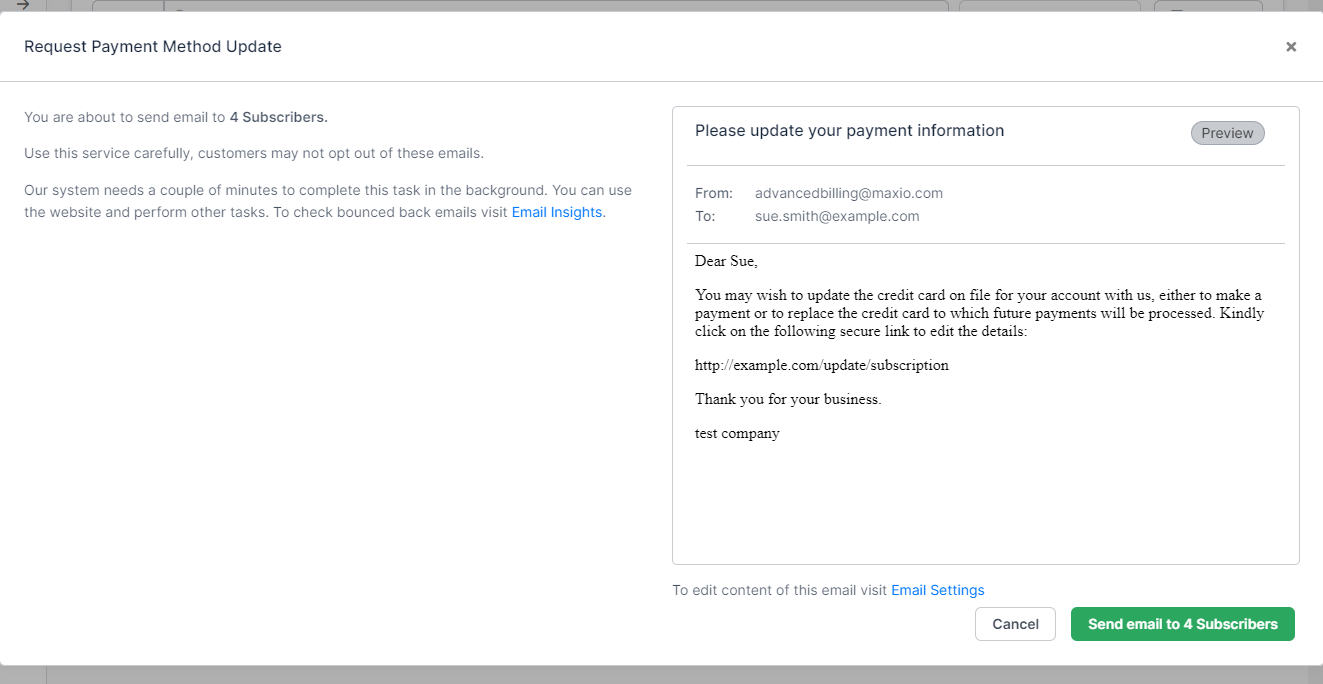
To change the wording, follow the Email Settings link in the window. See the Configure Emails help article for what you can edit. The link in the email points subscribers to your self-service page, described in the Understand Self-Service Pages help article.
WARNING: Review the email carefully. Once sent, it can't be recalled.
When you're ready, click Send email to N Subscribers.
Send a custom email
This option lets you write the message yourself. Choosing Send Custom Email opens the Create a Mass Email window, which shows how many subscribers will receive it, an estimate of how long the send takes, and where in Email Insights to check for bounced emails.
Fill in the following fields, all of which are required:
- Sender Name - The display name the email is sent from. Pre-filled with your Advanced Billing account's name, and limited to 255 characters.
- Sender Email - The email address the email is sent from. Pre-filled with your Advanced Billing account's email address, and limited to 255 characters.
- Subject - The subject line of the email, limited to 255 characters.
- Body - The message sent to your customers. Limited to 65,535 characters.
Turn on Also send a copy of this to me to receive the same email at the sender address.
WARNING: Review the email carefully. Once sent, it can't be recalled.
When you're ready, click Send email to N Subscribers.
Limitations to plan around
Both kinds of bulk email share the following constraints:
- A custom email is never attached to an individual subscriber's email archive. It's recorded at the site level only, which is why bounces still appear in Email Insights, but you won't find it on a subscriber's record. A payment method update request is different: it's linked to the subscription it was sent for, so you can find it by filtering Email Archives by Subscription ID. Either way, retain a copy of what you send in your own business records.
- The Sender Email field accepts an email address and nothing else, for example
email@example.com. - HTML and Markdown aren't accepted in the body. The email is sent as plain text.
- Custom email doesn't support the email variables you can use in Email Templates. Whatever you type is exactly what your subscribers receive. See the Customize Email Templates help article for where those variables do apply.
- On a test site, a bulk email addressed to more than five recipients is marked over limit and isn't delivered.
- Advanced Billing adds nothing to the email beyond what you enter, so make it clear from the body which service is affected and why it matters to the reader.
- Don't treat this as a mailing list. Subscribers can't opt out, so reserve it for information they genuinely need.
- Outbound emails to subscribers aren't available through the API.
What happens after you send
Advanced Billing sends bulk email in the background, so you can keep working while it processes. Each window shows an estimate of how long the send takes before you commit to it.
You can only run one bulk email job of each type at a time. If a previous send is still processing, the send button stays disabled until it finishes.
When the batch completes, Advanced Billing posts an in-app notification, Bulk email process completed, to everyone with Admin or Owner access. To see which messages bounced, check the Email Statuses section of Email Insights.
Related information
To change the wording of an automated email rather than sending a one-off message, see Customize Email Templates.
To confirm a message reached a subscriber, see Review Email Archives.
To see which automated messages already go out across the subscription lifecycle, see Understand Advanced Billing Communications.
Still need help?
Reach out and our support team will take it from here.