
Create and Manage Payment Methods
Applies to: Maxio Core
Last updated on Sep 19, 2026
The Payment Method Reference List holds every Payment Method that can be set as a Customer's default method in Maxio.
Where payment methods come from
If you have a GL Integration enabled, this Reference List is populated with your existing GL Payment Methods during the sync process. Payment Methods that originate from your GL cannot be edited or deleted in Maxio, but changes made to those methods in the GL sync into Maxio.
The list shows each method's Name, Is Active?, and Type. If NetSuite or QuickBooks is enabled, it also shows that system's identifier for the method. Inactive methods sort to the bottom of the list.
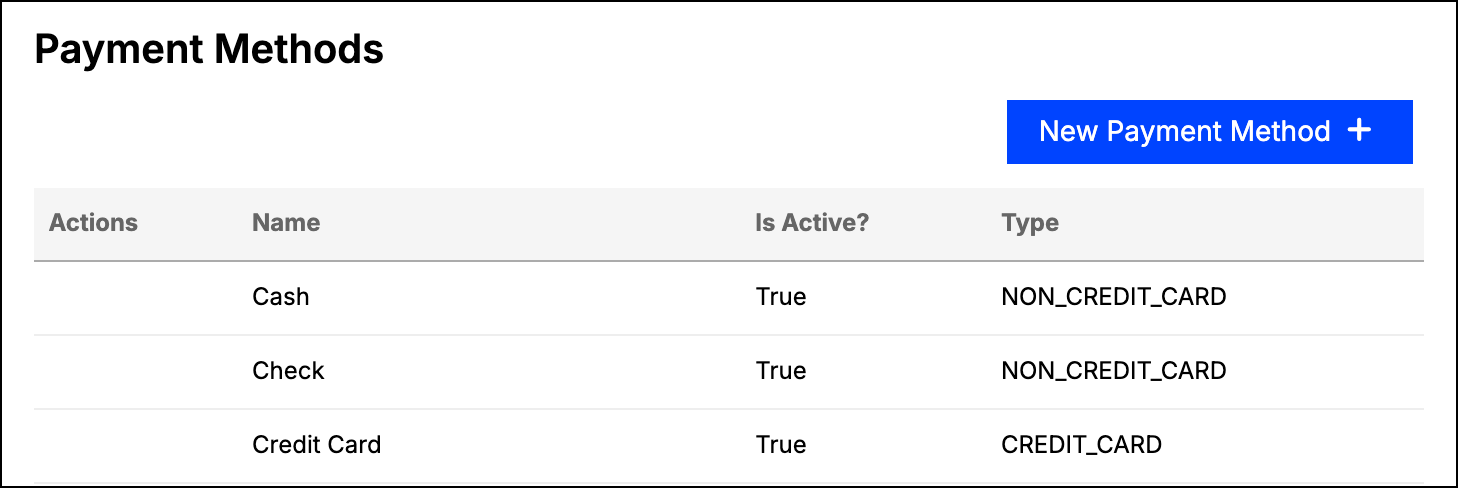
Create a Payment Method
In addition to the GL Payment Methods, you can create your own custom Payment Methods for use in Maxio. Working with Payment Methods requires Admin permissions, including viewing the list.
To create a Payment Method
-
Click New Payment Method on the Payment Methods screen.
-
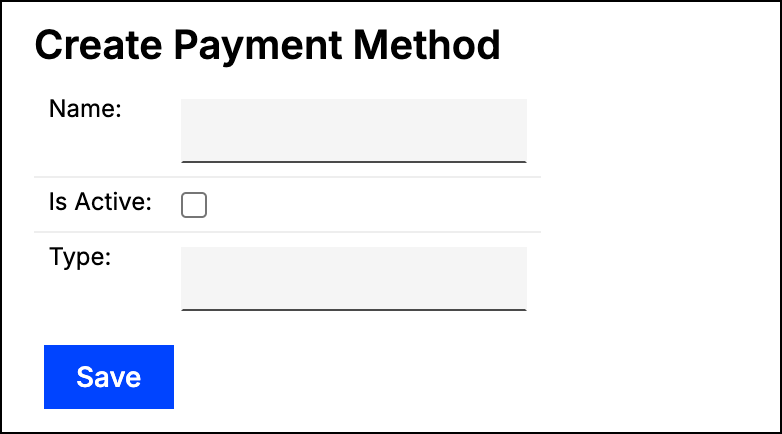
Complete the following fields:
- Name - Enter a name for the Payment Method. You can be as specific or as general as you like: you could have Credit Card as your Payment Method name, or create separate Payment Methods for American Express, Discover, and Visa.
- Is Active - Check this box to mark the Payment Method as Active. Leave it unchecked to mark it Inactive, which moves the Payment Method to the bottom of the Reference List. New Payment Methods are inactive by default, so check this box if you want to use the method right away.
- Type - Enter the Type of the Payment Method. While GL Payment Methods have a finite number of Types to select from, Type is a free text field for Maxio Payment Methods, so you can have as many Types as you like. For example, for a customer rewards credit card you could use a Type of Credit Card, or a Type of Rewards Visa, which is a Type that does not exist in the GL.
-
Click Save at the bottom of the screen.
You can edit or delete a Payment Method using the menu icon next to it. That menu appears only for Payment Methods created in Maxio: a method carrying a QuickBooks or NetSuite identifier cannot be edited or deleted here.
How QuickBooks and Maxio payment methods differ
Payment Methods created in QuickBooks Desktop, QuickBooks Online, and Maxio all have a Name, an Active setting, and a Type, but there are differences worth knowing. QuickBooks Online differs from Desktop in how Payment Methods are handled, and Maxio Payment Methods were designed to be compatible with both configurations.
| Behavior | QuickBooks Online | QuickBooks Desktop | Maxio |
|---|---|---|---|
| Editable in Maxio? | No | No | Yes |
| Deletion supported? | No. In QuickBooks Online, Payment Methods can only be made Inactive. They cannot be deleted from QuickBooks, and therefore cannot be deleted from Maxio. A Payment Method that QuickBooks Online has marked as deleted syncs into Maxio with (deleted) in its name, and is marked Inactive in the Reference List. | Yes. In QuickBooks Desktop, Payment Methods can be deleted or made Inactive. Methods deleted in QuickBooks Desktop are deleted in Maxio as well. Inactive Payment Methods sync into Maxio and are marked Inactive in the Reference List. | Yes, using the menu icon next to the method. |
| Default Payment Methods |
|
| None. Maxio Payment Methods must be created manually; there are no pre-populated options. |
| Supported Types | QuickBooks Online has a checkbox, This is a Credit Card, in place of a Type field, which effectively offers two options:
|
| Any. Type is a free text field, rather than a checkbox as in QuickBooks Online or a picklist as in QuickBooks Desktop. |
Still need help?
Reach out and our support team will take it from here.