
Loading article…
Loading article…
Last updated on Aug 28, 2026
Payment Terms calculate an Invoice's Due Date from its Invoice Date. Each Payment Term is assigned to Invoices, and Maxio derives each Invoice's Due Date from the term.
Payment Terms sync into Maxio from QuickBooks Desktop, QuickBooks Online, NetSuite, and Sage Intacct. You can also create and manage Payment Terms directly in Maxio, but Payment Terms created in Maxio should not be used for Invoices that will sync to your general ledger.
Working with Payment Terms requires Admin permissions.
A Payment Term has both a Number of Days and an optional Month, and the two combine differently depending on whether a Month is set.
Days only. With no Month selected, the Due Date is the Invoice Date plus the number of days. This is the familiar Net 15 or Net 30 form: an Invoice dated 01/01 with a term of Net 15 is due 01/16. The word Net means the total value of the Invoice is due, and the number is the count of days past the Invoice Date.
Month and day. With a Month selected, Maxio first advances the Invoice Date by that many months, and then the Number of Days value is treated as a day of the month rather than an offset. A term of in 1st Month after Invoice Date with 15 days means the 15th of the following month. Setting the days to 0 leaves the day of the month alone, so the Due Date is the same day in a later month.
If the day of the month you choose does not exist in the target month, Maxio uses the last day of that month instead. A term set to day 31 resolves to February 28 in a standard year and February 29 in a leap year.
| Field | Description |
|---|---|
| Name | The name of the Payment Term, as it appears wherever Payment Terms are selected. |
| Is Active | Marks the term Active. New Payment Terms are created inactive, so check this box if you want to use the term right away. Inactive terms sort to the bottom of the list. |
| Number of Days | The number of days after the Invoice Date, when no Month is set. When a Month is set, this is the day of the month instead. Must be 0 or higher, and must be between 0 and 31 when a Month is set. |
| Month | How many months after the Invoice Date the Due Date falls: the same month, or the 1st through 6th month after. Leave it unset for a days-only term. |
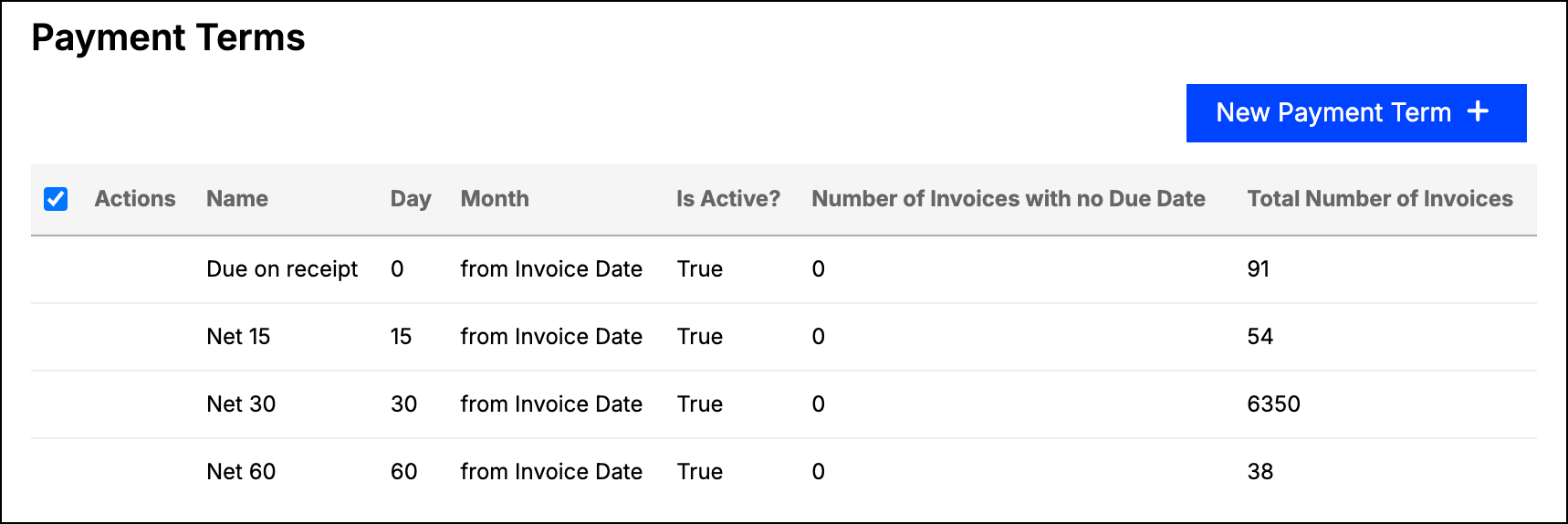
The Payment Terms list shows each term's ID, Name, Day, Month, and Is Active? status, along with the Number of Invoices with no Due Date and the Total Number of Invoices associated with that term. If NetSuite or QuickBooks is enabled, the list also shows that system's identifier for the term.
Review the note about general ledger syncing above before creating Payment Terms in Maxio.
Open the Payment Terms screen from the Admin menu, then click New Payment Term.
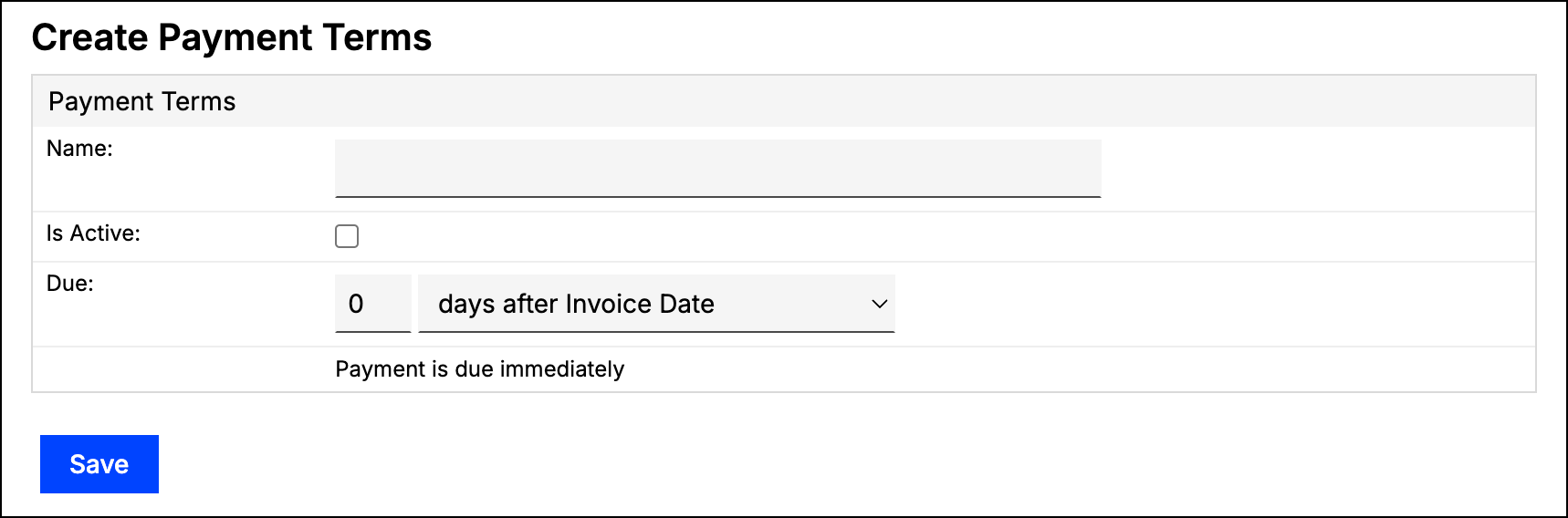
Enter a Name for the term, and check Is Active to make it available for use.
Enter the term's Number of Days, and select a Month if the Due Date should fall in a later month.
Click Save.
Use the menu icon next to a term to edit or delete it. A confirmation screen appears before a delete, and the deletion cannot be undone.
Payment Terms that synced in from QuickBooks cannot be edited or deleted in Maxio. Terms that synced from NetSuite or Sage Intacct can be, so take care when changing one, since the change does not travel back to the source system.
Maxio can fill in the Due Date on Invoices that do not have one, using a Payment Term to calculate it. When a term has Invoices eligible for this, a Set Invoice Due Dates action appears in its menu, and the list highlights the term's Number of Invoices with no Due Date.
An Invoice is eligible only if all of the following are true:
The confirmation screen lists the Invoices that will change, and you can export that list to CSV before committing. Selecting Recalculate sets each Invoice's Due Date from the term and assigns the term to those Invoices.
WARNING: Setting Invoice Due Dates cannot be undone.
On the Invoice screen, the Invoice Date, Payment Terms, and Due Date fields stay in step with one another:
Because of that last case, choose either Payment Terms or a Due Date for a given Invoice, rather than setting both. If you enter the Due Date manually you do not need Payment Terms, and if you use Payment Terms the Due Date is calculated for you.
If you use e-Bill, you can include any or all of the Invoice Date, Due Date, and Payment Terms on a particular Invoice.
Still need help?
Reach out and our support team will take it from here.