
Navigating the Maxio UI
Applies to: Maxio Core
Last updated on Aug 26, 2026
Learn how to navigate Maxio Core using the left navigation panel, History bar, and configurable dashboards. This article explains how users can set a personal dashboard as their home page and how admins can define a default dashboard for all users who haven’t selected one, helping teams jump straight into the work that matters.
Main menu
The main menu appears on the left of the screen and contains menu items based on your role and account configuration.
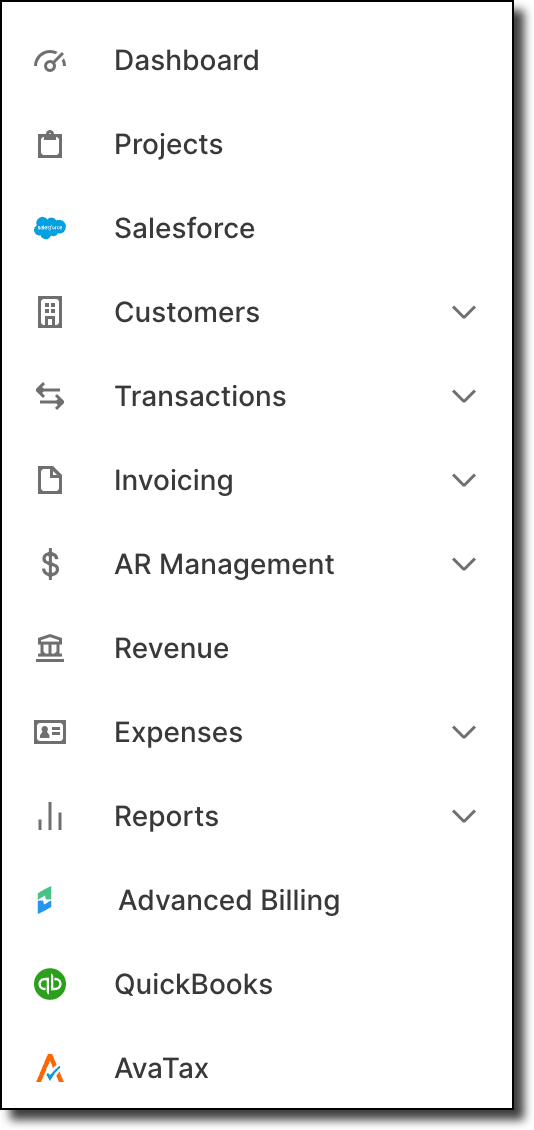
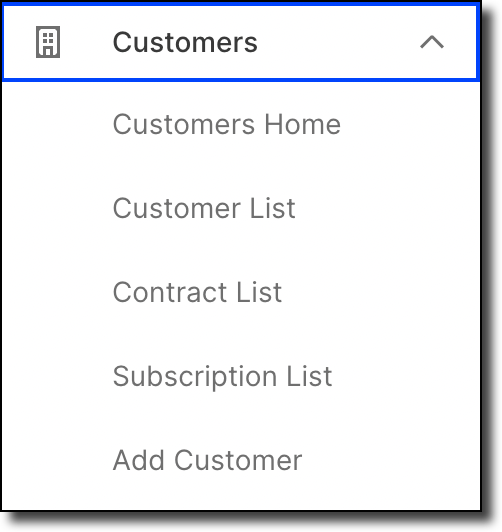
You can click an option on the sidebar navigation to extend additional options.
History breadcrumb
A limited number of screen links from your present session are available in the History bar just under the search bar. With this breadcrumb trail, you can quickly jump back to a previous page you were viewing, by clicking on a link:

Dashboard
Maxio Core includes a powerful Dashboard builder that enables you to build as many dashboards as you like by selecting from pre-defined widgets and from your reports. You select what you like on a configurable canvas to create dashboards optimized for your role and your work.
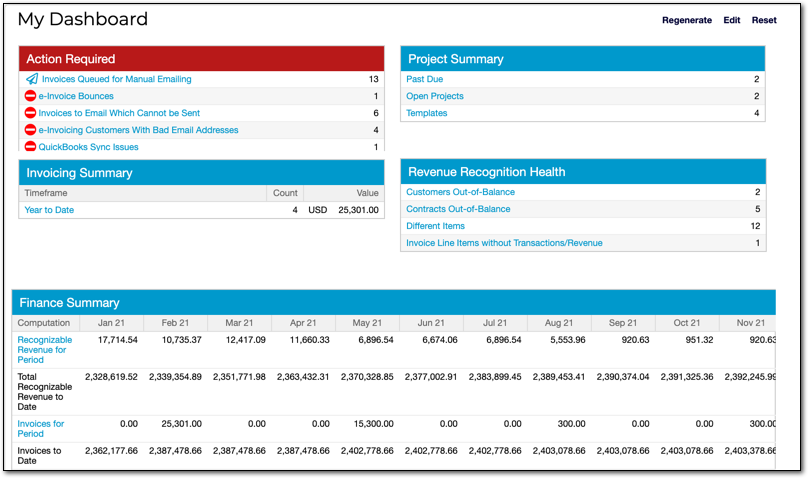
Each user can use a personalized dashboard as their home page by clicking the "Set as my home page" link in the top-right corner of the dashboard configuration screen.
Additionally, an administrator user can define one Dashboard as the default for all users who have not otherwise created or selected their own Dashboard to use on the home page. To set a default for all users, open the Account Settings from the Admin menu. Then, select a default home page dashboard in the Reports section of settings.
Maxio Core falls back through these in order: the dashboard you set as your own home page, then the account-wide default an administrator has chosen, and finally the legacy home page if neither has been set.

Still need help?
Reach out and our support team will take it from here.