
Configure User Preferences and Default Views
Applies to: Maxio Core
Last updated on Sep 19, 2026
User Preferences allow individual users to adjust certain view settings and defaults to fit their unique needs, workflows, and personal preferences. This is useful if you have users who routinely access different sections of the financial data. For example on the customer screen:
- User 1 only needs to view records from the past 12 months.
- User 2 needs to easily view billing information.
- User 3 doesn't need to see billing information but does need access to MRR and revenue data.
A user can address these types of requirements by accessing the Preferences options from their user profile.
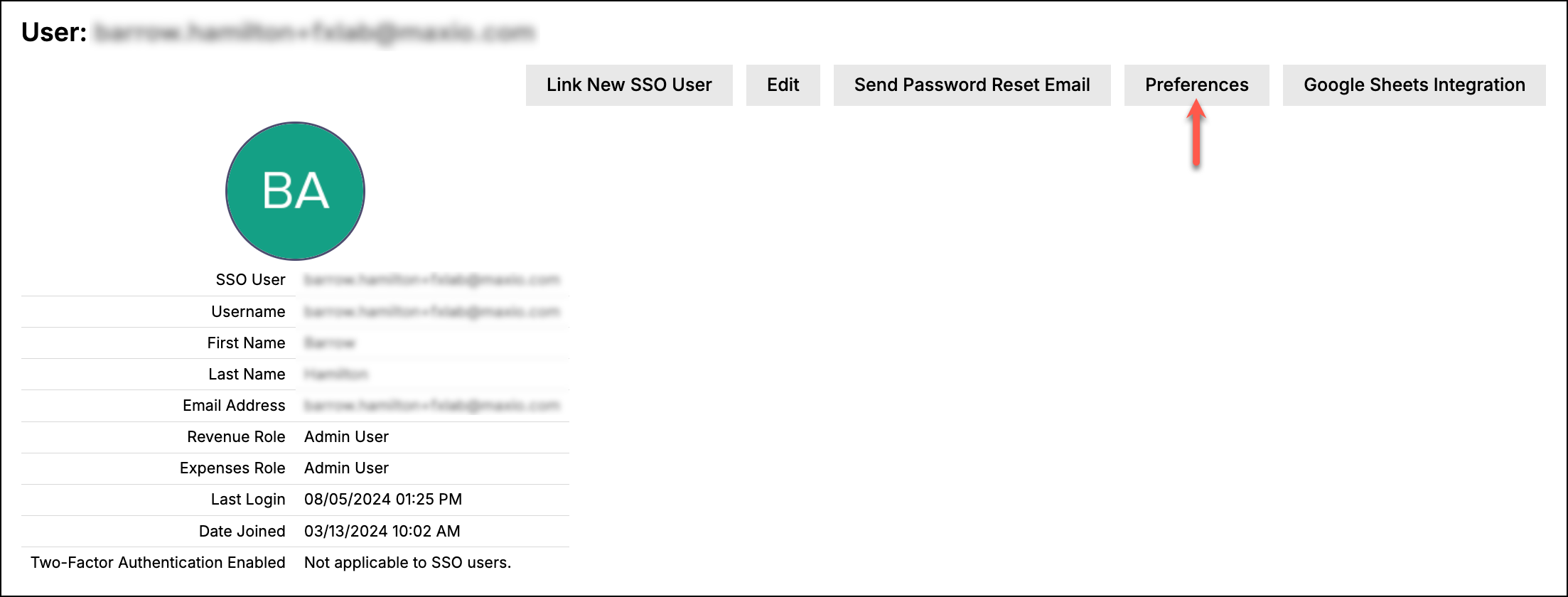
Each of these options is detailed below. Be sure to click Save at the bottom of the screen after making any changes.
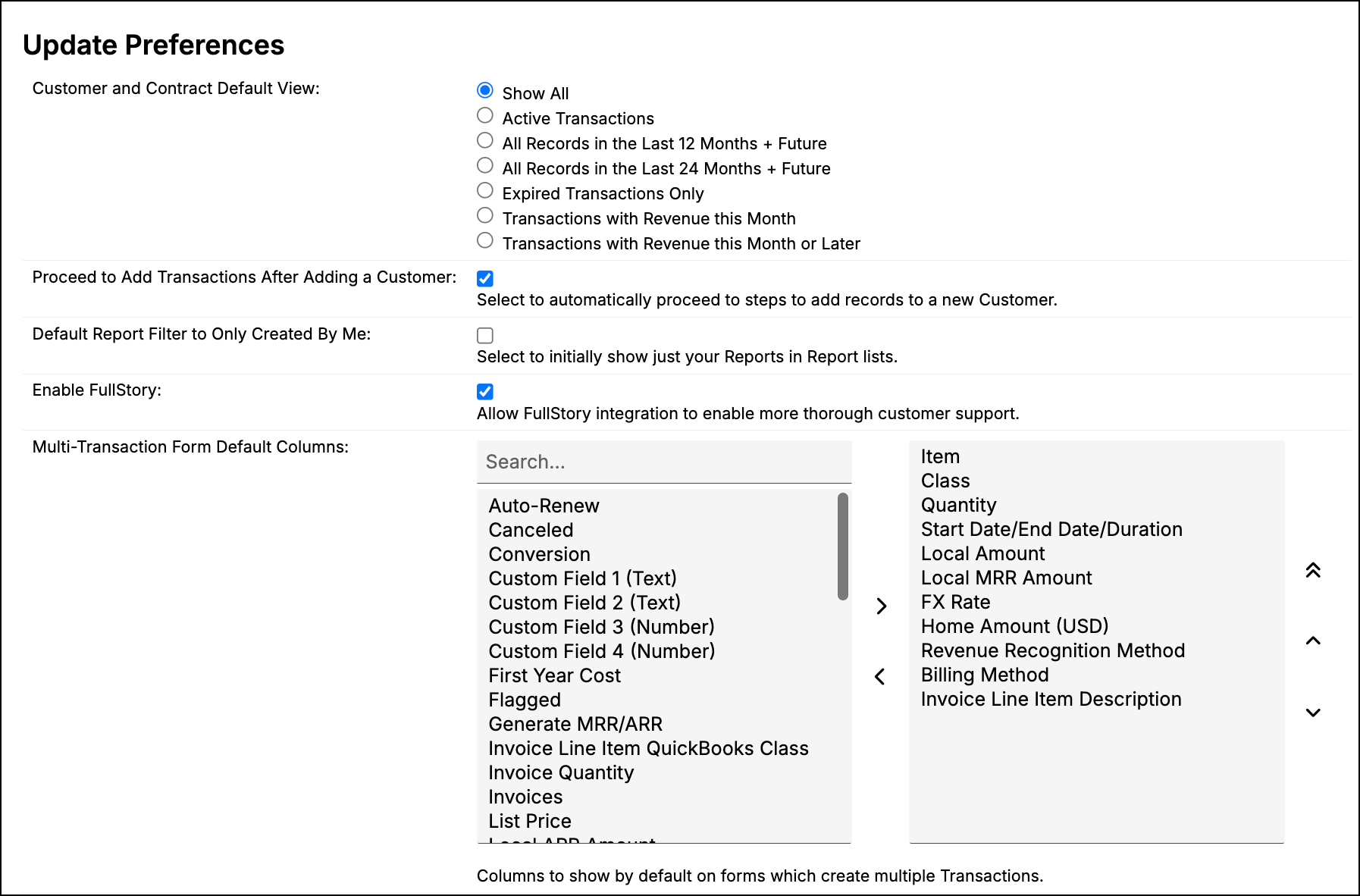
Customer and contract default view
These options allow users to select a default filter for viewing customer and contract transactions. For our previously mentioned User 1 (needs to view records from the past 12 months), their view default option could be All Records in the Last 12 Months + Future.
Users can adjust their view as needed in any customer or contract screen by selecting a different Filter option under the View drop-down. Note that the view will switch back to the user's default once they navigate away from that customer/contract.
Default column settings
Users can also configure which columns to display by default for various lists found throughout the system. To do so, locate the appropriate setting and then click the needed column names to move them from the Unselected side to the Selected side (or vice versa). The columns on the Selected side will display in the corresponding list by default.
- To add a column, select it from the list on the left (these columns are hidden and do not appear on the list view), and click the right arrow (>) to move it to the list of active columns on the right.
- To remove a column from the active list, select it and click the left arrow (<) to move it back to the list of hidden columns.
- To set column order, select the column(s) from the list of active columns and then use the up or down arrow to move it. Clicking the double up arrows moves the column to the top (first in order).
We highly recommend that each user adjust these columns, as the defaults likely contain more fields than necessary. For instance, the example users 2 and 3 mentioned previously would likely need to adjust their default columns in order to better display the information they require.
Note that users can also change the default columns within the list screens themselves. Any changes made to the individual lists will overwrite the defaults set in the Update Preferences screen. For example, if a user opens the Select Columns screen in the Transaction List and makes changes, the column options in the Update Preferences screen will change accordingly.
Other preferences
There are a number of other settings at the bottom of the Update Preferences screen that affect certain behaviors of the system, which may help some users improve their efficiency. Check the following boxes to activate their corresponding functionality:
- Proceed to Add Transactions After Adding a Customer: Expands the customer creation process to include adding the appropriate transactions.
- Default Report Filter to Only Created By Me: Applies a default filter to the Finance Reports and Analytics Reports list views that automatically display only reports created by the user. This filter can be manually removed at any time to view reports created by other users, but the default view will remain filtered so long as this box is checked.
- Enable FullStory: Enable/disable FullStory Session logging. We recommend leaving this on to help us better support you. Read more about FullStory here.
Still need help?
Reach out and our support team will take it from here.