Configure Manual Remittance Dunning

Dunning for manual remittance in Maxio Advanced Billing helps you manage past-due relationship invoicing Subscriptions that are paid manually rather than by an automatic payment method. This article explains how remittance dunning works with invoice net terms, how to configure net terms for remitted invoices, and how to build or customize a remittance dunning schedule from the Retries & Dunning interface. You’ll see how to define reminder steps, choose a final action (unpaid vs. canceled), and control which invoices are eligible for dunning based on issuance dates.

A custom dunning strategy can be used within Advanced Billing for Subscriptions for these manual remittance invoices. These subscriptions typically have net terms of days past issuance for when they are due and of course no automatic payment method on file. For these reasons, the dunning strategy you define for your manual remittance invoices will vary from those deployed for automated payment methods.

When all of a remittance subscription’s overdue invoices are paid or voided, the subscription will automatically return to an active state, provided it has not been canceled. Dunning retries will not attempt to collect payment on open invoices, unlike dunning for automatic subscriptions.

Setting Net Terms

Manual Remittance Dunning works in conjunction with Invoice Net Terms. Net terms are a setting for the number of days after an invoice is issued that it is due for payment. In the case of manual payment, many merchants have net terms of 15 - 30 days to allow for processing by their customers, payment issuance, and payment delivery.

It is important that you set net terms for your remittance invoices prior to initiating your dunning strategy for remittance invoices. Without net terms set beyond ‘0’ days, manually remitted invoices will be past due and enter dunning immediately upon a failed renewal.

Note that by default, net terms are not applied to initial signup invoices, and neither is remittance dunning. However, if net terms on remittance signups are enabled, the signup invoice will trigger remittance dunning unless the net terms on the subscription are 0.

Net terms can be configured in the Net Terms Settings section under Config > Settings within the Advanced Billing application. Note that you can set different net terms for your manually remitted invoices than for your automated payment invoices. Both are configurable per your business needs.

For more information on configuring net terms, please review our Net Terms Settings section.

Setting Up Manual Remittance Dunning

After you have configured net terms, you can set up the dunning strategy for manually remitted invoices. To do so, navigate to the Retries & Dunning section of the Tools in the Advanced Billing application. Note that this is a new user interface that brings all of your dunning strategies across payment methods into one place for easy access and management.

Remittance Dunning is located under Config > Retries & Dunning

ex_RetriesDunning2.png

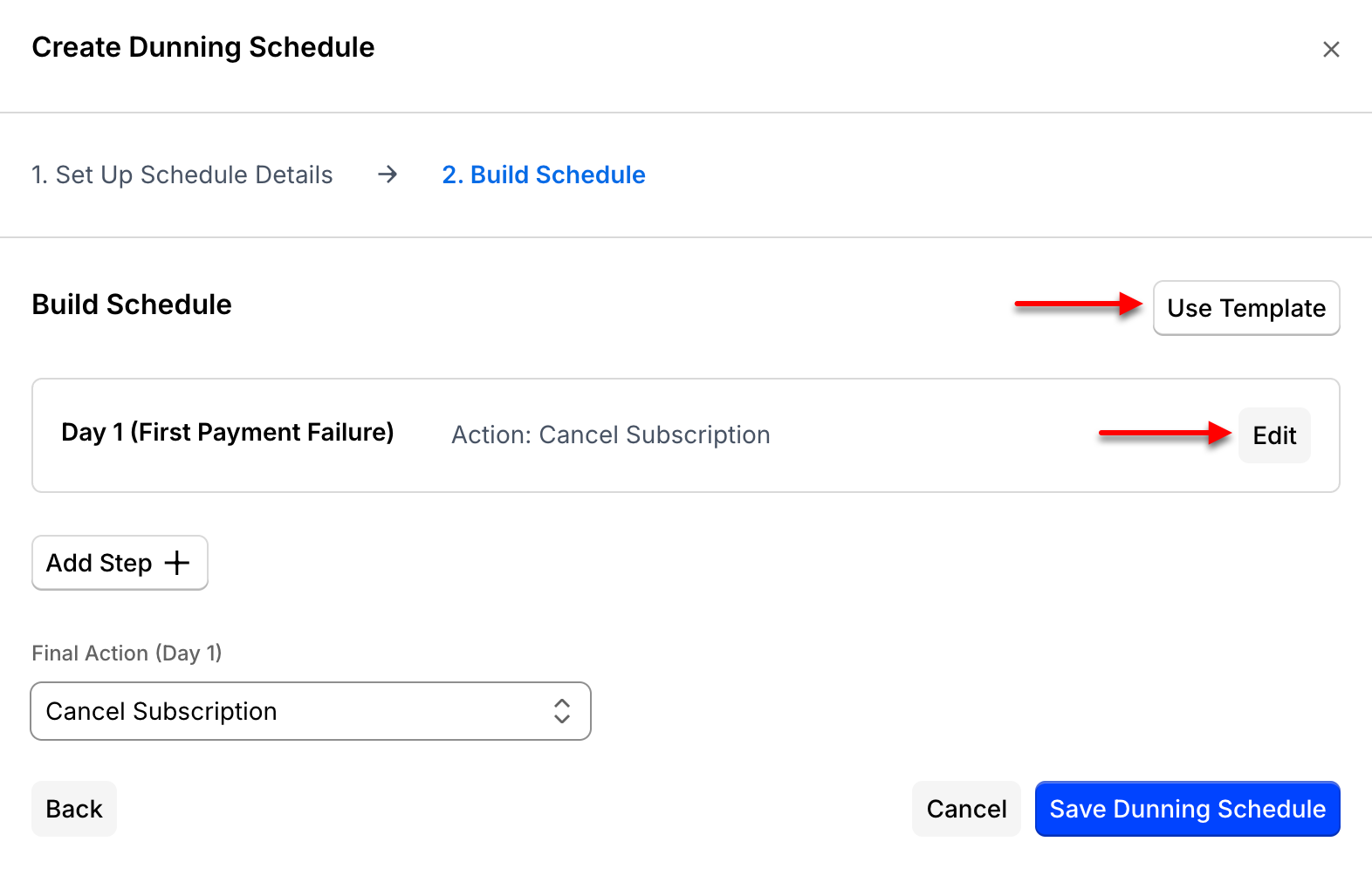
You create a dunning strategy either from a predefined template or build a custom strategy, whichever best meets your needs. The predefined templates match the ones that can be used for credit card dunning–lenient, basic, and assertive.

im_CreateDunningSchedule_BuildSchedule.png

Customize your strategy from scratch, or start from a pre-configured template

To build a custom strategy, as with our other dunning toolsets, you define each step to be taken. For each step you define the day on which the step is to execute and the email template to be used in communicating with the customer via that step in the process.

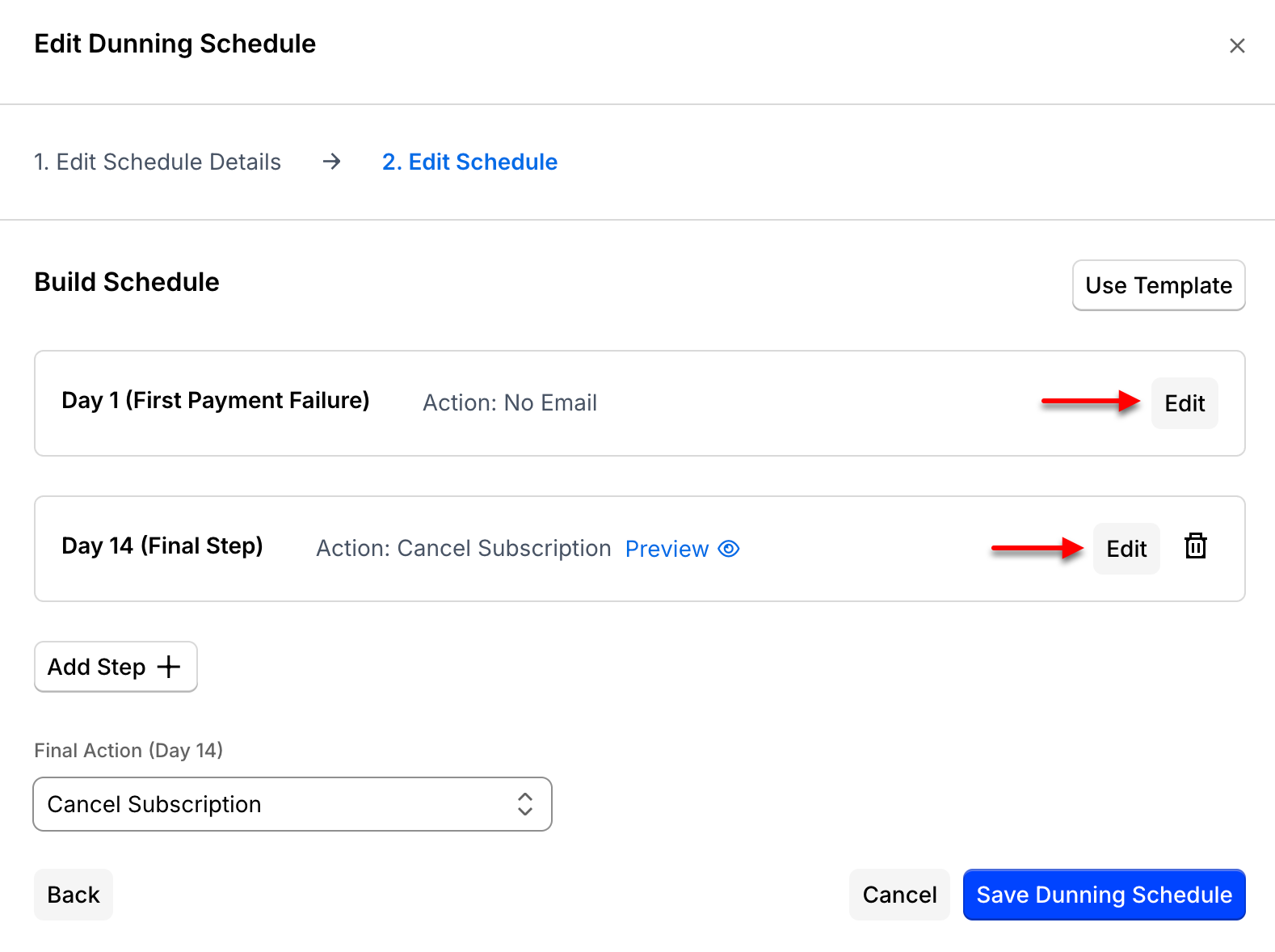
im_EditDunningSchedule_Remittance_EditSchedule_FinalAction.png

Overview page of the current dunning strategy

Click the Edit button to the right of each day to edit or delete that step.

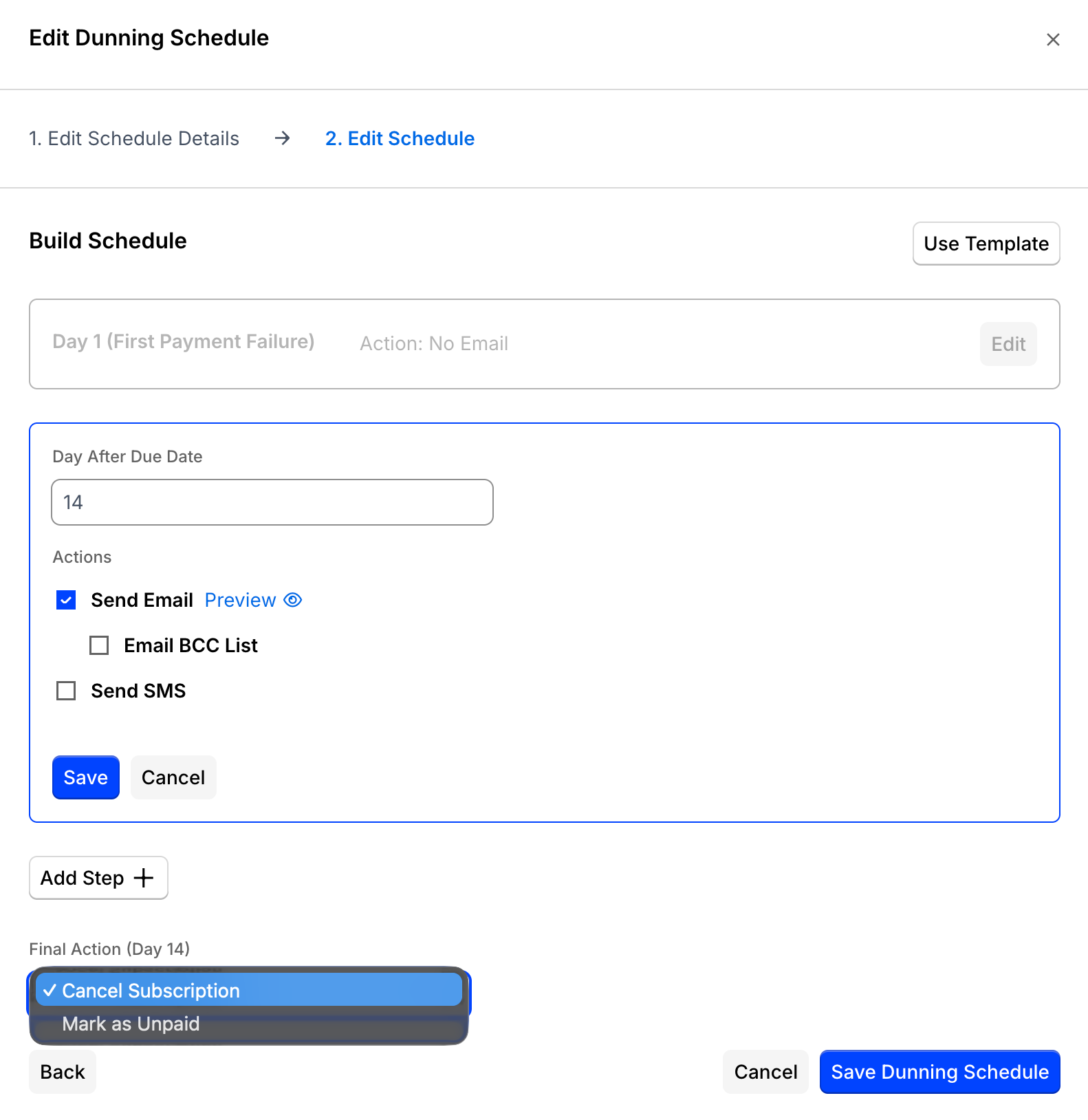
im_EditDunningSchedule_Remittance_EditSchedule.png

Editing a step allows customizing whether an email is sent, the template for that email, and the day to retry.

For the final step in the process, you will designate what action you want to take on the subscription if payment is not received before the end of the dunning process. As with our other dunning methods, you can designate that the subscription moves to ‘unpaid’ status or ‘canceled’ status. If left in ‘unpaid’ status, the subscription will remain active and continue to accrue charges.

After setting your remittance dunning strategy, you will see today’s date has been set as the date for invoices issued after to go through dunning as needed. Dunning, therefore, will not be applied to already issued invoices as net terms do not update the due date of already issued invoices. You can change this setting in the future if there are invoices that were issued before you enabled remittance dunning which you want to go through the dunning process.

Was this article helpful?
0 out of 0 found this helpful

Comments

0 comments

Article is closed for comments.