
View Subscriptions
Applies to: Advanced Billing · Maxio Core
Last updated on Sep 19, 2026
Subscriptions carry your recurring billing and revenue, and both Maxio Core and Advanced Billing show them. You can list every active subscription, filter and arrange that list to suit your work, and open any one of them to see its detail and the Transactions behind it.
Open the subscription list
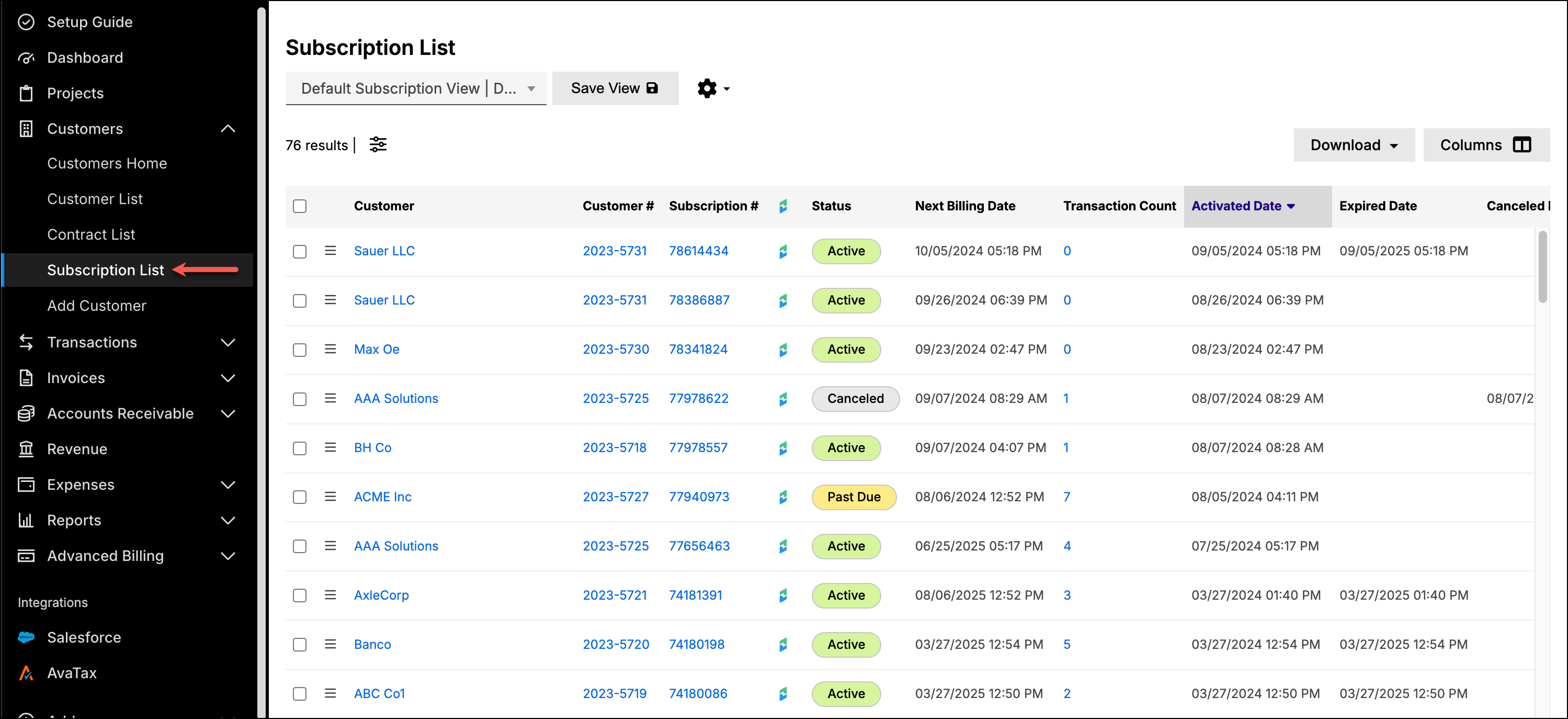
From the side navigation bar, expand Customers and select Subscription List. The list behaves like every other list view, so a saved combination of filters, columns, column order, and sorting gives you a view you can return to.
Find a Customer's subscriptions
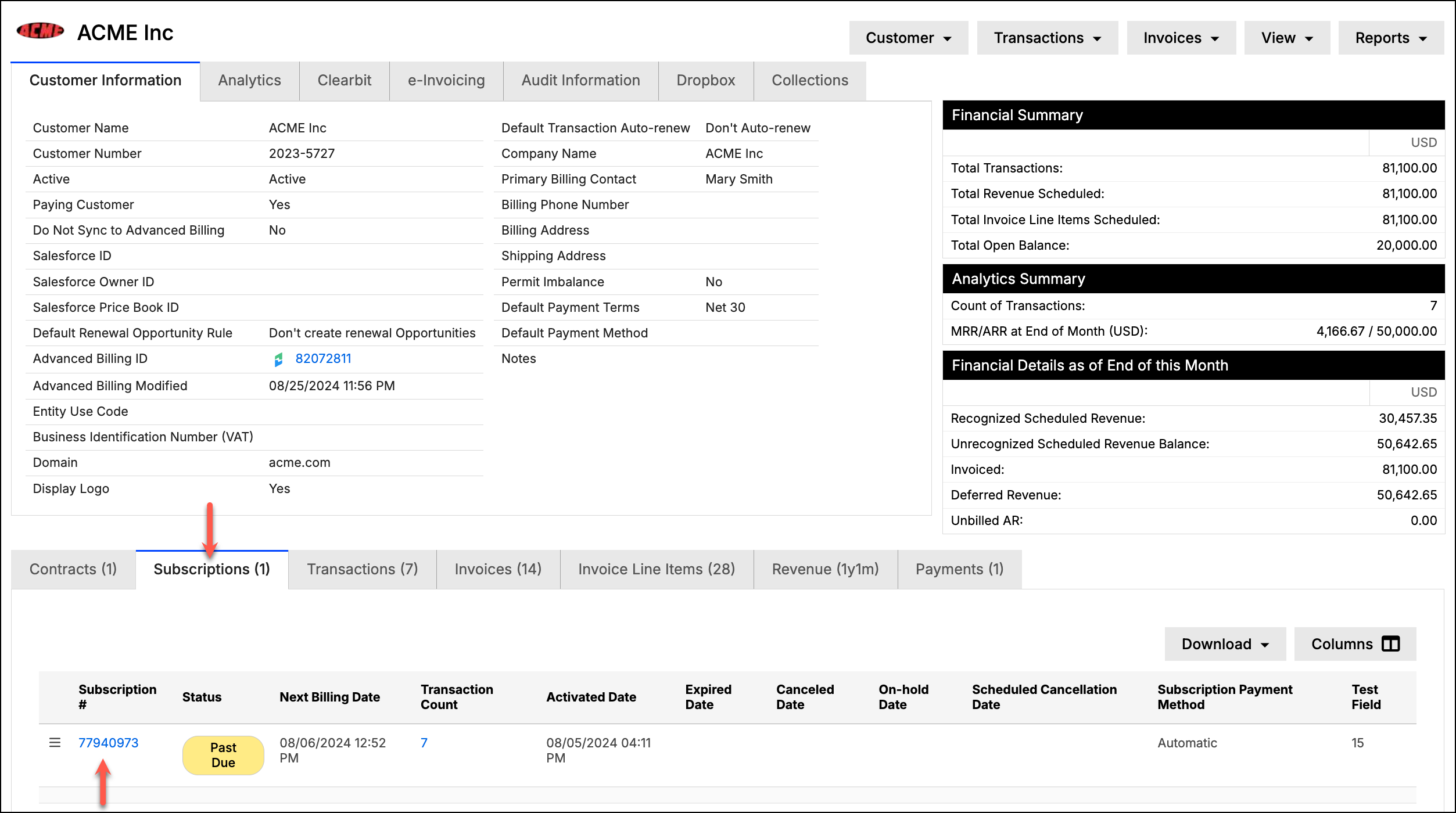
From a Customer screen in Maxio Core, select the Subscriptions tab. It shows that Customer's Advanced Billing subscription data, including Status, Next Billing Date, and Transactions Count.
Transaction Count is an active link. Selecting it opens every Transaction associated with that Subscription, which is the quickest route from a Customer to the revenue records behind their subscription.
Open a single subscription
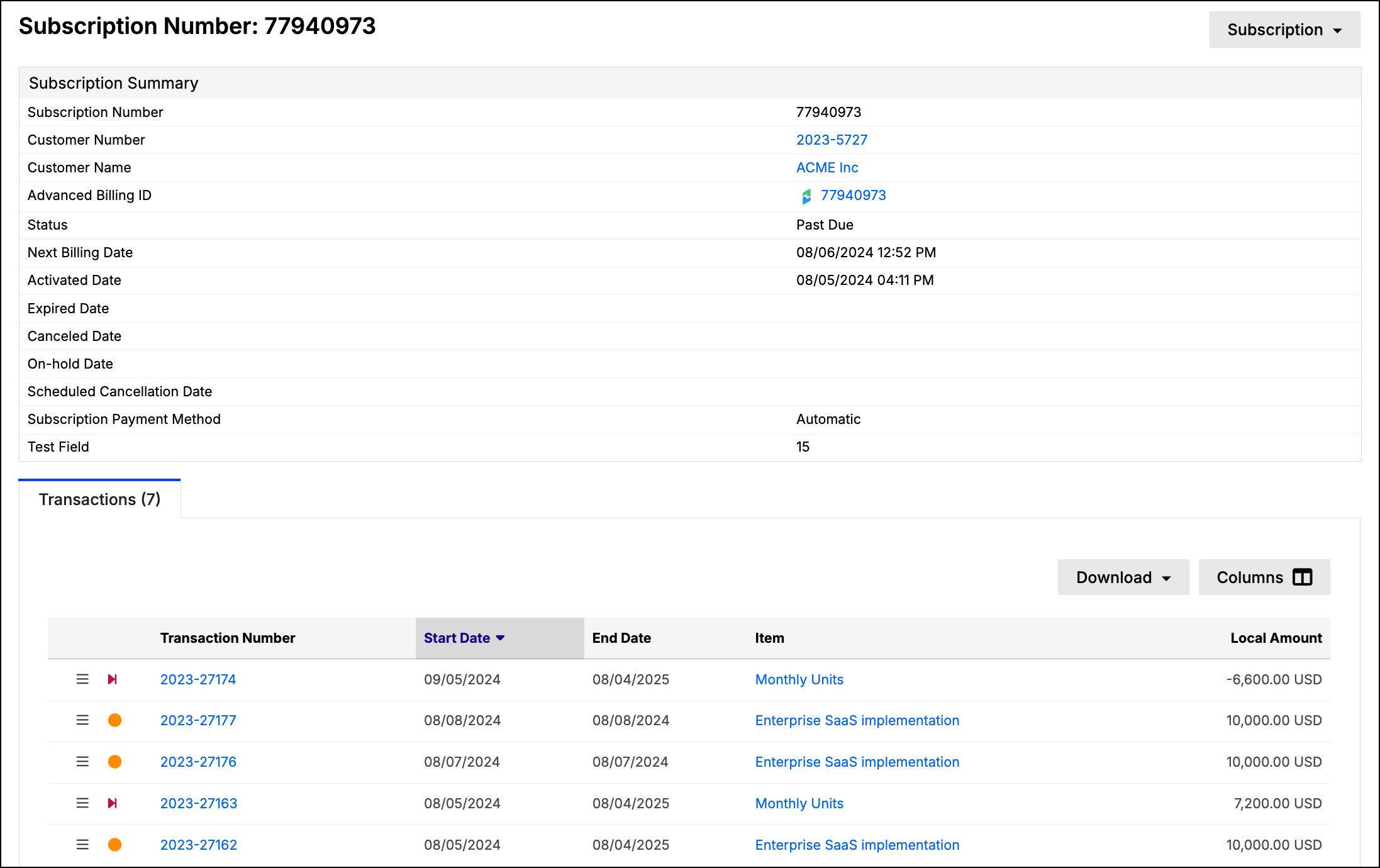
Select the Subscription number to open its detail page. The Subscription Summary lists the subscription's own fields beside the action menu for it.
Related information
For the filter, column, and saved-view controls these lists share, see the Customize List Views help article.
For what happens to these subscriptions' Transactions when a subscription is canceled, see the Cancel Transactions help article.
Still need help?
Reach out and our support team will take it from here.