
Update a Customer's Payment Information
Applies to: Maxio Payments
Last updated on Oct 5, 2026
If you are using Maxio Payments, your Customers can easily update their current banking or card information. Where they do it depends on where they manage their account: Maxio Core, Advanced Billing, or the Billing Portal. The steps differ slightly, but the outcome is the same: with a few clicks, a Customer can update their payment information.
Important: This requires the site to be connected to Maxio Payments, and an existing Customer.
Maxio Core
If your Customers manage their account in Maxio Core, send them a link to their payment update page.
To update a Customer's payment information
-
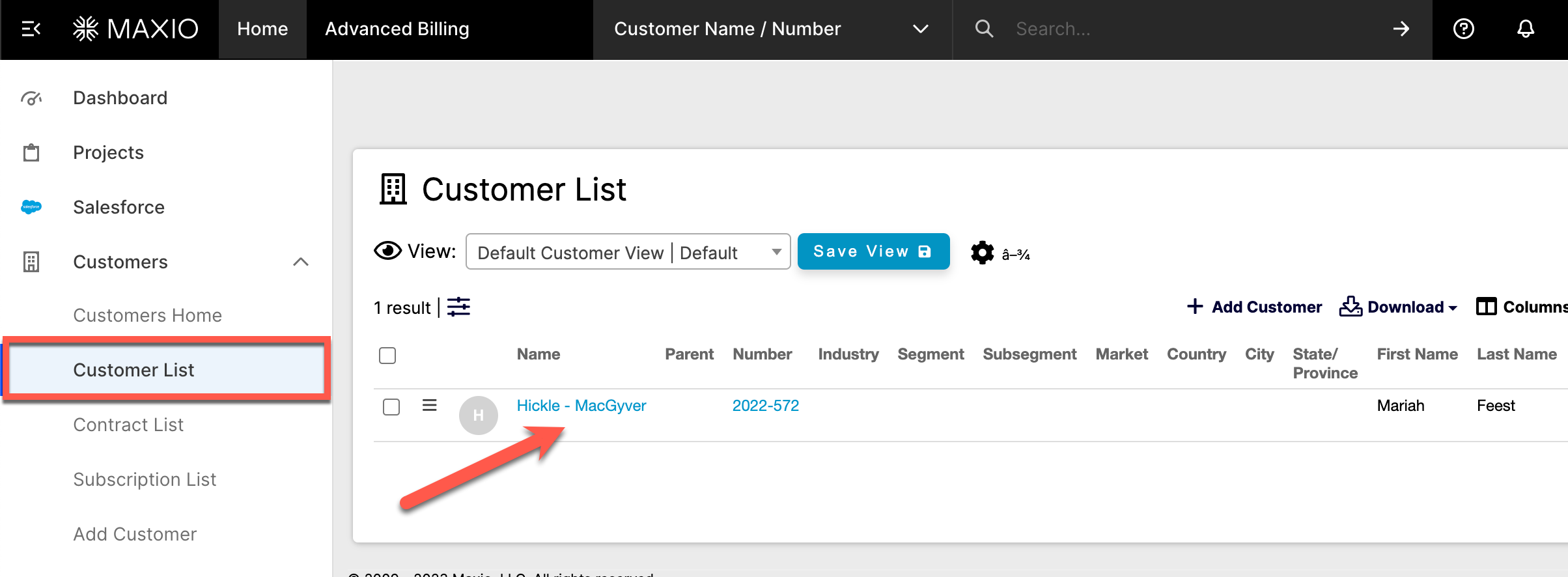
Find the Customer that needs to update their payment information in Customers > Customer List.
-
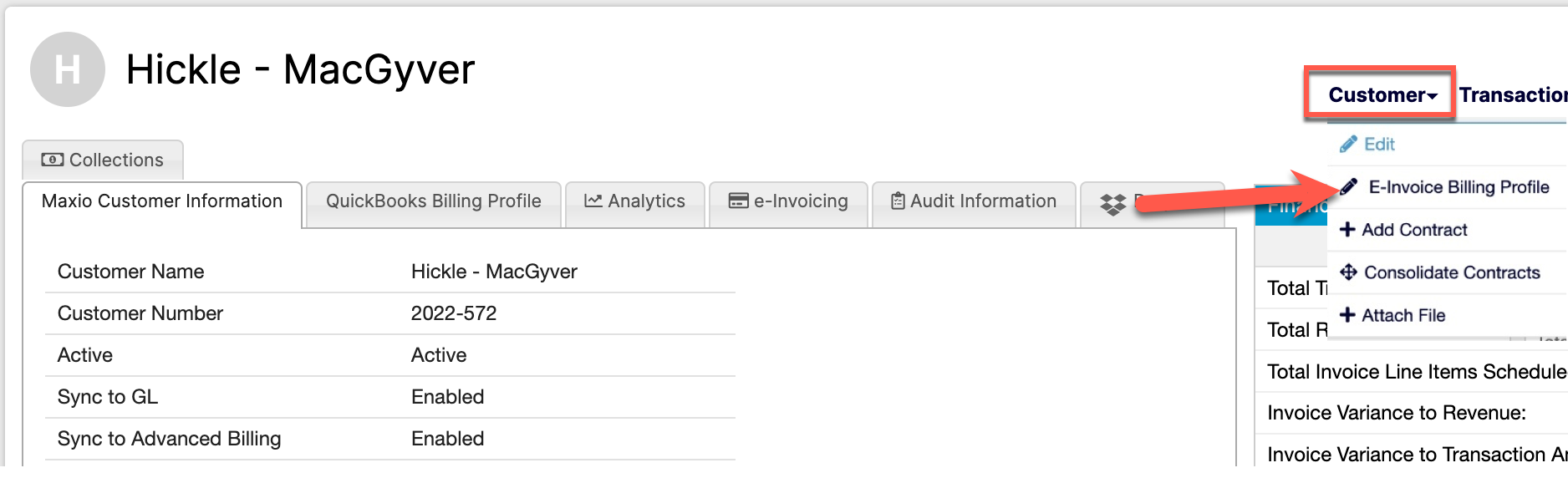
On the Customer page, select the Customer drop-down and choose e-Bill Billing Profile.
-
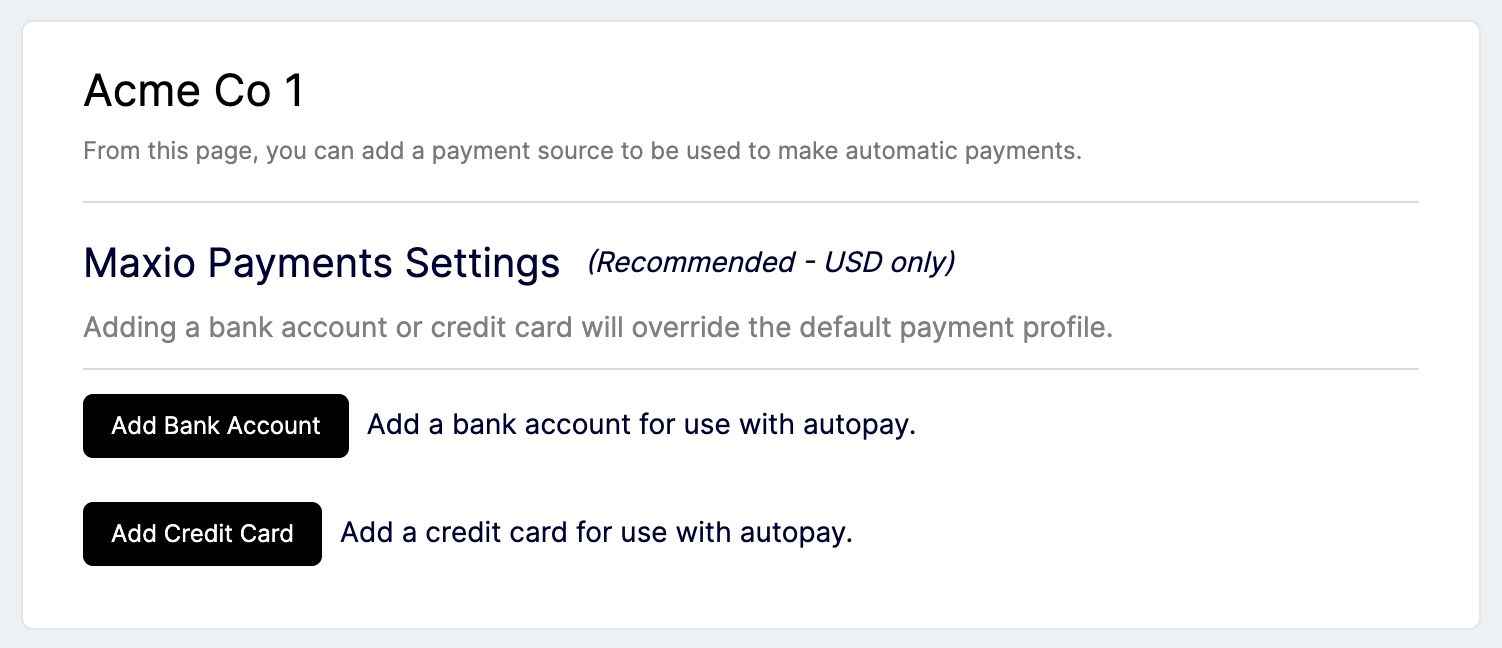
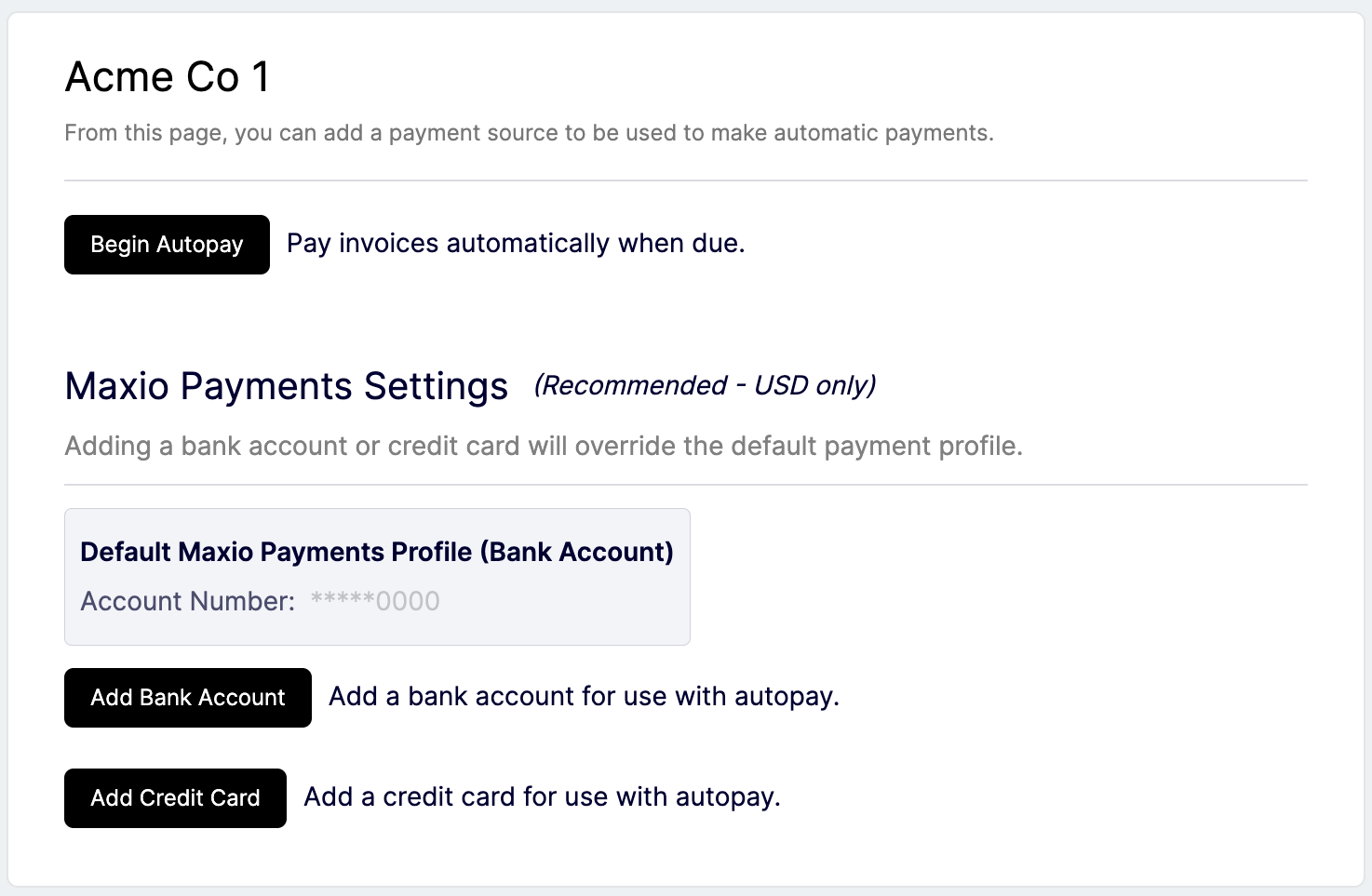
Copy the link on this page and send it to the Customer. From here, the Customer can update their autopayment status, check their current Payment Profile, and add a new one if needed.
-
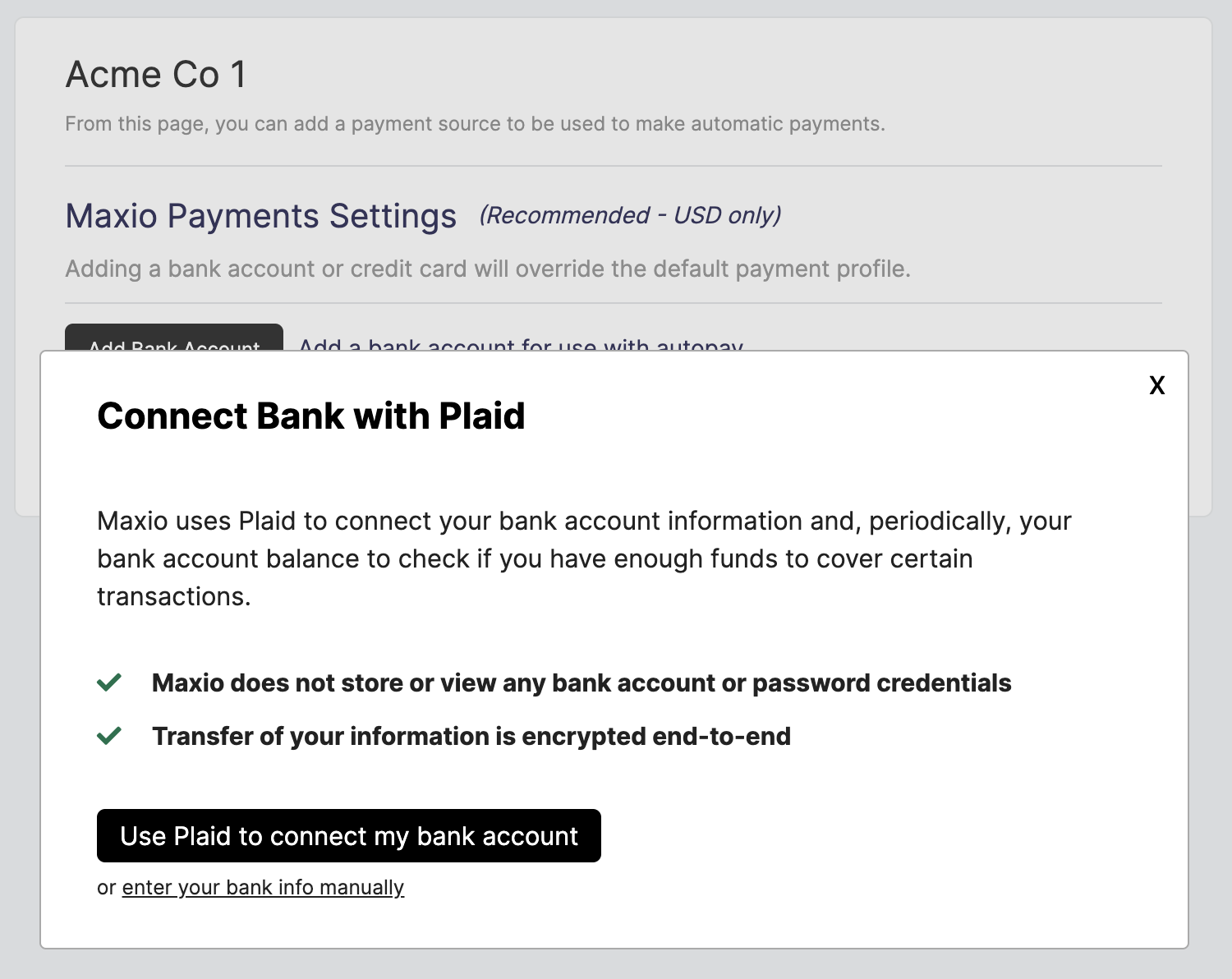
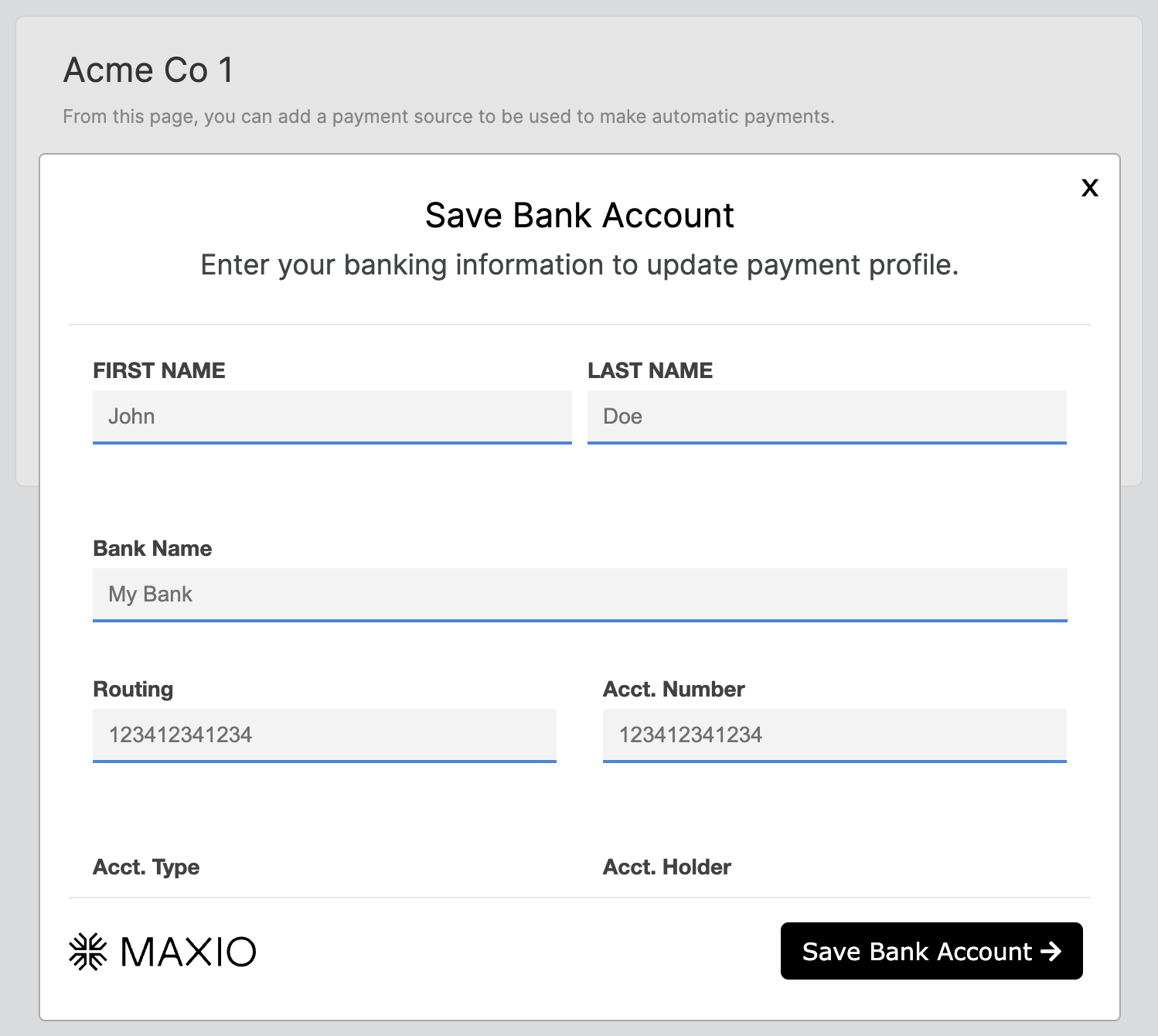
Selecting Add Bank Account prompts the Customer to connect their bank account using Plaid for Maxio Payments or Stripe for its processing.
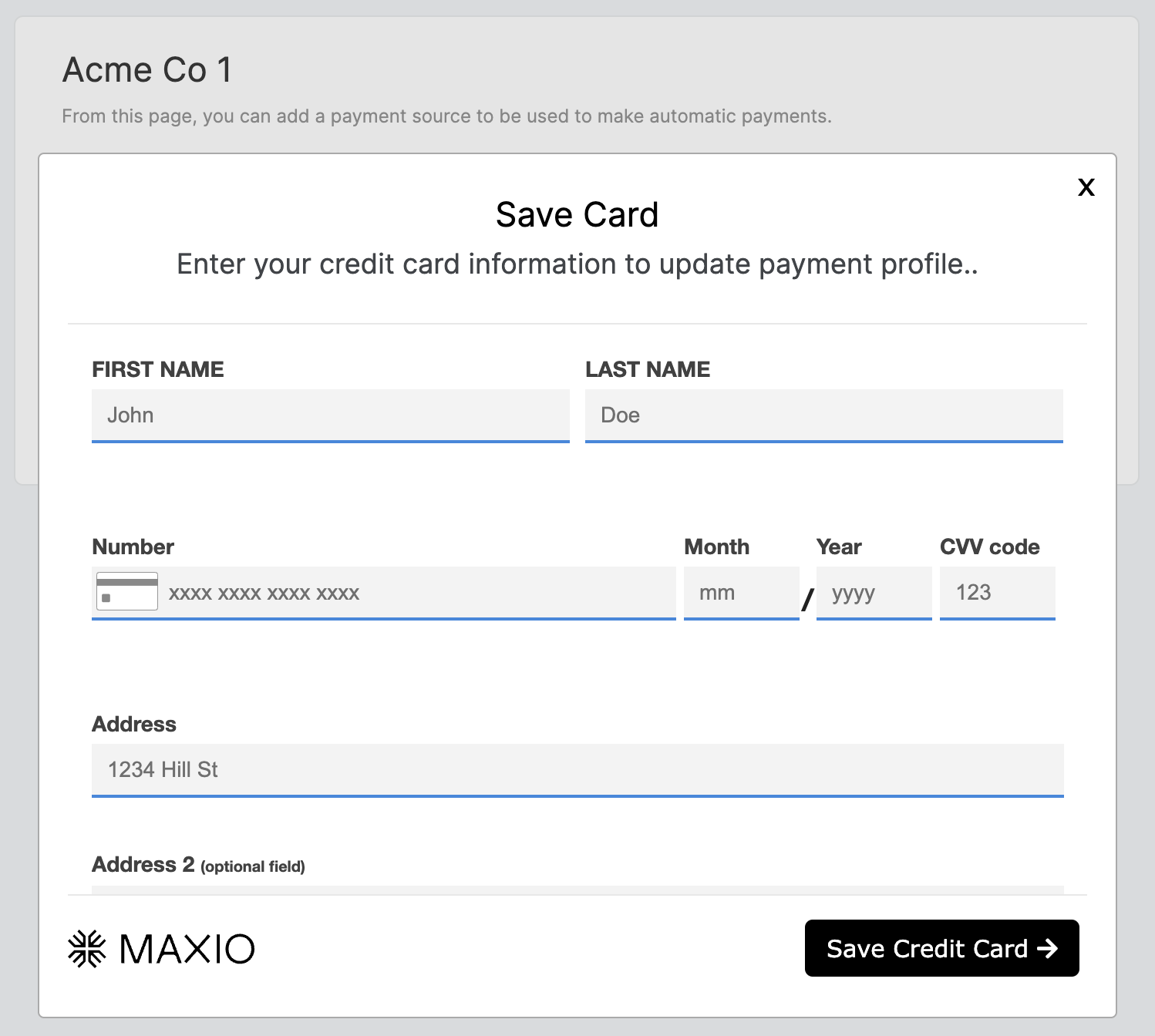
Selecting Add Credit Card prompts the Customer to enter their card information.
Customize the payment update link
Depending on the URL you send, you can control which elements display. For example, to show only the Maxio Payments module, attach maxio_payments to the end of the URL. This can help simplify or limit the payment modules your Customers can select.
Advanced Billing Self-Service Page
In Advanced Billing, Customers update their payment information from their Subscription's Self-Service Page.
Important: This requires the Self-Service Page to be enabled for the site, and an active Subscription.
To send a Customer their Self-Service Page
-
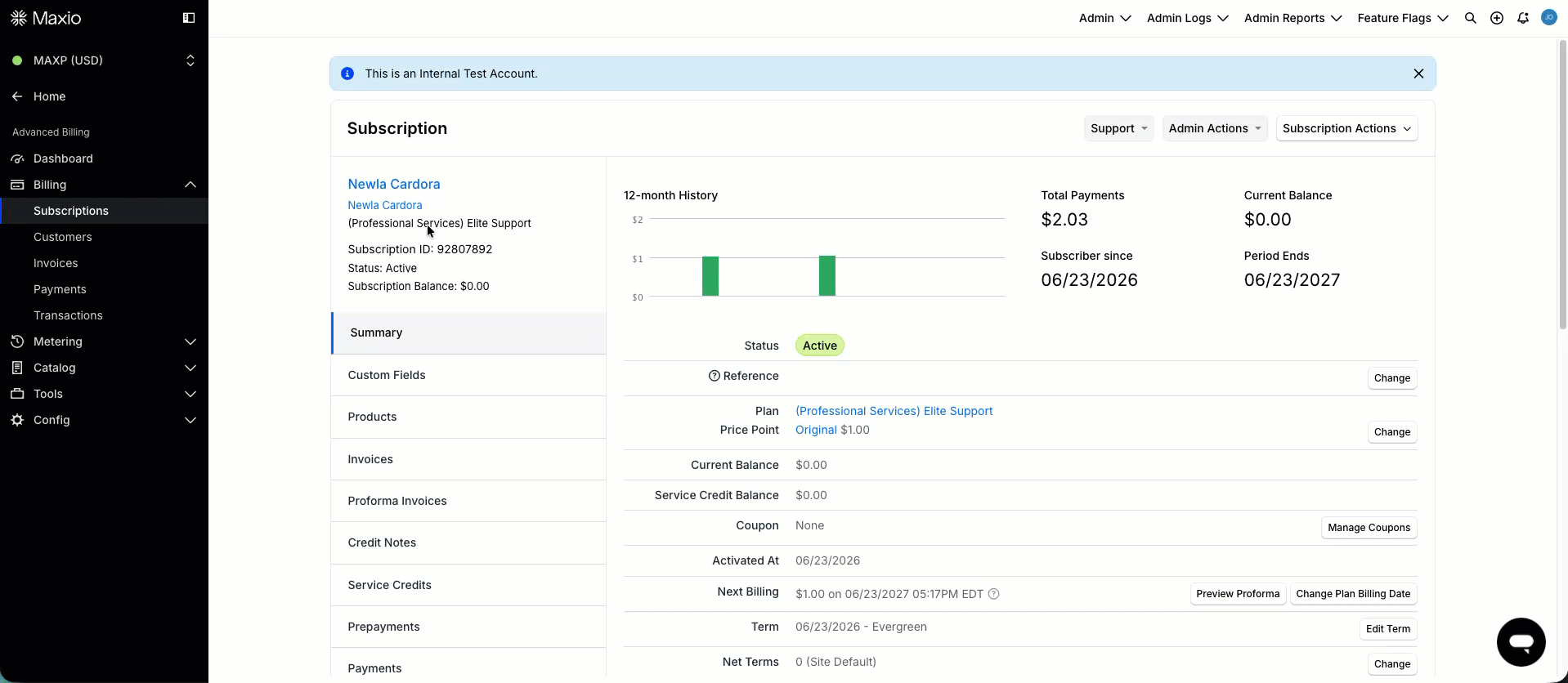
In the Advanced Billing app, go to Billing > Subscriptions and open the Subscription's Summary page.
-
Send the Customer their link in one of two ways:
- Select the Subscription Actions drop-down, choose View self-service page, then copy the URL and email it to your Customer.
- Go to Payment Details and select Email Customer to Request Payment Update.
By following the Self-Service Page link, your Customer can check their current Payment Profile and update their payment method, depending on the options available to them.
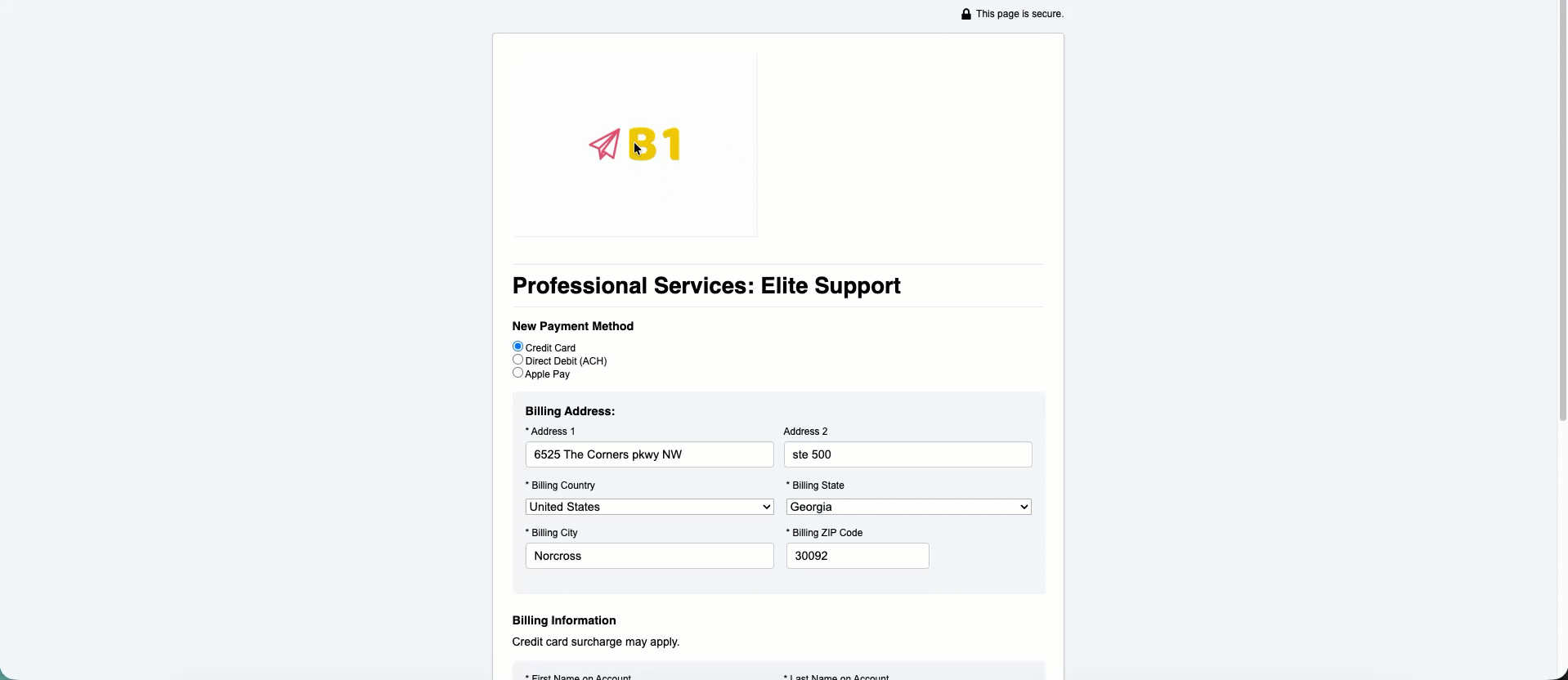
If Google Pay is also enabled and routed to the Maxio Payments gateway, it appears alongside these options as well. Selecting a wallet opens its own secure authorization window instead of a card entry form; once the Customer approves the payment there, their new payment method is captured automatically.
Once the Customer submits the form, the new payment method is saved to the Subscription and set as the default for future charges.
Billing Portal
If the Billing Portal is enabled for your site, Customers can sign in and update their banking or card information themselves.
Important: This requires the Billing Portal to be enabled for the site, and the Customer to have Billing Portal access.
To give a Customer access, open the Customer's Customer Detail page, find the Billing Portal Status section, select Enable Access and Invite, then follow the dialog to enable the portal and invite them.
Once the Customer signs in, they can reach their current Payment Profile in either of two ways.
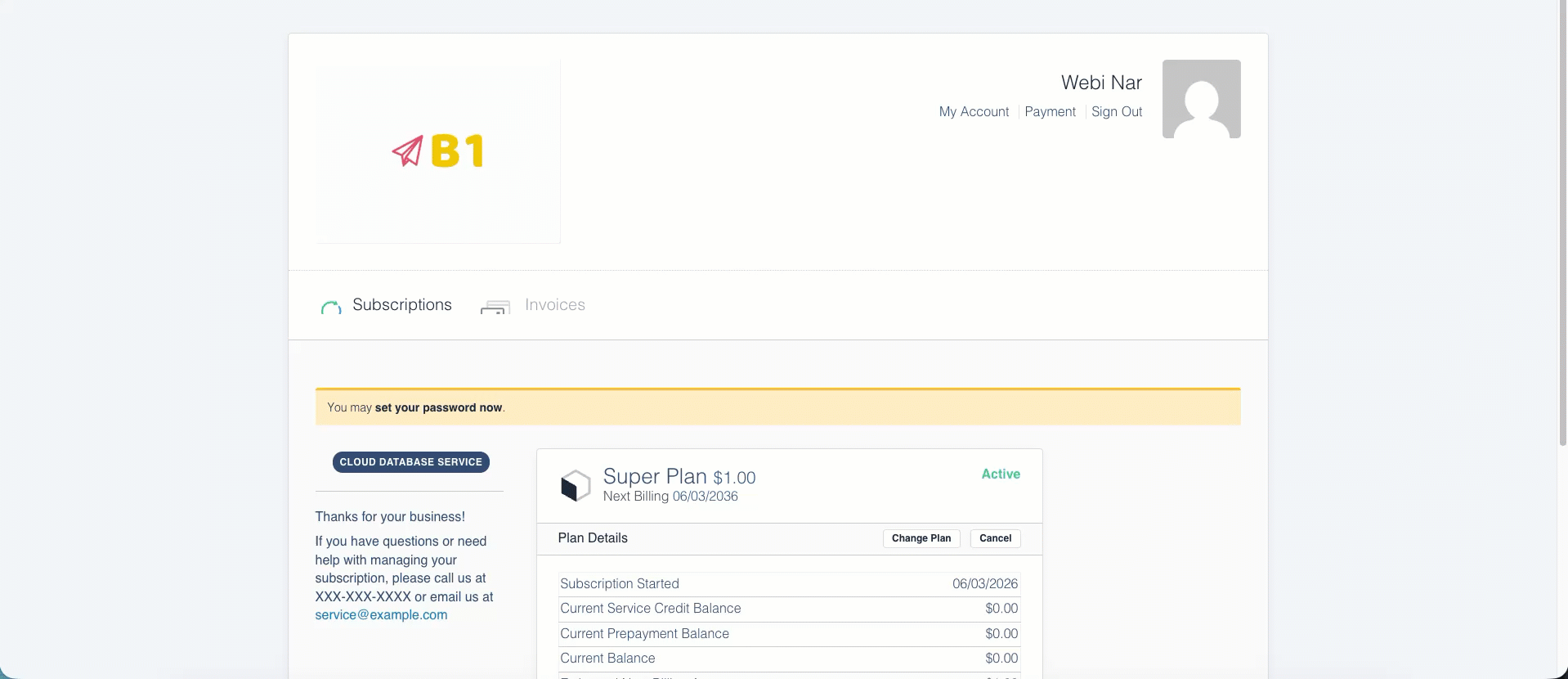
- Select Payment in the header, select Add New in the Payment Methods section, then complete the payment method form.
- On the Subscriptions tab, open the appropriate Subscription, select Update Payment Method, then complete the payment method form.
The new payment method is saved and set as the default for future charges.
Update a payment method on the invoice page
If the Customer has an open invoice, they can add or update their payment method and pay directly from the Invoice Page. The process is the same regardless of where the invoice link originates.
- Locate the open invoice and copy its Invoice Page link, then send it to the Customer. The Customer can also open it from the Invoices tab in the Billing Portal.
- On the Invoice Page, the Customer selects the option to pay or update their payment method.
- Selecting Add Bank Account prompts the Customer to connect their bank account using Plaid for Maxio Payments or Stripe for its processing.
Once the payment method is entered, the Customer can submit payment for the open invoice and save the payment method for future charges.
Related information
To learn how to connect your site to Maxio Payments, see Understand Maxio Payments.
To learn how to create and manage Customers, see Manage Customers for Contract Workflows.
To learn how autopay works, see Manage a Customer's e-Bill Billing Profile.
To learn how to build Self-Service Page links yourself, see Generate Self-Service Page URLs.
Still need help?
Reach out and our support team will take it from here.