
Manage Public Signup Pages
Applies to: Advanced Billing
Last updated on Aug 28, 2026
After you create a Public Signup Page, Advanced Billing allows you to make changes at any time. Changes to a Public Signup Page will take effect immediately, so we recommend testing in a sandbox site before going live.
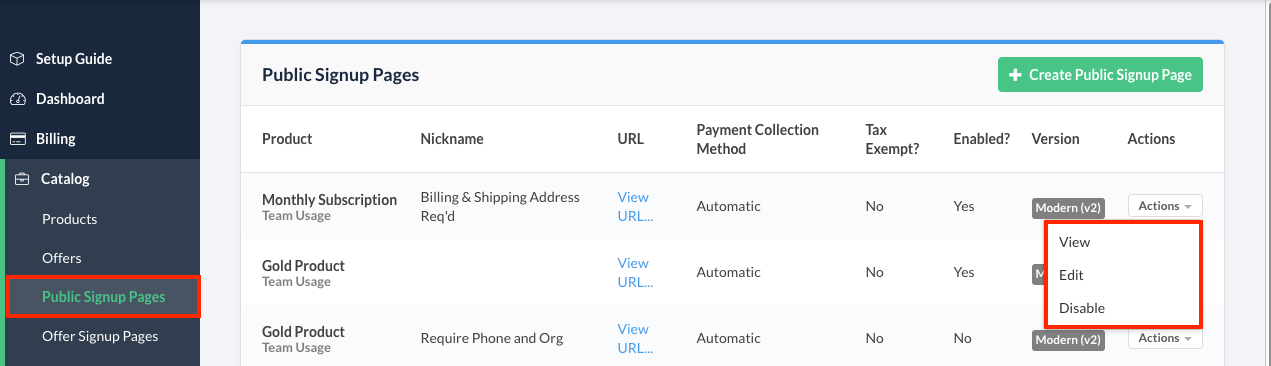
You can view all your current Public Signup Pages by selecting Catalog from the left side of the site. See View URLs for Customer-Facing Pages for where each page's public address is shown and how to share it, Upgrade to the Modern Layout if a page is still on the classic layout, and Add Zendesk Chat to a Public Signup Page to put live chat on a page.
View a Public Signup Page's current settings
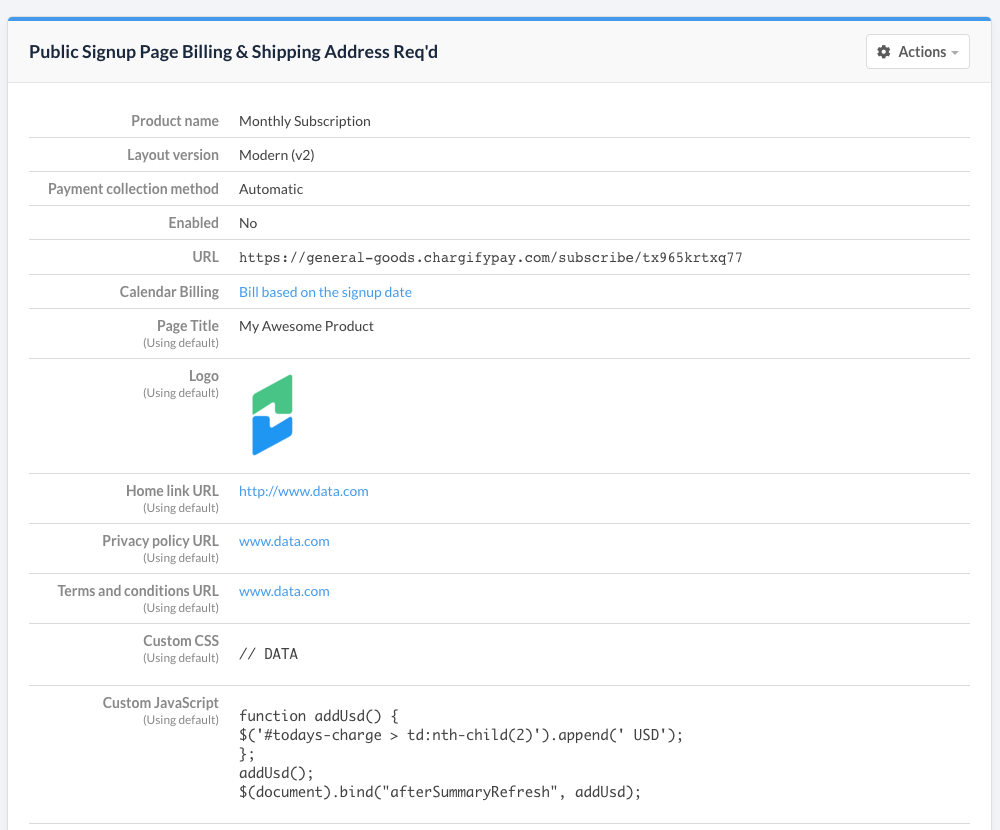
To view the current settings for a Public Signup Page, select View from its actions menu. This View option presents the settings in a read-only format.
View a Public Signup Page as a subscriber
To see what the subscriber sees, click View URL... in the page's URL column, then click the link to open the Public Signup Page in a new tab or window.
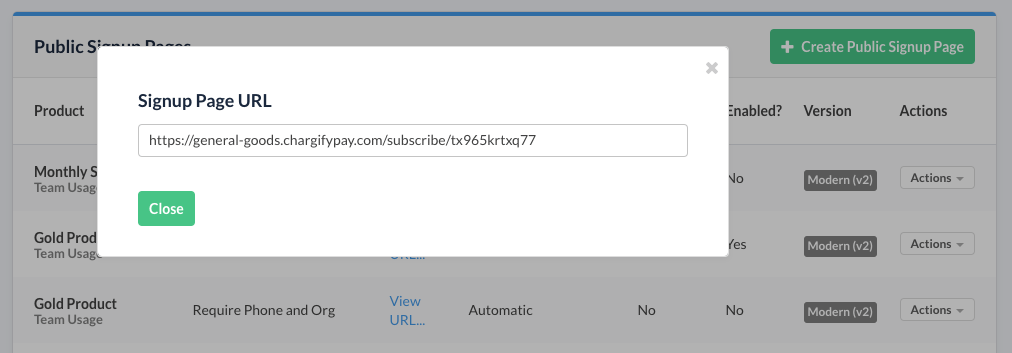
Public Signup Page URLs are not customizable in Advanced Billing at this time.
Edit a Public Signup Page's settings
To edit an individual Public Signup Page’s settings, select Edit from the actions menu. For detailed instructions on each setting, see Public Signup Page Settings Reference.
Disable a Public Signup Page
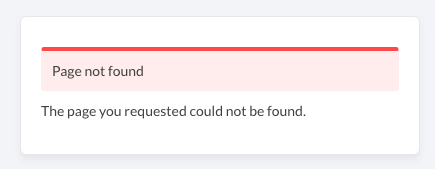
You can disable a Public Signup Page at any time. After you disable a page, it will no longer be viewable by anyone with the URL.
If a visitor opens the disabled Public Signup Page URL, they will see an alert message indicating the page is no longer available.
Delete a Public Signup Page
WARNING: Deleting a Public Signup Page is permanent and cannot be undone. If you're unsure, disable the page instead.
To delete a Public Signup Page, go to the View option for that page and select Delete.
Still need help?
Reach out and our support team will take it from here.