
Upgrade to the Modern Layout
Applies to: Advanced Billing
Last updated on Aug 28, 2026
Our new signup pages are beautiful, mobile-friendly, and optimized for conversion. We highly recommend customizing only the logo and using custom CSS/JS only when absolutely necessary.
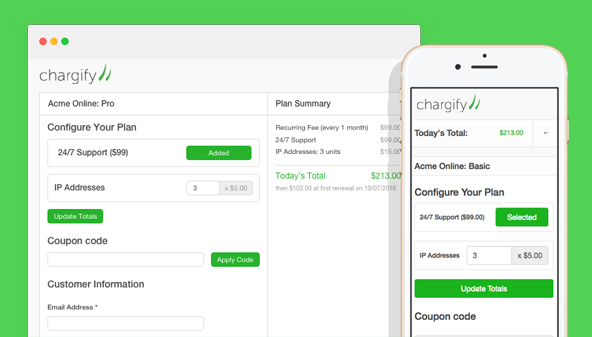
Upgrade without custom CSS/JS
This is the simplest way to upgrade from the Classic (v1) to the Modern (v2) layout.
WARNING: Upgrading a Public Signup Page from Classic to Modern cannot be undone. Once a page is on Modern, there is no option to switch it back to Classic.
An existing Public Signup Page can be updated by editing its layout version in Catalog > Public Signup Pages > Edit.
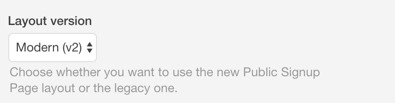
This will automatically adjust the layout for both your Public Signup Page and its receipt page.
Upgrade with custom CSS/JS
Since the Modern layout uses different markup than the Classic layout, custom CSS/JS cannot be automatically applied to the new layout. You will have to use the Customize a Modern Public Signup Page with JavaScript and CSS guide to style the new layout.
If you want to upgrade without carrying over your custom CSS/JS, you can edit your Public Signup Page layout version to Modern (v2) and it will update to the new design.
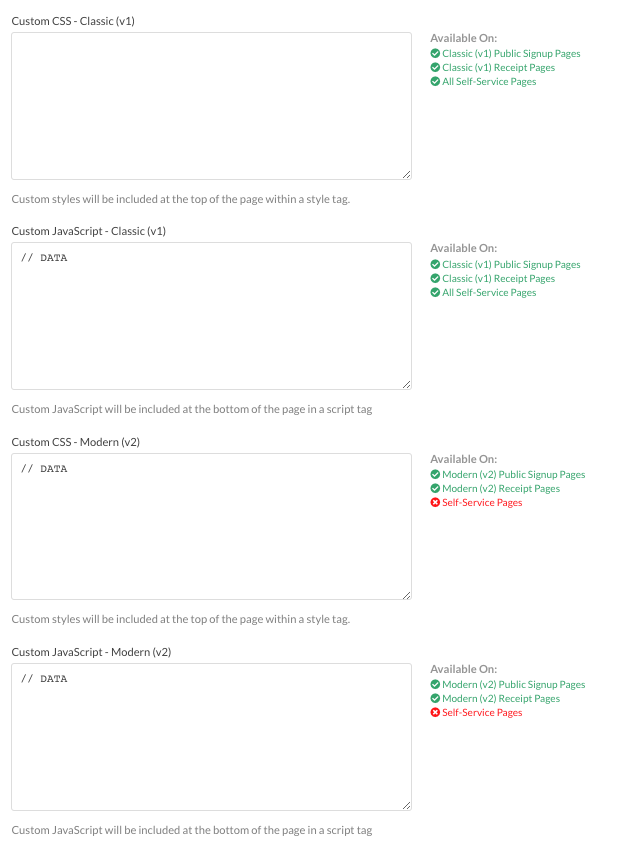
For global default custom CSS/JS, we have separated the two layouts. You can create global defaults for all Public Pages on the Modern (v2), and separate defaults for Public Pages using Classic (v1).
Move all Public Signup Pages to the Modern layout
WARNING: This will update ALL of your Public Signup Pages to the new layout and cannot be reversed.
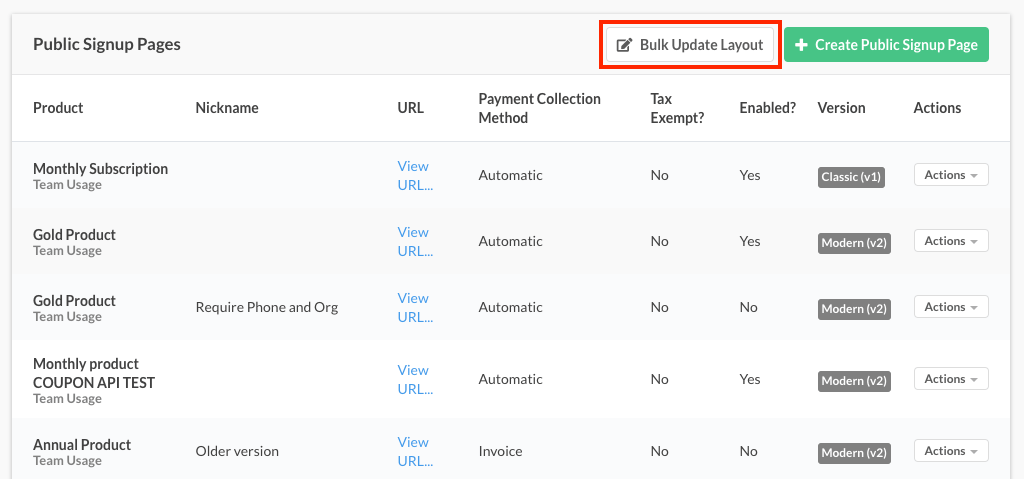
If you’d like to move all of your Public Signup Pages to the Modern layout, you can visit Catalog > Public Signup Pages and select the Bulk Update Layout button at the top of the screen.
Custom CSS/JS that you have on individual pages may no longer work. Global custom CSS/JS will no longer apply, but default values for the Modern (v2) layout can be added in your Configuring Public Page Default Settings.
Related information
For the full field reference on the layout version setting, see Choose a layout version in the Public Signup Page Settings Reference.
Still need help?
Reach out and our support team will take it from here.