
Contract Fields Reference
Applies to: Maxio Core
Last updated on Sep 19, 2026
A contract records what a customer has purchased and what will be delivered over its term. Most of its fields are set once, when the contract is created, and then drive downstream behavior — which register the contract reports into, how its number is generated, where its e-Bills are sent, and how it maps to your general ledger and to Salesforce.
This page describes every field on a contract, grouped by when you'll encounter it. Some fields appear only when a specific integration is connected.
Core contract fields
Every contract carries these fields. Customer and Register are set when the contract is created; the rest are optional but shape how the contract reports.
| Field | Description |
|---|---|
| Customer | When manually adding a contract, the name of the customer that you are adding it to displays in an uneditable field. If you find you've created a contract under the incorrect customer, you will need to move the contract to the correct customer. This function can be disabled in certain circumstances such as when the contract contains synced data or when records are in the Close Period. |
| Register | When creating a contract, you are required to select a register if your Maxio account has more than one. If you have only one register, the contract you create will automatically be in that register. You can change the register for the contract under certain circumstances, such as when your account has multicurrency enabled and the new register uses the same currency. This function can be disabled with synced data and records in the Close Period. |
| Contract Number | A unique field that identifies the contract. You can enter one yourself but it must be unique. Leave this field blank to have the system generate a unique contract number. The system-generated number format is created by adding a sequential number to the Generated Number Prefix specified in your Account Settings. When mapping this field during a Contract import, map it to a column whose value is different for every contract — not to a value that repeats, such as a customer number, since a contract number must be unique account-wide. If the same value appears on more than one row of the file, the import rejects every row after the first, naming the value and the line it first appeared on. |
| Entry Date | A useful analytic field for Cohort reports. If this field is unpopulated for a large number of your contracts, you can perform a bulk edit update to set the entry date for those contracts. This function will set the contract's entry date to match the earliest transaction start date within the contract. |
| Permit Imbalance | Check this box to remove out-of-balance alerts from view when the Contract has an out-of-balance condition. This setting does not balance the Contract; it just removes the alerts. |
Billing and notes fields
These fields control where e-Bills for the contract are sent and what additional context appears on them.
| Field | Description |
|---|---|
| Send e-Bills for this Contract to an alternate address by entering one or more email addresses here. Autopay Customers still autopay these e-Bills even when an alternate address is set. Separate multiple addresses with a comma or semicolon. | |
| Contract Notes | An open text field to add notes specific to this contract; these notes can be displayed on your e-Bills for the contract if enabled in your e-Bill Theme. |
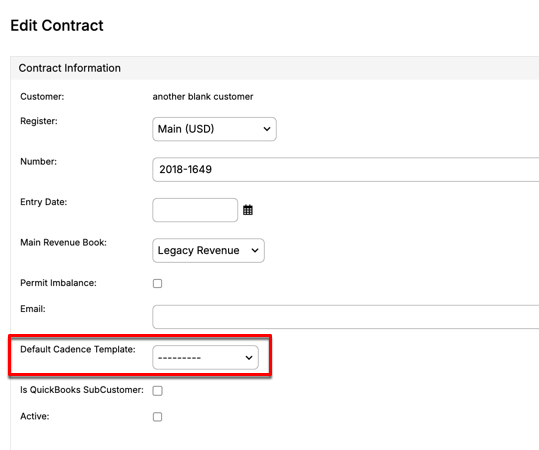
| Default Cadence Template | The Cadence Template applied to new Invoices created under this Contract. When set, it takes priority over the Customer-level default. See Assign Cadence Templates for the other ways a Cadence can be assigned. |
Integration and custom fields
These fields connect the contract to systems outside Maxio Core, or capture data specific to your business.
| Field | Description |
|---|---|
| Salesforce ID | If the Salesforce Integration is enabled, this field can hold the Salesforce ID for the corresponding record in Salesforce. Which Salesforce object type that record is depends on how your Salesforce sync is configured. |
| Custom Fields | Contracts support custom fields for capturing your own business-specific data, configured under Admin > Custom Fields. Contracts support fewer text and date custom fields than most objects because one text-field slot and one date-field slot are reserved for each of the built-in Channel, Lead Source, and Lead Date fields. See Create and Manage Custom Fields for the full list of field types and capacity limits. |
Fields that require QuickBooks Desktop
The remaining fields appear only when your account has QuickBooks Desktop connected with Jobs support enabled and this contract is set as a Job. If you don't meet both conditions, you won't see them on the contract.
| Field | Description |
|---|---|
| Entity Use Code | Available only when your account has QuickBooks Desktop connected with Jobs support enabled and this Contract is set as a Job, and only when the AvaTax integration is enabled. Entity Use Codes are used by Avalara to declare the specific reason for (and type of) sales tax exemption for a customer. Only select an Entity Use Code if you want to claim the contents of this contract as exempt from sales tax. |
| Billing Address | Available only when your account has QuickBooks Desktop connected with Jobs support enabled and this Contract is set as a Job. The billing address entered here is used as the default billing address for invoices created within the contract unless superseded by a manually-entered billing address for the invoice itself. The billing address syncs with your connected general ledger. If your account has the Maxio Invoicing Suite (Billing Portal) enabled, Country and State/Province are presented as linked drop-downs: choosing a Country populates the matching list of states or provinces for State, instead of entering State as free text. |
| Shipping Address | Available only when your account has QuickBooks Desktop connected with Jobs support enabled and this Contract is set as a Job. The shipping address entered here is used as the default shipping address for invoices created within the contract unless superseded by a shipping address manually entered for the invoice itself. The shipping address does not sync with your connected general ledger. If your account has the Maxio Invoicing Suite (Billing Portal) enabled, Shipping Country and Shipping State/Province are presented as linked drop-downs, the same as the Billing Address fields above. Using Copy Billing also updates the Shipping State drop-down to match the newly-copied Shipping Country. |
Still need help?
Reach out and our support team will take it from here.