
Understand QuickBooks Desktop Integration Behavior
Applies to: Maxio Core
Last updated on Oct 22, 2026
Keep your Maxio account and your desktop version of QuickBooks in balance by knowing what syncs between them, how each type of record behaves, and which actions in QuickBooks affect your data in Maxio.
What syncs between Maxio and QuickBooks Desktop
Customers, Invoices, and Credit Memos sync both ways between Maxio and QuickBooks Desktop. Reference data, such as your Chart of Accounts, syncs one way, from QuickBooks to Maxio. Some data never syncs, including Journal Adjustments, Vendor information, Expenses, Employee and Payroll information, Inventory information, and credit card information stored in QuickBooks. See Sync QuickBooks Data for the full lists.
Item types that sync
Maxio syncs these QuickBooks Desktop Item types:
- Non-inventory Part
- Service
- Other Charge
- Inventory Part
- Inventory Assembly
- Discount
Other Item types, such as Item Groups, Subtotals, and Payments, don't sync. See QuickBooks Integration FAQs for the full list.
How invoices and credit memos sync
The following behaviors apply to Invoices and Credit Memos that sync with QuickBooks Desktop:
- Print and email queues - The To Be Printed and To Be Emailed settings in Maxio queue Invoices in QuickBooks, where you then print or email them.
- QuickBooks Desktop templates - Maxio assigns a Template to each Invoice in this order: the Template on the Invoice, the default Template for the Customer, then the default Invoice Template for your Maxio account.
- Deleted Invoices - What happens in Maxio when you delete a synced Invoice in QuickBooks depends on its date compared with your Closing Dates. Voiding is preferred over deleting.
- Invoice fields and functions that don't sync - Fields such as Custom Fields, Job Numbers, and Add Online Payment Link to Invoices don't sync for QuickBooks Desktop Invoices.
- Discount Items aren't supported on QuickBooks Desktop Credit Memos - A Credit Memo that contains a Discount Item fails to sync. Remove the Discount Item to correct this.
Customer fields that don't sync
Some QuickBooks Desktop Customer fields don't sync to Maxio, such as Cc Email, Web Site, Credit Limit, and Price Level. QuickBooks Canada and QuickBooks UK each map one additional field to the Resale Number field in Maxio. See Customer fields that don't sync between Maxio and QuickBooks for the full list and the mapping.
How jobs work with QuickBooks Desktop
Jobs is an optional feature that Maxio Support turns on for your account.
WARNING: Turning Jobs on or off after your first sync can significantly change your existing data. Contact support@maxio.com before changing it on an account that has already synced.
The Jobs setting determines how a QuickBooks Job appears in Maxio:
- Jobs off - A Job in QuickBooks becomes a Customer in Maxio. For example, the Job "Integration Job" under Acme Supplies in QuickBooks appears as the Customer "Acme Supplies, Inc.: Integration Job" in Maxio.
- Jobs on - A Job in QuickBooks becomes a Contract under its parent Customer in Maxio. For example, the Job "Integration Job" under Acme Supplies appears as the Contract "Integration Job" under the Acme Supplies Customer. A Contract in Maxio can also be identified as a Job, which creates a Job in QuickBooks when you sync.
QuickBooks supports up to four levels of sub-Jobs, but Maxio supports one. See How sub-customers and Jobs sync between Maxio and QuickBooks for how deeper levels display, and for what happens when you move or merge a Job. See What happens to existing Customers when you turn on jobs after your first sync for how existing Customers change.
How jobs work in QuickBooks Desktop
In QuickBooks Desktop, you can associate Invoices and expenses with a Job, and then bill the expenses on an Invoice.
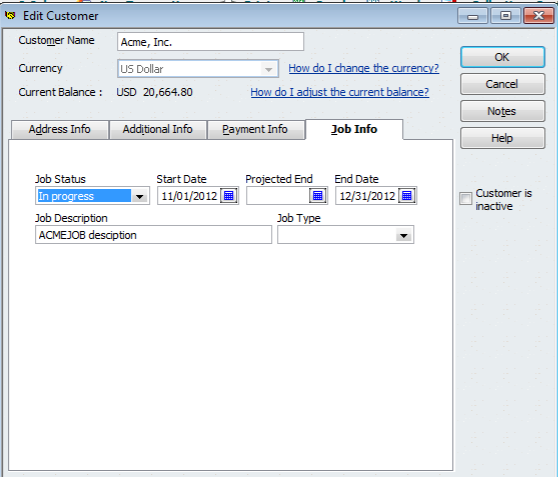
You can store one set of Job information with a Customer, on the Job Info tab of the Edit Customer window:
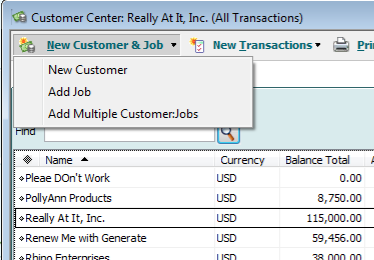
To create more than one Job for a Customer, select New Customer & Job in the Customer Center, then select Add Job:
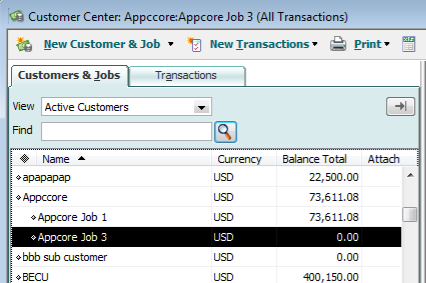
The new Job appears under its Customer in the Customer list. If the Customer already had Job information on its Job Info tab, QuickBooks converts that information into a sub-Job, as shown here. A sub-Job can have its own billing profile information, separate from its parent.
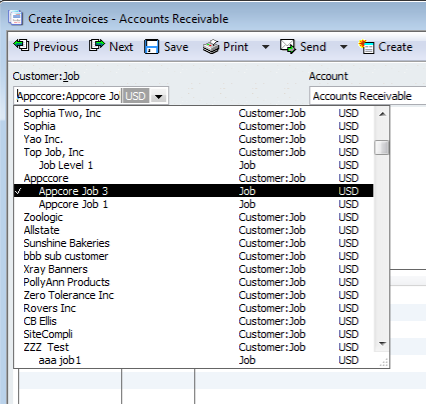
Once a sub-Job exists, you can create Invoices for it by selecting it in the Customer:Job field:
Avoid actions in QuickBooks that affect Maxio
Changing an Invoice's Customer, deleting Invoices instead of voiding them, merging Customers or Items, making an Item inactive in only one system, and pasting text into either system can each affect your data in Maxio. See QuickBooks Actions That Affect Maxio for what happens and what to do instead.
Related information
To connect QuickBooks Desktop to Maxio, see Setup QuickBooks Desktop.
To review the settings that control how the integration behaves, see Configure QuickBooks Integration Settings.
To compare how the integration works for QuickBooks Online and QuickBooks Desktop, see Understand the QuickBooks Integration.
Still need help?
Reach out and our support team will take it from here.