
Send the Invoice
Applies to: Advanced Billing
Last updated on Oct 1, 2026
Email an Invoice to a Customer automatically when it's issued, or send it by hand whenever you choose.
Send an invoice
You can send an Invoice to a Customer by hand at any time, or configure Advanced Billing to send it automatically when issued.
To send an invoice manually
- Open the Invoice, then click Send Invoice at the top. This button is unavailable while the Invoice is Draft or Pending.
- In the Email Customer dialog, confirm the recipient email, and add any CC or BCC emails.
- Optionally, turn on Overwrite Email Template? to edit the Subject and Content for this email only, or add Attachments.
- Click Send Email.
Send an invoice automatically
Advanced Billing can email an Invoice automatically when it's issued, using two separate settings:
- Send Email When Invoice Issued for Automatic Payment
- Send Email When Invoice Issued for Remittance Payment
Configure both, along with the default email template and PDF attachment, in your Configure Invoice Email Delivery settings. To include a link for the Customer to view the Invoice online, use the {{ invoice.url }} variable in the email body.
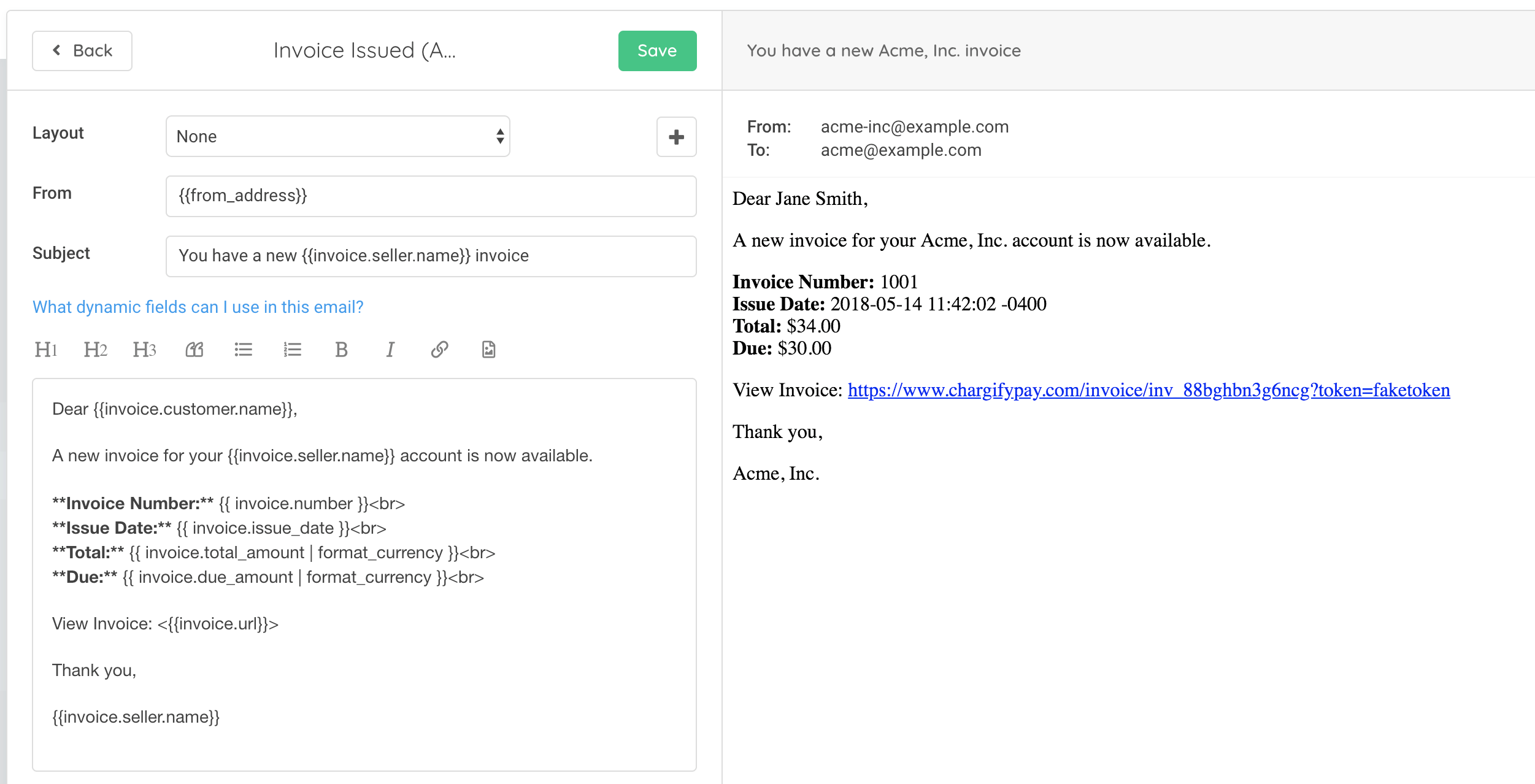
{{ invoice.url }} tag in an invoice emailBulk email invoices
You can also bulk-send public Invoice links from a Subscription's own Invoices list, instead of emailing one Invoice at a time.
To bulk email invoices
-
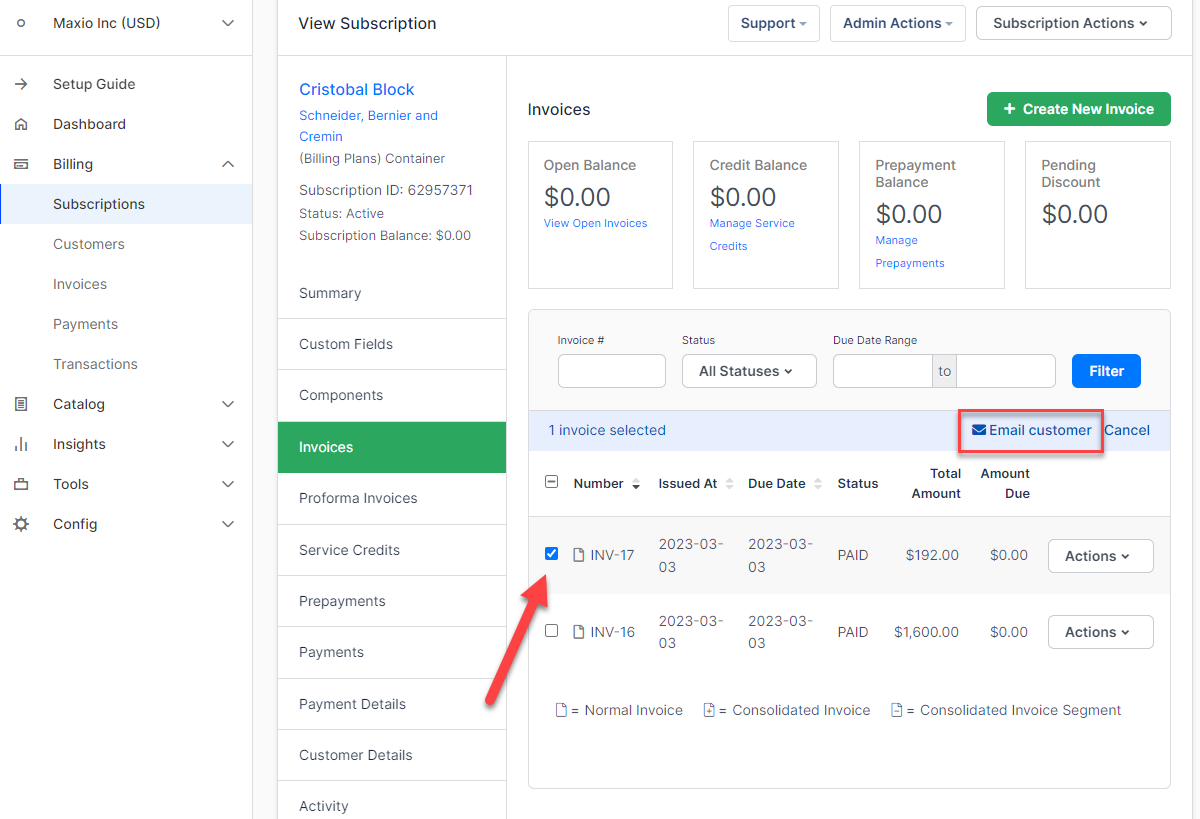
From the sidebar, go to Billing > Subscriptions, then open the Subscription whose Invoices you want to send.
-
Click Invoices to see the full list of Invoices issued to that Subscription.
-
Select the checkboxes next to the Invoices you want to send.
-
Click Email N Invoice(s).
-
In the Email Customer dialog, confirm or change the recipient email, and add any CC or BCC emails.
-
Click Send Email.
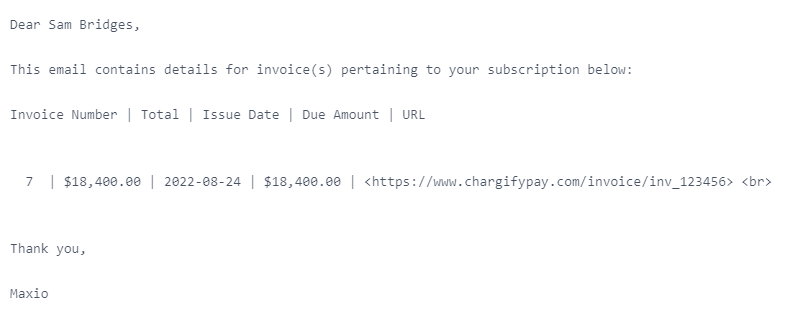
The resulting email lists each selected Invoice, with its invoice number, total, issue date, due amount, and public URL.
Related information
To learn more about the online invoice a Customer sees when they open one of these links, see View and Share Invoice Public URLs.
To view or download an Invoice PDF yourself, see View or Download an Invoice PDF.
Still need help?
Reach out and our support team will take it from here.