
Void an Invoice
Applies to: Advanced Billing
Last updated on Sep 19, 2026
Clear the remaining balance on an Invoice that contains an error, that you no longer expect to collect on, or that you're choosing to forgive. Voiding updates the Invoice status and stops future collection attempts, and generates a Credit Note when partial payments exist. See How Credit Notes Work for how that Credit Note is generated and applied.
Before you begin
A few conditions apply before you void an Invoice:
- Void Invoice is available for Invoices with Open, Canceled, Processing, or Collections status, and for some Pending Invoices.
- This action requires the Customer Support access level or higher.
Void an invoice
Voiding zeroes out the Invoice's remaining balance, so double-check you have the right one before confirming.
WARNING: Voiding an Invoice clears its remaining balance. If the Invoice has applied payments you want to refund, do that separately: voiding does not refund them. See Refund an Invoice.
To void an invoice
-
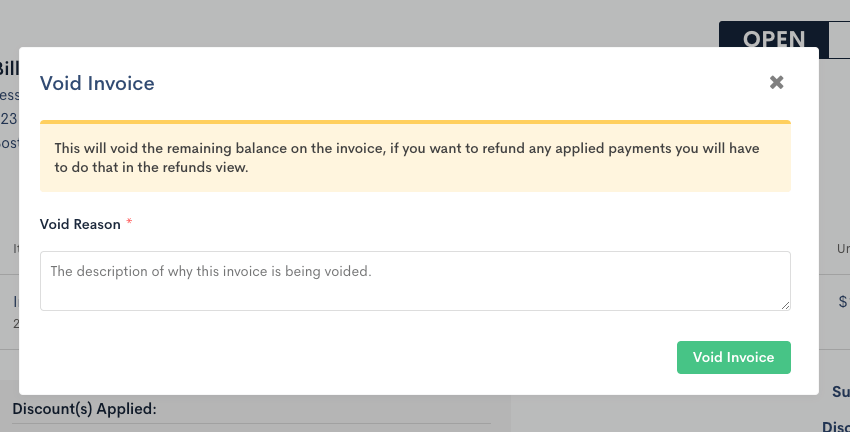
Open the Invoice, then from the More Options dropdown, select Void Invoice.
-
Enter a Void Reason.
-
Click Void Invoice to confirm.
What to expect next
Voiding behaves differently depending on the Invoice's payment status:
- If the Invoice has no payments, it's voided immediately: the status changes to Voided, and the Invoice is no longer eligible for payment.
- If the Invoice has a partial payment, voiding creates a Credit Note for the remaining balance and applies it to the Invoice. The Invoice then shows as Paid, not Voided.
- For sites using Subscription groups, voiding a consolidated Invoice also voids every segment that makes it up. Voiding an individual segment Invoice removes it from its original consolidated Invoice and moves it to a new voided consolidated Invoice for the group; unlike reopening, voiding a segment Invoice on its own isn't restricted.
Related information
To reactivate a canceled Invoice instead of voiding one, see Reopen a Canceled Invoice.
For the rules behind how payments, prepayments, and service credits apply to Invoices, see How Invoice Payments Behave.
To record a payment on an Invoice instead of voiding it, see Record and Manage Invoice Payments.
Still need help?
Reach out and our support team will take it from here.