
View and Share Invoice Public URLs
Applies to: Advanced Billing
Last updated on Sep 19, 2026
The View Invoice Public URL option lets you generate a shareable link to an Invoice so Customers can view, and when applicable, pay the Invoice online without logging in. Use this option when you need to quickly share an Invoice link with a Customer, for example, in a support email or direct message, without sending an Invoice email from Advanced Billing.
Any user who can view invoices in Advanced Billing can open the public URL. Access to configure the expiration time is limited to site admins, owners, or support roles.
Security and sharing guidance
Keep the following in mind before sharing a public Invoice link:
- The public URL is accessible to anyone who has the link. Share it only with the intended recipient.
- Reopening View Invoice Public URL generates a new link each time you do so on a different day. Previously shared links keep working until their own expiration date, so generating a new one doesn't revoke the old one.
- You can configure how long public URLs stay valid, and who can change that setting, from your Invoices settings. See Set the Expiration Time for Public Invoice Links.
Get and share the public URL
The public URL takes a Customer straight to their Invoice, so you can share it anywhere without asking them to sign in.
To get and share the public URL
-
Open the Invoice, then from the More Options dropdown, select View Invoice Public URL.
-
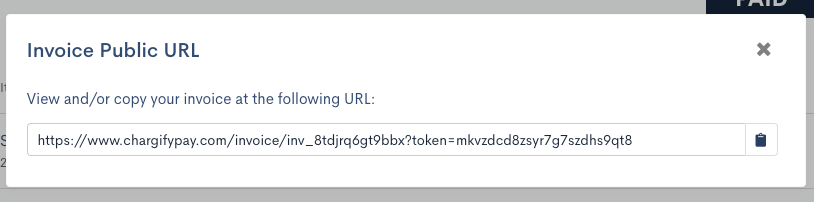
In the Invoice Public URL popup, click the copy icon to copy the URL to your clipboard, or click the external-link icon to open the link directly in a new browser tab.
What Customers see
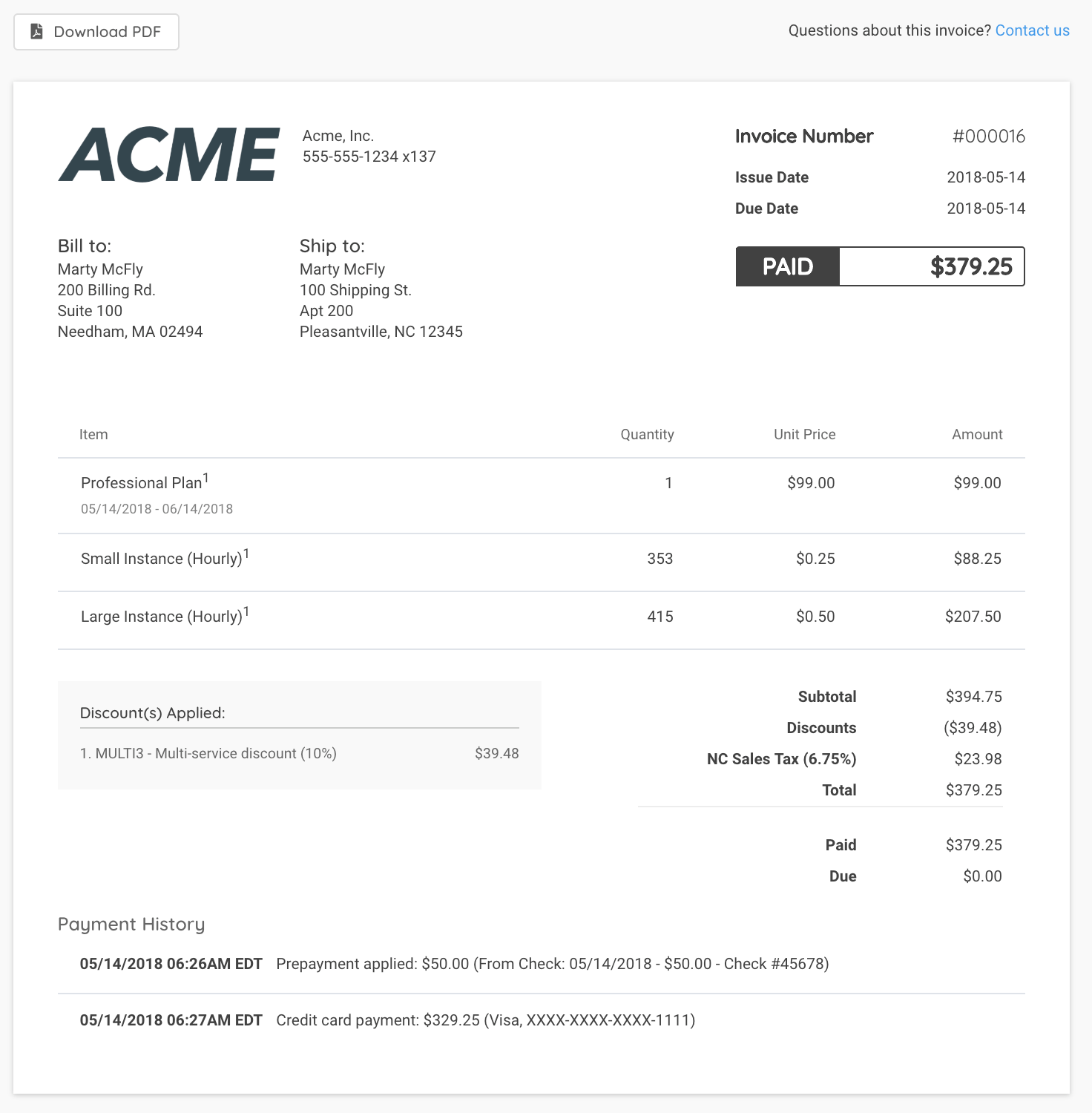
The public link opens a Customer-facing Invoice page showing the Invoice details, with a Download PDF button always available.
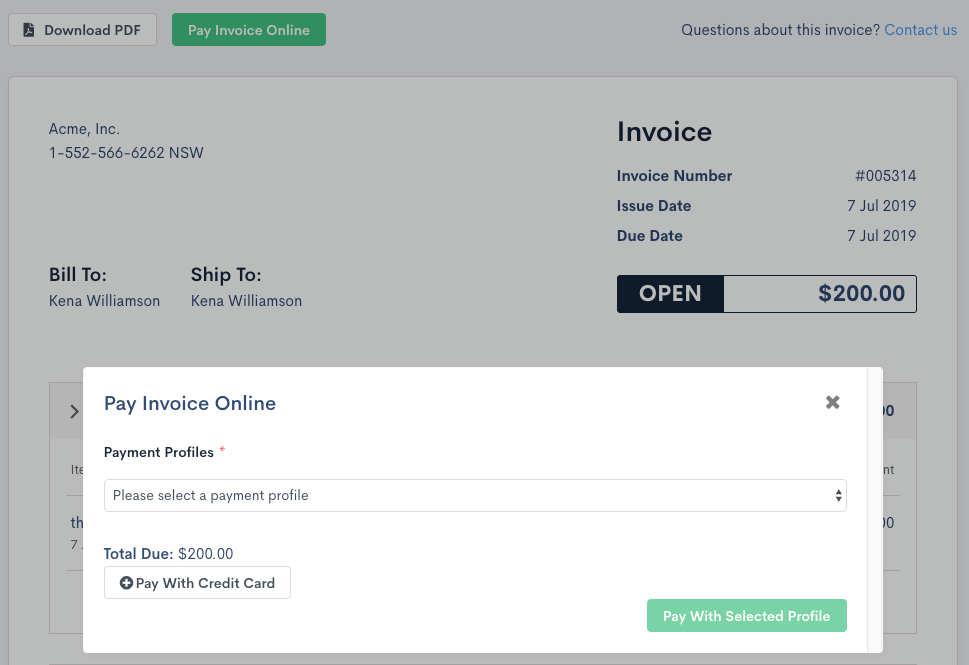
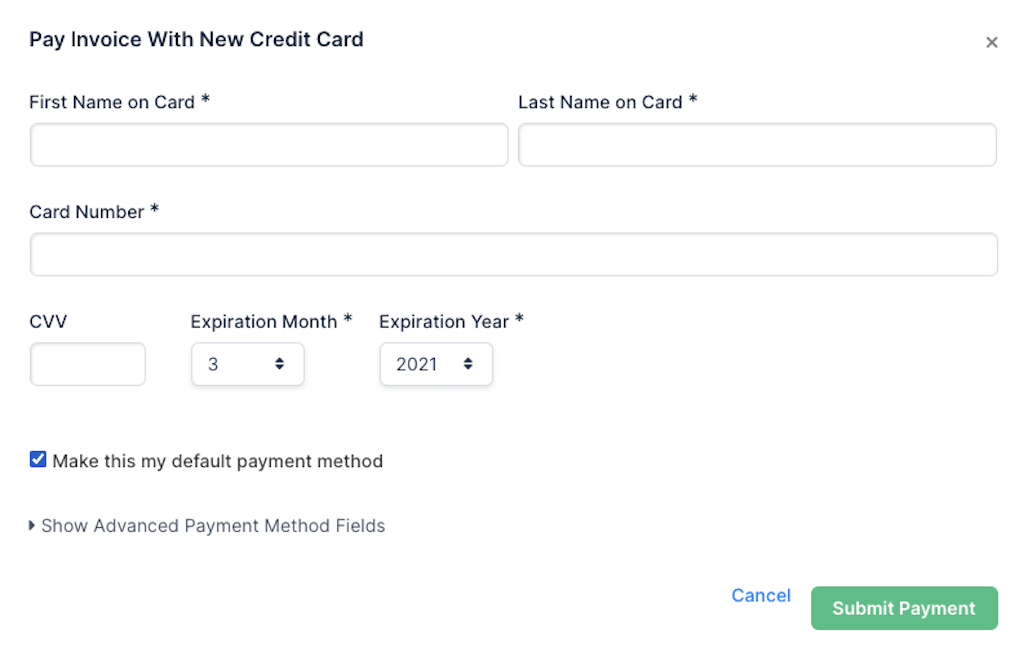
If the Invoice is still open with an amount due and your site has a payment gateway configured, the page also shows a Pay Invoice Online button. Clicking it lets the Customer pay with an existing payment profile or a new credit card.
Related information
To email an Invoice directly instead of sharing its public link, see Send the Invoice.
To view or download an Invoice PDF yourself, see View or Download an Invoice PDF.
To record a payment a Customer made outside the public Invoice page, see Record and Manage Invoice Payments.
Still need help?
Reach out and our support team will take it from here.