
Configure Calendar Billing Settings
Applies to: Advanced Billing
Last updated on Sep 19, 2026
Calendar billing aligns every subscription to a shared renewal day, so these settings decide what time of day that renewal happens and how a resumed subscription is charged. They apply to sites with Public Signup Pages using calendar billing, and changing them requires the account permission described as manages product catalog, settings, and integrations.
Billing time
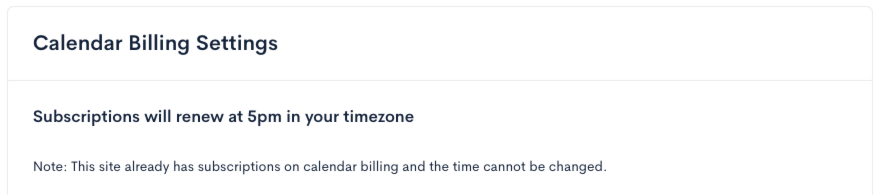
Choose which time of day your subscriptions renew:
- Noon in your timezone
- 5 p.m. in your timezone
WARNING: Once any subscription has been created on calendar billing, the billing time can't be changed. Choose it before you create your first calendar billing subscription.
WARNING: Once a subscription is on calendar billing, don't modify its next billing date or time. Doing so causes unexpected proration.
Resumption Charge default
Choose the default charge applied when a subscription resumes from on-hold:
- Prorated (charge prorated amount upon resumption)
- Immediate (charge full subscription amount upon resumption)
- Delayed (no charge upon subscription resumption; full amount charged on the next snap day)
See the Understand On Hold and Resume Scenarios help article for how resumption works.
Convert existing subscriptions to calendar billing
To convert existing subscriptions to calendar billing, add a snap_day to the subscription through the API.
At its next renewal, the subscription is charged a prorated amount for the shortened billing period, running from the renewal time until noon or 5 p.m. on the next snap day.
Alternately, you may adjust the billing date/time when you add the snap_day. To avoid proration, it is very important to exactly align the next billing date and time with the expected snap day and time.
Related information
For how calendar billing dates work, see the Understand Calendar Billing help article.
For the full list of settings available for your site, see the Understand Advanced Billing Site Settings help article.
Still need help?
Reach out and our support team will take it from here.