
Add, Edit, and Remove Items
Applies to: Maxio Core
Last updated on Sep 19, 2026
How to create Items, change them, and take them out of circulation. For what an Item is and how the Maxio Profile works, see Understand Items. For a description of every field, see Review Item Fields.
Add Items
With no GL connector, create Items in Maxio: go to Admin > Items, then select the plus icon.
With a connected GL, all Items are initially created in the general ledger. Run a sync, then go to Admin > Items and select the New Items Needing Maxio Profile link in the Attention Needed table. See Maxio Profile.
Edit Items
There are two ways to edit an Item:
-
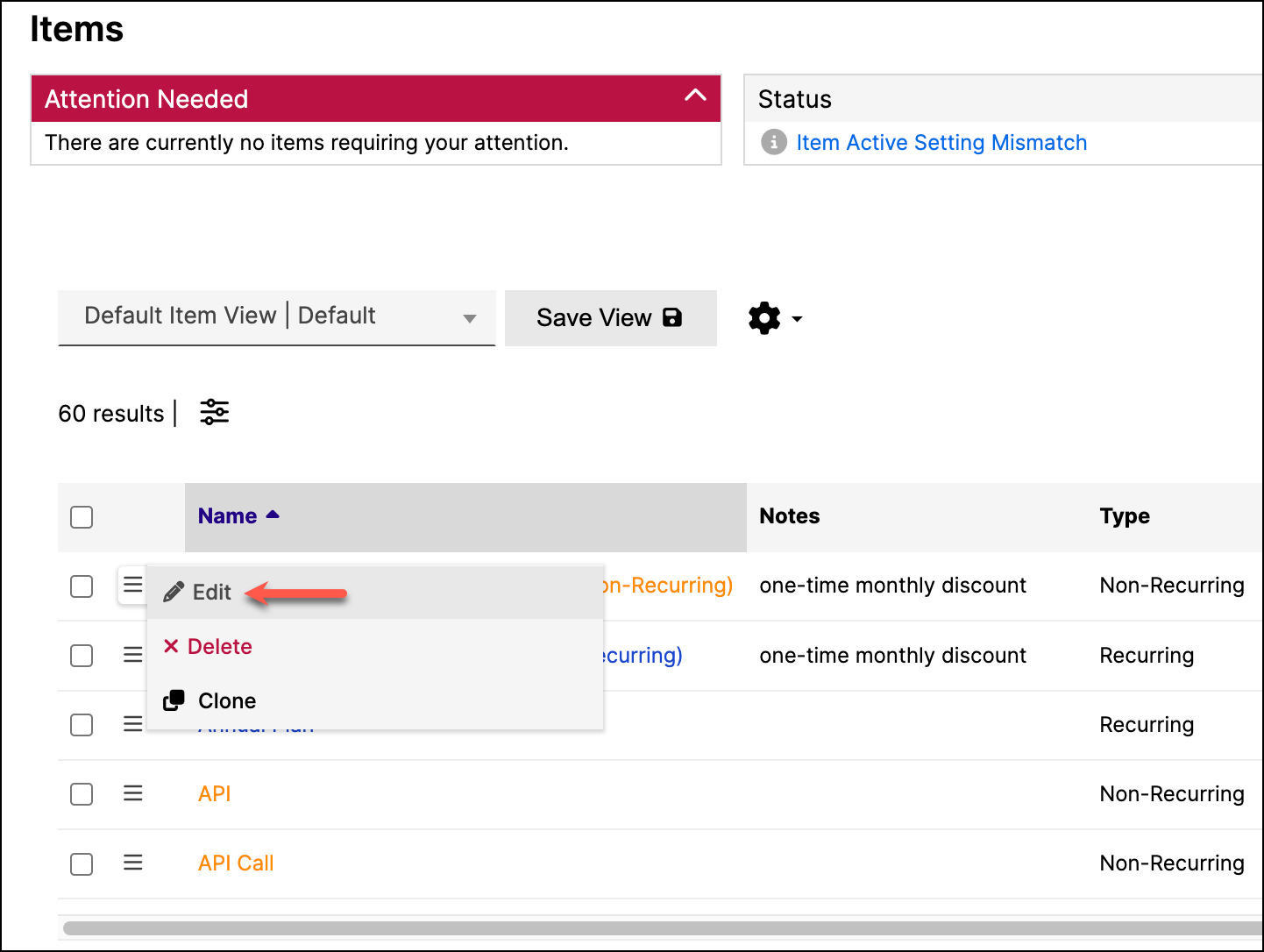
Go to Admin > Items, click the menu icon next to the Item, and then select Edit.
-
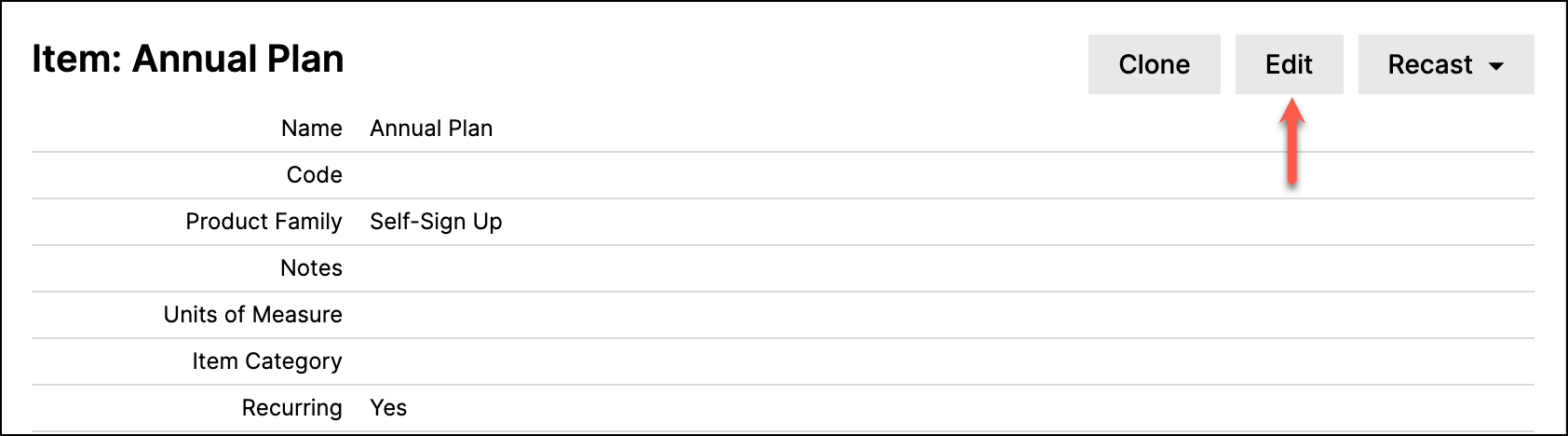
Go to Admin > Items, click the Item name, and then select Edit from the Actions menu.
Remove Items
To remove an Item from your Maxio account, you can either mark it inactive or delete it. Marking it inactive is the safer choice and is usually what you want: it takes the Item out of circulation without touching any of the records that already use it.
Mark an Item inactive
An inactive Item does not appear in lists when creating Transactions and Invoices, and it is no longer offered when you create or edit an Item Group. It remains available in reports, so historical results are unaffected.
- One Item - Edit the Item and set Active to inactive, then save.
- Several Items - Use Bulk Edit to set Active for a batch of Items at once. See Bulk Edit Items.
Delete an Item
WARNING: As with all Delete functions in Maxio, there is no undo. Deleting an Item also deletes the financial records that use it.
Deleting an Item deletes:
- All Transactions with that Item
- All Invoice Line Items for that Item
- All Revenue Entries associated with those Transactions
The Invoices themselves are not deleted. An Invoice whose only line items referenced the deleted Item survives with no line items on it.
When deletion is not permitted
Maxio blocks the deletion of an Item in any of these cases:
- The Item was synced from a GL. An Item carrying a QuickBooks, Intacct, NetSuite, Xero, or Rillet ID cannot be deleted at all. This is the most common reason a delete is refused.
- Synced invoices refer to the Item.
- The Item has associated Transactions, Invoice Line Items, or revenue records dated on or before the Closing Date. If you have QuickBooks or Xero connected, each of the three dates blocks deletion independently: your account's closing date, the QuickBooks closing date, and the Xero lock date. Maxio refuses the deletion if the Item's Transactions fall on or before any one of them, rather than comparing them to find a single governing date.
- The Item appears on a committed Invoice, where committed invoice numbering is in use.
If you cannot delete an Item, mark it inactive instead.
Related information
For Bulk Edit, Clone, and Edit Accounts, see the Bulk Edit, Clone, and Update Item Accounts help article.
For the two irreversible Item actions, see the Recast Item MRR/ARR and Clear Item Data help articles.
Still need help?
Reach out and our support team will take it from here.