
Set Notification Preferences
Applies to: All Maxio modules
Last updated on Aug 28, 2026
Advanced Billing uses in-app alerts and email notifications to inform account holders and users about upcoming changes, billing issues, system incidents, and configuration flags. By remaining attentive to the Notifications bell icon on the Dashboard, you can ensure timely awareness of system alerts, service updates, and revenue-critical events. Notification delivery is one of several per-user settings; for the rest, including which list views you land on by default, see Configure User Preferences and Default Views.
An icon badge (the dot on the Notifications bell icon) indicates that there are unread notifications. When you hover over the icon badge, a tooltip appears with the number of unread notifications.
New messages
Click the Notifications bell icon to open your list of messages. Click anywhere on a message to view its full details.
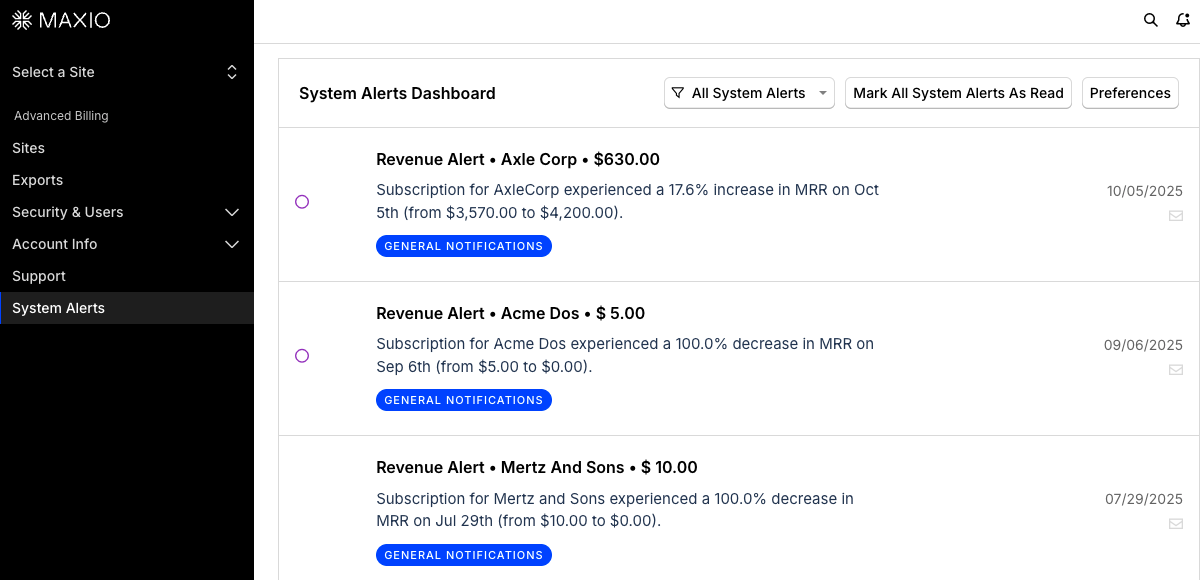
Click the All System Alerts drop-down to apply filters to the alert list.
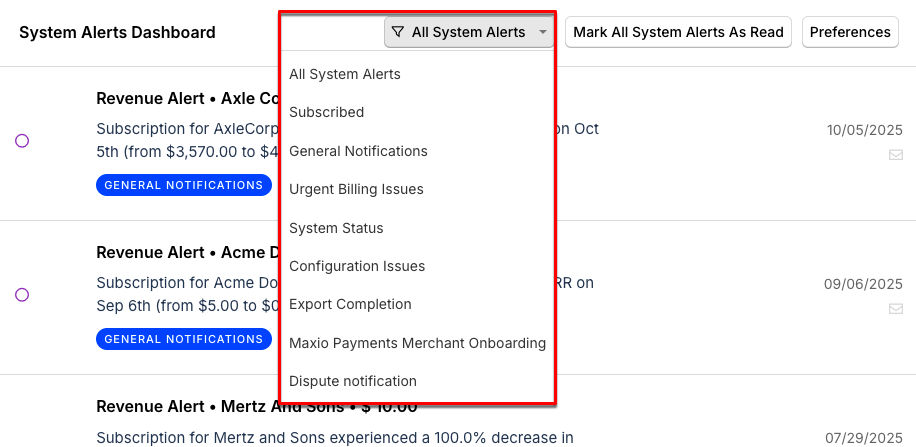
Example of a notification for a disabled webhook:
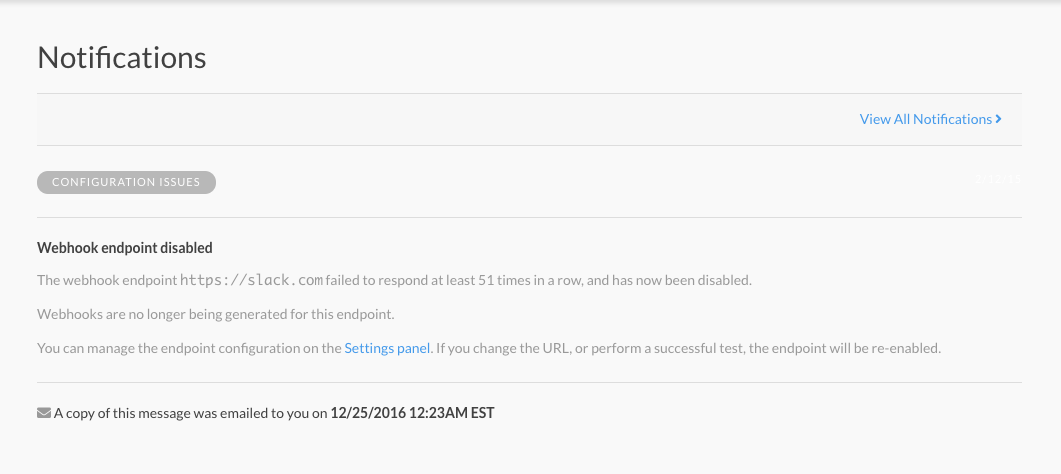
View an individual message’s details
Preferences
Click Preferences to select how you receive alerts for new notifications from Maxio. Even if you are not currently subscribed to add-on services, all in-app messages will still appear on the Notifications page.
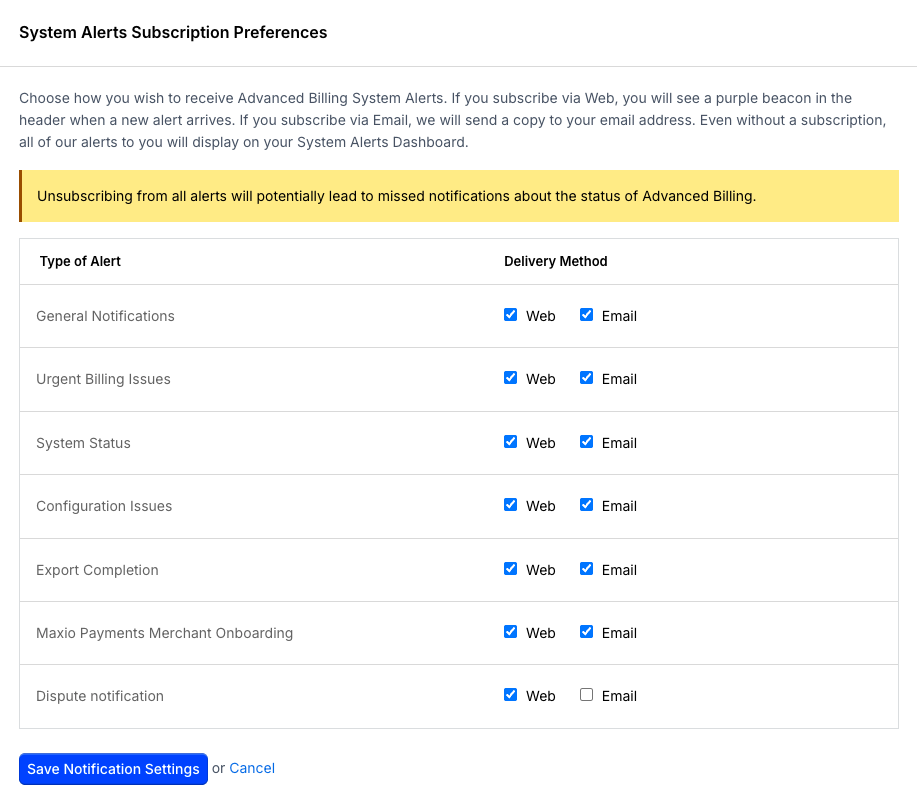
Select the option to edit your notification preferences
- Select Preferences from the Notifications page.
- Configure your alert settings as desired.
Please note that web notifications appear in-app as a dot next to the Notifications bell icon. Email notifications are delivered to the email address associated with your account.
Notification preferences are saved to your account and persist between sessions. Changes you make apply only to your user profile and do not affect other users in your organization.
General notifications
General updates regarding your account and sites.
Urgent billing issues
There are a few scenarios in which Maxio will contact you regarding billing-related issues with your account.
If a Subscription has encountered a processing error, Maxio will notify you that there is a problem with that Subscription. You can contact our Support team if you need help interpreting a billing notification. Please note: only your payment gateway can confirm whether a transaction was successfully processed.
When we cannot determine whether a transaction processed as expected, the Subscription status is changed to Pending Renewal.
Additionally, if you use Authorize.Net, Maxio will notify you when we disable payment profiles for certain cards. For more information on disabled payment methods, please see our Authorize.Net article.
“Billing issues” in this context do not refer to outstanding invoiced amounts on your account. Instead, dunning emails are sent directly to the affected Customer and any billing contacts listed on their Subscription, rather than to your account owner or internal accounting contacts.
System status
To subscribe to real-time system updates, visit our status page. This page is hosted externally and provides the latest information on system uptime and incidents.
Configuration issues
If your Maxio Advanced Billing account contains a configuration that our system flags, we will notify you. A common example of a configuration issue is a disabled endpoint.
Webhook alerts
Advanced Billing notifies you when a webhook endpoint is paused or disabled because deliveries have been failing.
Who receives these by default is an account-level setting rather than a personal one. See Notification defaults below.
Export completion
After an export completes, Maxio will notify you accordingly. Refer to the Downloads page to retrieve your exports.
Maxio Payments merchant onboarding
Notifies you about merchant onboarding status.
Dispute notification
Notifies you if there are any chargeback disputes involving your payments.
Notification defaults
Preferences are personal: each user chooses their own delivery methods, and one user's choices do not affect anyone else's. Webhook alerts are the exception — an owner or admin sets who receives them across the whole account.
Go to Account Info → Notification Defaults and choose an answer to Who should receive webhook error notifications?:
- All users with site access
- Admins and owners only
- Opt-in only (no one receives them by default)
Users outside the selected audience can still opt in individually through System Alerts → Preferences, and any user who has already saved their own preference is unaffected by this setting.
Still need help?
Reach out and our support team will take it from here.