
Build and Manage Report Dashboards
Applies to: Maxio Core
Last updated on Sep 19, 2026
Create real-time, customizable report dashboards for your system home page and use templates and layout tools to organize content cleanly. Each user can select a Dashboard for their personal home page, or use the one an Admin has set as the account default. Where a dashboard includes the Cohort, Days Sales Outstanding, or Advanced Subscription Momentum report, the field values behind those figures can be standardized across everyone who builds one — mandated so nobody overrides them, or set as defaults — with Create and Manage Metrics Policies.
Create a dashboard
-
On the Dashboards screen, click the plus sign (+) in the upper-right corner.
-
Enter a Name for your Dashboard (this is the only required field). Optionally, enter a Description and any relevant Tags.
-
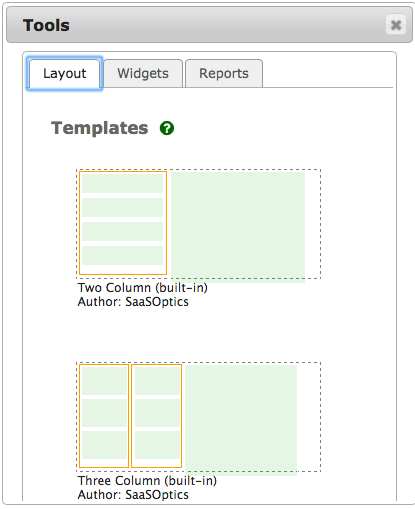
To begin building your Dashboard, click the wrench icon in the top right corner to open the Tools panel.
-
Use the Layout tab to define the Dashboard structure with container or placeholder elements. You may also select a pre-defined Template to expedite the setup process.
-
Drag and drop Widgets and Reports into the layout placeholders. Avoid adding more content than the layout can display.
-
Click Save when you have finished configuring your Dashboard.
Set the default Dashboard
If no personal Dashboard is selected, the system displays the account's default Dashboard, if one is configured. Otherwise, it shows the Legacy Homepage.
Administrator users can define one Dashboard as the default for all users who have not created or selected a personal Dashboard. To set a default for all users, go to Account Settings from the Admin menu, and set the Default Home Page Dashboard field in the Reports section.
Live data versus cached snapshots
When you open a Dashboard, including when it's used as your home page, all Widgets execute in real time and display current data. Reports in Dashboards display cached snapshots, which are reused until they become stale.
You can view any report live in a separate tab by clicking its expand icon in the top right corner of the report. To refresh all data on a Dashboard on demand, click Regenerate in the Dashboard menu in the top right. Report snapshots also regenerate automatically on a nightly schedule.
Organize your Dashboards
There's no limit on how many Dashboards you can create. You can organize and find your Dashboards by sorting the list via column headers or applying filters.
Related information
To learn how to create the Reports you can add to a Dashboard, see Create and Manage Reports.
Still need help?
Reach out and our support team will take it from here.