
Understand Term Subscriptions
Applies to: Advanced Billing · Maxio Core
Last updated on Aug 29, 2026
Set up a Term Subscription when billing follows a signed Contract, from sales through to invoicing, instead of a self-serve signup.
What is a term subscription?
A Term Subscription runs for a set period, with a Term End date (previously called Expiration date). With Term Subscriptions, Transactions and future Draft Invoices are created in Maxio Core when the Subscription is created, and update as you perform certain Subscription actions. Term Subscriptions also come with Choose Between Auto-Renewal and Scheduled Renewal functionality to manage the Subscription's lifecycle.
A Term Subscription typically originates from a signed Contract: a Sales Representative finalizes it, the Customer signs it, and the Sales Representative forwards it to the Billing Manager, who uses Advanced Billing to enter its terms. This differs from an Evergreen Subscription, which usually starts from a self-serve signup instead.
Set the subscription term
When creating a Subscription in Advanced Billing, the Subscription term is set in the Create Subscription form.
- The Term End field defaults from the selected Plan's Price Point Term Interval. See Setting Up Plan Price Points for how to configure that.
- You can set the term directly by adjusting Term End. Select Set to Evergreen to remove the end date and create an Evergreen Subscription instead.
A manually set Term End persists only until you change the Start Date, Plan, Product, price point, snap day, or Calendar Billing configuration; any of those recalculates Term End from the Price Point's Term Interval again.
For a full walkthrough, see Walk Through Creating a Term Subscription.
Sync with Maxio Core
When you sync Advanced Billing with Maxio Core, Transactions are created or updated in alignment with the Term Subscription created or updated in Advanced Billing.
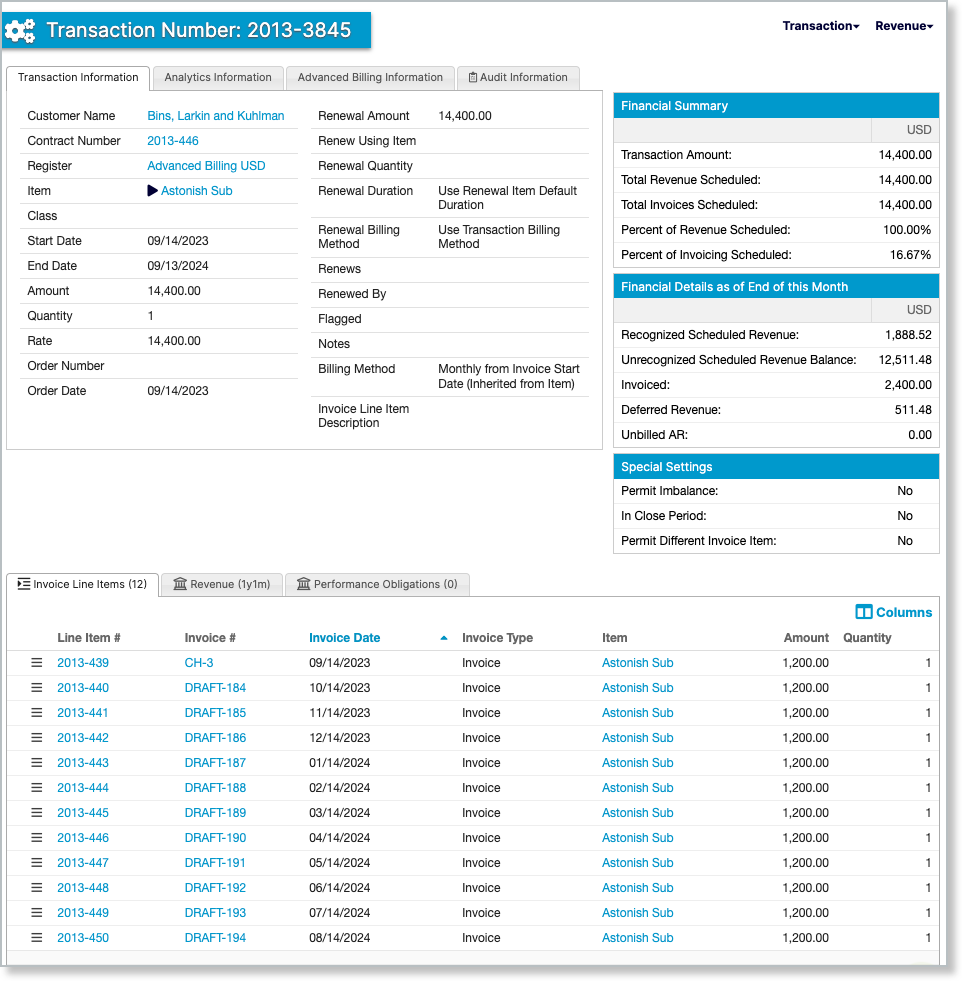
Future Draft Invoices are also created or updated in alignment with term dates and Subscription items for the Term Subscription.
Create or manage through other channels
Term Subscriptions can be created or updated through the Advanced Billing Salesforce integration, where you can set both the Subscription's expiration date and the billing intervals on its Products.
From the Understand the Billing Portal, a Customer can update a Term Subscription, such as its quantity, and view and pay its Invoices.
Pricing and discounts
Advanced Billing prices a Subscription either through Price Points in the Product Catalog, or through Custom Pricing, which is Subscription-specific pricing outside the Catalog. Because Term Subscriptions are often custom-negotiated deals, we typically recommend Understand How Custom Pricing Works.
Use Discounts or Understand Coupons to handle free time or a discounted introductory rate, instead of a Trial. Trials imply optionality, which Term Subscriptions don't support.
You can't use Trials with a Term Subscription, unless your site has Planless Subscriptions enabled. Discounts and Coupons don't create Transactions.
Use multi-currency
If you use Understand Multi-Currency in Advanced Billing, Term Subscriptions must use Definitive Pricing. They can't rely on variable exchange-rate-based pricing for secondary currencies.
Bulk edits
To keep billing consistent, Maxio checks the selected Subscriptions when you use the bulk Change Billing Date action from Edit Subscriptions in Bulk. If any selected Subscription is a Term Subscription, the Change Billing Date option is disabled for the entire selection.
Related information
For how Term and Evergreen Subscriptions compare overall, see Term and Evergreen Subscription Options.
Still need help?
Reach out and our support team will take it from here.