
Understand Public Signup Pages
Applies to: Advanced Billing
Last updated on Aug 28, 2026
Public Signup Pages in Maxio’s Advanced Billing platform let you create custom signup funnels with unique URLs, branding, and pre-configured Products. Each Public Signup Page links directly to a specific Product, and you can embed it on your website or share it with potential Customers for fast, secure, and optimized subscription creation.
A Product can have multiple Public Signup Pages, each with its own unique URL, giving you separate signup funnels with a distinct look and wording for the same Product. As you move through this series of articles, you’ll learn more about how Public Signup Pages work and how to customize them as needed.
Learn the Public Signup Page flow
A Public Signup Page moves a Customer from your link to a completed subscription in a few steps:
- Provide your potential Customers with a link to the Public Signup Page for the Product you would like to offer. You can pass data to pre-populate the form, or variables that are sent to Advanced Billing. See Pre-populate a Public Signup Page via URL Parameters.
- The Customer fills out their credit card details and other requested or required information. The information collected is defined in your Fields settings.
-
If the Customer enters incorrect information or their credit card is declined, the page notifies them and gives them a chance to correct it.
If reCAPTCHA validation fails during signup, the page displays a message explaining that the security check could not be completed. The customer should refresh the page and try again, or try signing up from a different browser.
-
If the information is correct and the card is accepted (or not required), the page redirects the Customer to:
- A receipt page confirming their purchase;
- Or, the page specified in the Return URL within your Public Signup Page Settings.
-
- If you use a Return URL and return parameters, you can capture data about the signup and update your application state. However, we recommend verifying the data using our API to prevent URL spoofing.
- The Return URL and parameters provide synchronous signup notifications. This is the best method for real-time updates from Public Signup Pages.
- You can also use webhooks to modify your application state. Webhooks are asynchronous, so do not block the user’s signup process while waiting for a webhook response. See Webhooks are asynchronous.
View Public Signup Page URLs
You can view the URL for a specific Public Signup Page from the list of Public Signup Pages on that Product’s page.
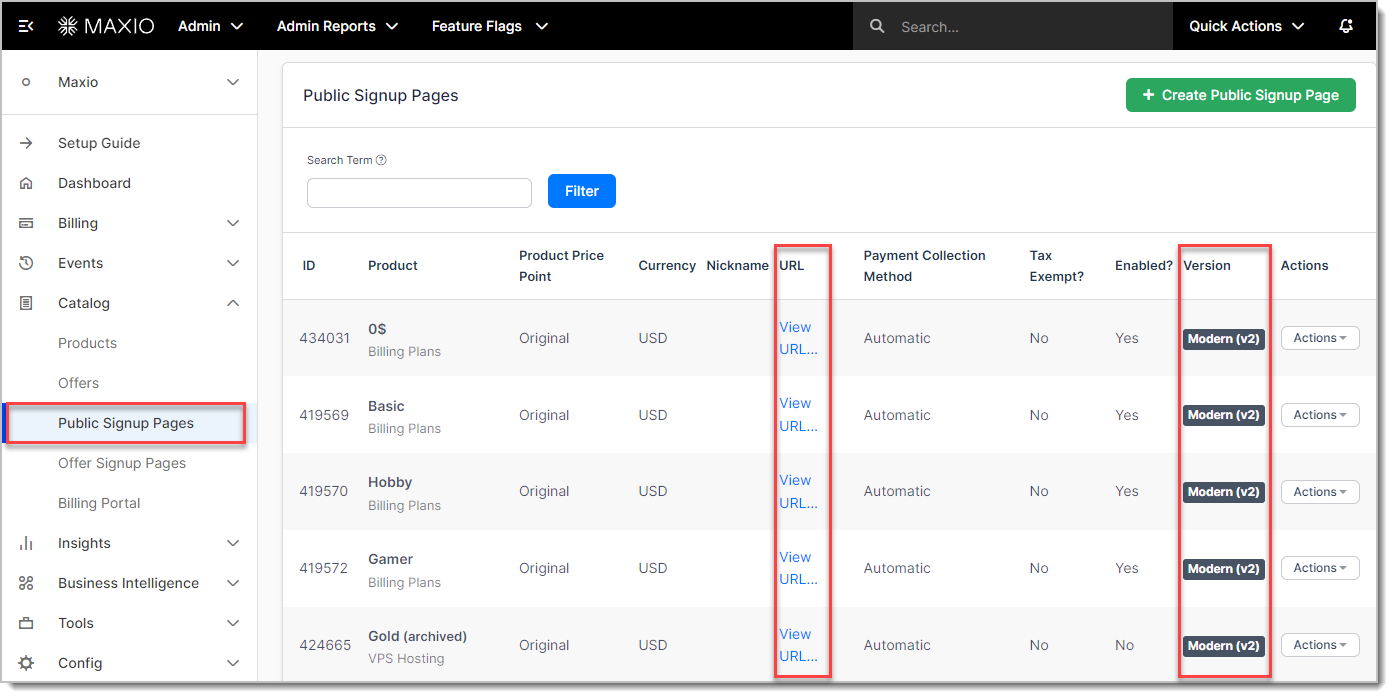
The Public Signup Page URL is composed using your site’s subdomain, a generated token, and (optionally) the API handle for the Product. For example: https://acme-inc.chargifypay.com/subscribe/tr57wy2j/awesome-product.
Choose a Public Signup Page layout
When creating a Public Signup Page, Advanced Billing automatically uses the modern layout. We recommend using the modern layout as it is crisper, cleaner, and more responsive.
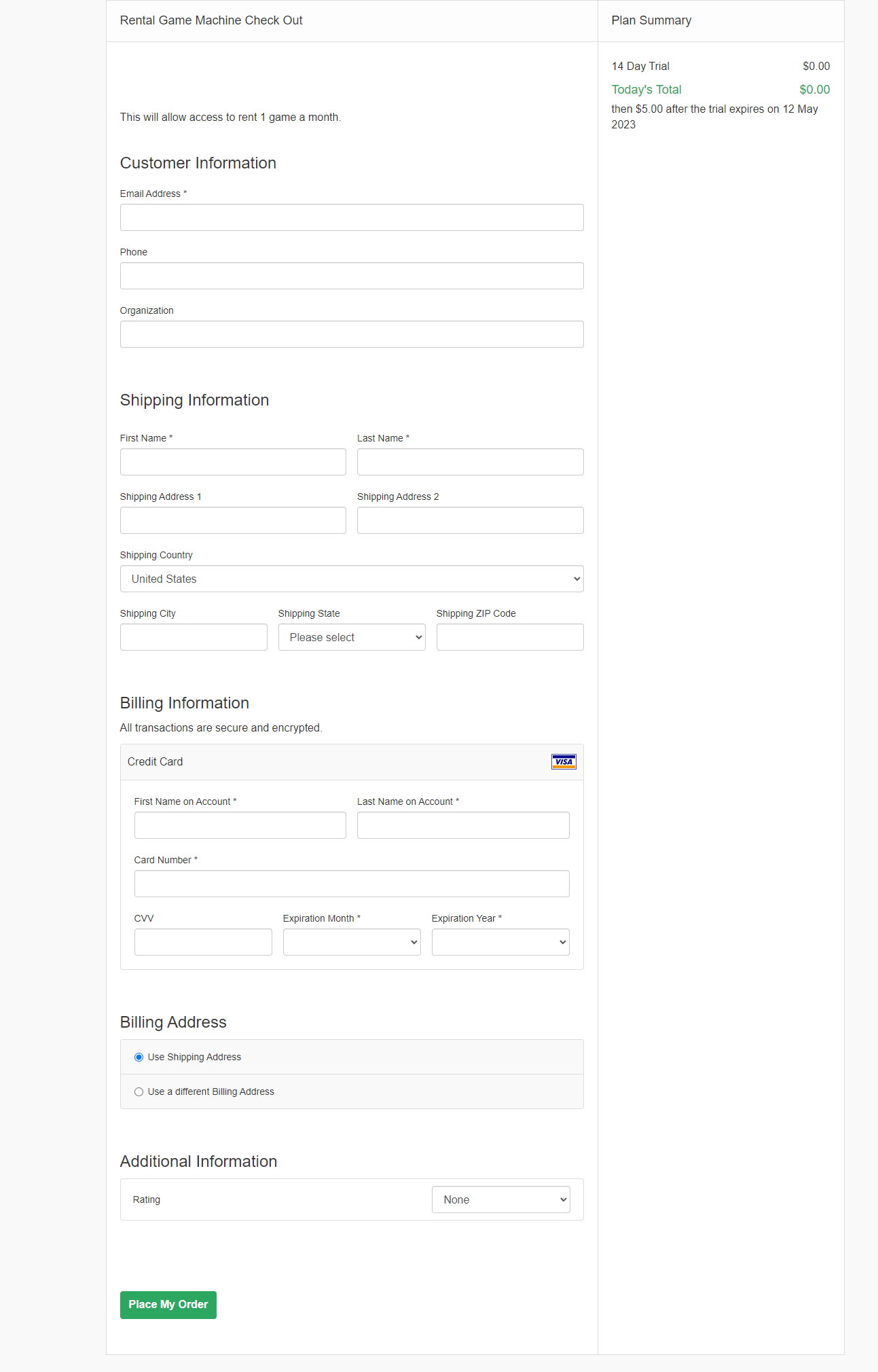
Both versions provide the same functionality. However, the modern (v2) layout is responsive, mobile-friendly, and offers an improved user experience. You can select the layout version for each Public Signup Page when creating or editing the page. To set the default layout version for API-created pages, navigate to Settings > Public Page > Default Public Sign-up Page Version. See Configuring Public Page Default Settings for the full list of default options, or Individual Page Settings to set the layout version, and other settings, for one page at a time.
Watch the modern Public Signup Page webinar
For a brief overview of the features in modern Public Signup Pages, watch our archived webinar:
Learn about card scanning
Potential subscribers can use mobile devices to subscribe from your website. Your website redirects them to a Public Signup Page optimized for their device.
In addition to providing their personal details and selecting a Product, subscribers can scan their credit card information using their device’s camera. Card swiping is not currently supported by Public Signup Pages.
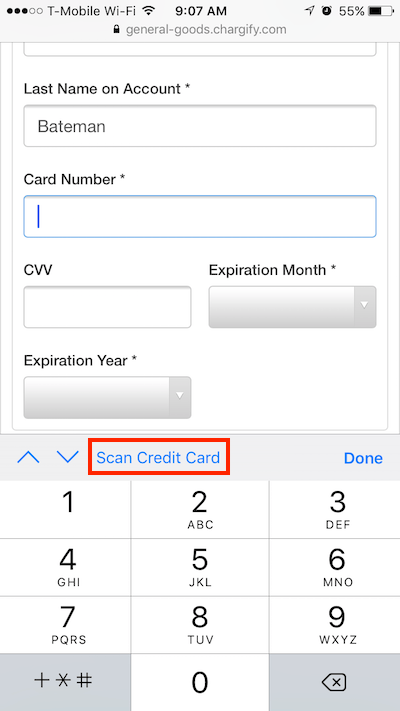
Once the subscriber selects the scan option, their device activates its camera and captures the card number from the scan. Neither Advanced Billing nor the mobile device stores any images or card data.
Still need help?
Reach out and our support team will take it from here.