
QuickBooks Web Connector Errors
Applies to: Maxio Core
Last updated on Oct 9, 2026
Whenever a sync with QuickBooks Desktop finishes, whether it succeeds or fails, the Web Connector records the outcome in the same three places: the Status column, an information dialog, and the log file. Knowing how to read each of these first is the fastest way to identify which specific error you're dealing with, so you can jump straight to its fix below.
The Status column, the "Click for more information" dialog, and the View Log button described in this article are part of the Intuit QuickBooks Web Connector application, not Maxio Platform. Their behavior comes from Intuit's own software and cannot be verified against Maxio's codebase.
Read the Status column
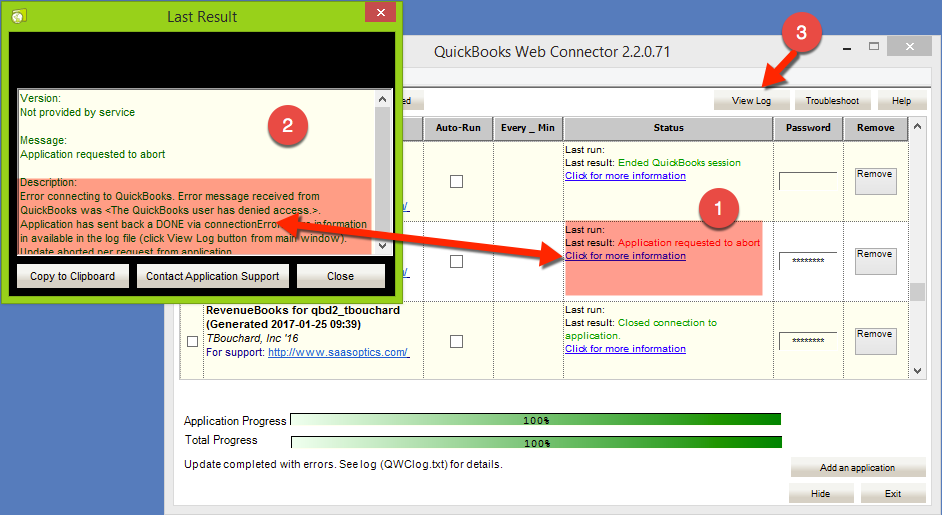
Upon completion or failure of a sync, the Web Connector displays a message in the Status column next to the entry for your company file (callout 1 in the screenshot below).
Open the "Click for more information" dialog
To retrieve additional information, select the "Click for more information" link below the "Last result:" entry in the Status column (callout 2). This opens a dialog box that may contain more detail about the problem.
Pull the full error log with View Log
More detailed information about the error may be contained in the error log, which you can access by clicking the View Log button (callout 3).
What to send Maxio Support
If you need to contact support@maxio.com, provide the exact message displayed in callout 1 and in callout 2. Support may respond by asking you to also provide the information in callout 3, and if so you can email the file itself or simply copy and paste its contents into an email.
Find the article for your error
Still need help?
Reach out and our support team will take it from here.