
Managing Payment Methods
Applies to: Advanced Billing
Last updated on Sep 1, 2026
A subscription can contain many payment methods. Browse to the Payment Details tab of the subscription summary to view all of the subscriber’s payment methods.
Please be aware that this article is related to Advanced Billing's Subscription Summary function. The subscription summary is the place to perform all tasks necessary to manage customers’ purchases through Advanced Billing.
You can learn more about the Subscription Summary by checking out this help article: Subscription Summary Overview.
If a customer has a payment method attached to their account, you will be able to view some information about the card itself here. We mask all secure information, therefore displaying only the last 4 digits of the credit card number.
The address attached to the payment is the billing address for the subscription. This is the same as the information entered in the billing address in the Public Signup Page.
Some payment profiles may be marked as disabled. This happens when the payment gateway is unable to locate the information corresponding to the credit card information Advanced Billing has stored for that profile. Typically this occurs when auto card update functionality is enabled on your gateway and it cannot update a given account. When the gateway cannot update the account, it simply deletes it. Disabled payment profiles can only be deleted.
Payment profiles can be marked as disabled on Authorize.Net, Forte, Litle/Vantiv, and Maxio Payments.
A payment profile can also be disabled by a hard decline on a payment, a separate mechanism from the auto card update behavior described above. This applies to Maxio Payments always, and to Litle/Vantiv only when hard-decline detection is enabled for the site. It does not apply to Authorize.Net or Forte.
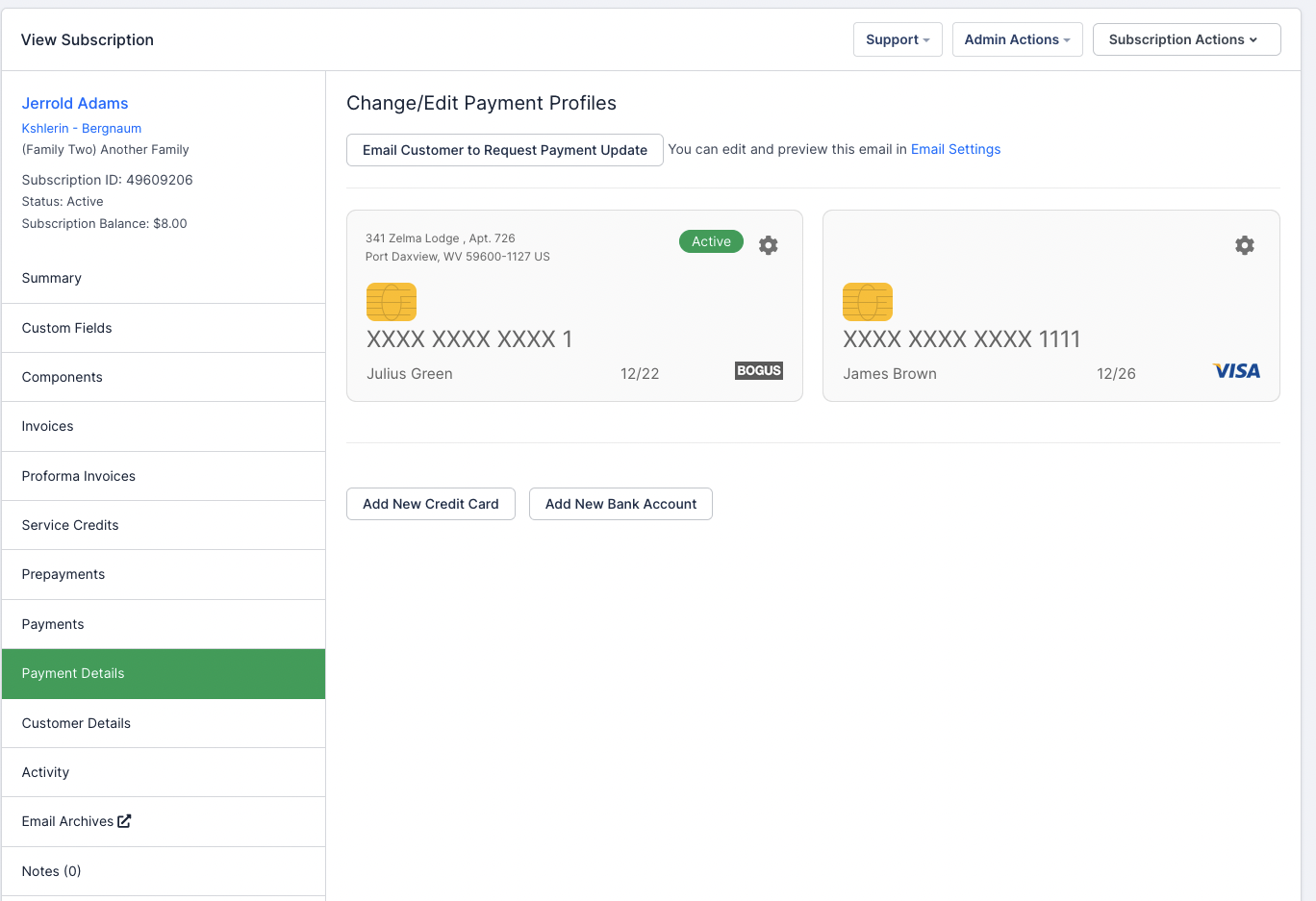
Listing a subscriber's payment methods
Activate a payment profile
In order for a subscription to accept charges, at least one payment method must be active.
If you have more than one payment profile attached to a subscription, you may toggle the current active card on the subscription easily. The new active card will be the payment method used to process all charges in the future.
If a subscription shares the same customer ID across many subscriptions, they will share the payment methods. In this case, different subscriptions can have differing active payment methods. For more information on the relationship between customers and subscriptions, please see View Customer Information.
-
You may toggle between credit cards and ACH accounts with no issues. To find out more about using ACH with Advanced Billing, please see Understand eCheck (ACH/EFT) Payments.
-
Updating the active card will not affect refunds in the future. For questions about refunds, we encourage you to read our FAQ on returning funds back to the original payment method.
-
When a subscription is past due, activating a new card causes one of the following:
- If there is a current balance, the newly activated card is charged the amount due.
- If that charge fails, the newly activated card will still become the active card on the subscription.
-
You cannot select a payment profile if it has been disabled by the payment gateway.
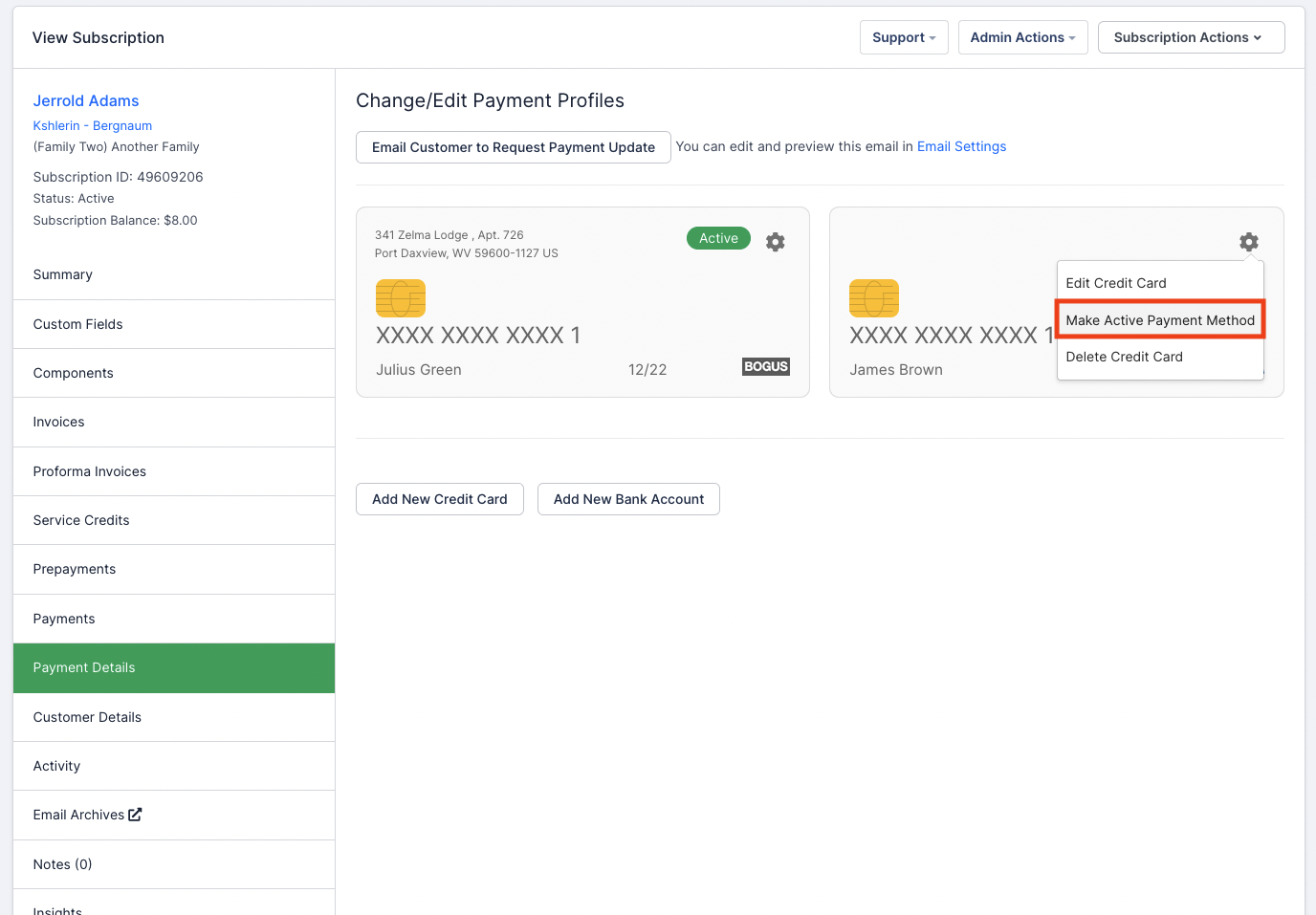
Activate a new payment method
Add a new payment profile
If you have full credit card information for a subscriber enter a new card by selecting Add New Credit Card. Billing address information is optional.
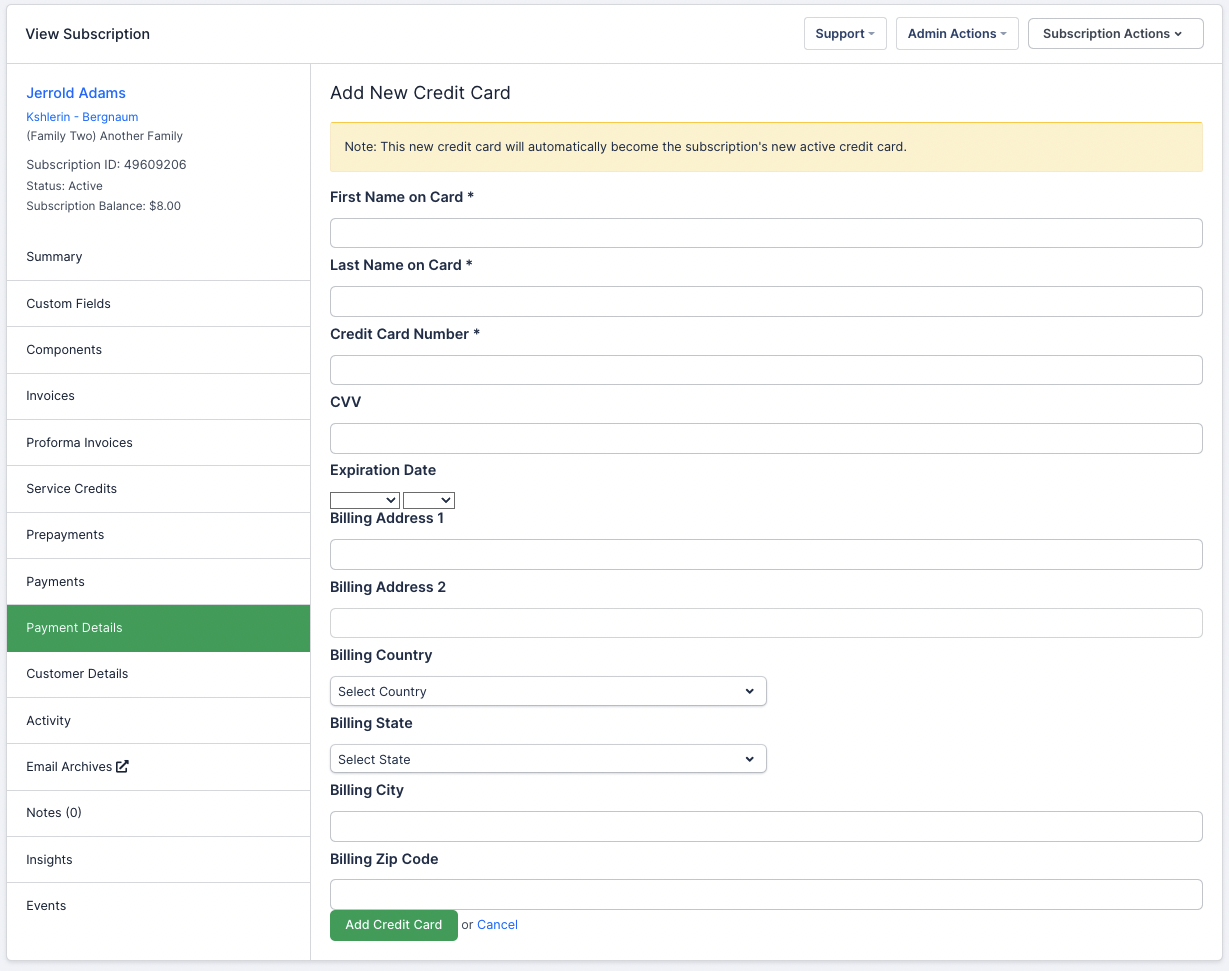
Example of adding a new card to a subscription in Advanced Billing
If you have ACH enabled and are an Authorize.Net user on US soil, you’ll be able to edit/add ACH information here. See Set Up and Collect eCheck (ACH/EFT) Payments
Edit a payment profile
This lets you edit the details recorded against the card — cardholder name, expiry date, and billing address. It does not let you change the card number itself:
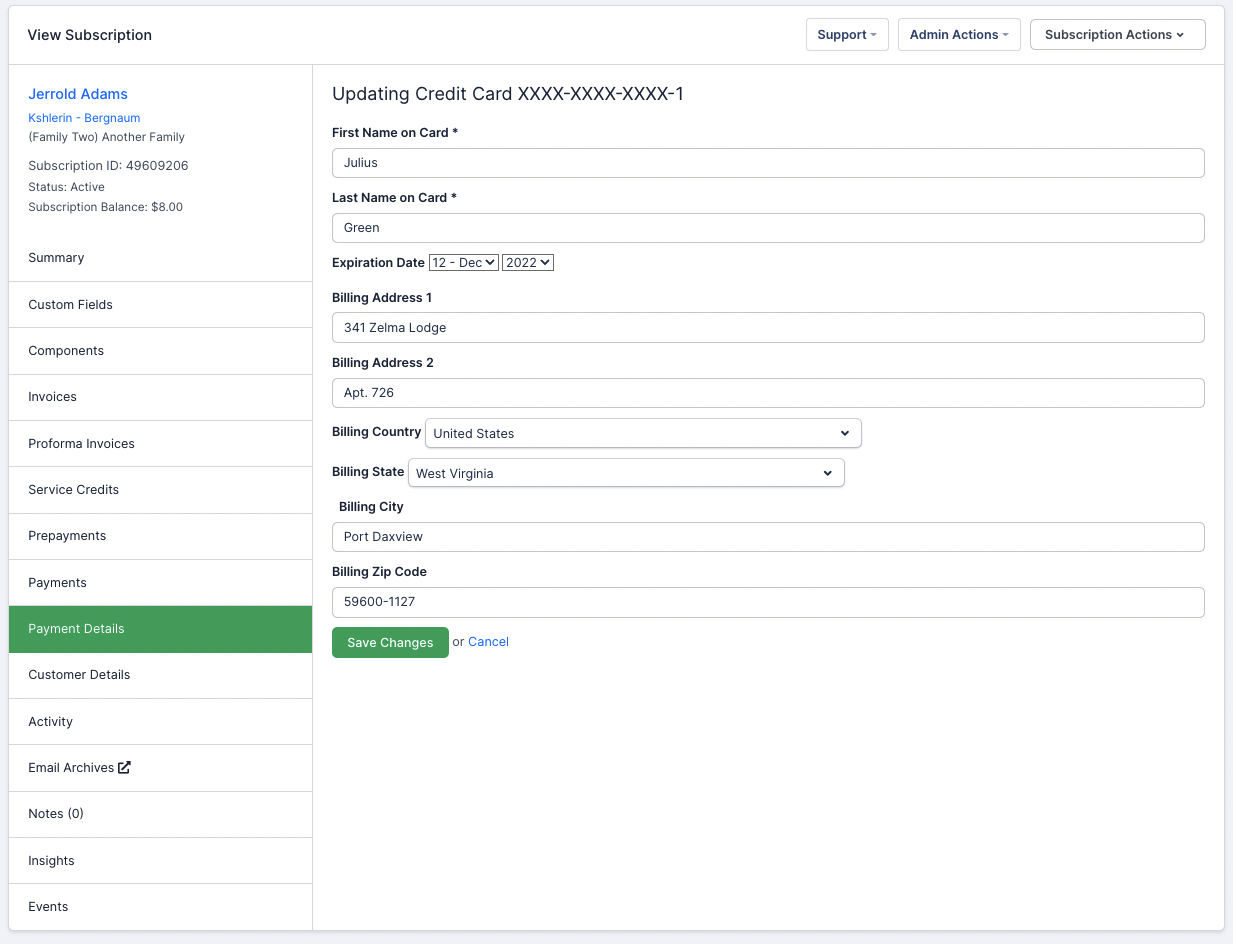
Edit credit card information
To change a customer’s credit card number, add a new card instead, as described above.
Delete a payment profile
To delete a payment profile, click the gear next to the payment profile you would like to delete and select “Delete credit card”.
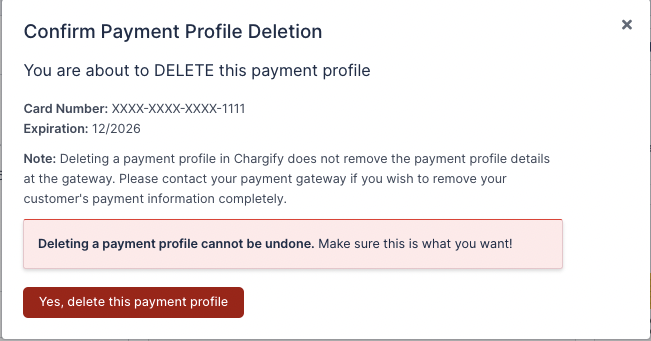
Please pay special attention to deleting payment profiles. This action cannot be undone.
Request a payment update
This is a powerful tool used specifically to instruct a customer to update their credit card securely via self-service pages. Select Email Customer to Request Payment Update to send an email directly to your customer.
Still need help?
Reach out and our support team will take it from here.