
Getting Started: Reports & Analytics
Applies to: Maxio Core
Last updated on Aug 28, 2026
Maxio's reports allow you to access, analyze, and make decisions based on the information generated from the customer, contract, transaction, invoice, revenue, and payment details contained in your account.
Reports enable you to do a variety of tasks including verifying journal entry amounts in your GL, analyzing trends in Customer Lifetime Value (CLV), and projecting future cash. Reports can be accessed, created, and updated via the Reports page (click Reports in the side menu). From here, you can create and run reports, as well as manage your Dashboards.
If you are unsure which report to use, see the Choose the Right Report for Your Metric help article.
Types of reports
There are three types of reports:
- Finance Reports: Used for financial reporting to produce reportable revenue, and for all calculations involving deferred revenue or unbilled AR. Finance reports revolve around contracts and only compute information using revenue and invoice data that is associated with a contract through its transactions.
- Analytics Reports: Used to measure metrics such as bookings, churn, renewal rates, customer counts, and MRR/ARR. Also used for forward-looking projections. Analytics reports rely on amount, order date, MRR, and term number. Analytics reports can include calculations for the revenues and invoices of transactions but should not be used for financial reporting.
- Expense Reports: Reports include Advanced Expense Summary, Account Balances, Expense Details, and Margin Analysis.
Learn more about the specific reports in the Understanding Maxio Report Types help article.
Creating a report
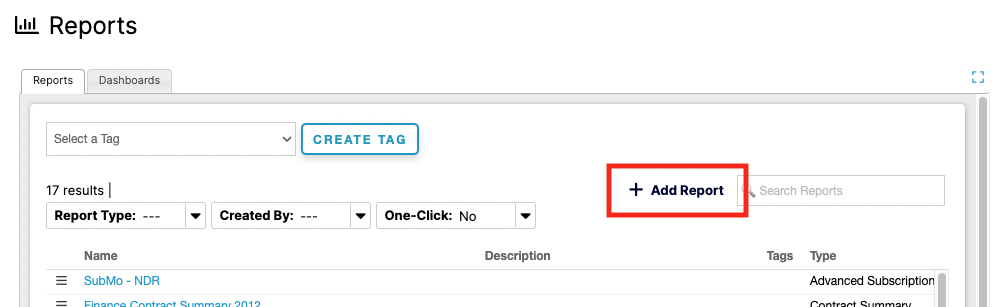
To create a report, expand the Reports option on the side navigation bar and select Reports Home. Next, click the Add Report table action.
Select a report type (from Finance, Analytics, Expenses) and make the necessary configurations to the report including its name and description. For most reports, you need to configure the rows and columns of the report. Refer to the report-specific help articles for more information on each report's configuration options.
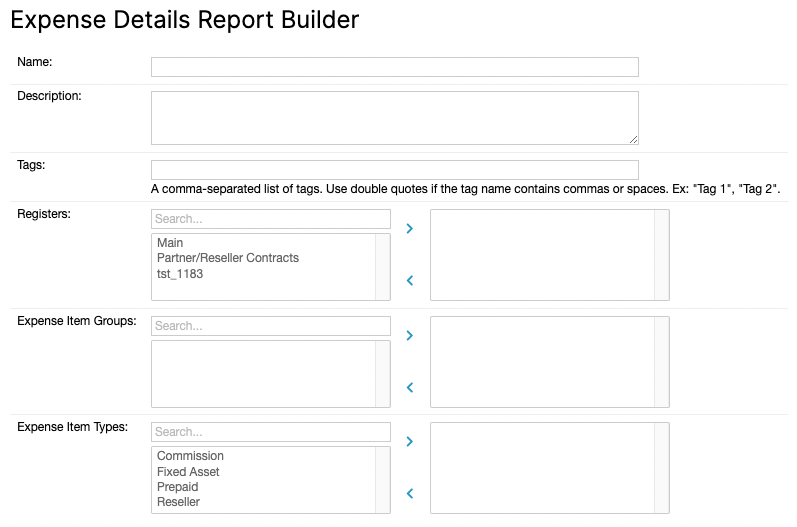
Learn more in the Create and Manage Reports help article.
One-Click Reports
One-Click Reports are designed to provide quick answers to business questions such as: "What is my ARR? MRR? Revenue? Retention Rates? Cohorts by Item?". Each One-Click Report starts with the question you are trying to answer and comes pre-configured, so you do not have to work out which settings to include or exclude.
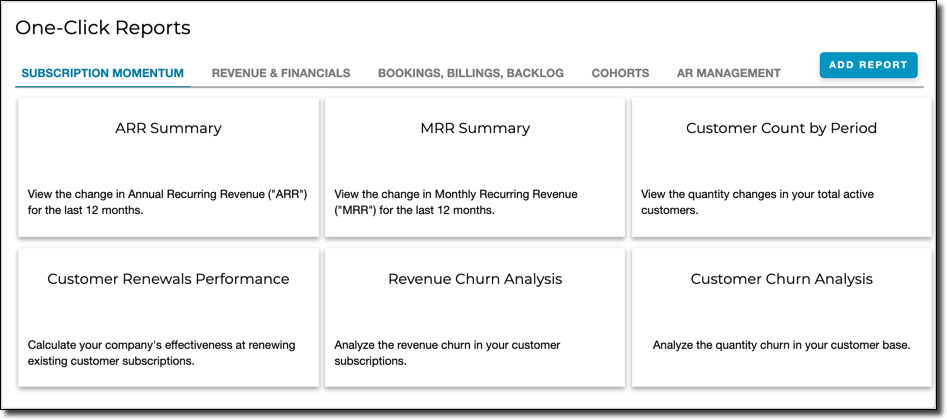
Learn more in the Fast Start with One-Click Reports help article.
Dashboards
The Report Dashboards function allows you to create customizable Dashboards for use as your system home page. Each user has the option to select a Dashboard for their own personal home page. If you do not designate a default or personal Dashboard, the Legacy Homepage will be displayed instead.
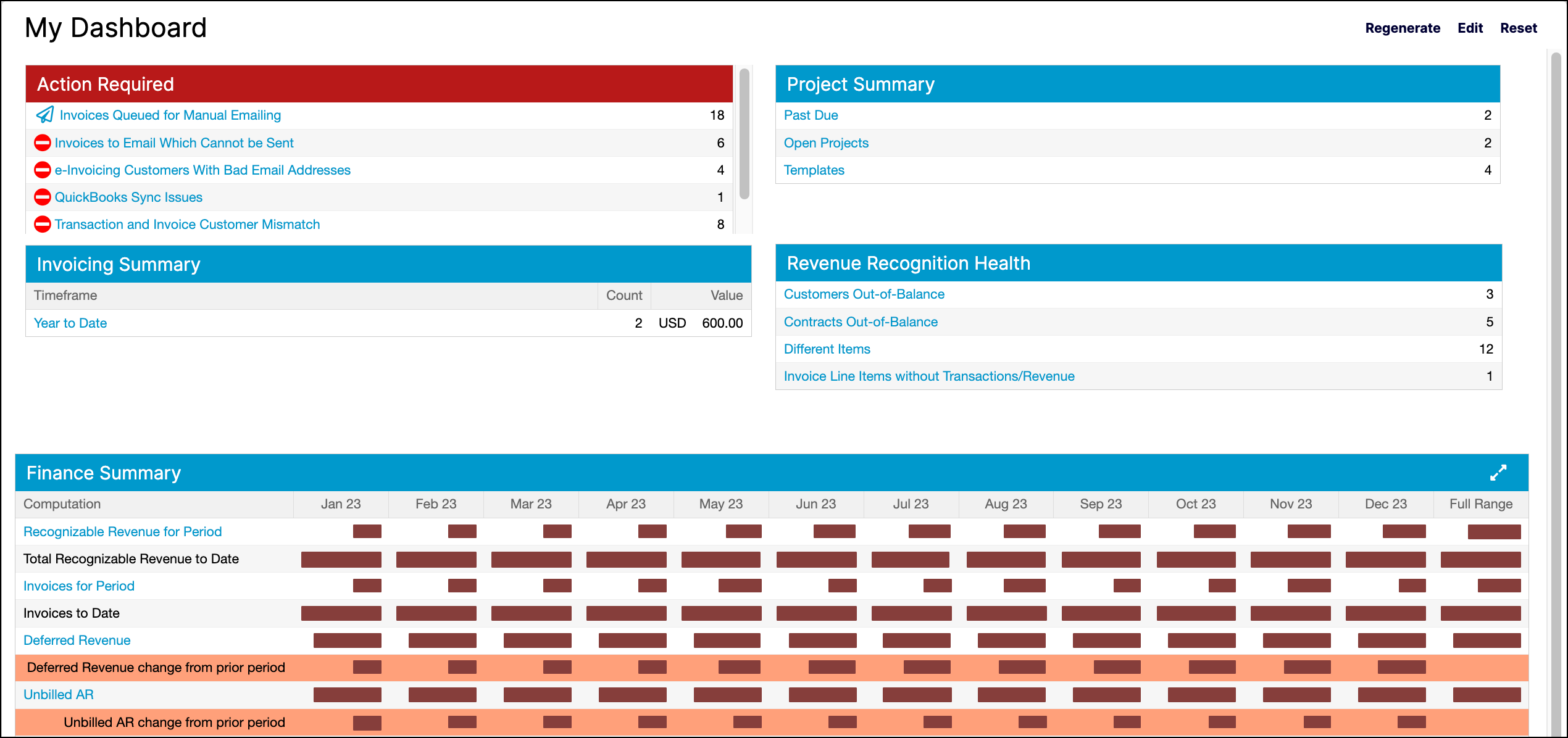
Additionally, an administrator user can define one Dashboard as the default for all users who have not otherwise created or selected their own Dashboard to use on the home page. To set a default for all users, open the Account Settings from the Admin menu. Then, select a default home page dashboard in the Reports section of settings.
Learn more in the Build and Manage Report Dashboards help article.
Still need help?
Reach out and our support team will take it from here.