
Getting Started: Managing Revenue
Applies to: Maxio Core
Last updated on Aug 29, 2026
Maxio automates your revenue recognition schedules to support GAAP compliance and reduce the risk inherent in manual processes. The system generates revenue recognition schedules as a by-product of creating Transactions by using the transactions' amounts, dates, and recognition methods. Therefore, you will likely need to work with the associated Transaction if you need to edit a revenue schedule or make another revenue-related change. Revenue also plays a major role in maintaining balance in Maxio as a Customer's or Contract's transactions, invoice line items, and revenue totals must all be the same.
Managing transactions
The transaction is a specific type of financial record that represents a contract element in Maxio.
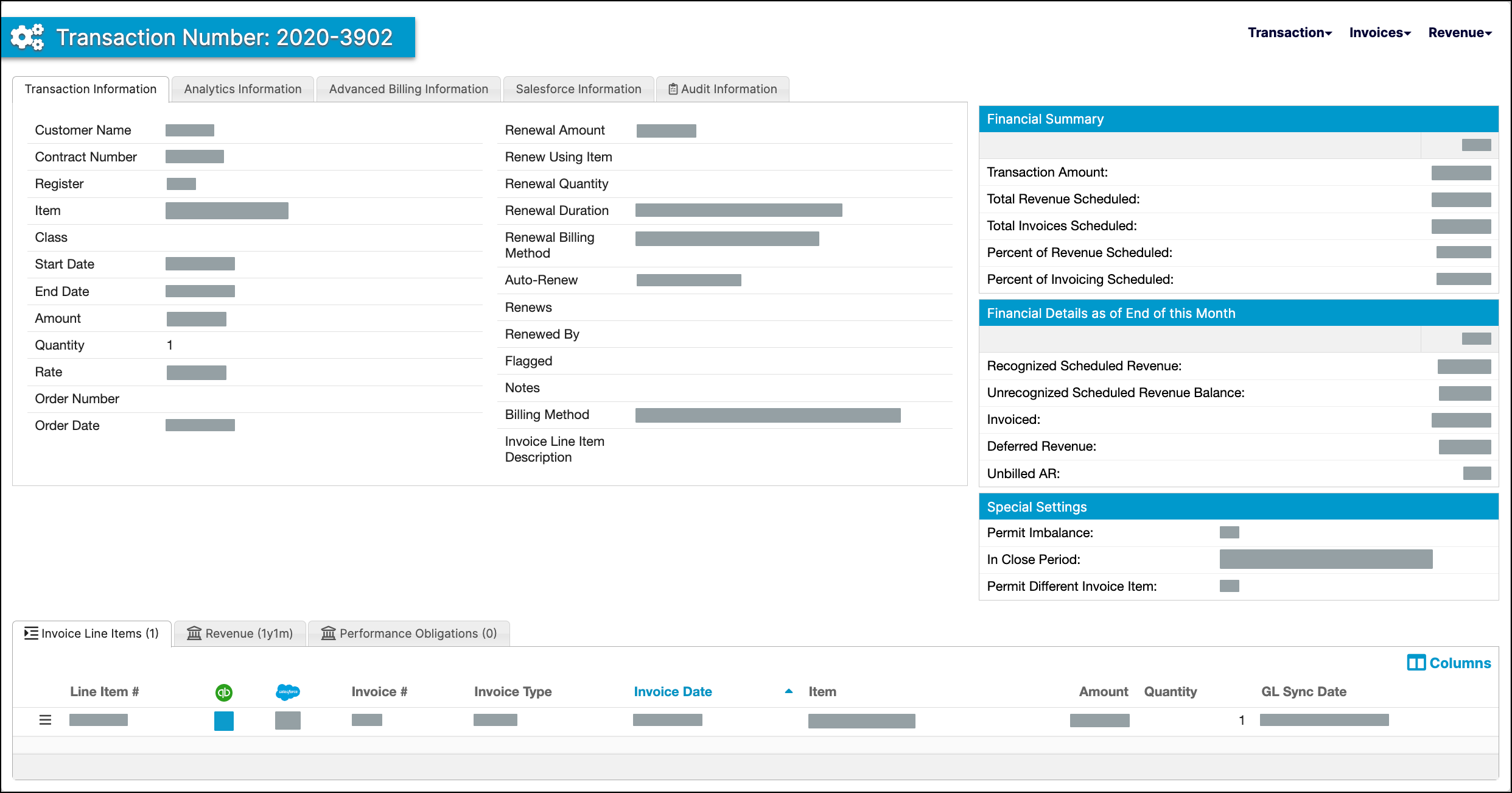
You add and manage transactions to record subscriptions and non-recurring purchases and, in so doing, produce revenues and invoices as a byproduct. Typically, transactions are added to your Maxio account by processing sales orders from a connected CRM. However, you are able to add them manually as well.
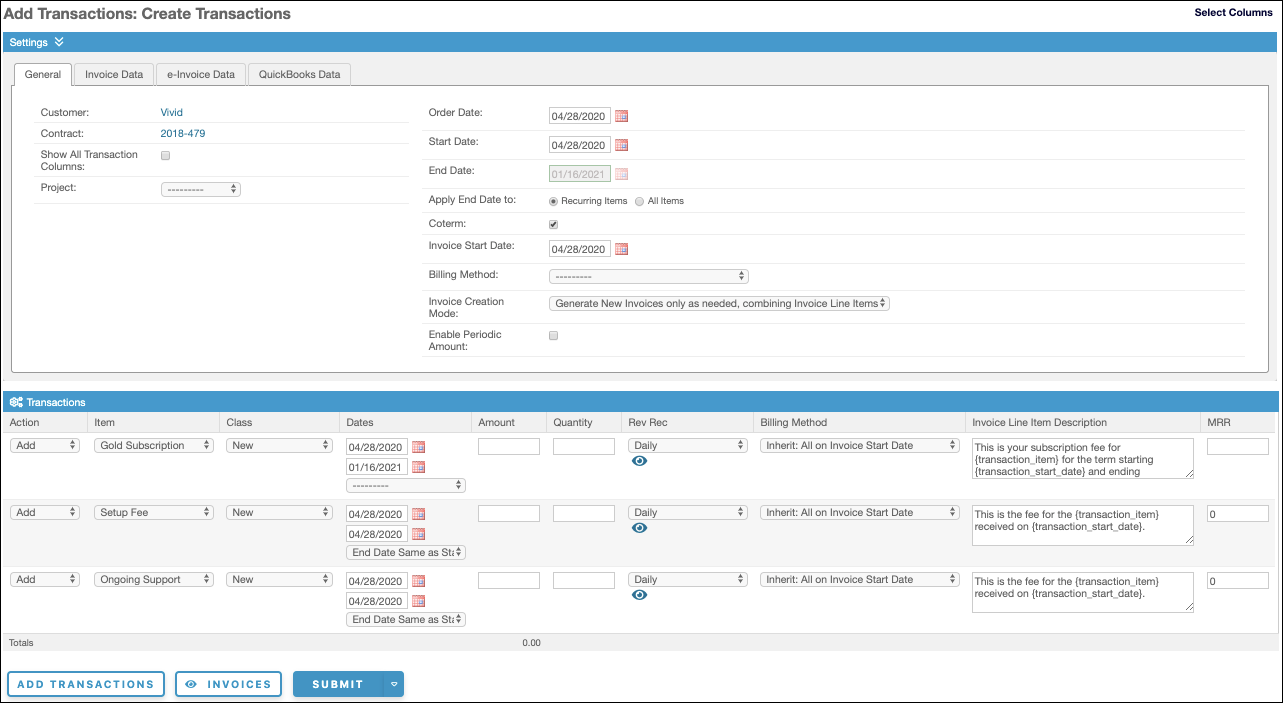
Transactions are essentially contract elements that can only be added to contracts within Maxio. The transaction's amount represents the contracted value of that element. Each transaction is assigned an item that corresponds to a product, service, or SKU that your organization licenses or sells.
Transactions contain revenue schedules, which track the recognition of deferred revenue. The start and end dates of the revenue schedule do not have to correspond to the transaction's dates (but they typically do). In addition to this, the dates of the invoices that contain the transaction's invoice line items do not have to match the dates of the transaction or revenue schedule.
If the transaction's amount, revenue, and invoice line items are not all equal, then the transaction is out-of-balance. This condition highlights records that need to be adjusted.
Learn more in the Understanding Transactions help article.
Customers and contracts
Customers are the entities that subscribe to and purchase your products. Customers can also be your distributors and resellers. Each customer can have contracts that contain transactions as well as revenues, invoices, and payments.
Contracts serve as containers for key records like transactions and invoices. A customer can have one or more contracts and each contract can hold one or more transactions and invoices. The contract is the object around which deferred revenue and unbilled AR calculations are performed in all finance reports.
A contract belongs to only one customer, and a contract exists in only one register. If you don't use contracts in your business, Maxio will automatically create them for you during the transaction creation process.
Learn more in these help articles:
Revenue recognition
Each Transaction in Maxio has an associated revenue schedule. The revenue schedule is created using the Transaction's start date, end date, and the selected recognition method.
| Recognition Method | Definition |
|---|---|
| Daily | From Revenue Start Date to Revenue End Date. Revenue depends on the number of days in the month. |
| Evenly with prorated partial months | The amount is split evenly across the whole months, with any partial months at either end prorated by exact days. |
| Evenly with partial months combined into the first | The amount is split evenly across the whole months, and the partial months at both ends are rolled into the first period. For a $1,200 transaction running 15 May 2010 to 12 May 2011, June 2010 through April 2011 each get $100, the partial May 2010 also gets $100, and the partial May 2011 gets nothing. |
| Evenly with partial months combined into the last | The same split, but the partial months at both ends are rolled into the last period. Using the same $1,200 transaction, June 2010 through April 2011 each get $100, the partial May 2010 gets nothing, and the partial May 2011 gets $100. |
| All on Start date | All revenue is placed on the start date. |
| No Revenue | No revenue is created. |
| Evenly over each month | The amount is divided by months rather than days, and spread evenly over each month between the start and end dates. |
| Evenly over each month starting in the second month | The same as above, but recognition starts in the second month. |
| Evenly over the full months with prorated partial months (old calc) | With this method, the revenue is first calculated with the Daily method, and those daily calculations are applied to prorated months if present. |
| XX days from Start to End | Revenue is calculated from the start date through the end date using exact days. XX = 30, 60, 90, 120. |
| All on XX days from Start | Places all revenue XX days after the start date. XX = 30, 60, 90, 120. |
| All on End date | Places all revenue on the revenue end date. |
| All on Order date | Places all revenue on the transaction order date. |
| Order to End | Revenue is calculated using the Transaction Order Date (not the Revenue Start Date) and the Revenue End Date. |
| Start to XX days | Useful for recognizing implementations and other one-time fees over a fixed period from the start date. XX = 30, 60, 90, 120. |
| Daily with XX day catch up | Useful for recognizing subscription revenue when you have a contingency such as a money-back guarantee and do not want to recognize revenue while the contract is not assured. XX = 30, 60, 90. |
Learn more in the Choose the Right Revenue Recognition Method help article.
Balance
Maxio checks the balance of invoices, revenues, and transaction amounts for customers, contracts, and transactions to help ensure your financial reporting is accurate. An out-of-balance contract indicates a potential invoicing or revenue reporting problem. Maxio uses the following logic to define balanced vs out-of-balance:
Balanced: Σ Transaction Amount(s) = Σ Invoice Line Items = Σ Transaction Revenues
Out-of-Balance: Σ Transaction Amount(s) ≠ Σ Invoice Line Items ≠ Σ Revenues
"Σ" in this definition means the total sum of each item.
Example:
$12,000 Transaction Amount ≠ $10,000 Invoice Line Items ≠ $12,000 Revenues
"Σ Invoice Line Items" is the total of the invoice line items, not the total of the invoices. Invoices can contain taxes that do not factor into revenue reporting, and/or line items that do not sync with Maxio. It is important to note that an out-of-balance condition occurs unless all three are equal.
Out-of-balance transactions can and frequently do cause the contract and associated customer to be out-of-balance. It is best practice and highly recommended that you keep all transactions in balance. However, it is possible to have out-of-balance transactions that result in balanced contracts and customers.
Learn more in the How to Identify and Correct Out-of-Balance Conditions help article.
Contract changes
Use Contract Changes whenever you need to change the amount or dates of your active transactions. When making a contract change, you have the ability to preview your changes before submitting them. You can make the following contract changes in Maxio:
- Understand Changing Transaction Amounts: You should use the Change Amounts feature of Advanced Contract Changes when you need to change the amounts of the Transactions.
- Understand Changing Transaction Dates: You should use the Change Dates feature of Advanced Contract Changes when you just need to change the date(s) of the Transaction(s).
- Understand Exchanging Transaction Items: You should use the Exchange an Item feature of Advanced Contract Changes when you just need to change the item(s) of the Transaction(s).
- Understand Early Termination or Reversals: You should use the Early Termination or Reversal features of Advanced Contract Changes when the amount of the revised transaction will be less than the original, and the transactions will not continue past the current or revised end date.
- Understand Mid-Term Contract Changes: Our mid-term contract change leverages our multi-edit functionality. This gives you the greatest flexibility in processing your contract changes and should be used whenever you have any combination of simple edits.
You may need to leverage Advanced Contract Changes when processing:
- Renegotiated contract amounts (ex: $1,200 to $2,400 per month rate)
- Offering a contract concession or extension (ex: 3 free months)
- Swapping one item for another (ex: subscription A for B)
- Early terminations (ex: cancelling the last 6 months)
- Contract cancellations (ex: cancelling the entire contract)
Learn more in the How Advanced Contract Changes Affect Billing and Revenue help article.
Close and lock dates
Closing Dates impact the ability to add, edit, and delete Revenue and Invoicing information in Maxio. There are a number of independent closing date settings in Maxio. Working together, they prevent changes to data in the close period, which is any time prior to any of the dates below.
- Closing Date: Prevents the addition, modification, or deletion of information on or before the Closing Date. All dates on or before it are considered to be in the Close Period.
- Your general ledger's closing date: When you connect Maxio to a general ledger, Maxio stores that system's own closing date and folds it into the same protection. QuickBooks contributes a QuickBooks Closing Date setting, and Xero contributes its lock date. Whichever of these is latest is the date that applies.
- Transaction Lock Date: Prohibits adding or editing Transaction fields that are not already locked by one of the closing dates. This setting maintains data integrity for analytics reporting.
Learn more in the Manage Closing and Transaction Lock Dates help article.
Still need help?
Reach out and our support team will take it from here.