
Getting Started: Billing
Applies to: Advanced Billing · Maxio Core
Last updated on Aug 28, 2026
This article covers the billing functionality available in Maxio Core and in Advanced Billing, from managing invoices through to the more advanced billing methods.
Maxio Core provides straightforward functionality for creating, managing, and sending invoices.
Managing invoices
Maxio Core generates invoices by grouping invoice line items based on the associated customers and dates. Invoices represent transaction accounts receivable and support e-Bill for payment collection. Balanced contracts can generate invoices through General Ledger (GL) syncing.
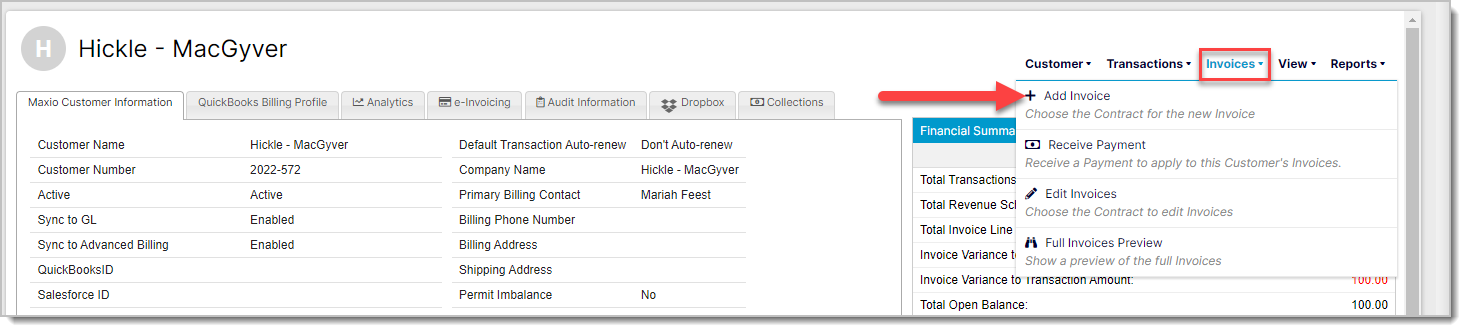
Typically, the system generates Invoices when you create Transactions. To create an invoice manually, locate the customer, hover over the Invoices drop-down, and select Add Invoice.
To view and manage invoices, on the side menu, go to "Invoicing" and select either "Invoicing Home" or "Invoice List" to look at a list view of current and past invoices.
Editing invoices can help maintain balance and allows you to use options like reordering, promise-to-pay dates, deletions, voiding, and moving invoices. Sales tax handling is possible through AvaTax or your connected GL.
If you need to edit an invoice, go back to the customer and select "Edit Invoices" from the Invoices drop-down.
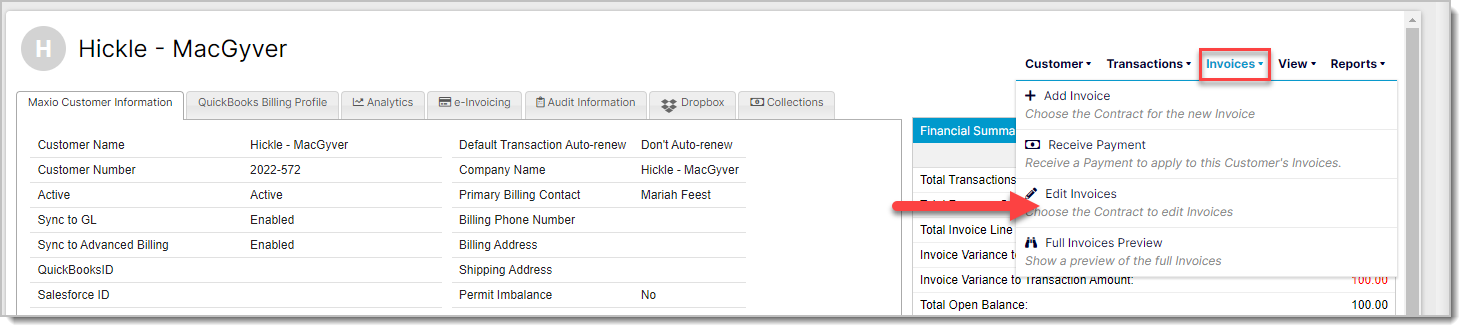
Then, on the invoice screen, go to the Invoice drop-down and select "Edit."

To see further topics that cover configuring line items, credit memos, payment tracking, and collection notes please visit Understand Accounting Invoices.
Invoice line items
Invoice line items are essential elements that make up invoices. They represent individual elements grouped together and are closely tied to transactions for balance. They can be managed by adding, editing, and deleting as needed on the edit invoice page. New line items are generated when creating transactions or processing sales orders. Ensure careful handling to prevent out-of-balance scenarios.
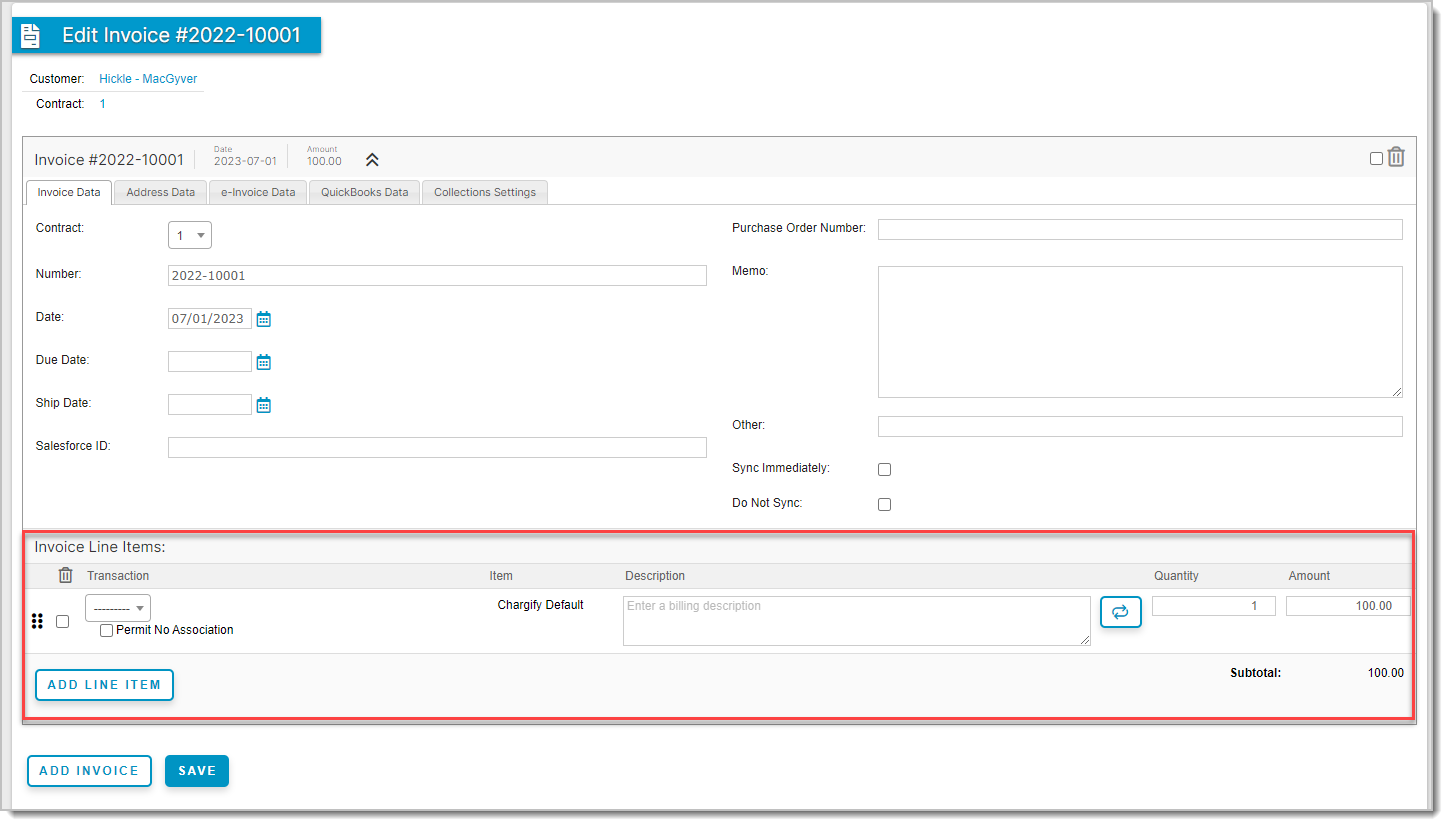
It is important to keep all line items associated with transactions to avoid revenue and billing implications. Associate invoice line items with transactions wherever you can. This is key to maintaining balance in Maxio. However, manual association and disassociation are also available options. The creation of transactions will generate invoices and associated line items, particularly when directly syncing invoices from a general ledger.
To learn more about invoice line items, please visit Manage Invoice Line Items.
e-Bill
Use Maxio Core's e-Bill functionality to email invoices to customers. e-Bills can be sent manually or automatically through the auto-send feature. Cadences can also be incorporated for optimized collections and accounts receivable management. Configuration setup and customer setup are prerequisites for e-Bill.
Sending e-Bills
Any invoice you create for a customer is automatically placed in the email queue. You can then manually send these queued e-Bills directly to the customer. It is also possible to have the system send e-Bills automatically once they enter the queue. e-Bills are sent from the queue only when the invoice's date is reached. This applies to sending e-Bills both manually and automatically.
To manually send an e-Bill, navigate to the invoice you would like to send and click the Preview and Send e-Bill option under the e-Bill drop-down.
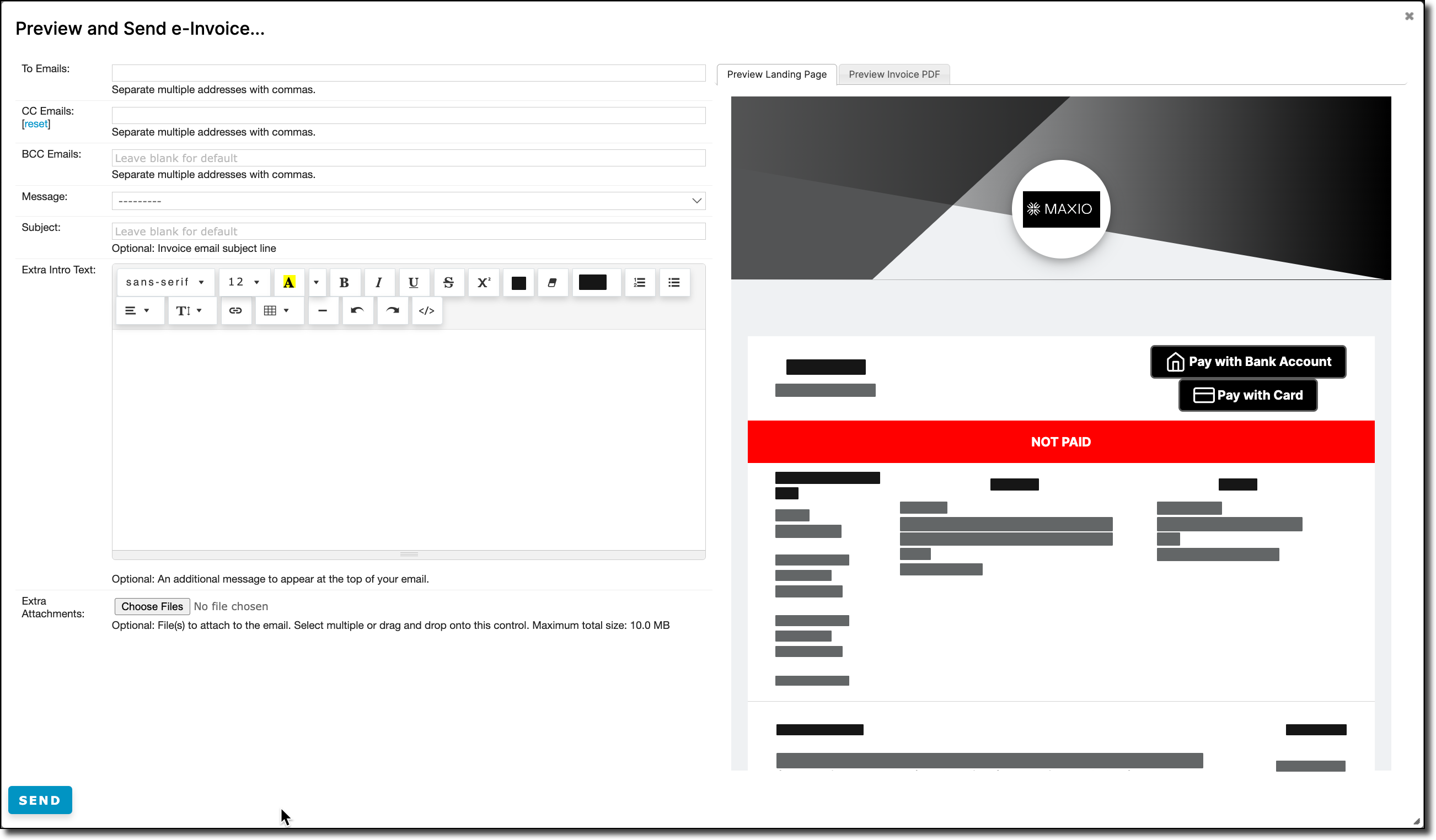
Address the e-Bill's fields and then click the Send button.
Billing methods
Maxio Core offers an array of flexible billing methods designed to cater to various B2B SaaS business models. These methods define how invoices are scheduled, how Invoice Line Items are generated, and when invoicing occurs for transactions. You can choose from different categories of Billing Methods:
- One Time: Single invoices based on intervals like Invoice Start Date or 30 days later.
- Annually: Yearly invoices with variations.
- Quarterly: Quarterly invoices with different start times.
- Monthly: Monthly invoices with options for timing.
- Special: Including options like "None," Semiannually, All on Transaction Order Date, and more.
Make sure each item in your transactions has a default Billing Method in the Maxio Core. When creating transactions, the default Billing Method is used to generate invoice schedules and details. However, you can also select an alternative Billing Method if needed.
For more information, see the Set Up Billing Methods help article.
Key terminology (Maxio Core)
The key to learning any system is understanding what objects are called, how they work, and how they relate to one another. You can also learn more by checking out our full Glossary of Key Maxio Core Terms.
| Object | Definition |
|---|---|
| Cadence | Cadences are a feature of Maxio Core's Collections functionality that generates and sends emails to customers to remind them to pay their outstanding invoices. |
| e-Bill | An electronic invoice is sent to your customer from Maxio Core. |
| General Ledger (GL) | Centralized record-keeping system for financial transactions, used for syncing and managing invoices. |
| GL Syncing | Integration with the General Ledger for syncing financial data and generating invoices. |
| Invoice | Invoices are fundamentally groupings of invoice line items, which Maxio Core assembles based on their customer and invoice date. Invoices represent the accounts receivable aspect of transactions and provide the means of collecting payment from the customer (via e-Bill). |
| Invoice line item | The individual elements that Maxio Core groups together to make invoices. They are essentially individual lines from an invoice. |
| Out-of-balance | Maxio Core checks the balance of invoices, revenues, and transaction amounts for customers, contracts, and transactions to help ensure your financial reporting is accurate. An out-of-balance contract indicates a potential invoicing or revenue reporting problem. Maxio Core uses the following logic to define balanced vs out-of-balance: Σ Transaction Amount(s) = Σ Invoice Line Items = Σ Transaction Revenues |
| Transaction | A specific type of financial record that represents a contract element in Maxio Core. You add and manage transactions to record subscriptions and non-recurring purchases and, in so doing, produce revenues and invoices as a byproduct. |
Advanced Billing
Our Advanced Billing platform provides enhanced functionality to support your evolving monetization strategy with a flexible billing engine built for your B2B needs. Advanced Billing facilitates several ways to monetize products and services, including many upfront and usage-based pricing models.
Sites
When getting started with Advanced Billing, creating the first Site will be a top priority. To do this go into the "Sites" tab of the main menu and select the green "+create" button.
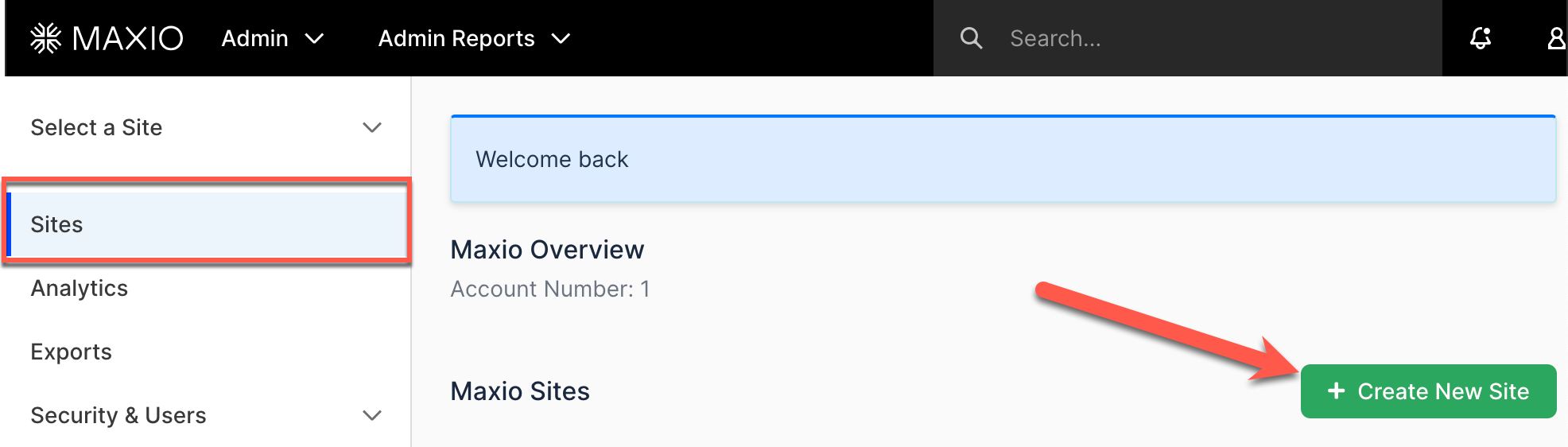
Sites function as organizational containers for your Products, Customers, and Subscriptions. While a single Site suffices, most merchants find it beneficial to have at least two Sites, one for testing and one for production.
Easily create new Sites with customizable settings like Subdomain, Currency, Test Mode, and more. Switch between Sites and clear data when needed. To learn more, see the Understand Advanced Billing Sites help article.
Catalog
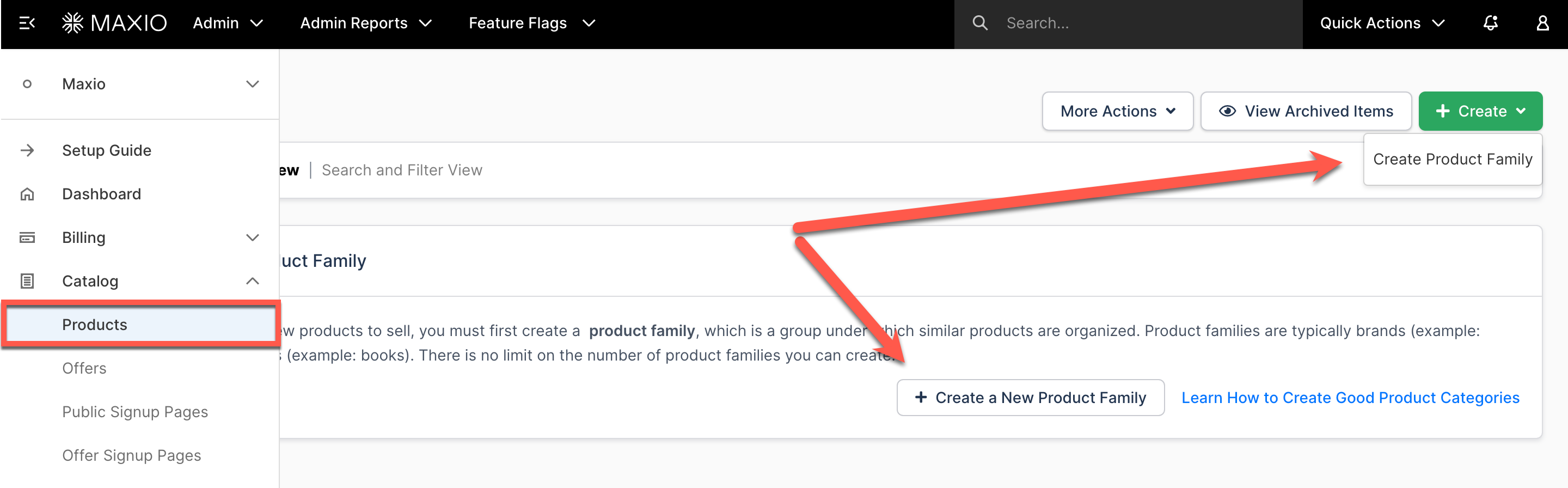
To start creating subscriptions, the products within your site's catalog will need to be created and configured first. The term 'Products' is used to encompass a broader range, offering flexibility and simplicity. Products are grouped into product families, allowing easy upgrades or downgrades within the same family. First, set up a product family by using the green "+ Create" button on the Catalog > Products tab.
After setting up a product family, you can create individual products within it. Just press the "+ Create New Product" within the product family.
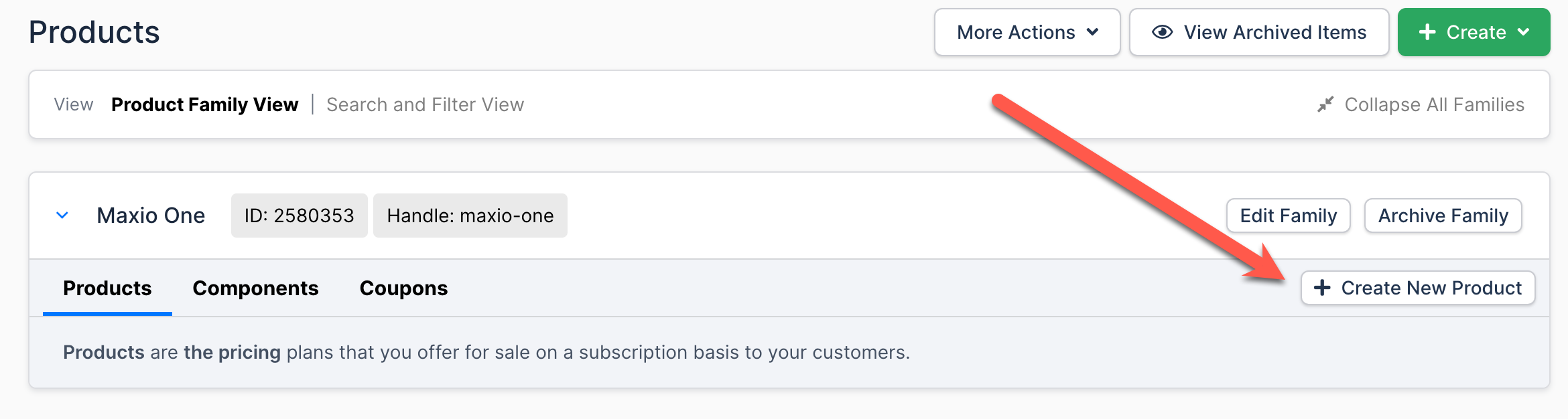
From here, specify attributes like Name, Description, Accounting Code, pricing, intervals, and more. From there, the components, coupons, and other product families can be set up to more directly reflect any pricing scenarios. To learn more check out the documentation on products, components, coupons, or product families.
Subscriptions
Subscriptions play a pivotal role in Advanced Billing, connecting customers to products and handling recurring billing cycles. A subscription can be created in various ways, but is primarily created through either the Advanced Billing interface or through Understand Public Pages. Once a subscription is established, it automatically renews based on the product's designated interval. Subscriptions will run by themselves, but monitor and identify any subscriptions that may need attention. If automated Dunning is active, it handles most of that follow-up for you. For more information, see the Understand Subscriptions help article.
Invoices
In Advanced Billing, invoices serve as crucial financial documents representing various billing events such as subscription signups, renewals, prorated upgrades, and ad-hoc charges. Invoices can have statuses like Draft, Pending, Open, Processing, Paid, Voided, or Canceled, each reflecting different stages. An invoice is collected either automatically, by charging the payment method on file, or by remittance, where the customer pays it themselves. Which one applies follows the subscription's payment collection method, which can also be set to prepaid. Invoices are generated automatically for these events. Manual creation is possible as well. To view and search invoices, go to the Billing > Invoices tab.
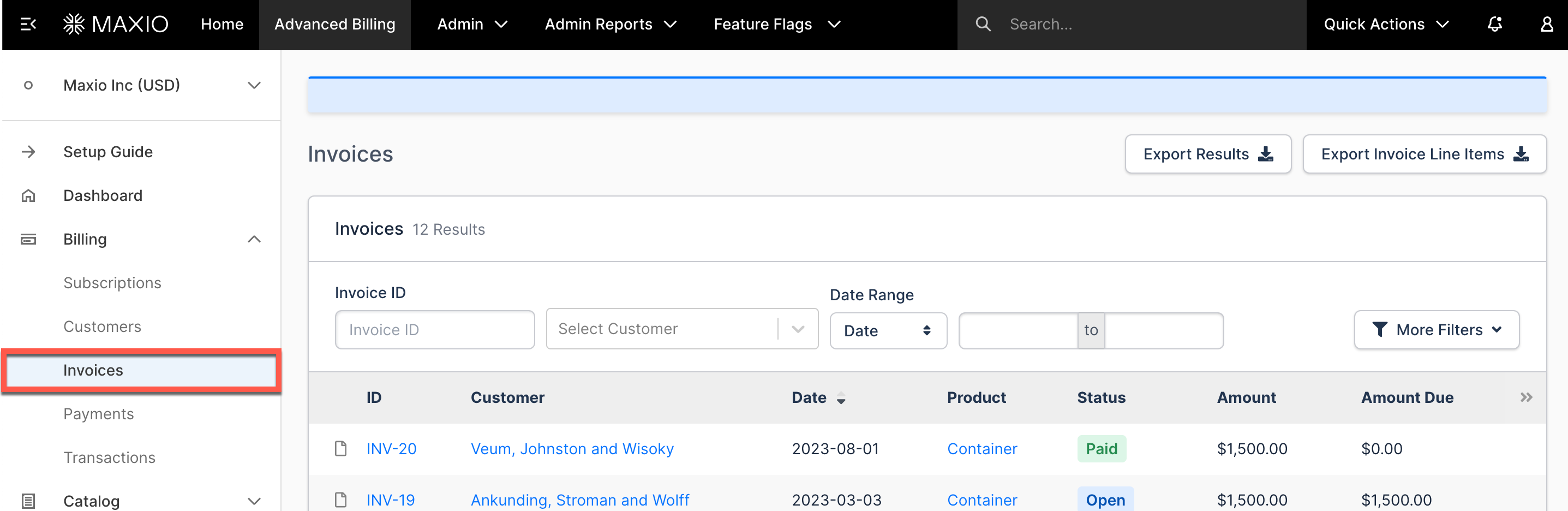
Invoices have issue and due dates. The issue date marks availability for payment, while the due date indicates the payment deadline. Dunning does apply to overdue invoices. Understanding these aspects of Advanced Billing invoices ensures effective management of your billing processes. To learn more, see the Understand How Invoices are Generated help article.
Key terminology (Advanced Billing)
The key to learning any system is understanding what objects are called, how they work, and how they relate to one another.
| Object | Definition |
|---|---|
| Advanced Billing | The billing system used for managing subscriptions, products, and customers. |
| Catalog | The collection of products available for sale within a Site. Products can be organized into families, allowing easy upgrades or downgrades within the same family. |
| Dunning | The process of handling overdue payments and ensuring collection. |
| Invoices | Crucial financial documents representing billing events like signups, renewals, upgrades, and charges. They have statuses like Draft, Pending, Open, Processing, Paid, Voided, or Canceled. Invoices can be collected through Automatic, Remittance, or Prepaid methods. |
| Products | Items offered for sale. They include details like Name, Description, Pricing, Intervals, and more. |
| Sites | Organizational containers for Products, Customers, and Subscriptions. Typically, merchants have separate Sites for testing and production. |
| Subscriptions | Connect customers to products and handle recurring billing. Subscriptions automatically renew based on product intervals. Monitoring is required, automated Dunning can assist. |
Still need help?
Reach out and our support team will take it from here.