
Configure the DSO Report for Cash Flow Insights
Applies to: Maxio Core
Last updated on Aug 26, 2026
Use the Days Sales Outstanding (DSO) Report to calculate DSO on a monthly, quarterly, or annual basis, so you always know how long it takes Customers to pay you and can supplement the way you build your financial forecasts. Use the standard report filters to segment your data and see the DSO for a particular group of Customers.
The DSO Report is part of Maxio Platform's Advanced A/R Management functionality. For more detail, see Understand How A/R Management Works. To add this report to your account, contact Maxio Support to discuss enabling this add-on module.
Using the DSO Report
Go to Reports > Add Report > Finance Reports > Days Sales Outstanding (DSO) to open the report.
| Report Line | Description | Questions Answered |
|---|---|---|
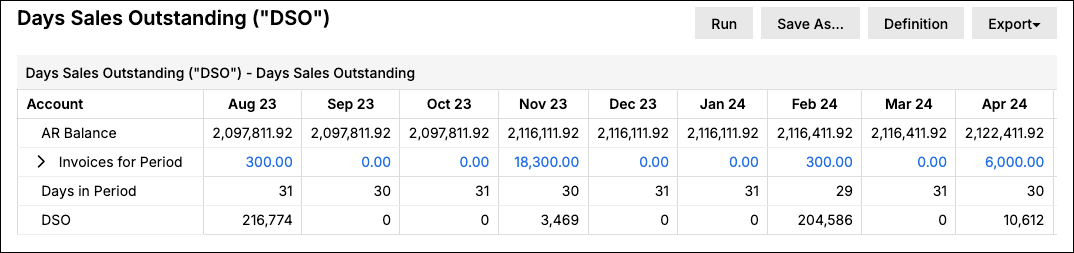
| AR Balance | A cumulative running balance of unpaid Invoices, Credit Memos, Sales Tax, and Shipping, net of applied and unapplied Payments, as of the end of the period. Sales and Refund Receipts are excluded. | What is the total amount of Invoices which remain unpaid at the end of the period? |
| Invoices (or Revenue) for Period | In Invoices mode, the sum of Invoices, Credit Memos, Sales Tax, and Shipping for the period. In Revenue mode, the sum of revenue recognized for the period from your selected Revenue Book. | How many Invoices were sent to a Customer in a given month? |
| Days in Period | Number of days in the period. | - |
| DSO | ((AR Balance) / (Invoices or Revenue for the Period)) * (Days in Period). DSO shows as 0 when there are no Invoices or no Revenue for the Period to divide by, or when the calculation is negative. | On average, how many days does it take Customers to pay an Invoice from when it was sent? |
Notes and caveats
Some companies prefer to calculate DSO using invoices while others prefer revenue. With the DSO report, we give you the ability to select either.
Configure options
| Option | Description |
|---|---|
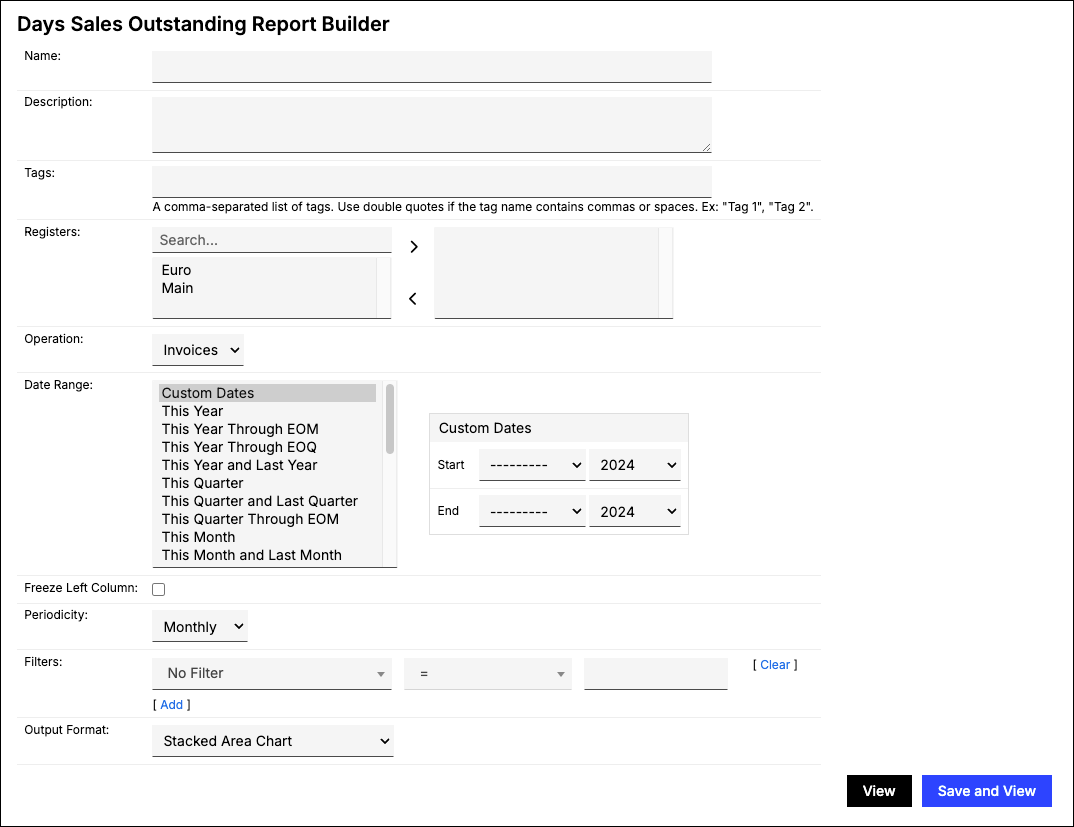
| Registers | Select one or more Registers from which Transactions are to be included. If none are selected, all are included. |
| Operation | Choose whether to calculate DSO as a function of Invoices or Revenue for the period. Defaults to Invoices. Some companies calculate DSO using Invoices, others using revenue; either is a valid choice. |
| Date Range | Select fixed Custom Dates or one of the date range options. |
| Periodicity | Columns appear for each of the following periods within the Date Range specified above:
|
| Filters | Select one or more filters and appropriate matching criteria to filter in or out relevant Contracts, Customers, or Registers. Transaction-level fields aren't available for this report. In Invoices mode, filters apply to Invoices; in Revenue mode, they apply to revenue entries. |
| Output Format | Choose whether to display a Table or a chart. Stacked Area Chart is recommended; Line Chart, Vertical Bar Chart, Horizontal Bar Chart, Stacked Vertical Bar Chart, and Stacked Horizontal Bar Chart are also available. |
Still need help?
Reach out and our support team will take it from here.