
Use the Rollforward Report for Deferred Revenue and A/R
Applies to: Maxio Core
Last updated on Sep 13, 2026
Reconcile your Deferred Revenue or Accounts Receivable balance for audits, due diligence, or month-to-month cash flow analysis, by seeing exactly what activity moved the balance from its starting point to its ending point over a specified period.
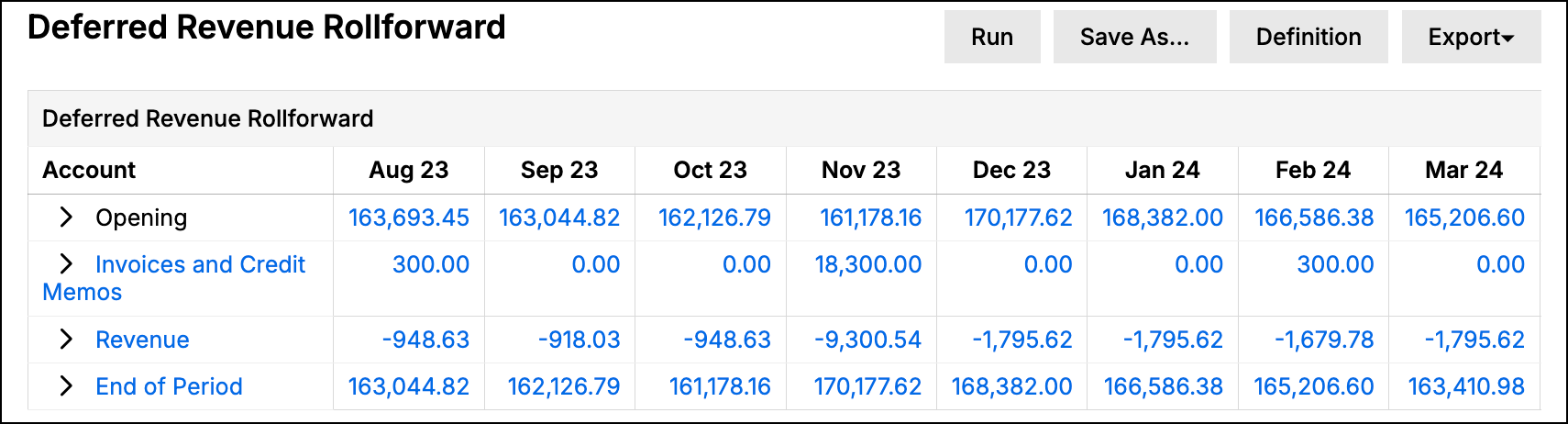
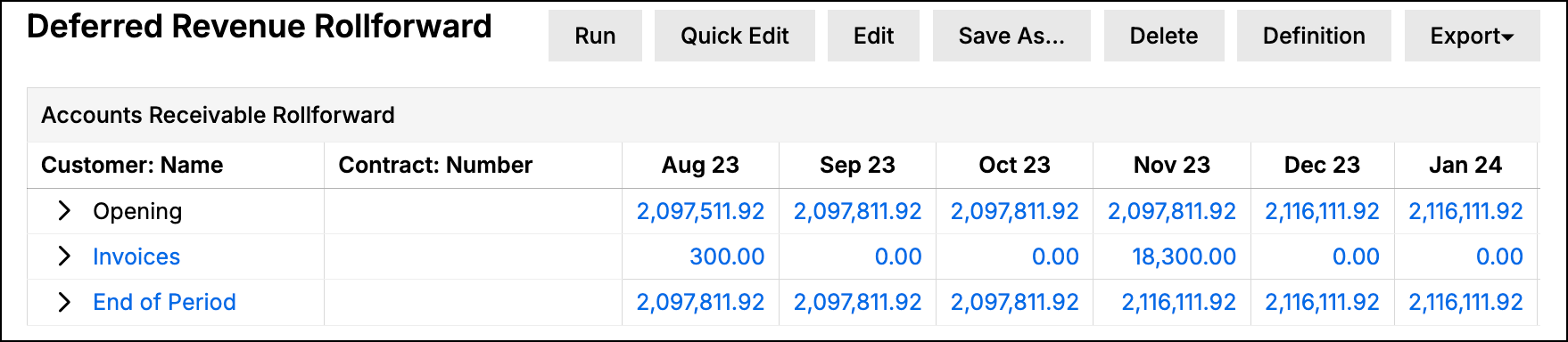
What each type shows
Depending on the Rollforward Type you select, you can obtain detailed information in the following areas by account or Customer:
| Area | Type | Deferred Revenue Rollforward | Accounts Receivable Rollforward |
|---|---|---|---|
| Invoices and Credit Memos | Activity for period | ✔ | |
| Invoices | Activity for period | ✔ | |
| Revenue | Activity for period | ✔ | |
| Unbilled AR | Net change for period | ✔ | |
| Payments | Activity for period | ✔ | |
| Credit Memos | Activity for period | ✔ | |
| Deferred Revenue Balance | Balance at beginning / end of period | ✔ | |
| Accounts Receivable Balance | Balance at beginning / end of period | ✔ |
Using Rollforwards
The Rollforward Report is a central point for analyzing Deferred Revenue and Accounts Receivable, similar in nature to the Advanced Subscription Momentum Report. The three most common use cases for Rollforwards are detailed below.
Audit support for testing
Rollforwards are commonly used during audits or a round of due diligence. They serve as a single report you can use to provide a complete population for testing Deferred Revenue, revenue, and Accounts Receivable.
Understanding why deferred revenue is changing
The Rollforward report makes it easy to see the drivers behind changes in Deferred Revenue. If revenue is outpacing your Invoicing, Deferred Revenue decreases; you can expect Deferred Revenue to increase when the opposite is true.
Understanding why accounts receivable is changing
The Accounts Receivable Rollforward gives you insight into your monthly cash flow. You can visualize the trend and relationships between Invoicing, Payments, and Credit Memos. If there's an unusual uptick in Credit Memos or a downturn in Payments, you can quickly identify the issue and take corrective action.
Key features
Rollforwards include the following capabilities.
General structure
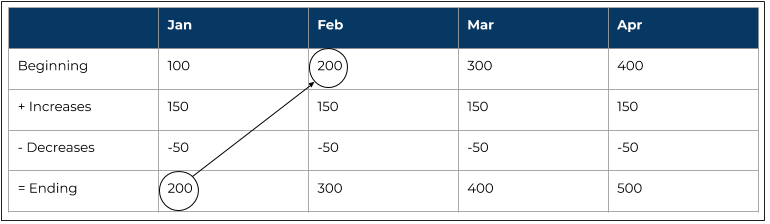
Rollforwards show how balances change over a specified time period by clearly showing the activity that increases and decreases them. Rollforwards are based on the following conceptual model:
| Area | Deferred Revenue Rollforward | Accounts Receivable Rollforward |
|---|---|---|
| Beginning Balance | The prior period's ending balance | The prior period's ending balance |
| Items increasing the balance | Invoices and Credit Memos | Invoices |
| Items decreasing the balance | Revenue | Payments, Credit Memos |
| Net change in Unbilled AR | Added to or subtracted from the balance, depending on direction | Not applicable |
| Ending Balance | Calculated independently as of the period's end date; the rows above explain what changed, but aren't literally summed to produce this balance | Calculated independently as of the period's end date; the rows above explain what changed, but aren't literally summed to produce this balance |
Expand/collapse rows
All rows can be expanded or collapsed to see additional detail: by account for the Deferred Revenue Rollforward, or by whichever Calculate By grouping you've selected (Customer Contract, the default, or Customer) for the Accounts Receivable Rollforward.
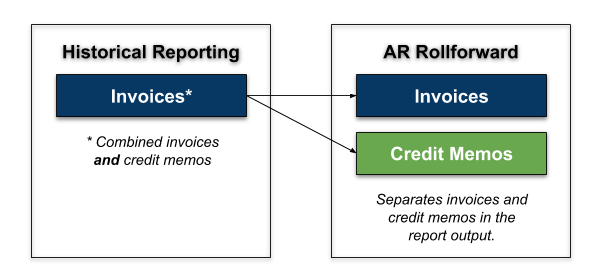
Separation of invoices and credit memos (accounts receivable Rollforward only)
Some other reports, like the A/R Aging Report (and this report's own Deferred Revenue Rollforward), combine Invoices and Credit Memos into a single row. The Accounts Receivable Rollforward instead separates Invoices, Payments, and Credit Memos into their own rows, for greater clarity in your A/R management (Invoicing and collections).
Configure options
Go to Reports > Add Report > Finance Reports > Rollforward to open the report builder.
General settings for both Rollforward Types
| Section | Description |
|---|---|
| Type | Select the Rollforward Type: Deferred Revenue or Accounts Receivable. |
| Calculate By | Select Customer Contract (default) or Customer. Important: This setting significantly affects how Deferred Revenue and Unbilled AR calculations are performed when a Customer has more than one Contract. If you use Contracts for GAAP revenue recognition, always select Customer Contract. The Customer option can produce calculations that aren't GAAP compliant. For more detail, see Calculating by "Customer Contract" or by "Customer". |
| Date Range | Select fixed Custom Dates or from one of the date range options. |
| Periodicity | Columns appear for each of the following periods within the Date Range specified above:
|
| Contract / Customer Filters | Select one or more filters and appropriate matching criteria to filter in or out relevant Transactions and or Invoice Line Items. For Deferred Revenue, Item-level filters (Item: Name, Item: Code, Item: Product Family) are also available; Item-level filters aren't supported for Accounts Receivable. |
Deferred Revenue Rollforward only settings
| Section | Description |
|---|---|
| Revenue Book | Select the Revenue Book to report on. You can use the default Revenue Book set on each Contract ([Contract Main Book]) or select a specific Revenue Book. |
| Revenue Accounts | Determines whether to use the Transaction's Items or Performance Obligation ("POB") Items when posting revenue. If you're a RevenueBooks-enabled customer, select From Performance Obligations. If you don't have RevenueBooks enabled, select From Transaction. |
| Display Short Term / Long Term Deferred Revenue | Check to add an Ending Balance Detail section showing Short-Term Deferred Revenue, Long-Term Deferred Revenue, and Total Unbilled AR. Only available if your account has long-term liability accounts enabled. |
Related information
To see how the Rollforward fits alongside the other Finance Reports, and which question each one answers, see Which Finance Report Answers Which Question.
Still need help?
Reach out and our support team will take it from here.